Setting up Alexa with Home Router: A Step-by-Step Guide
Are you looking to unlock the full potential of your Amazon Echo device? To do so, you need to set up your Alexa with your home router. In this article, we will guide you through the process of connecting your Alexa device to your home Wi-Fi network, ensuring seamless integration and control over your smart home devices.
Why is Setting up Alexa with Home Router Important?
Connecting your Alexa device to your home router is crucial for several reasons. Firstly, it enables you to control your smart home devices using voice commands, making your life easier and more convenient. Secondly, it allows you to access the internet for updates, information, and entertainment. Lastly, it ensures that your Alexa device functions accurately, providing you with a seamless user experience.
Step 1: Prepare Your Alexa Device
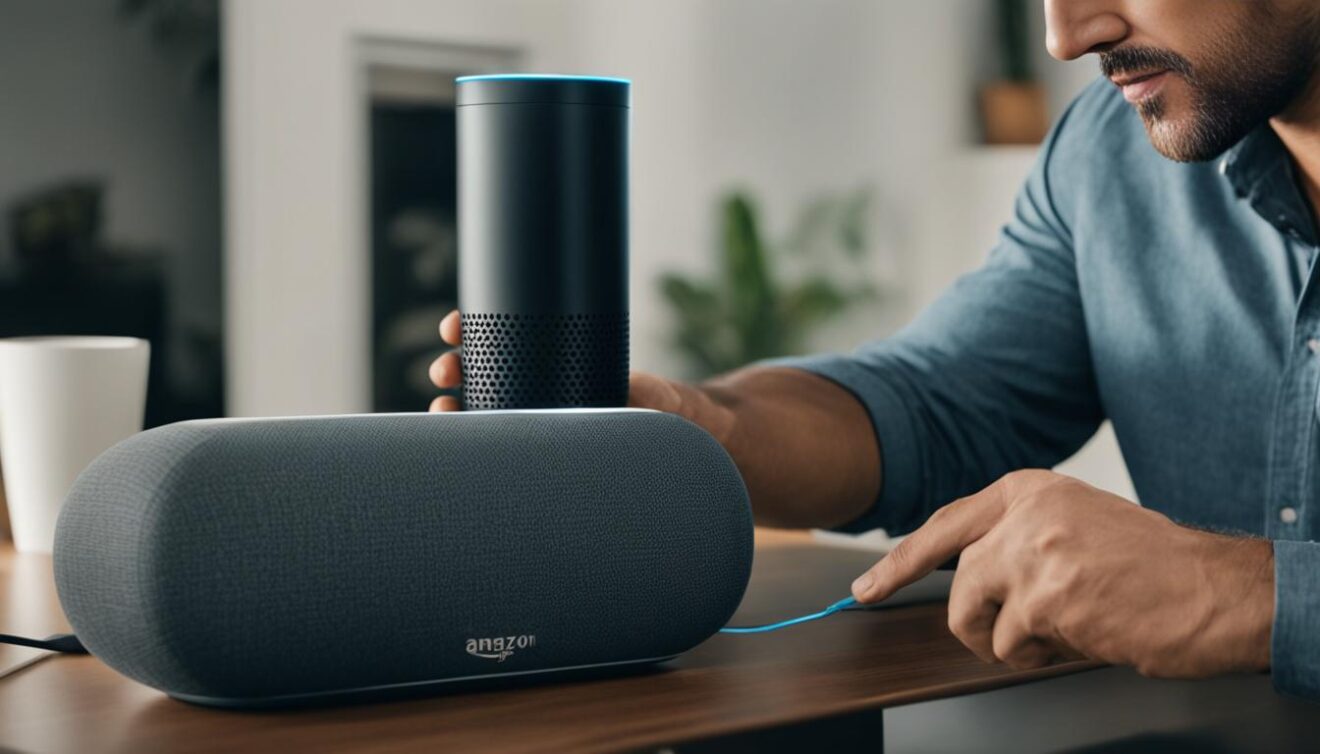
Before setting up your Alexa device, ensure that it is properly plugged in and turned on. Look for a pulsating orange light, which indicates that your device is in Setup Mode and ready to connect to the nearest available network.
Step 2: Download and Install the Alexa App
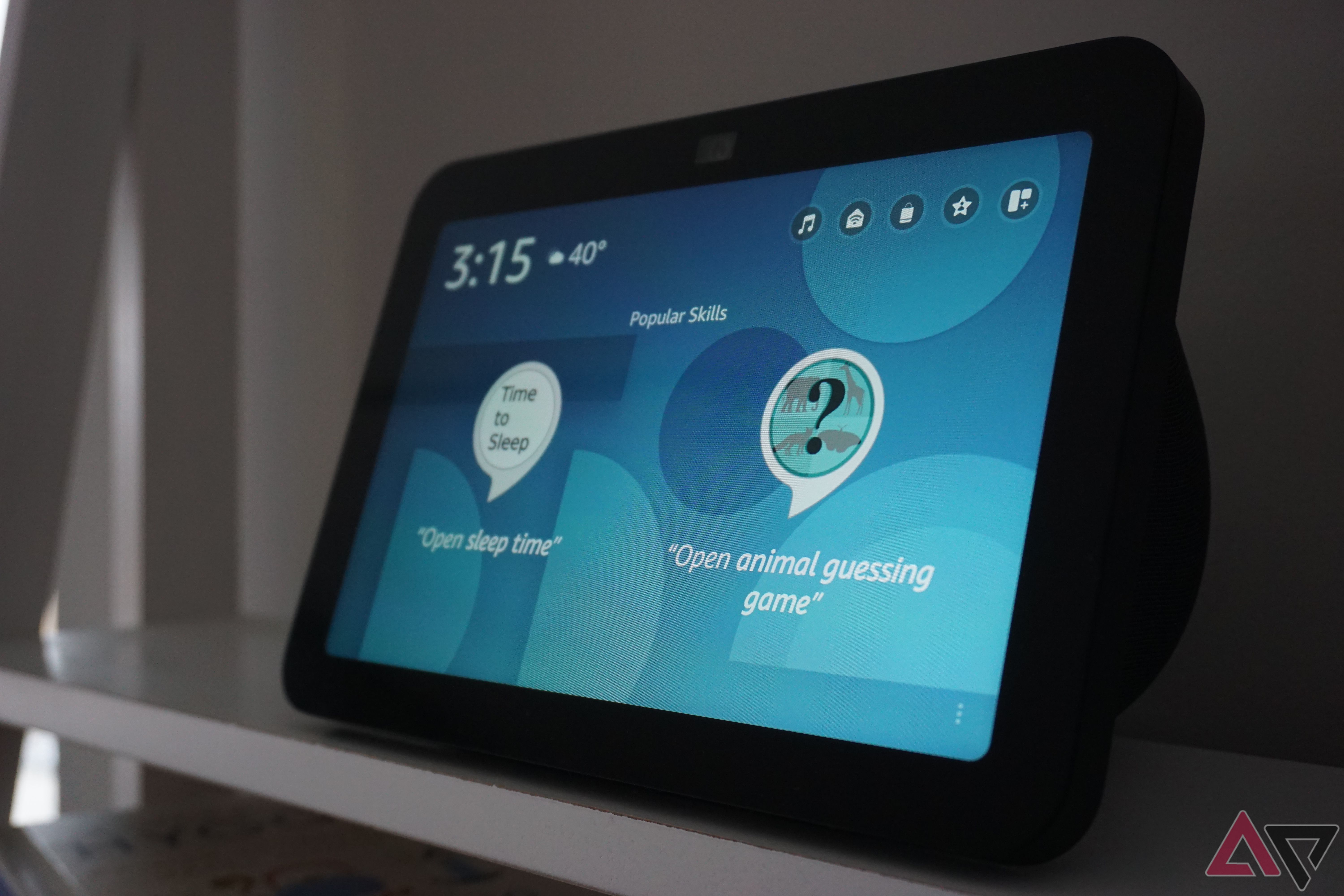
Download and install the Alexa app on your smartphone or tablet. This app will guide you through the setup process and allow you to control your Alexa device remotely.
Step 3: Connect to Your Home Wi-Fi Network
Using the Alexa app, select your home Wi-Fi network from the list of available networks. If you don't see your network, scroll down and select "Add a Network" or "Rescan" to refresh the list.
Step 4: Configure Your Wi-Fi Settings
Once connected to your home Wi-Fi network, configure your Wi-Fi settings to ensure a strong and stable connection. You can do this by accessing your router settings and adjusting the channel width, channel selection, and other advanced settings.
Step 5: Link Your Smart Devices to Alexa
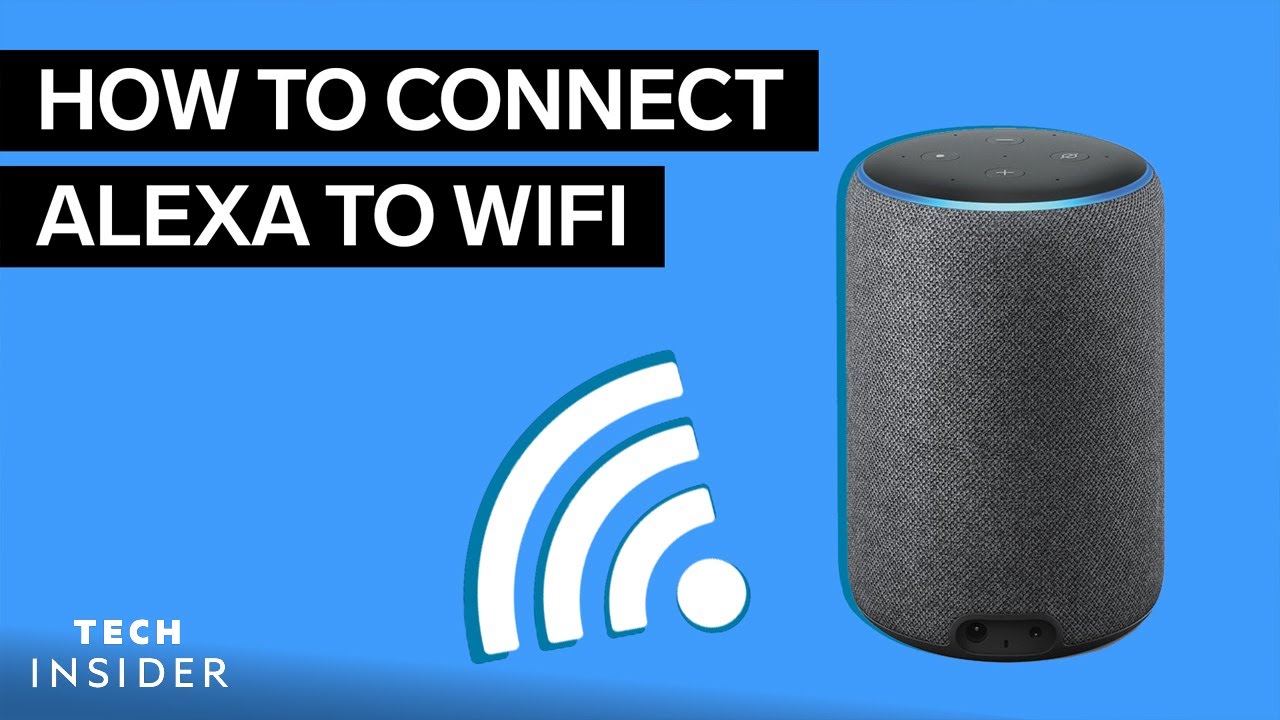
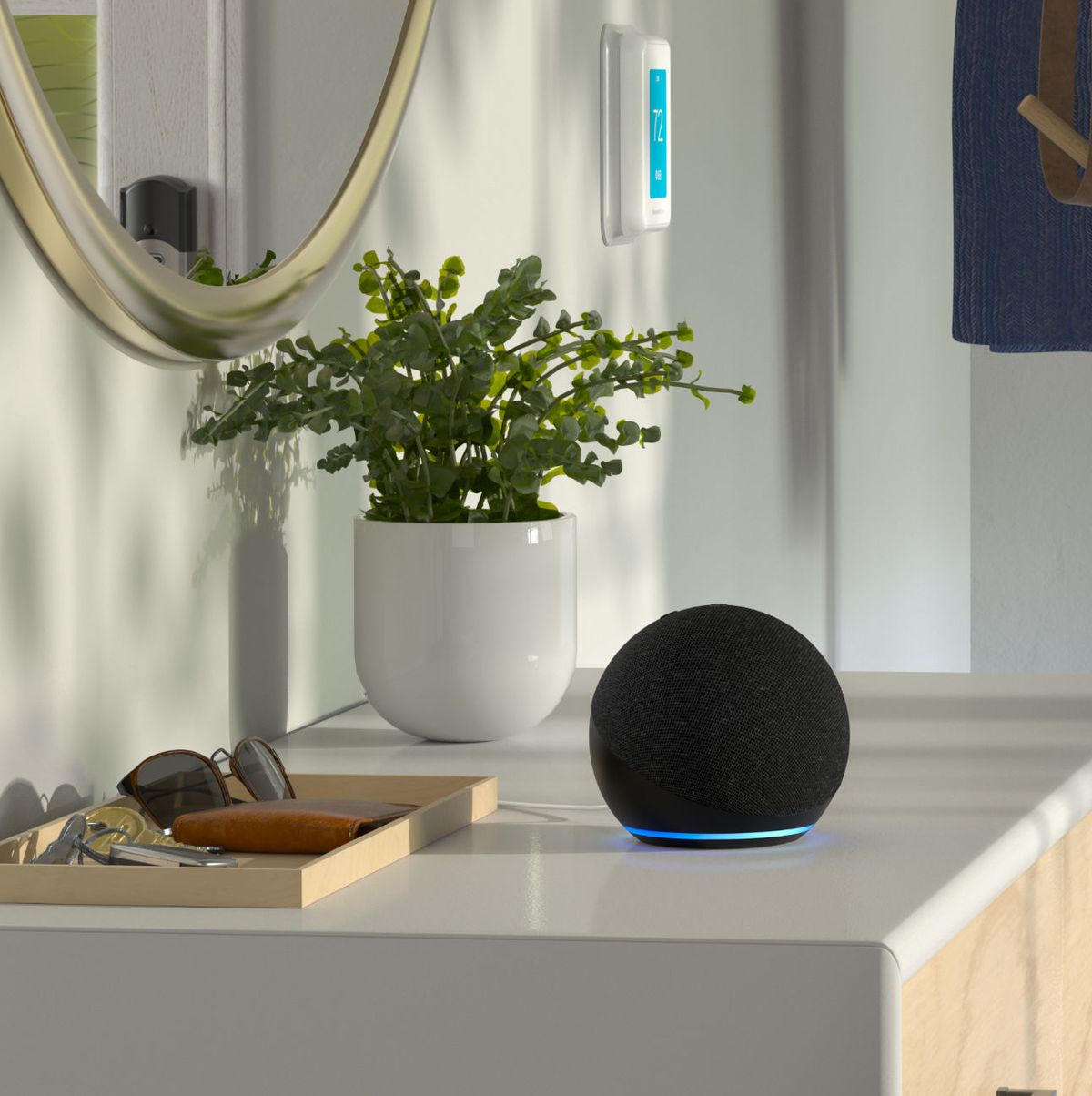
Link your smart devices, such as lights, thermostats, and security cameras, to your Alexa device using the Alexa app. This will enable you to control these devices using voice commands and create custom routines for a more streamlined experience.
Step 6: Update Your Alexa Device
Regularly update your Alexa device to ensure you have the latest features and security patches. You can do this by accessing the Alexa app and checking for updates.
Conclusion
Setting up your Alexa device with your home router is a straightforward process that requires patience and attention to detail. By following these steps, you can unlock the full potential of your Alexa device and enjoy a seamless smart home experience. Remember to regularly update your device and link your smart devices to Alexa for a more convenient and connected life.
Additional Tips and Tricks
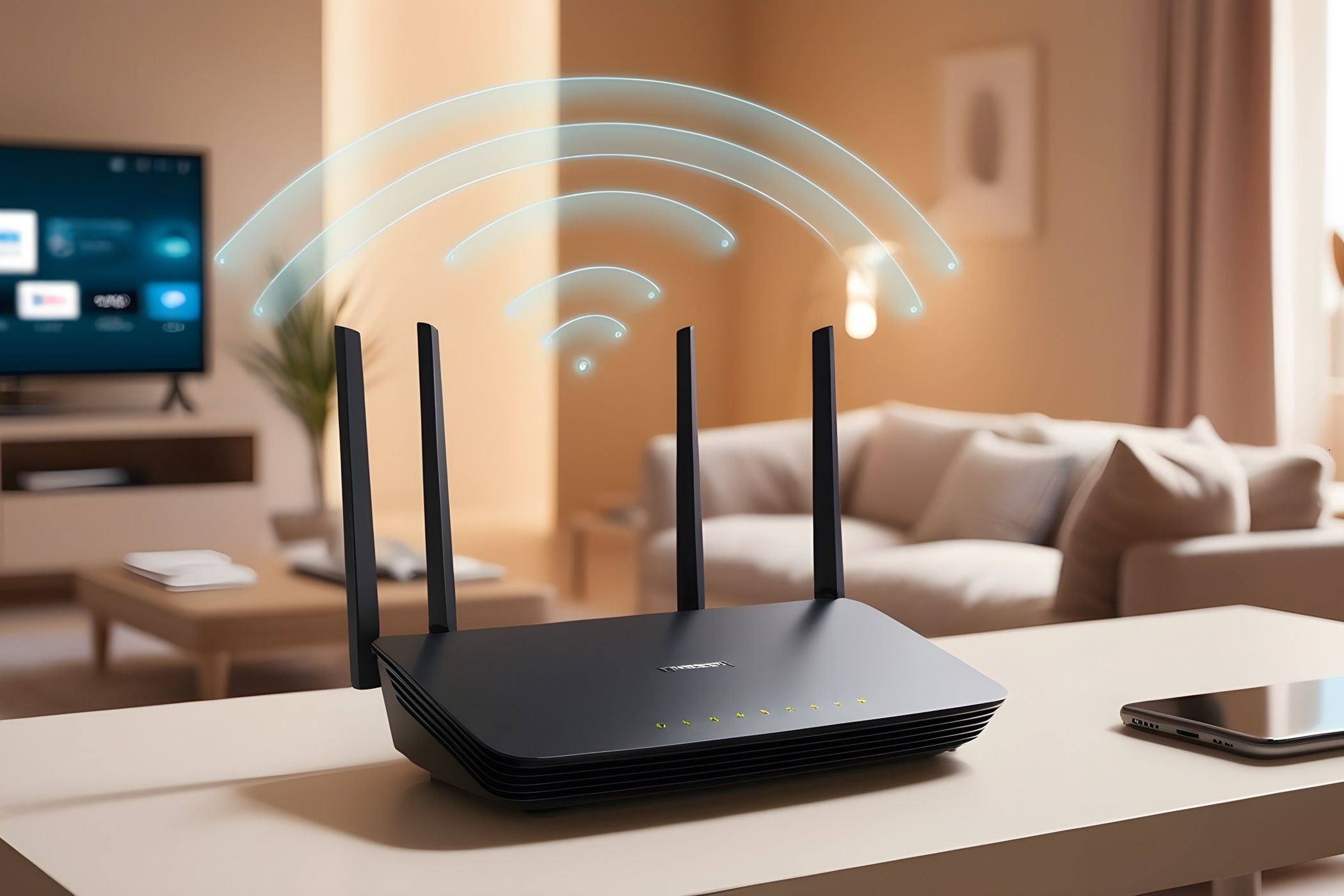
- Place your router in a central location to ensure a strong and stable Wi-Fi signal throughout your home.
- Use a Wi-Fi analyzer app to optimize your Wi-Fi settings and reduce interference.
- Regularly update your router firmware to ensure you have the latest security patches and features.
- Experiment with custom routines and voice commands to enhance your Alexa experience.
Recommended Routers for Alexa
When choosing a router for your Alexa device, consider the following options:
- TP-Link Archer BE900: A Wi-Fi 7 router with top-of-the-line specs and excellent performance.
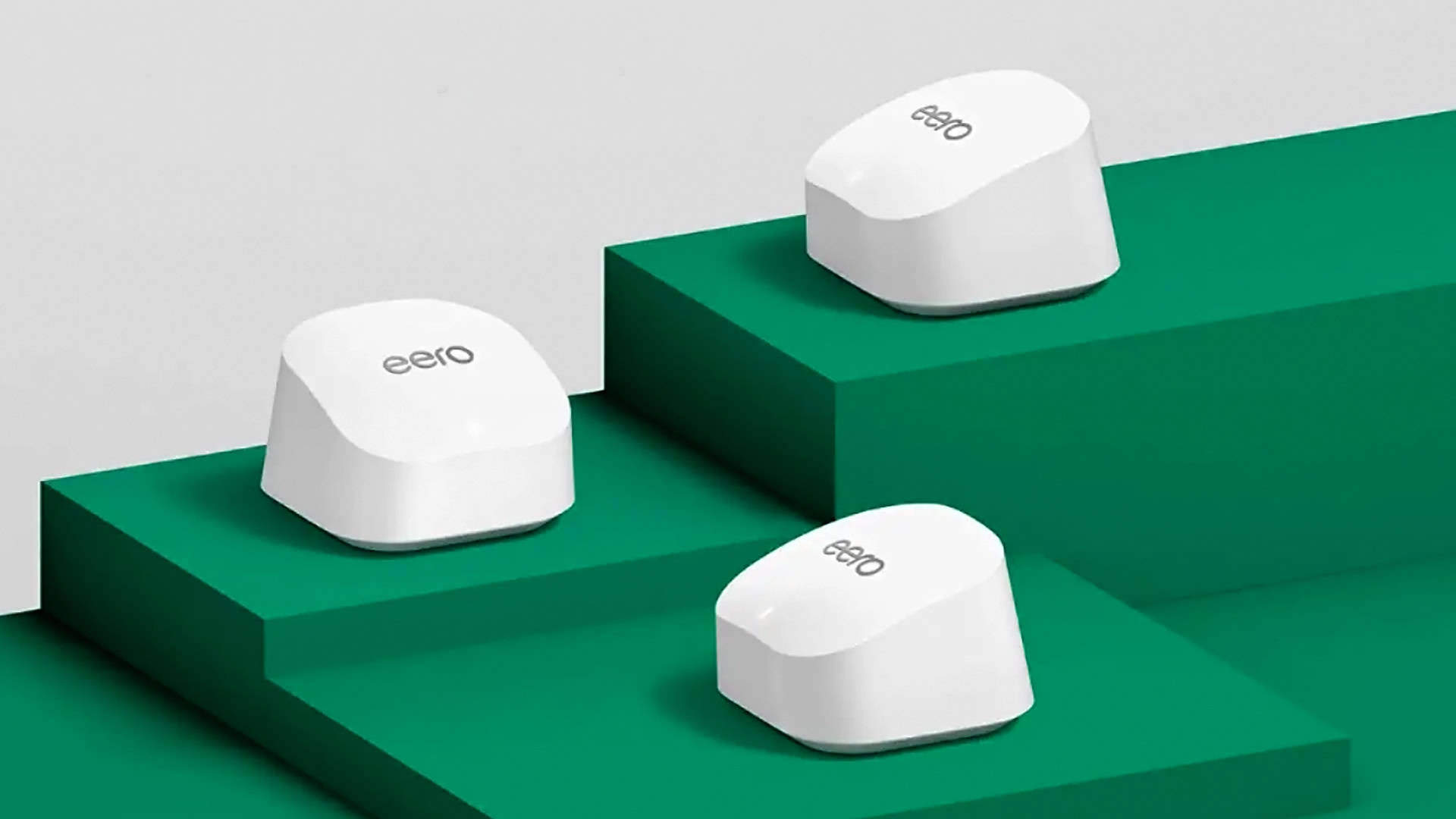
- eero Max 7: A tri-band mesh system with 2.4GHz, 5GHz, and 6GHz bands that delivers fast speeds.
- TP-Link Deco BE63: A tri-band Wi-Fi 7 router with a sleek design and excellent performance.
Conclusion
Setting up your Alexa device with your home router is a crucial step in unlocking the full potential of your smart home. By following these steps and tips, you can enjoy a seamless and convenient experience with your Alexa device. Remember to regularly update your device and link your smart devices to Alexa for a more connected and streamlined life.