Setting up a Twitch Stream for YouTube: A Comprehensive Guide
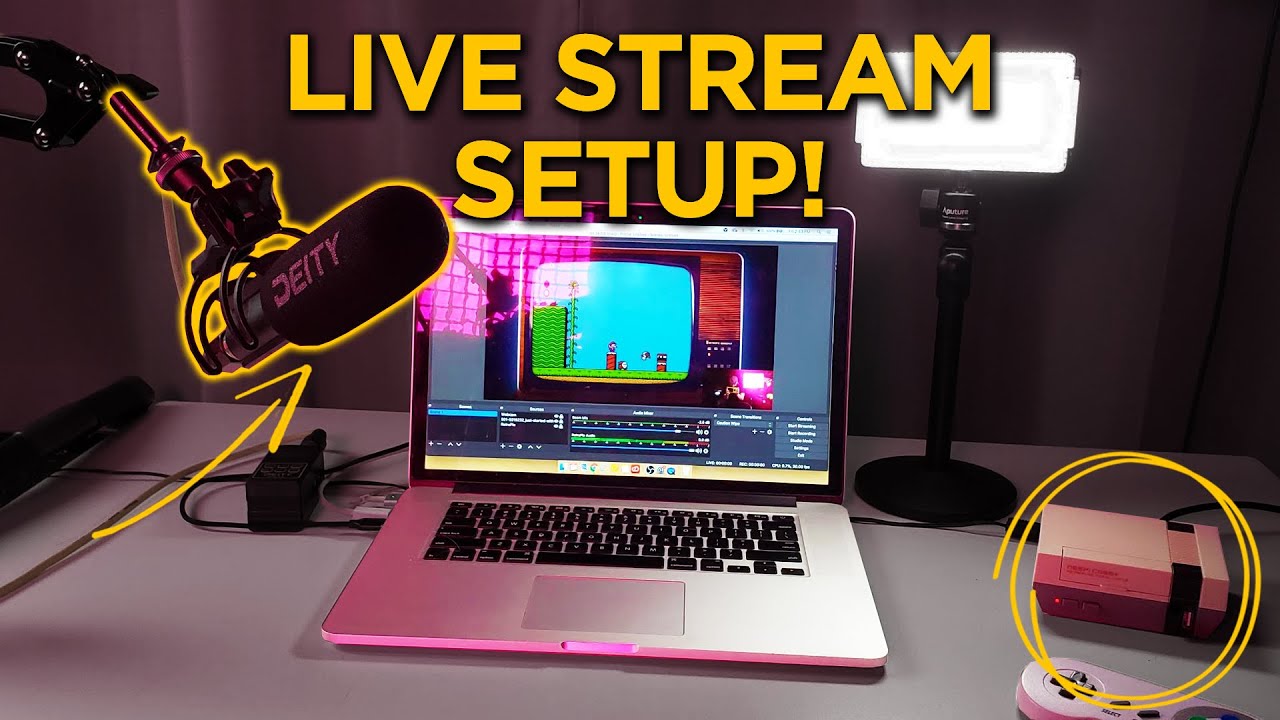
Are you a content creator looking to increase your reach and engagement by streaming on both Twitch and YouTube at the same time? Setting up a Twitch stream for YouTube can be a simple process with the right tools and knowledge. In this article, we will guide you through the step-by-step process of setting up a dual-stream on Twitch and YouTube using OBS Studio and Restream.Why Multistreaming?
Multistreaming allows you to broadcast your content to multiple platforms simultaneously, reaching a wider audience and increasing your visibility. By streaming on both Twitch and YouTube, you can: * Reach a larger audience: Twitch and YouTube have a combined audience of over 30 million daily active users. * Increase engagement: Multistreaming allows you to interact with your audience on multiple platforms, leading to increased engagement and community growth. * Enhance your brand: Streaming on multiple platforms helps establish your brand as a professional gamer or content creator.Choosing a Streaming Software
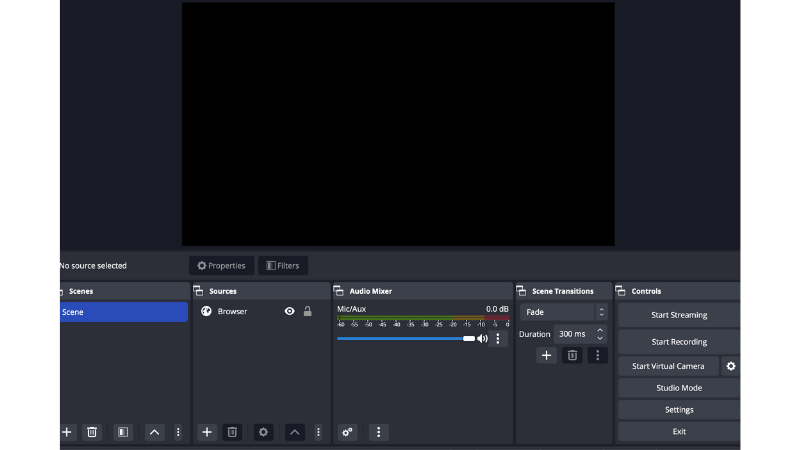
There are several streaming software options available, including OBS Studio, Restream, and Wirecast. For the purpose of this guide, we will be using OBS Studio and Restream. OBS Studio is a free and open-source software that is widely used in the streaming community. It offers a user-friendly interface and advanced features such as scene switching and audio mixing. Restream is a cloud-based platform that allows you to connect with multiple streaming platforms, including Twitch and YouTube.Setting Up OBS Studio for Multistreaming
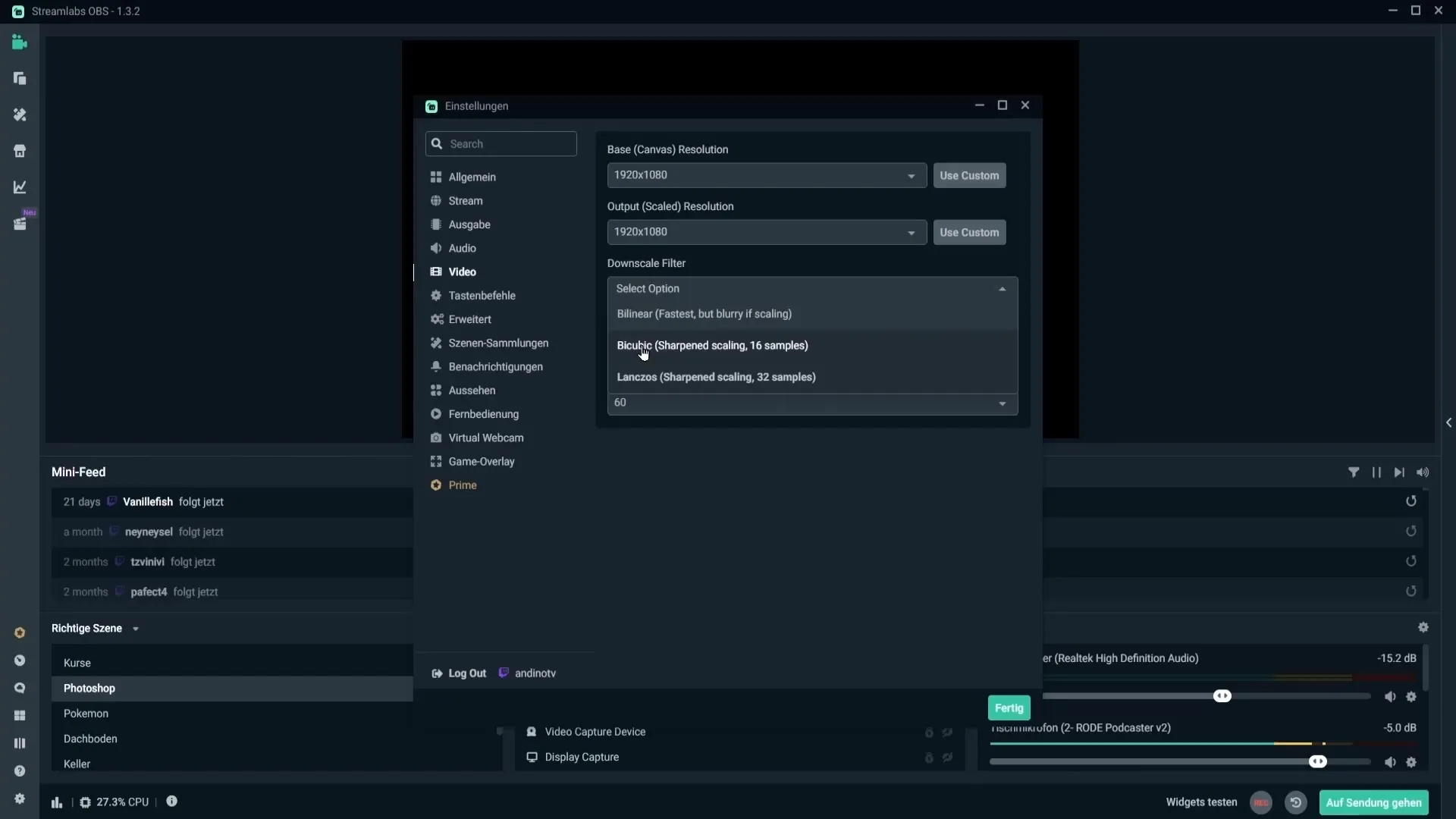
To set up OBS Studio for multistreaming, follow these steps: * Download and install OBS Studio from the official website. * Launch OBS Studio and create a new stream by clicking the "+" button in the source list. * Configure your stream settings, including the stream key, bitrate, and resolution. * Connect your Twitch and YouTube accounts to OBS Studio by entering your API keys and stream keys.Setting Up Restream for Multistreaming
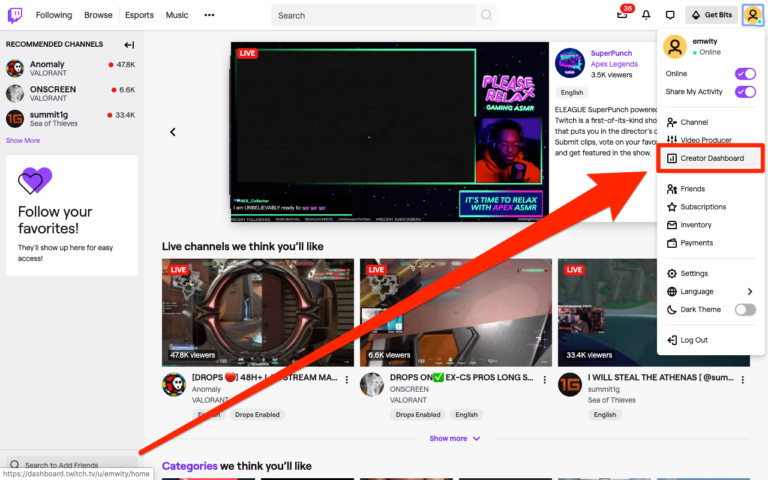
To set up Restream for multistreaming, follow these steps: * Create a Restream account and connect your Twitch and YouTube accounts. * Set up your stream settings, including the stream key and bitrate. * Configure your stream quality and audience alerts.Connecting OBS Studio and Restream for Multistreaming
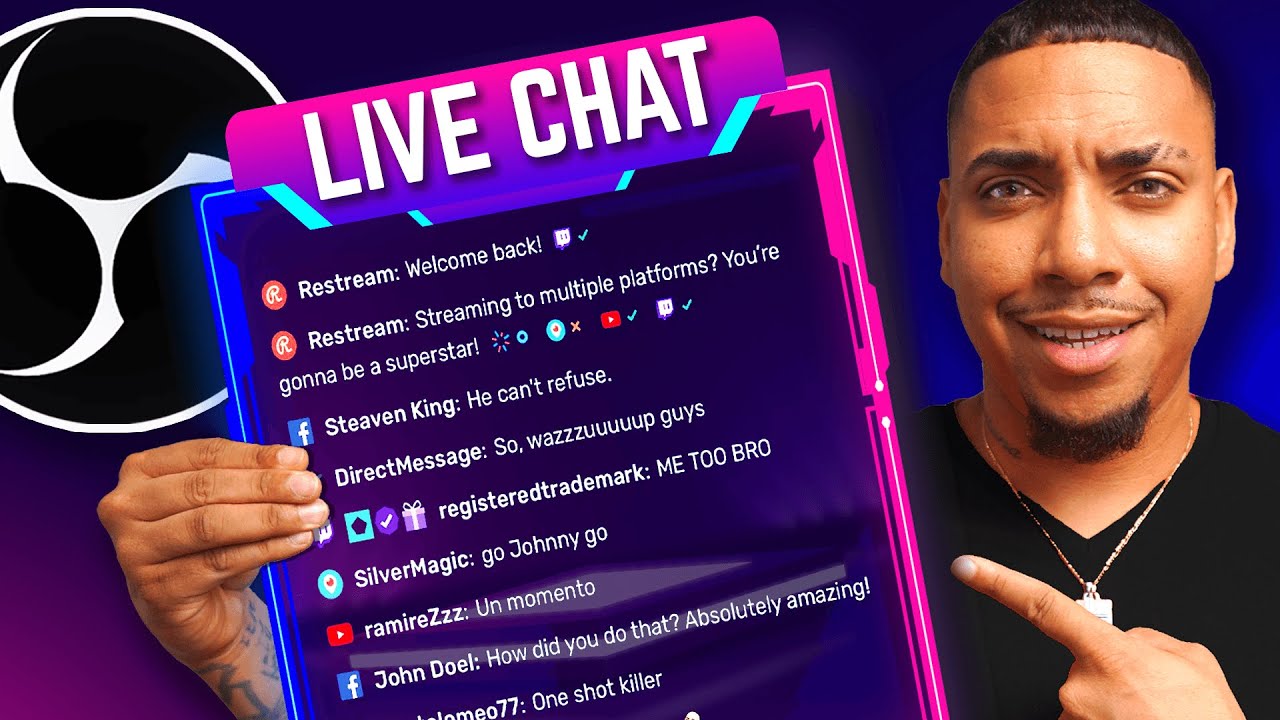
To connect OBS Studio and Restream for multistreaming, follow these steps: * Launch OBS Studio and go to the settings menu. * Click on the "Stream" tab and select "Restream" as the streaming engine. * Enter your Restream API key and stream key. * Configure your stream settings and test your stream.Optimizing Your Stream for Dual-Broadcasting