Setting up Touchscreen on Windows 11 Laptop: Easy Steps and Essential Tips
Are you having trouble enabling or disabling the touchscreen feature on your Windows 11 laptop? Turning the touchscreen on and off can be a bit complicated, but don't worry, we've got you covered. In this article, we'll walk you through the easy steps for enabling and disabling the touchscreen on your Windows 11 laptop or tablet, as well as provide some essential tips to help you troubleshoot and optimize your device's touchscreen functionality.
What is a Touchscreen?
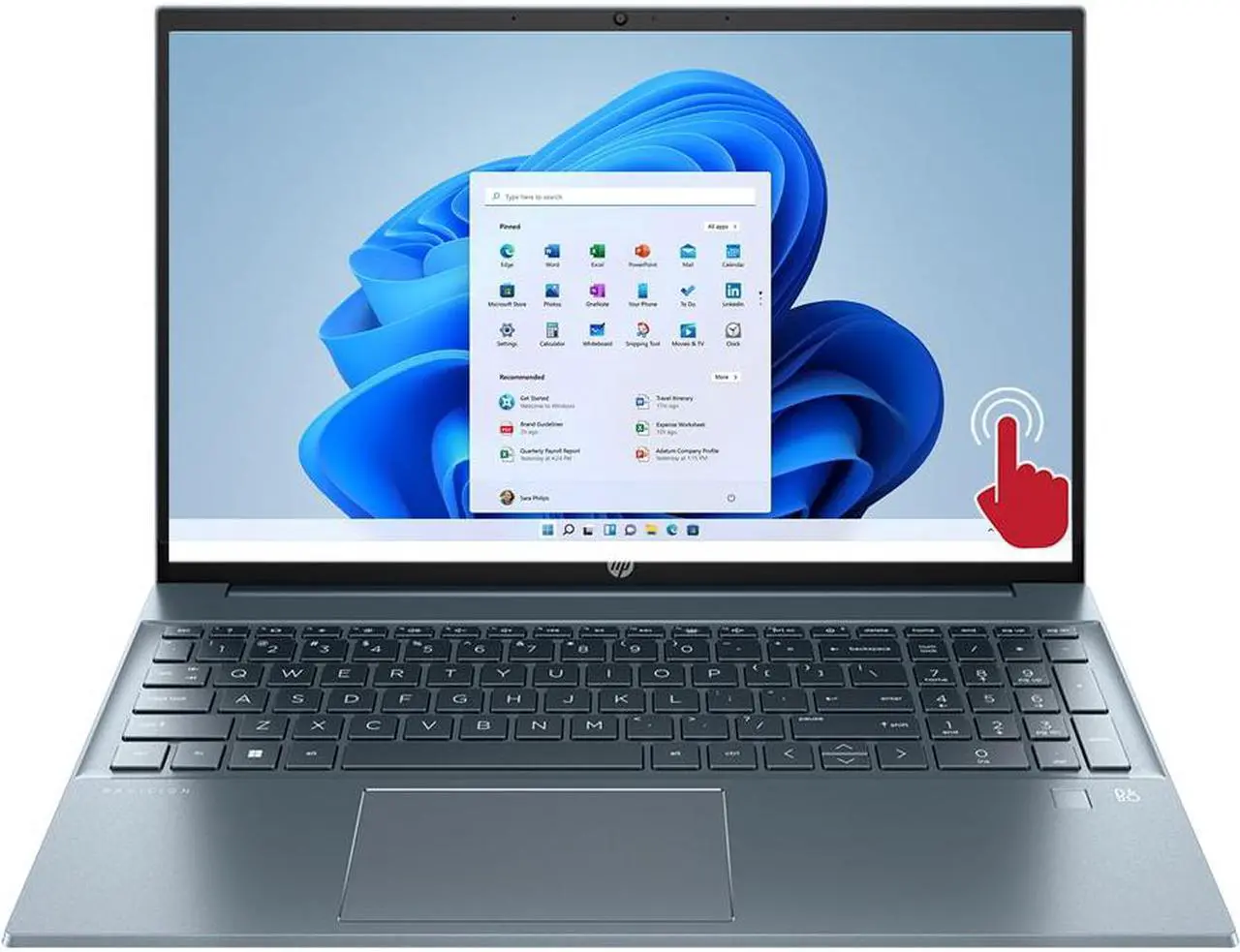
A touchscreen is an input device that allows you to interact directly with the visuals on your screen, rather than using a mouse, touchpad, or other input devices. Most modern touchscreens come pre-enabled on laptops and tablets, but there are situations where the feature might be disabled due to system updates, driver issues, or user settings.
Why Disable or Enable Touchscreen?
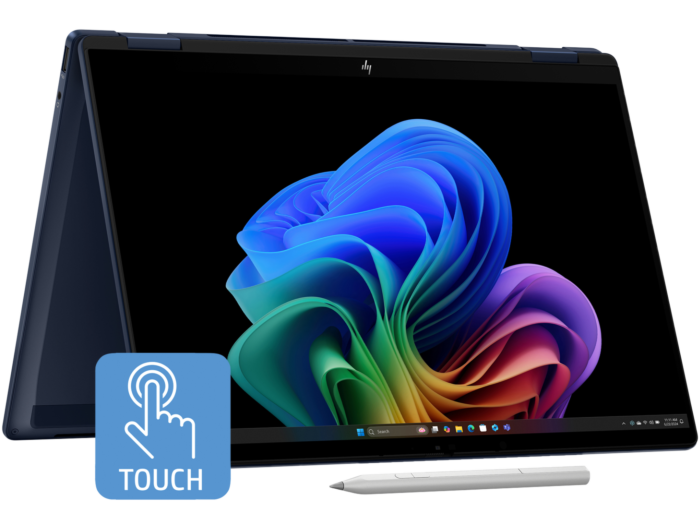
There are various reasons why you might want to disable or enable the touchscreen feature on your Windows 11 laptop. For example, if you're working on a project and want to avoid accidental touches or if you need to troubleshoot issues, disabling the touchscreen can be beneficial. On the other hand, if you want to enhance your user experience on your 2-in-1 laptop, tablet, or convertible PC, enabling the touchscreen feature can make navigation and interaction much smoother.
Easy Steps to Enable Touchscreen on Windows 11 Laptop:
- Right-click on the Start menu and select Device Manager.
- In the Device Manager window, select the arrow next to Human Interface Devices to expand it.
- Find and check if the touch screen driver is listed under Human Interface Devices. If it's listed, you'll see a shortcut icon that you can click to display on your system tray.
- Enable the touchscreen by right-clicking on the touch screen driver, then select "Enable device".
- Wait for a few seconds for the touchscreen to activate and test it by touching the screen.

Easy Steps to Disable Touchscreen on Windows 11 Laptop:
- Right-click on the Start menu and select Device Manager.
- In the Device Manager window, select the arrow next to Human Interface Devices to expand it.
- Find and right-click on the touch screen driver, then select "Disable device".
- Confirm that you want to disable the device and wait for a few seconds to ensure the touchscreen is disabled.
- Test the touchscreen by trying to interact with the screen to confirm it's disabled.
Essential Tips for Optimizing Touchscreen Functionality:
Here are some essential tips to help you optimize your touchscreen functionality and troubleshoot common issues:
- Restart your Windows 11 device if the touchscreen isn't responsive or not working correctly.
- Check for updates by following the provided steps and ensure you have the latest driver updates for your touchscreen.
- Adjust your screen brightness and display settings to optimize your viewing experience.
- Disable or enable the touchpad as needed to improve your laptop's performance and user experience.
- Explore touch gestures to unlock various actions by using your fingers.
Conclusion:
Enabling or disabling the touchscreen feature on your Windows 11 laptop is a straightforward process that can be completed in just a few easy steps. By following the steps outlined in this article, you can optimize your touchscreen functionality and troubleshoot common issues. Whether you want to enhance your user experience on your 2-in-1 laptop, tablet, or convertible PC, setting up and adjusting the touchscreen feature can make navigation and interaction much smoother.