Setting Up a Wireless Router: A Comprehensive Guide
Are you looking to set up a wireless router at home, but feeling overwhelmed by the process? Setting up a wireless router doesn't need to be a daunting task. With this easy-to-follow guide, you'll be up and running in no time.Understanding the Basics
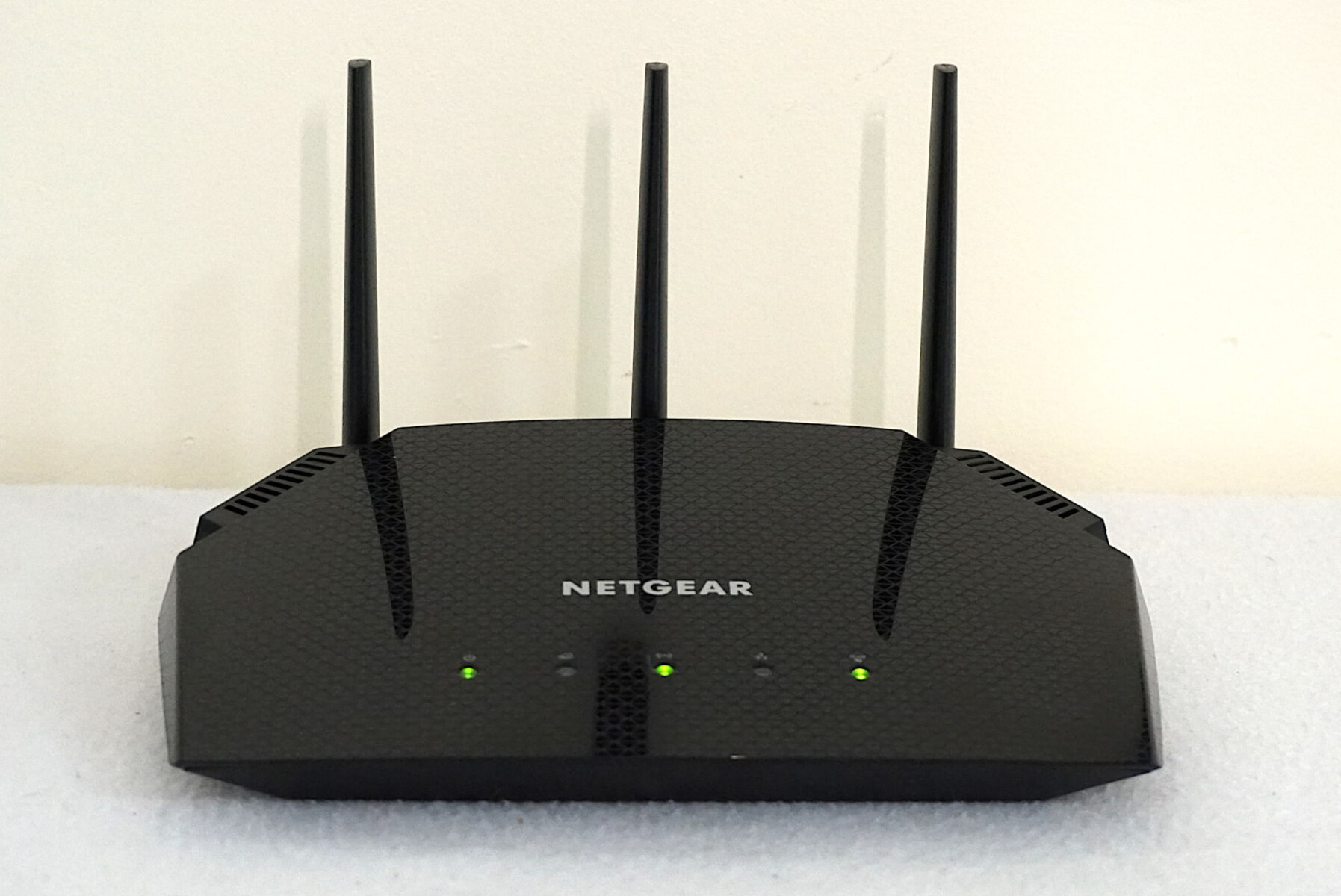
Before we dive into the setup process, it's essential to understand the basics of wireless routers. A wireless router is a device that connects your devices to the internet using Wi-Fi technology. It receives an internet connection from a modem and transmits it to your devices, allowing you to connect to the internet without the need for cables.Choosing the Right Router
With so many options available in the market, choosing the right router can be a challenge. Consider factors such as the number of devices you need to connect, the speed required, and the range of coverage. Different routers have different features, such as dual-band, tri-band, and Wi-Fi 7 support, which can affect the performance and reliability of your network.Setting Up Your Router
Setting up your wireless router is relatively straightforward. Here's a step-by-step guide to help you get started:- Place the router in a central location, ideally 5-10 feet off the ground, for optimal coverage.
- Unpack the router and power it on.
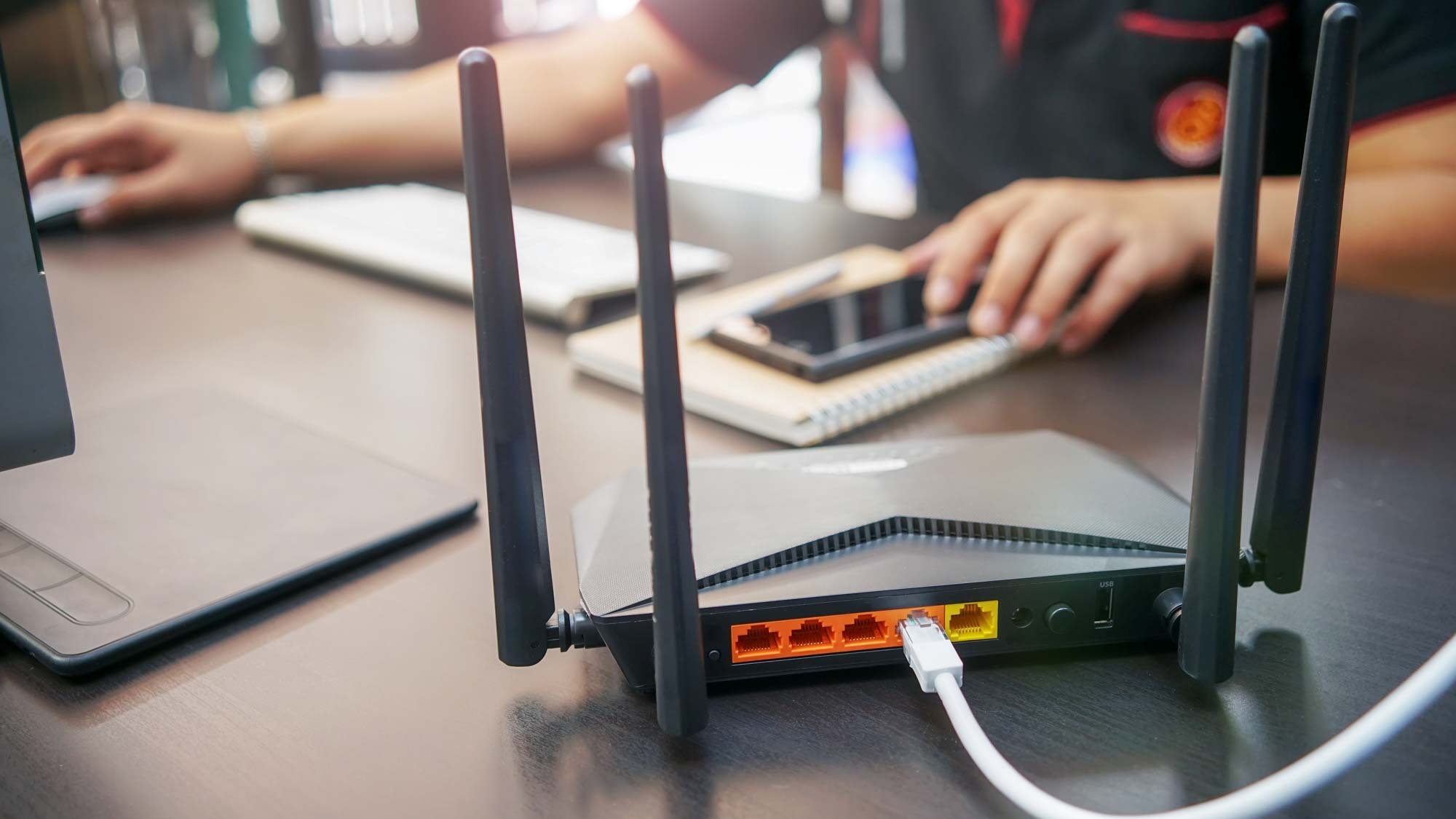
- Connect the router to your modem using an Ethernet cable.
- Use a computer or mobile device to access the router's setup page by typing its IP address (usually 192.168.0.1 or 192.168.0.254) in a web browser.
- Follow the prompts to set up your wireless network, including selecting a network name (SSID), setting a password, and configuring security settings.
- Connect your devices to the network using the network name and password.
Secure Your Wireless Network

- Use WPA3 encryption to protect your network from hackers.
- Set up a strong password for your network, using a combination of characters, numbers, and special characters.
- Use a guest network to isolate visitors and prevent them from accessing your main network.
- Monitor your network for vulnerabilities and update your router's firmware regularly.
Troubleshooting Common Issues
Despite following the setup process, you may encounter some common issues. Here are some solutions to fix common problems:- Router not connected to the internet: Check the power cord, modem, and Ethernet cable connections.
- Router not broadcasting SSID: Ensure the SSID broadcast is enabled in the router's settings.
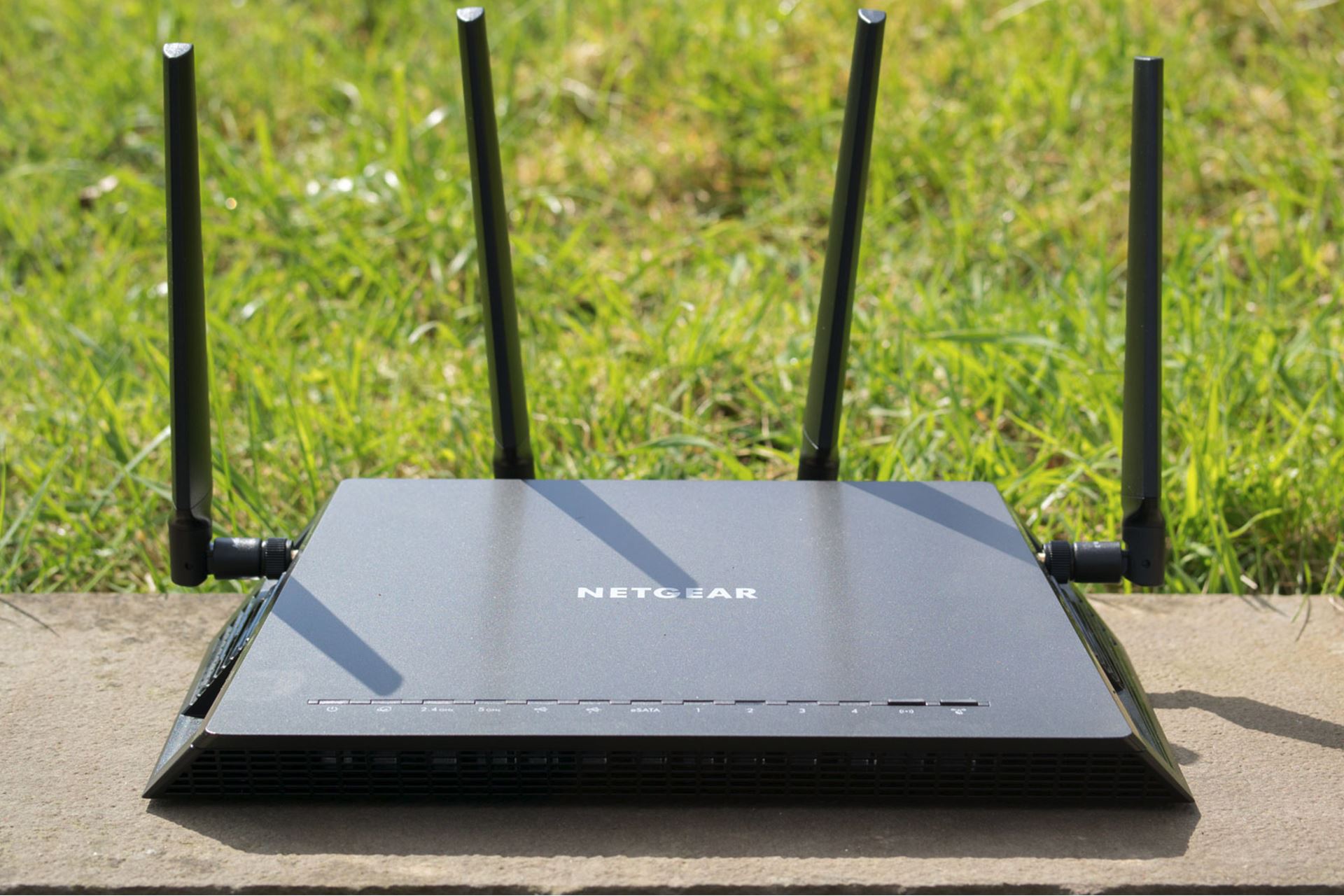
- Weak signal strength: Move the router to a more central location or adjust the antenna orientation.


![[Wireless Router] How do I enter my ASUS router's setting page using ...](https://robots.net/wp-content/uploads/2023/10/how-to-set-up-att-wireless-router-1696314377.jpg "[Wireless Router] How do I enter my ASUS router's setting page using ...")