How to Set Up and Configure Apple Watch with iOS
Are you excited to start using your new Apple Watch, but not sure where to begin? Look no further! In this comprehensive guide, we will walk you through the step-by-step process of setting up and configuring your Apple Watch with your iOS device. From identifying your iPhone model to setting up your Focus, we've got you covered.
What You Need to Set Up Apple Watch
To set up and use a new Apple Watch, you need an iPhone XS or later with iOS 17 or later. Make sure to update your iPhone to the latest version of iOS before starting. If you're not sure which iPhone model you have, don't worry! We'll guide you through the process of identifying your iPhone model.
Identifying Your iPhone Model
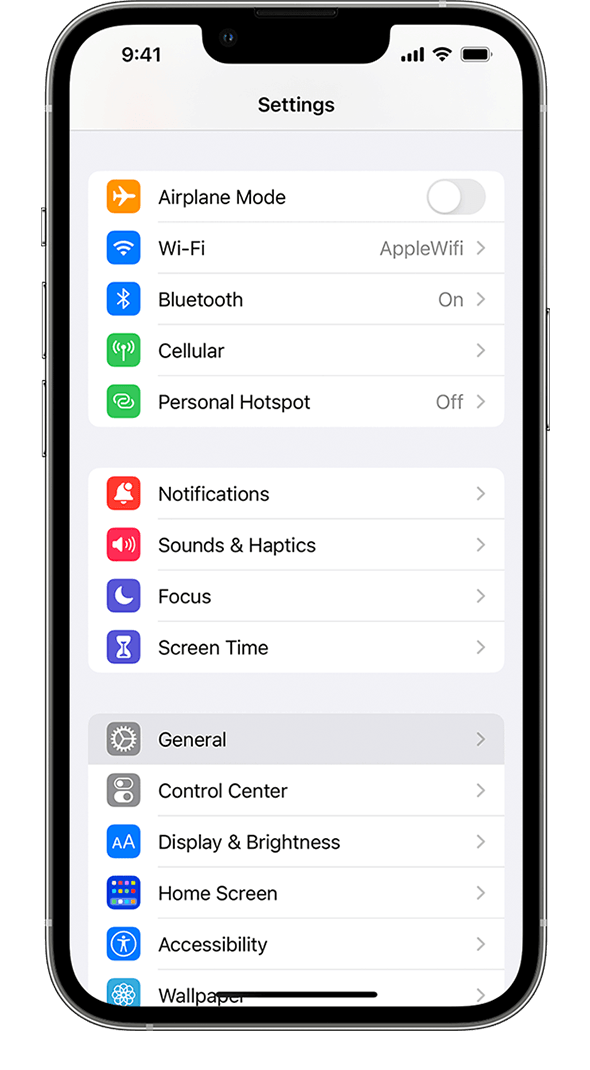
To identify your iPhone model, follow these steps:
- Go to your iPhone's Settings app.
- Scroll down and tap on "General."
- Tap on "About."
- Look for the "Model Name" or "Model Number" section.
- Note down the model number or name.
Setting Up Apple Watch
Once you have your iPhone ready, follow these simple steps to get started with your new Apple Watch:
Step 1: Update Your iPhone
Make sure your iPhone is updated to the latest version of iOS. You can do this by going to your iPhone's Settings app, tapping on "General," and then tapping on "Software Update." If an update is available, tap on "Download and Install" to update your iPhone.
Step 2: Turn on Your Apple Watch
Turn on your Apple Watch by pressing and holding the side button until the Apple logo appears. Release the button when the logo appears.
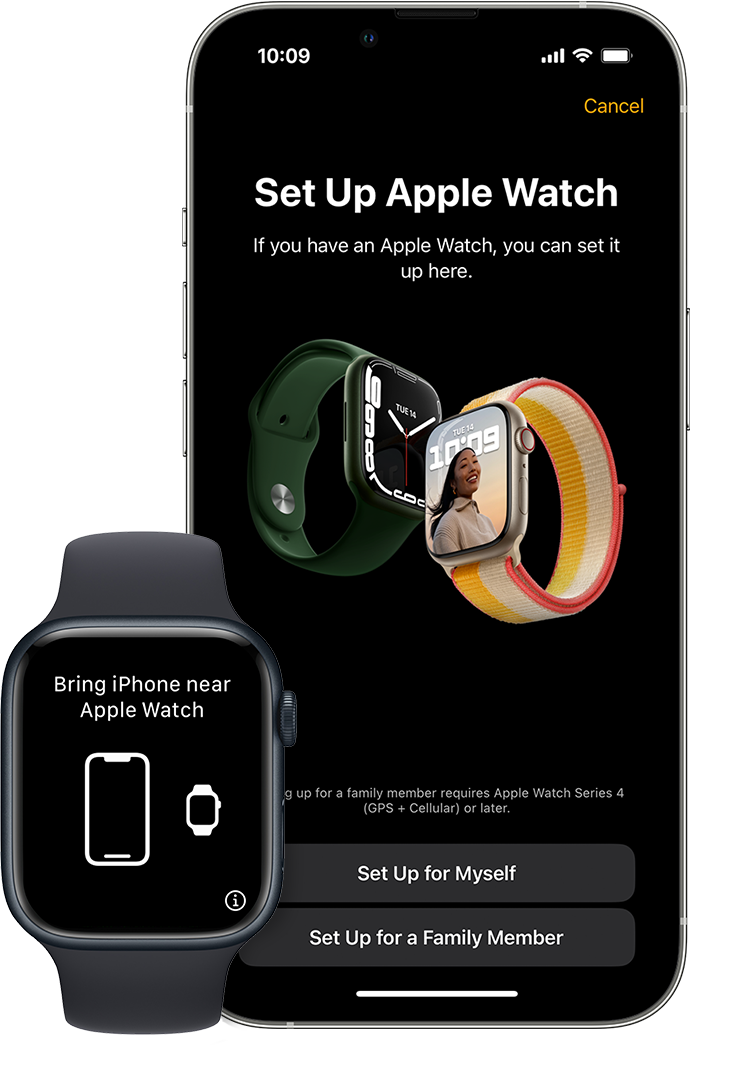
Step 3: Pair Your Apple Watch with Your iPhone
Hold your Apple Watch near your iPhone until the pairing animation appears. Use the camera to complete pairing. You may need to enter the code displayed on your Apple Watch into your iPhone to complete the pairing process.
Step 4: Choose Your Apple Watch Setup Option

During setup, you'll be prompted to choose whether to restore from a backup or set up your Apple Watch as new. If you want to transfer your apps, settings, watch faces, and data, choose "Restore from Backup." If you want to start from scratch, choose "Set Up as New."
Configuring Your Apple Watch
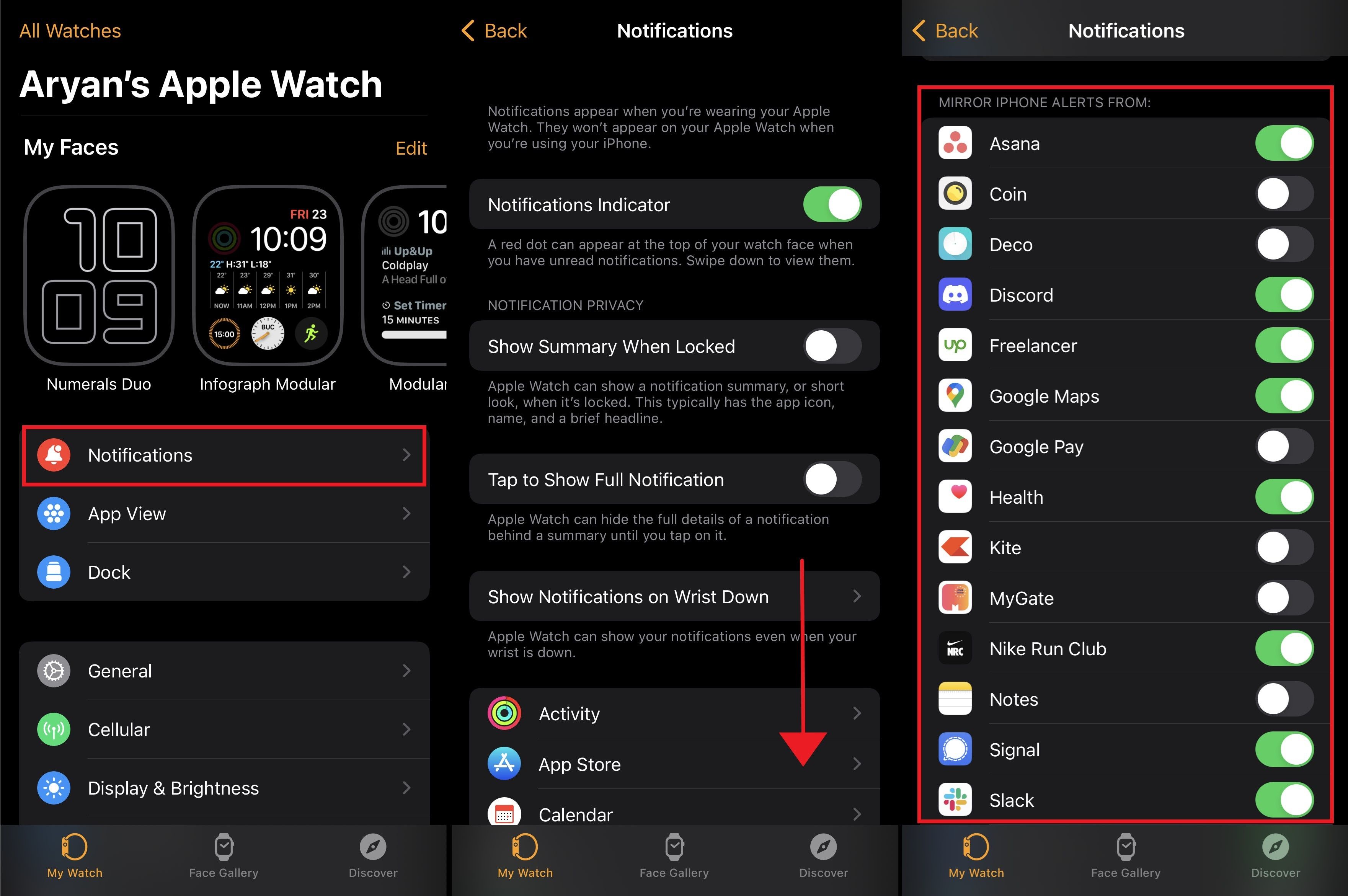
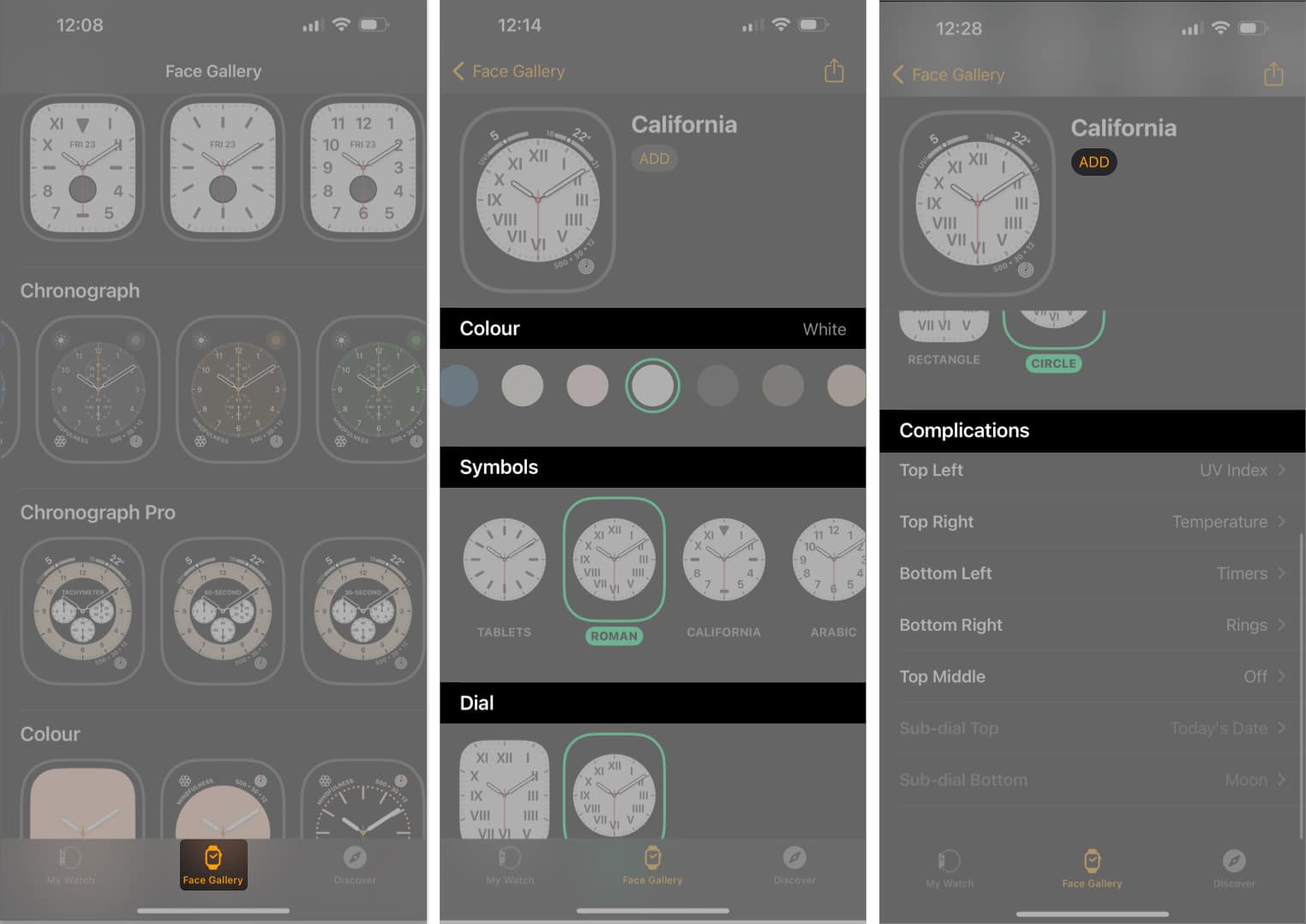
Once you've set up your Apple Watch, it's time to configure it to your liking. Here are a few things you can do to get started:
Set Up Your Focus
A Focus is a feature that allows you to filter notifications based on what you're currently doing. To set up your Focus, follow these steps:
- Go to your iPhone's Settings app.
- Tap on "Focus."
- Select the type of Focus you want to set up (e.g., Work, Sleep, etc.).
- Customize your Focus settings as desired.
Set Up Your Apple Watch with iOS
To set up your Apple Watch with iOS, follow these steps:
- Go to your iPhone's Settings app.
- Tap on "Wrist Detection."
- Slide the switch to enable Wrist Detection.
- Customize your Apple Watch settings as desired.
Conclusion
Setting up and configuring your Apple Watch with iOS is a straightforward process. By following the steps outlined in this guide, you'll be able to get started with your new Apple Watch in no time. Remember to update your iPhone to the latest version of iOS, identify your iPhone model, and choose the right Apple Watch setup option for your needs. Happy watching!
Additional Resources
If you're looking for more information on setting up and configuring your Apple Watch with iOS, here are a few additional resources you might find helpful:
- Apple's official Apple Watch user guide
- Apple Support's Apple Watch setup and configuration guide
- iOS tutorials and tips from Apple