Router Hard Reset Process: A Comprehensive Guide
Are you experiencing connectivity issues, slow internet speeds, or forgotten WiFi passwords with your router? Performing a router hard reset process can solve a multitude of problems, from connectivity issues to setup problems, by restoring your router to its default settings. In this guide, we'll outline the steps to perform a router hard reset, including locating the reset button, executing the reset process, and reconfiguring the router's settings afterward to ensure proper network functionality.
What is a Router Hard Reset?
A hard reset, also known as a factory reset, is the process of restoring a router to its original, out-of-the-box state. This wipes all personalized settings, including your Wi-Fi network name (SSID), password, router login credentials, and any custom configurations like port forwarding, static IPs, or parental controls. A hard reset is typically done by pressing and holding the router's reset button for a specified amount of time (usually 10-30 seconds).
When to Perform a Router Hard Reset?
You may need to perform a router hard reset in the following situations:
- When you experience connectivity issues, such as slow internet speeds or dropped connections.
- When you forget your Wi-Fi password or router login credentials.
- When you want to troubleshoot network problems or resolve setup issues.
- When you want to restore your router to its factory default settings.
How to Perform a Router Hard Reset?
Here are the steps to perform a router hard reset:
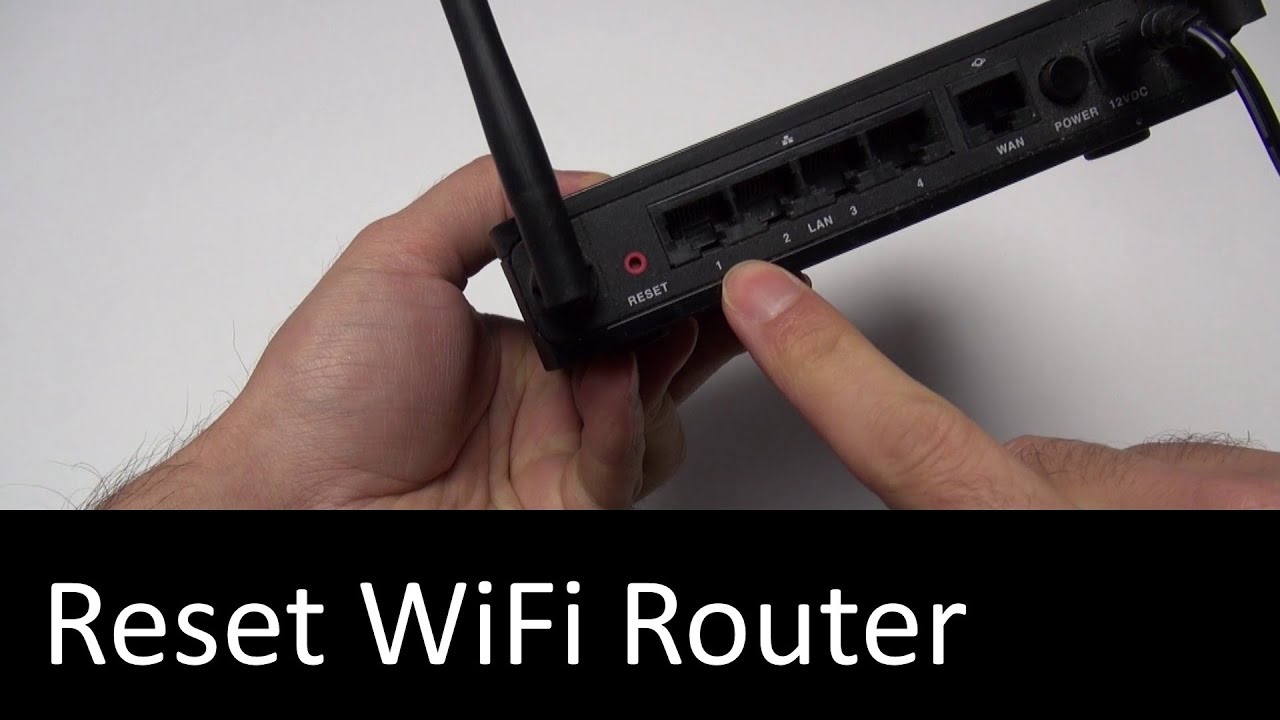
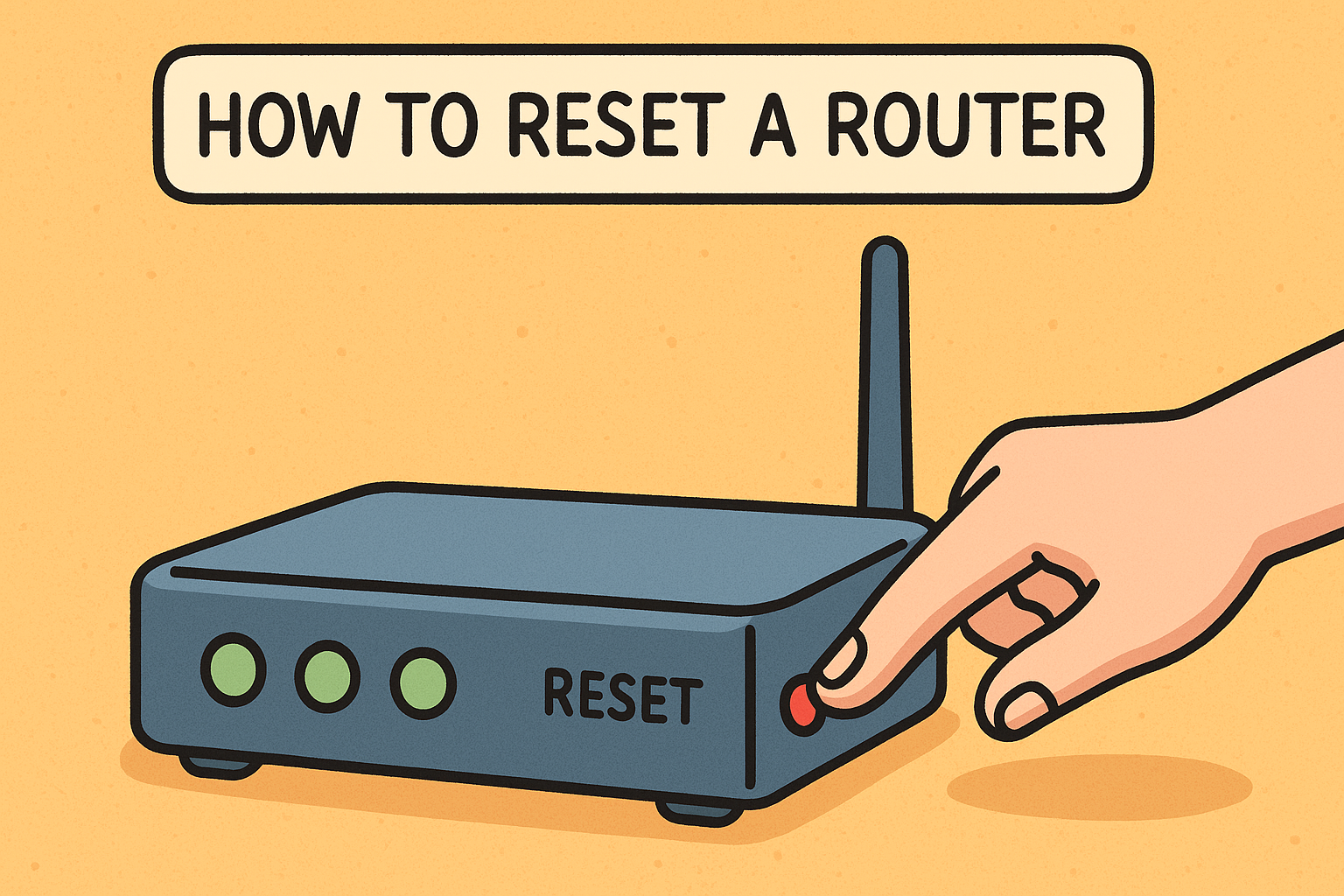
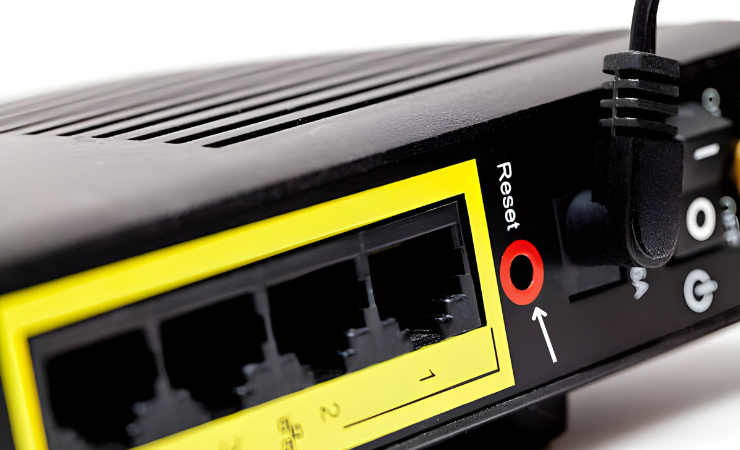
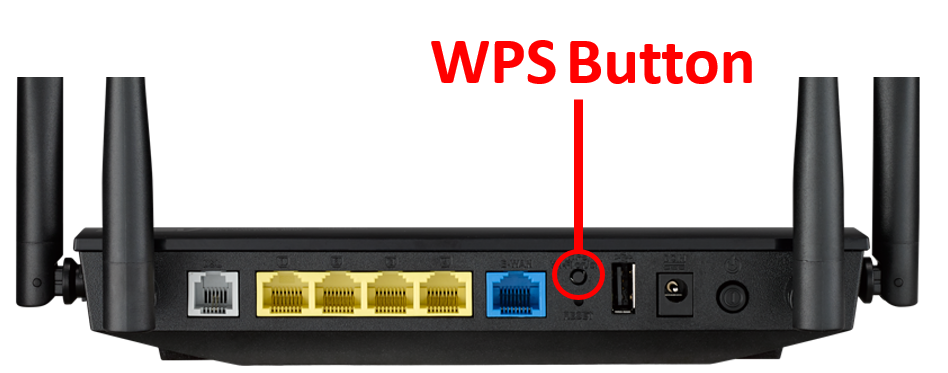
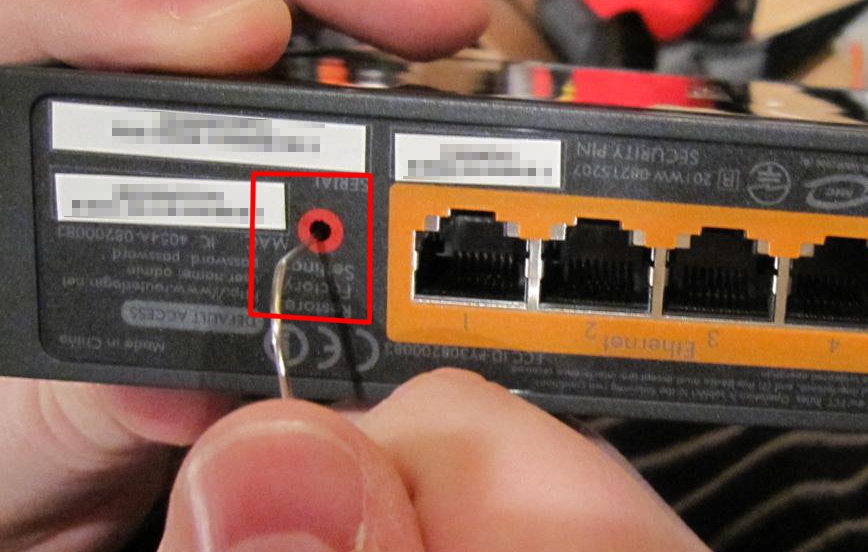
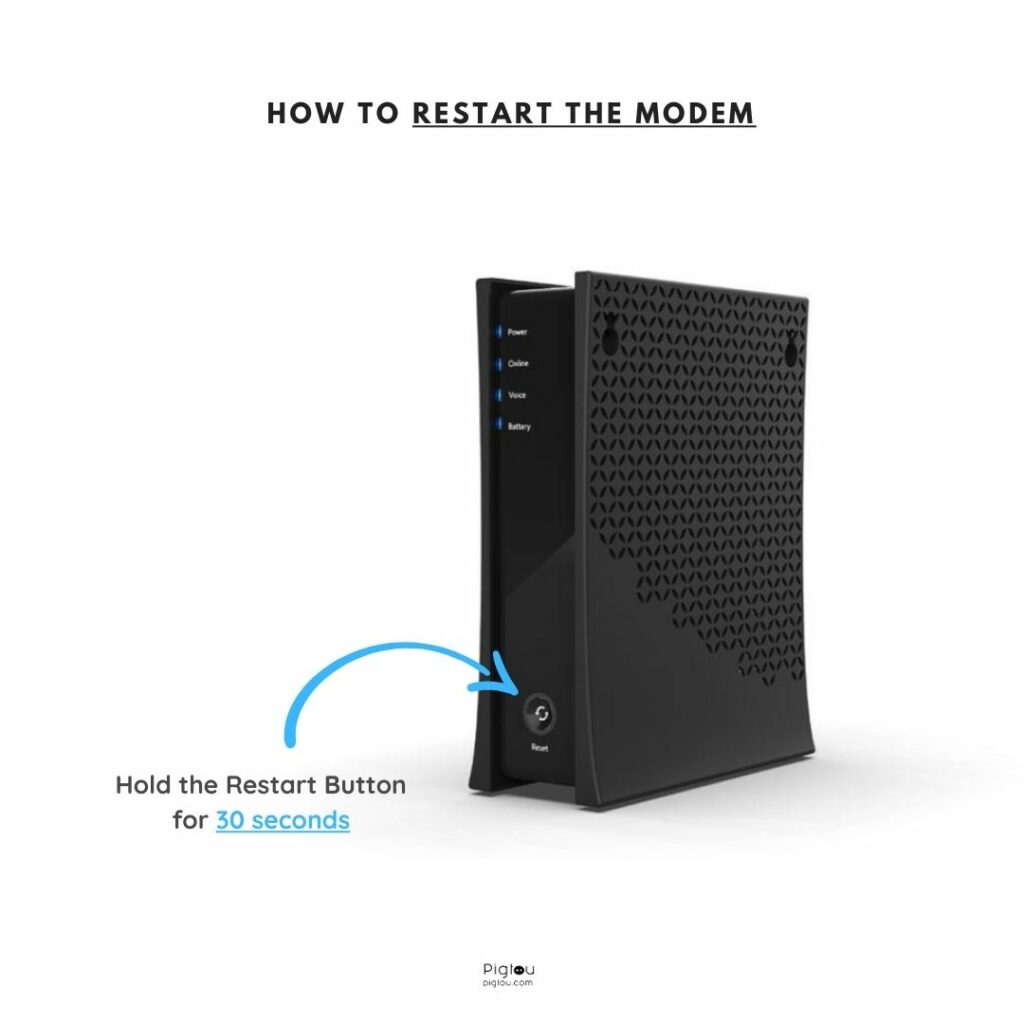
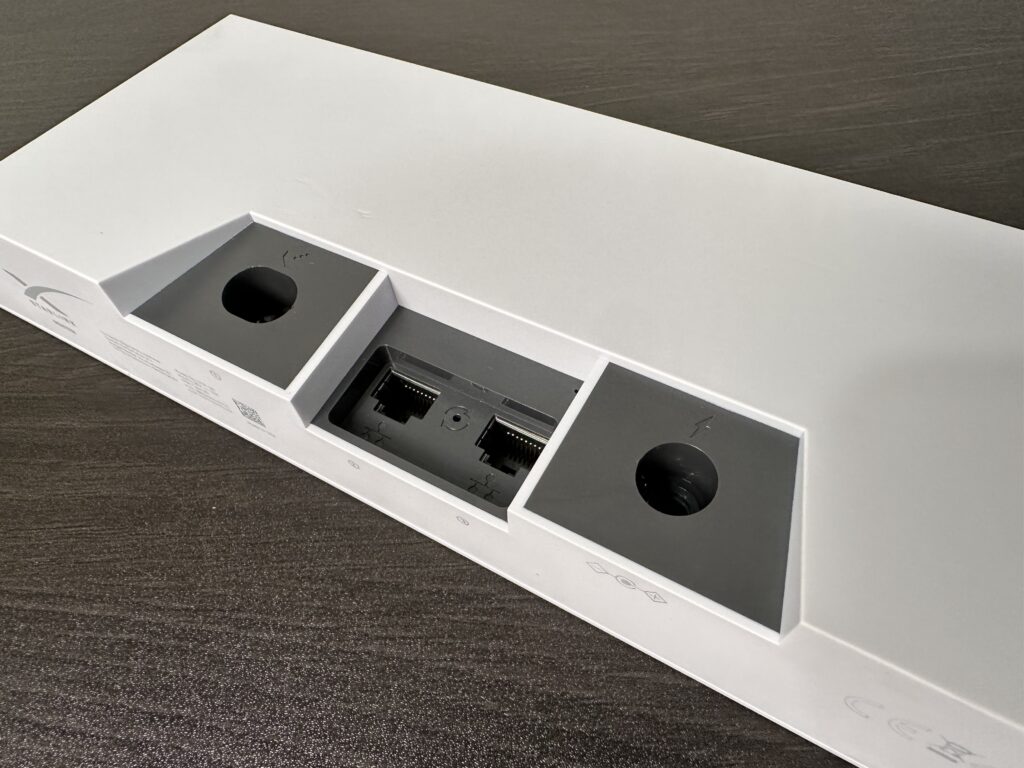
- Locate the reset button on your router. This button is usually found on the back or bottom of the router and may be labeled as "Reset" or "Factory Reset."
- Press and hold the reset button for the specified amount of time (usually 10-30 seconds). The exact time may vary depending on your router model, so consult your user manual for specific instructions.
- Release the reset button and wait for the router to complete the reset process. This may take a few minutes.
- Once the reset process is complete, your router will automatically restart and restore its factory default settings.
Post-Reset Steps

After performing a router hard reset, you'll need to reconfigure the router's settings to ensure proper network functionality. Here are the post-reset steps to follow:
- Login to your router's web interface using the default login credentials (usually "admin" as the username and password).
- Change the default login credentials to a new password and username for security purposes.
- Reconfigure the Wi-Fi settings, including the network name (SSID), password, and wireless channel.
- Reconfigure the router's settings, including the DNS settings, IP address, and subnet mask.
Conclusion
A router hard reset process is a simple and effective way to troubleshoot connectivity issues, improve network performance, and enhance security. By following the steps outlined in this guide, you can perform a router hard reset and restore your router to its factory default settings. Remember to reconfigure the router's settings after the reset process to ensure proper network functionality.
Video Tutorial: How to Reset Your Router to Factory Settings
For those who prefer a visual guide, we've created a video tutorial that demonstrates the steps to reset your router to factory settings. Watch the video below to learn how to perform a router hard reset:
Router Hard Reset Process: FAQs
Here are some frequently asked questions about the router hard reset process:
- Q: What is the difference between a reboot and a hard reset?
A: A reboot simply restarts the router, while a hard reset restores the router to its factory default settings.
- Q: How do I know if I need to perform a router hard reset?
A: You may need to perform a router hard reset if you experience connectivity issues, slow internet speeds, or forgotten Wi-Fi passwords.
- Q: How do I reset my router to factory settings?
A: To reset your router to factory settings, press and hold the reset button for the specified amount of time (usually 10-30 seconds) and follow the post-reset steps outlined above.




![[OpenWrt Wiki] Failsafe mode, factory reset, and recovery mode](https://i.ytimg.com/vi/HmtBsiQiT2E/maxresdefault.jpg "[OpenWrt Wiki] Failsafe mode, factory reset, and recovery mode")