How to Set Up a Printer on Windows 10 Enterprise: A Step-by-Step Guide
In this article, we will guide you through the process of setting up a printer on Windows 10 Enterprise, a feature-rich operating system designed for businesses and organizations. With the print server, you can share printers on a local network, control access to the printers, and manage the print queue.
Why Use a Print Server?
A print server is a fundamental feature in Windows 10 that allows you to manage the printing of documents efficiently and securely. With the print server, you can share printers on a local network, control access to the printers, and manage the print queue. This is particularly useful in enterprise environments where multiple users need to access shared printers.
Step 1: Connect the Printer to the Network
The first step in setting up a printer on Windows 10 Enterprise is to connect the printer to the network. This can be done by connecting the printer to a USB port on the Windows 10 device or by connecting the printer to the network using an Ethernet cable.
If you are connecting the printer to a USB port, Windows 10 will automatically detect the printer and install the necessary drivers. However, if you are connecting the printer to the network, you will need to install the printer drivers and configure the print server settings.
Step 2: Install Printer Drivers
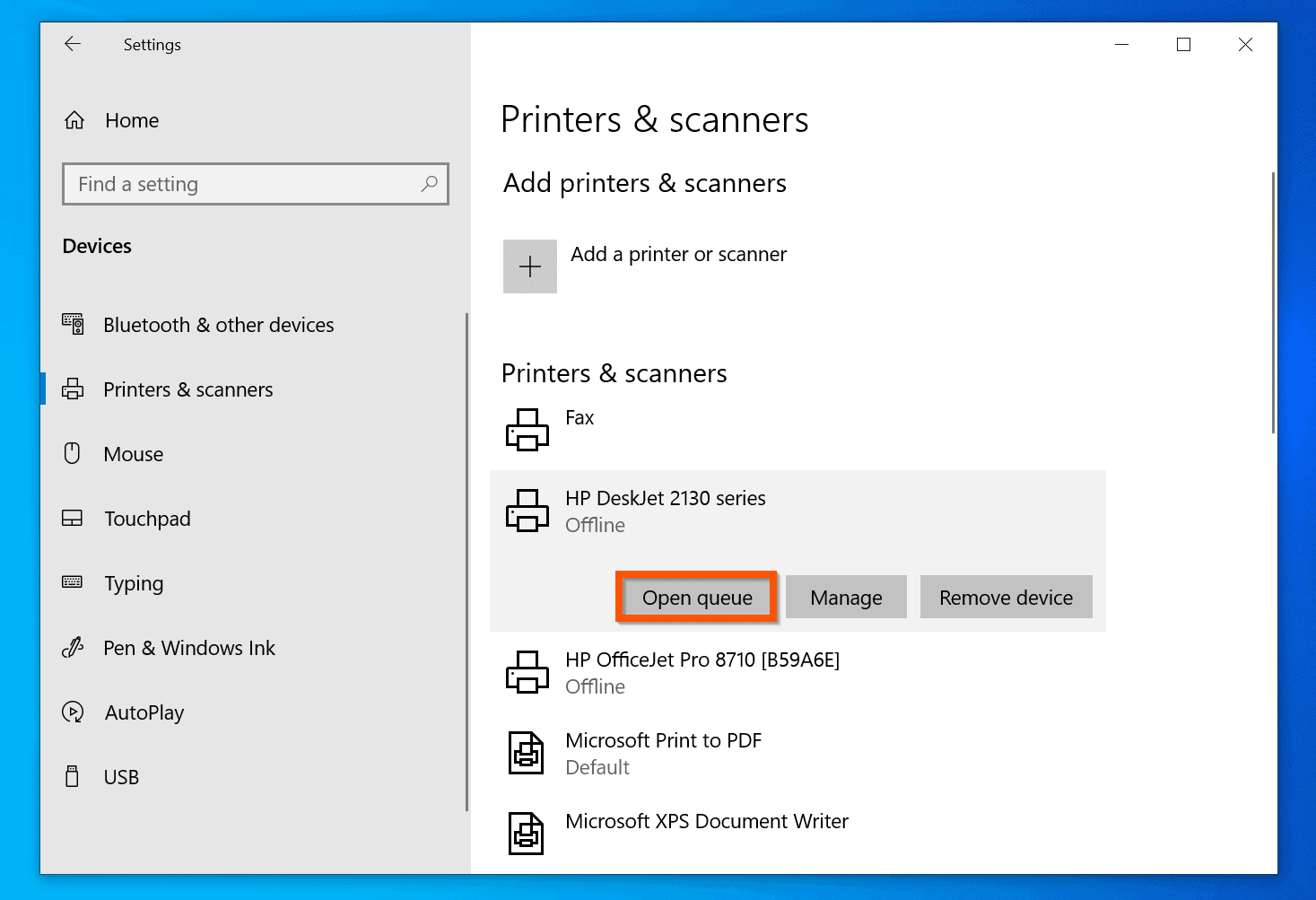
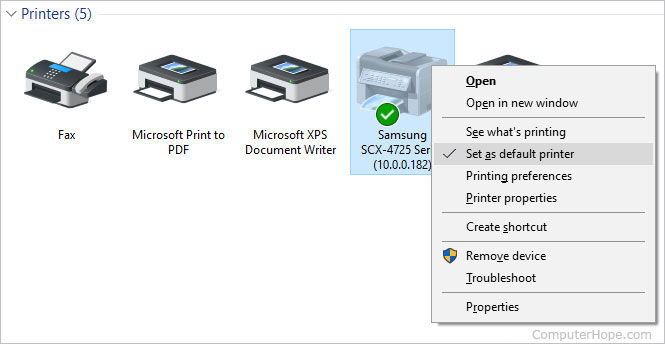
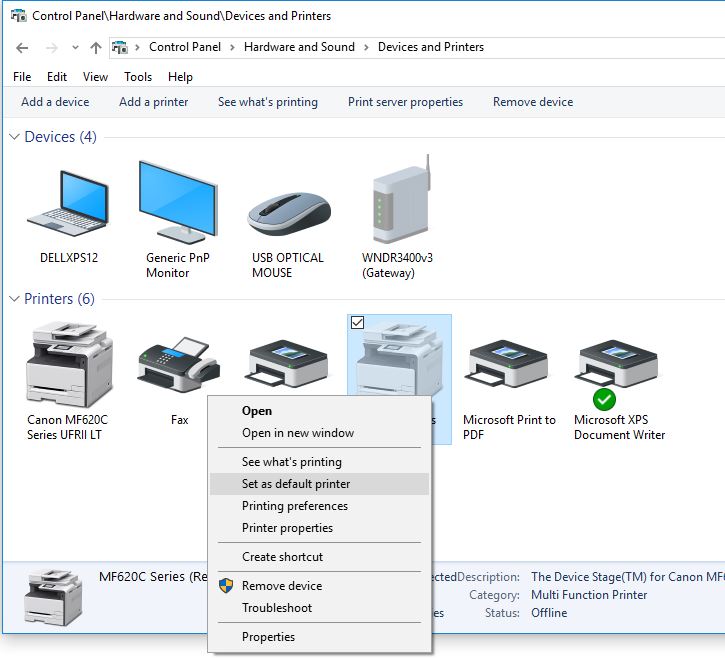
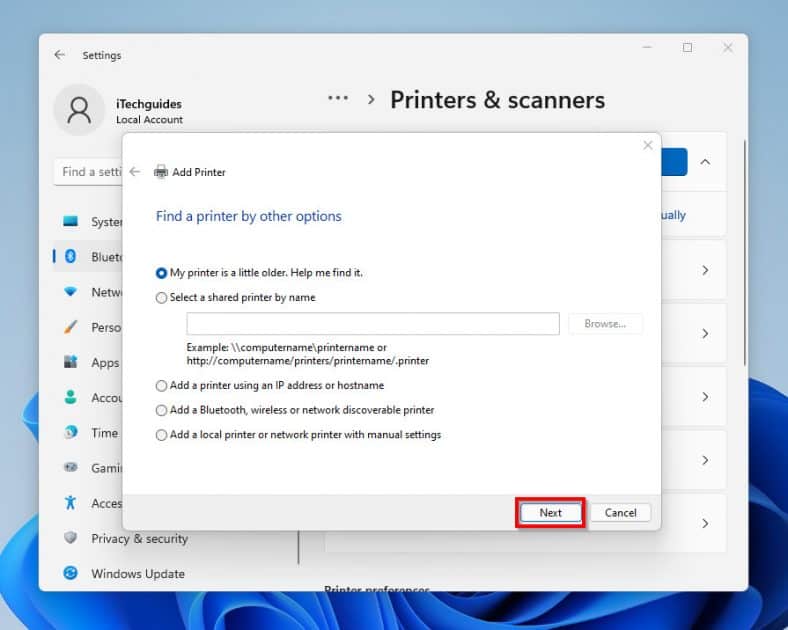
Once the printer is connected to the network, you will need to install the printer drivers. You can do this by going to the Start menu, typing "Devices and Printers," and clicking on the "Add a printer" button. This will launch the "Add a printer" wizard, which will guide you through the process of installing the printer drivers.
Alternatively, you can install the printer drivers using the "Print Management" console. To access the "Print Management" console, go to the Start menu, type "Print Management," and click on the "Print Management" icon. This will launch the "Print Management" console, where you can install the printer drivers and configure the print server settings.
Step 3: Configure Print Server Settings
Once the printer drivers are installed, you will need to configure the print server settings. To do this, go to the Start menu, type "Print Management," and click on the "Print Management" icon. This will launch the "Print Management" console, where you can configure the print server settings.
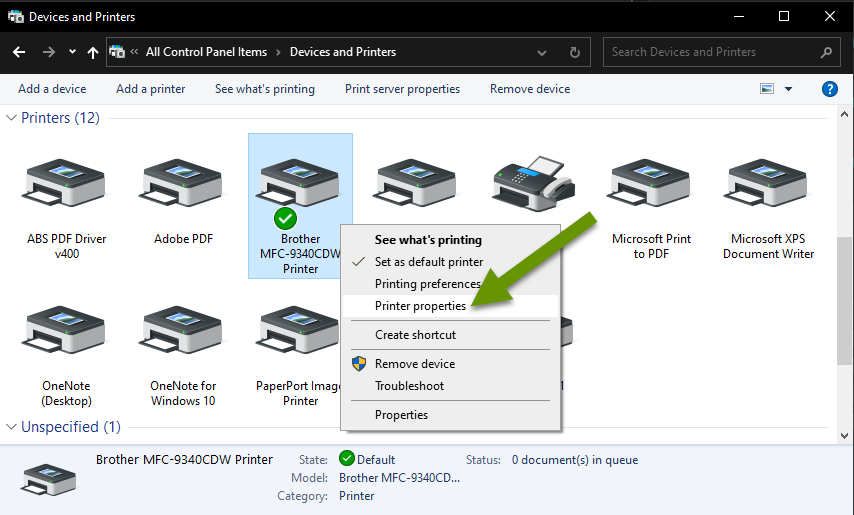
Under the "Printers" section, click on the "Add a printer" button to add the printer to the print server. You can also configure the print server settings by going to the "Properties" section of the printer.
Step 4: Share the Printer with Other Users
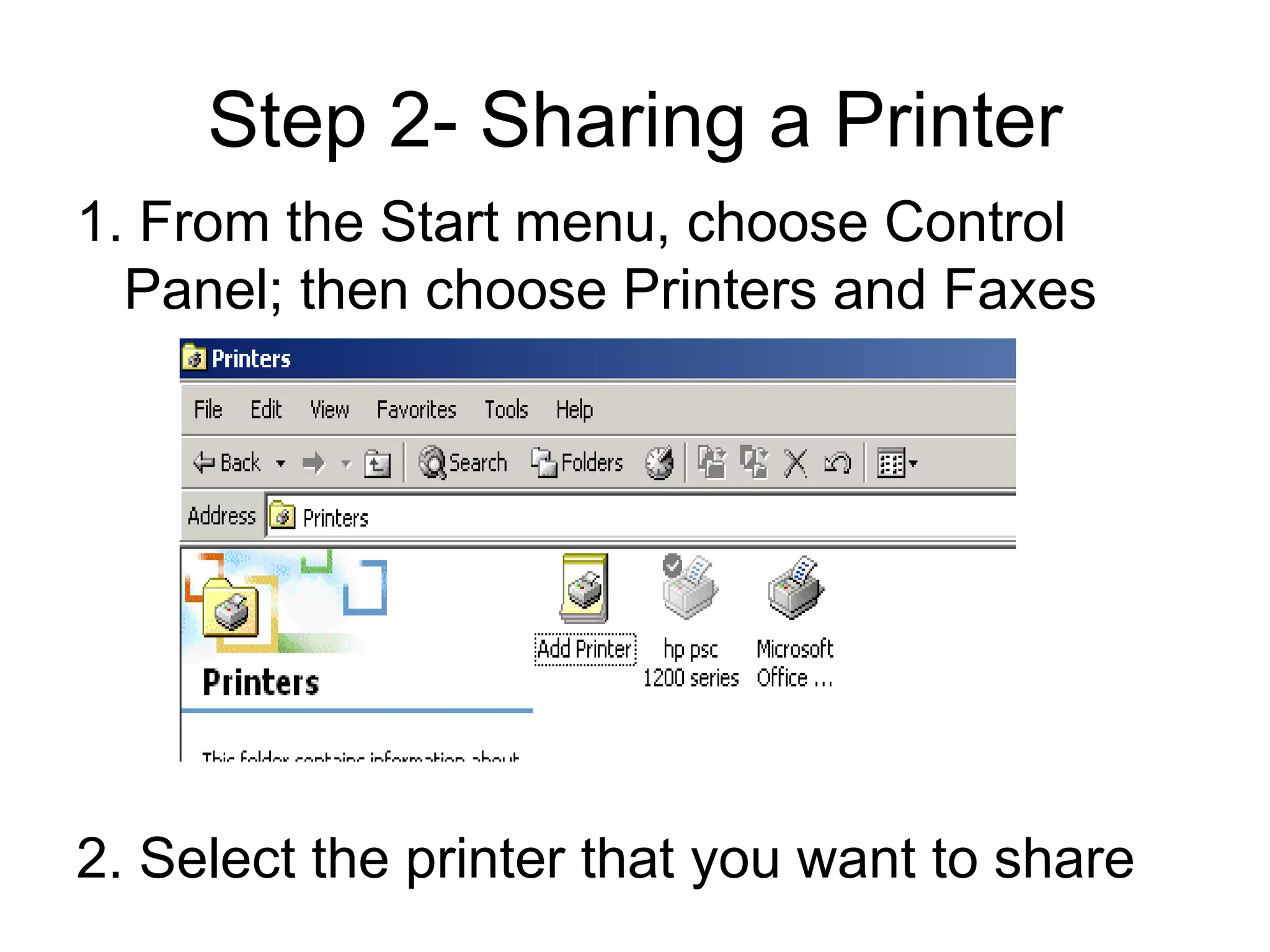
Once the printer is set up and configured, you can share it with other users on the network. To do this, go to the Start menu, type "Print Management," and click on the "Print Management" icon. This will launch the "Print Management" console, where you can share the printer with other users.
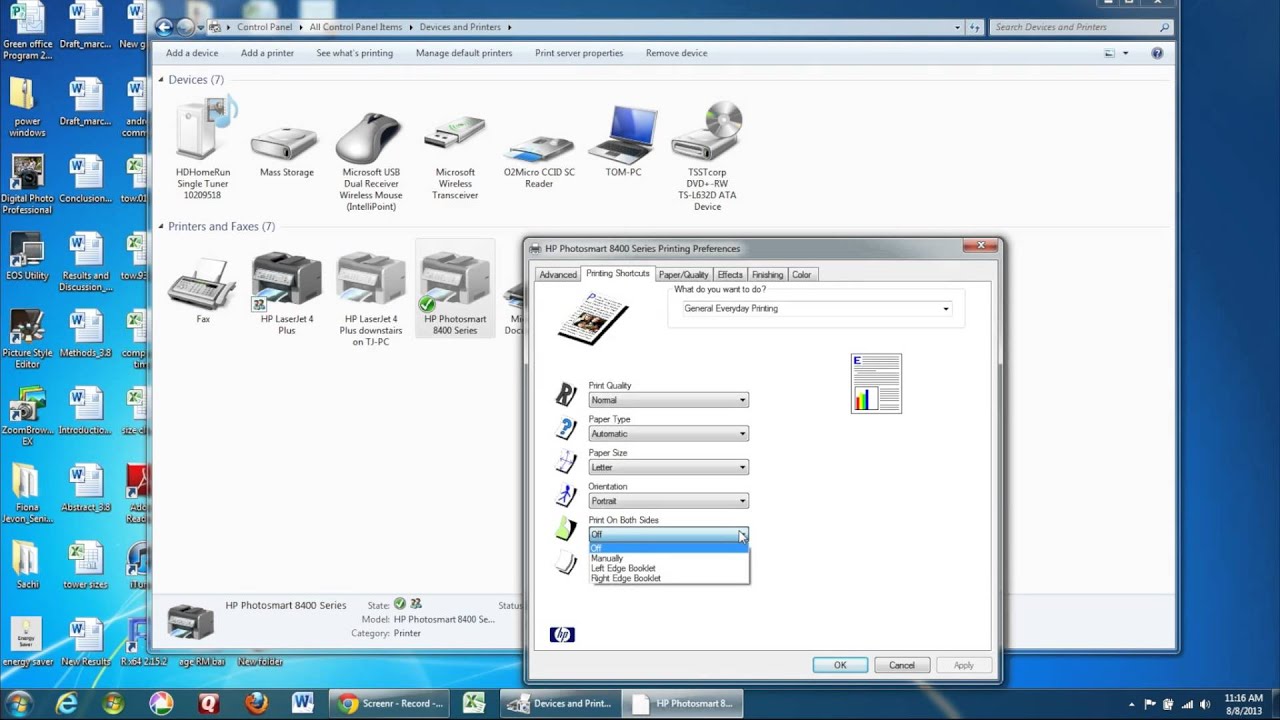
Under the "Printers" section, click on the "Properties" section of the printer and select the "Sharing" tab. Here, you can configure the sharing settings and share the printer with other users on the network.
Conclusion
Setting up a printer on Windows 10 Enterprise is a relatively straightforward process that involves connecting the printer to the network, installing printer drivers, configuring print server settings, and sharing the printer with other users. By following these steps, you can ensure that your printers are set up and configured correctly and that users on your network can access them easily.