How to Use OBS with GPU Acceleration: A Comprehensive Guide
Are you looking to enhance your OBS Studio experience with GPU acceleration, maximizing performance, speed, and efficiency? Look no further! In this article, we'll delve into the world of GPU acceleration, exploring its benefits, limitations, and optimization techniques to help you unlock the full potential of your OBS Studio experience.
What is GPU Acceleration?
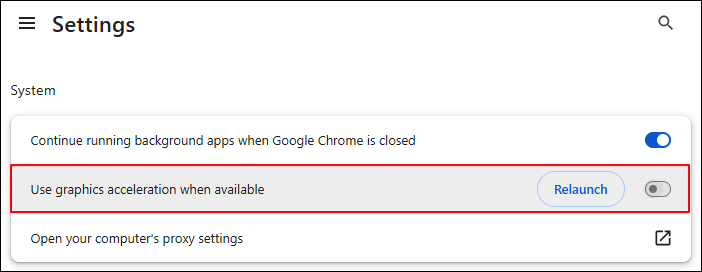
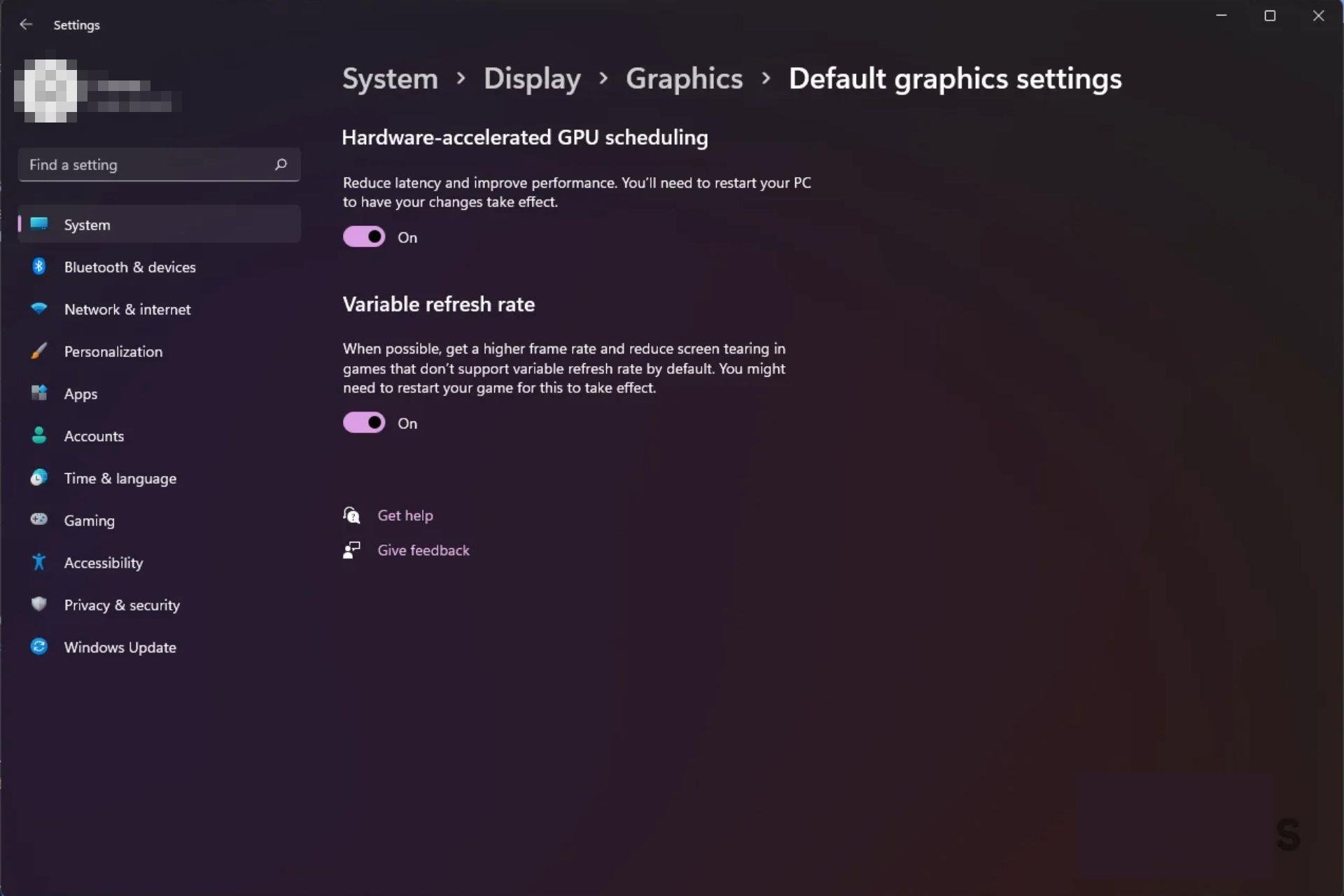
GPU acceleration refers to the process of offloading computationally intensive tasks, such as video encoding, to a graphics processing unit (GPU) instead of the central processing unit (CPU). This enables your computer to allocate more resources to demanding tasks, resulting in smoother and more efficient performances.
Benefits of GPU Acceleration in OBS Studio
Using GPU acceleration in OBS Studio provides numerous benefits, including:
- Reduced CPU usage, allowing for smoother gameplay and video editing
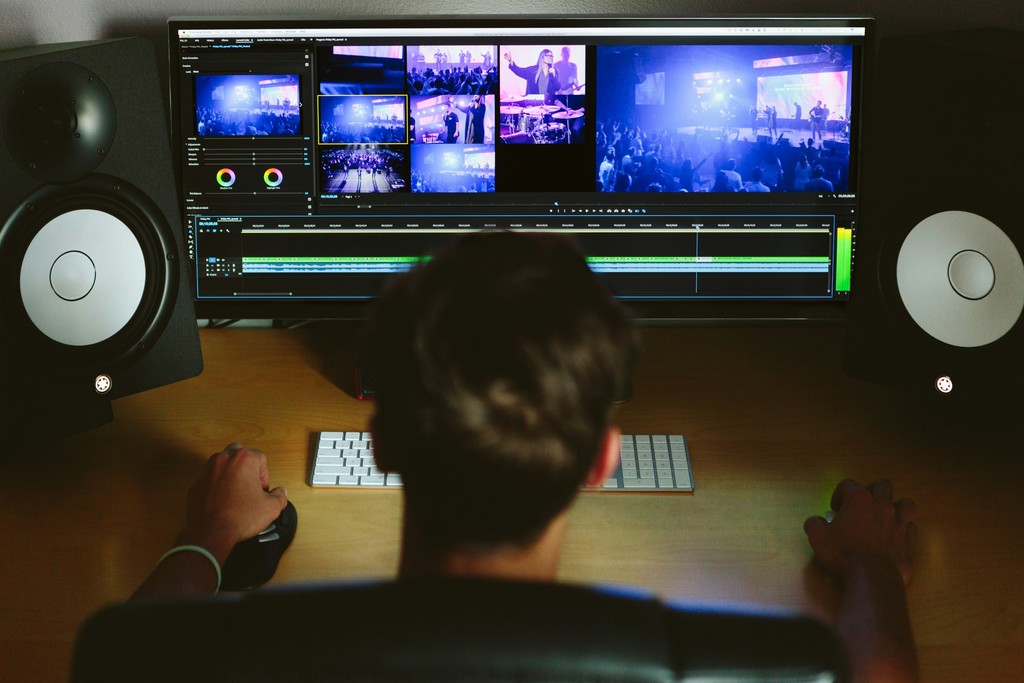
- Improved system performance, resulting in faster rendering and streaming
- Increased streaming quality, enabling the production of high-definition videos
- Efficient encoding, reducing the load on the CPU and overall system performance
System Requirements for GPU Acceleration in OBS Studio
To take full advantage of GPU acceleration, you'll need a computer with a dedicated graphics card (NVIDIA or AMD) and a compatible GPU. Ensure that you're running the latest GPU drivers and that your OS is up-to-date.
Configuring OBS Studio for GPU Acceleration
To enable GPU acceleration in OBS Studio, follow these steps:

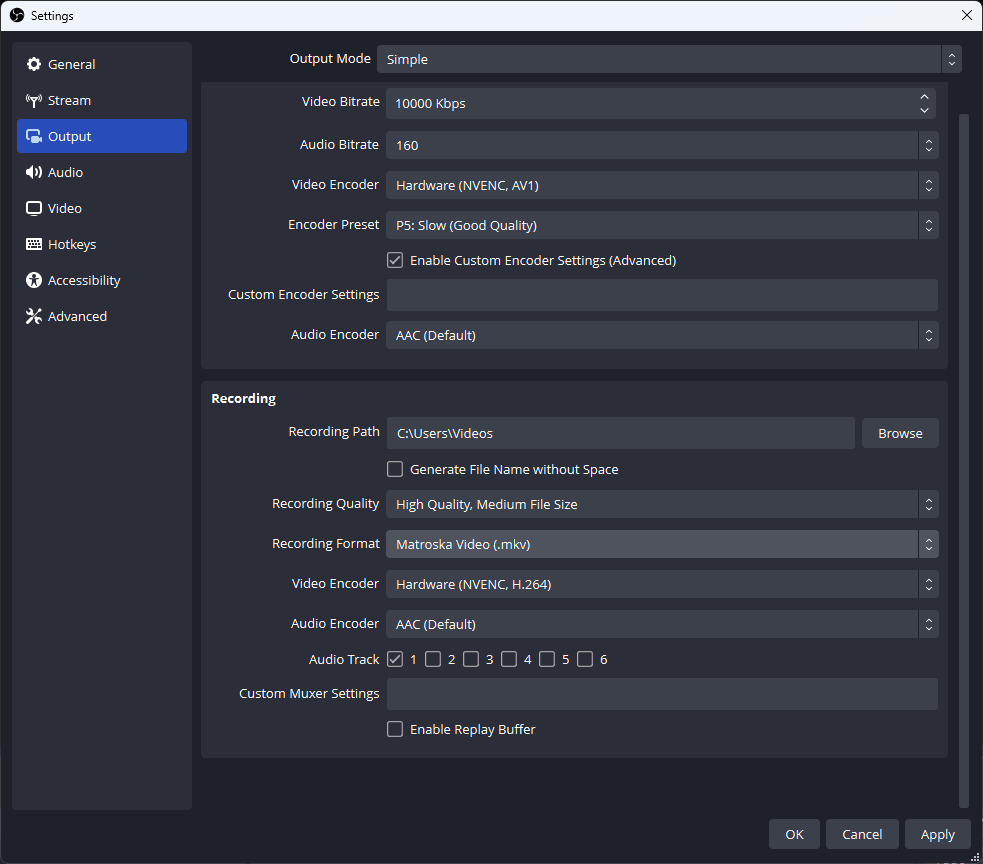
- Open OBS Studio and navigate to Settings > Output > Streaming
- Select the encoder for your GPU (e.g., NVENC for NVIDIA GPUs or AMD HW. H264 for AMD GPUs)
- Configure your GPU settings, such as resolution, bitrate, and quality
- Save your changes and restart OBS Studio
Optimizing OBS Studio for GPU Acceleration
To optimize OBS Studio for GPU acceleration, consider the following tips:
- Use the right GPU encoder for your GPU architecture
- Adjust your resolution and bitrate settings for optimal performance
- Lower the quality setting for faster encoding and reduced CPU usage
- Use a capture card for enhanced video capture and reduced CPU usage
GPU Acceleration in OBS Studio: A Step-by-Step Guide
For a more in-depth guide to configuring and optimizing OBS Studio for GPU acceleration, check out the following resources:
- Complete NVIDIA OBS Setup Guide
- Run OBS on Intel GPU with the Best Settings
- Using GPU Acceleration in OBS Studio to Optimize Performance
Conclusion
By leveraging GPU acceleration in OBS Studio, you can improve your streaming quality, reduce CPU usage, and maximize system performance. Follow the steps outlined in this guide to unlock the full potential of your OBS Studio experience and take your streaming to the next level!