How to Take a Mac Screenshot: A Comprehensive Guide
If you're a Mac user, you may be wondering how to take a screenshot on your device. The good news is that there are several ways to capture your screen, and we'll cover all of them in this article. Whether you want to capture the entire screen, a portion of it, or a specific window or menu, we've got you covered.Using Keyboard Shortcuts
The fastest way to take a screenshot on your Mac is by using keyboard shortcuts. There are three main keyboard shortcuts, each of which helps you take a screenshot differently. Before proceeding further, ensure you've enabled the keyboard shortcut feature first.Capture the Entire Screen
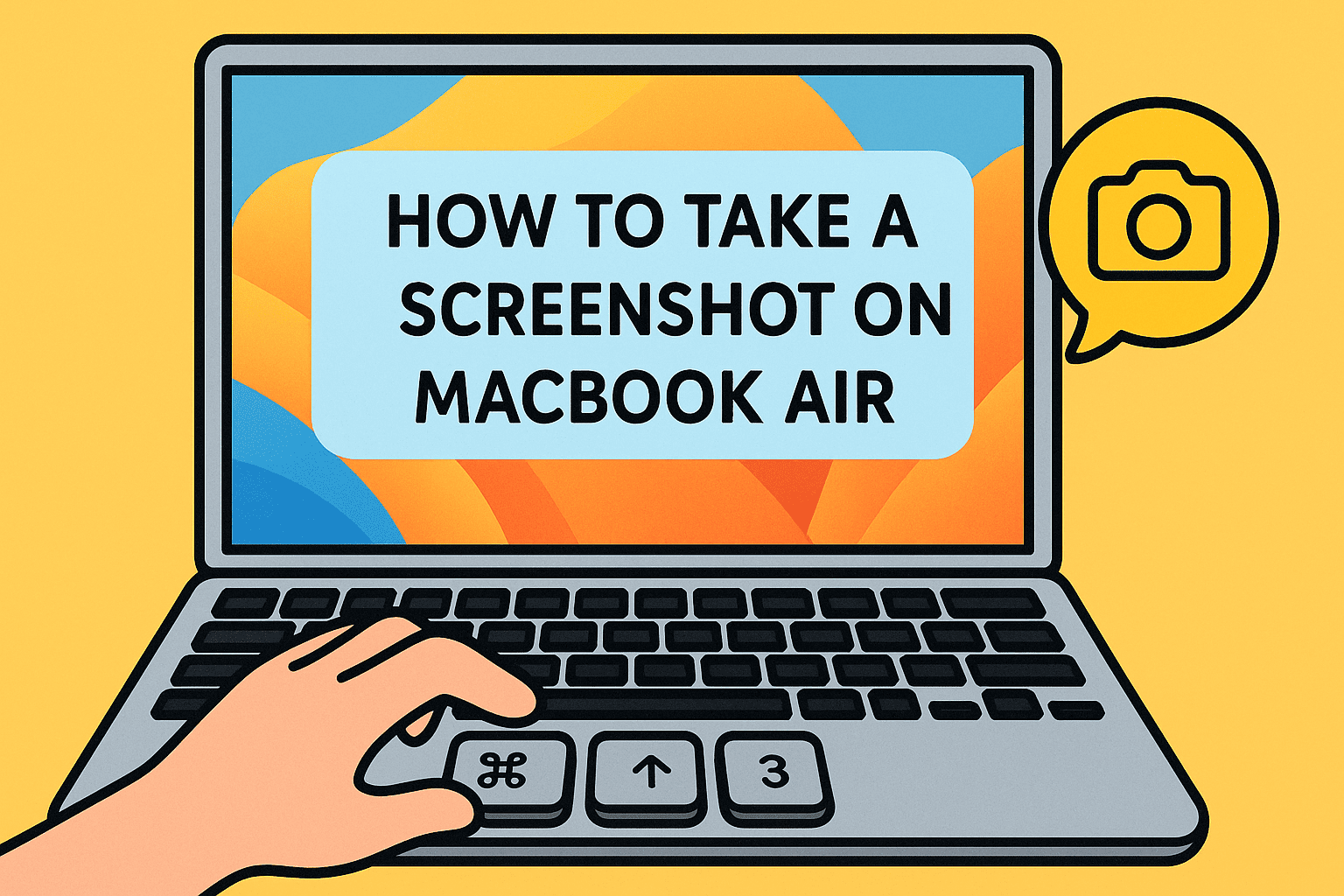
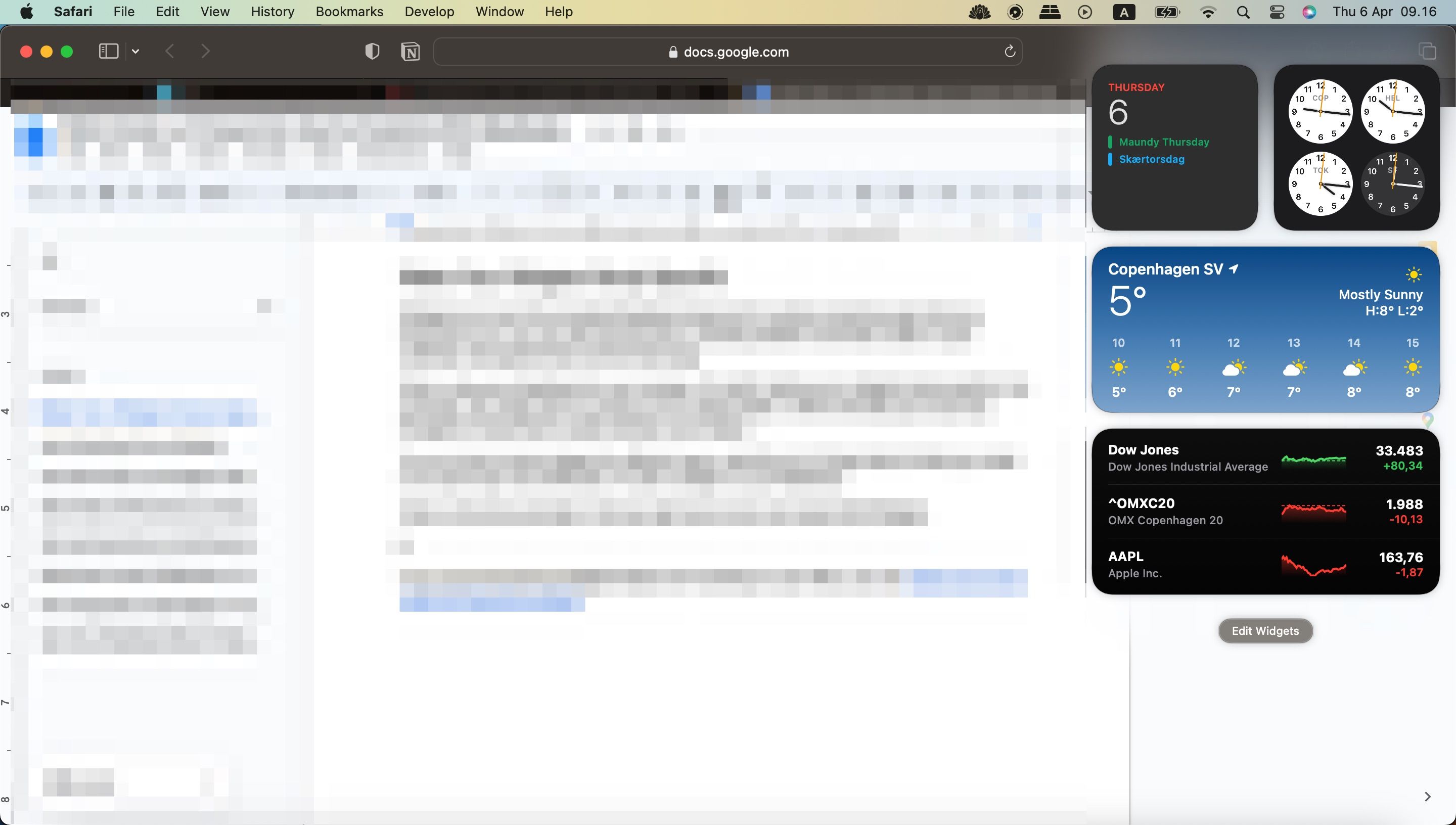
To take a screenshot of the entire screen, press the Shift, Command, and 3 keys together. If you see a thumbnail in the corner of your screen, click it to edit the screenshot. Or, wait for the screenshot to be automatically saved to your desktop.Capture a Portion of the Screen
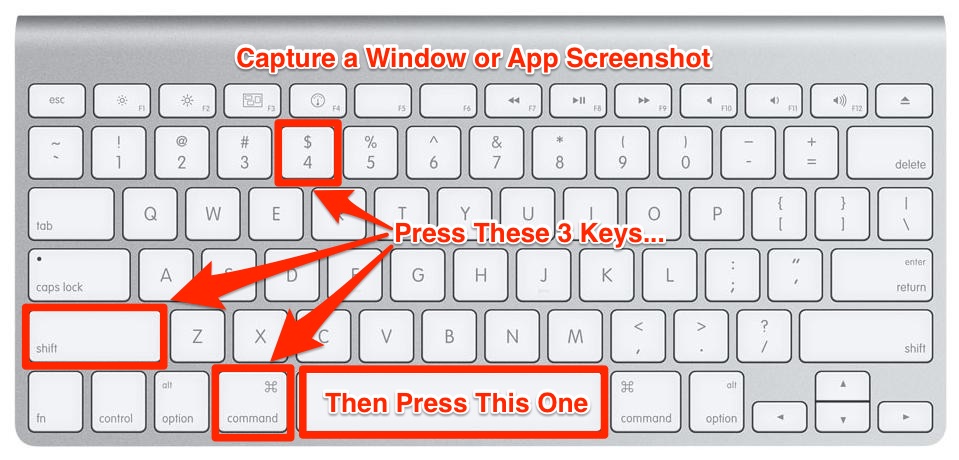
To capture a portion of the screen, press the Shift, Command, and 4 keys together. Then, simply drag the crosshair to select the area of the screen you want to capture. Release the mouse button or trackpad click to capture the portion of the screen you selected.Capture a Window or Menu
To capture a window or menu, press the Command and Shift and 4 keys together. Then, click on the window or menu you want to capture. This will capture the entire window or menu, including the title bar and any contents.Capture Using the Screenshot App
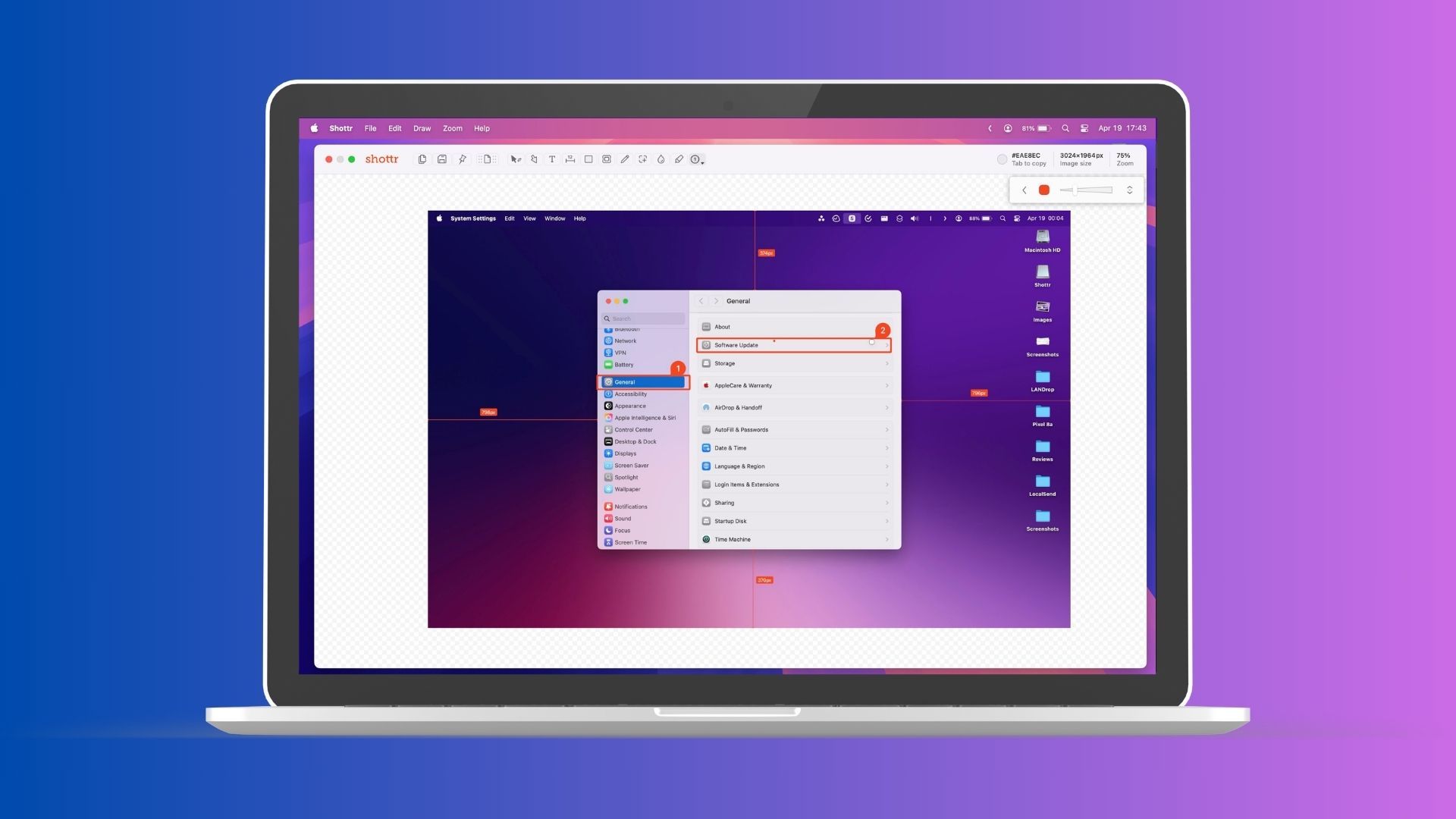
If you're looking for even more features and flexibility in capturing your screen, consider using the Screenshot app. This app provides a panel of tools that let you easily take screenshots and screen recordings, with options to control what you capture, such as setting a timer delay or including the pointer or clicks. You can also use the Screenshot app to capture a whole window, a specified area, and even record your screen.Taking Screenshots with Third-Party Apps