Configuring Google Home for Multiple Users: A Comprehensive Guide
Want to personalize the Google Home experience for each individual member of your household? Here's how to add more than one user on your Google Home device.
Understanding the Basics of Multi-User Support on Google Home
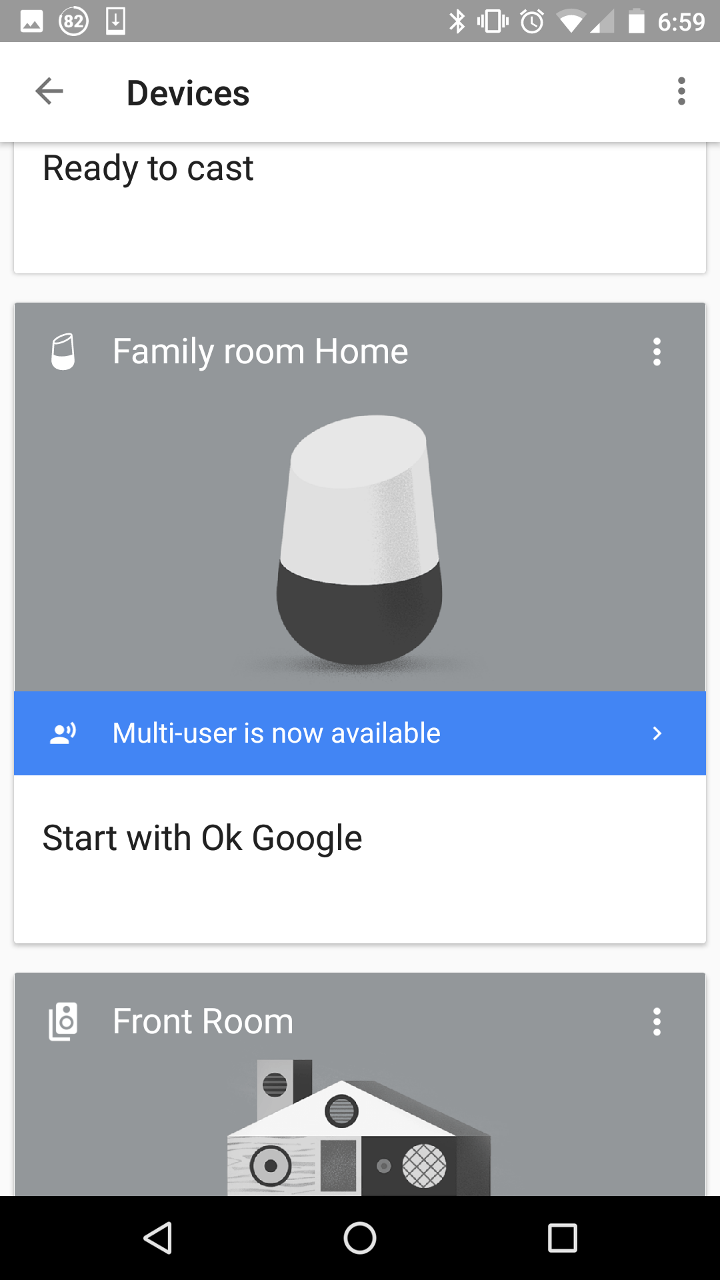
Google Home is designed to be a shared device that everyone in the house can use. However, with the recent update, Google Home finally offers multi-user support, allowing each family member to enjoy a truly personalized smart home experience.
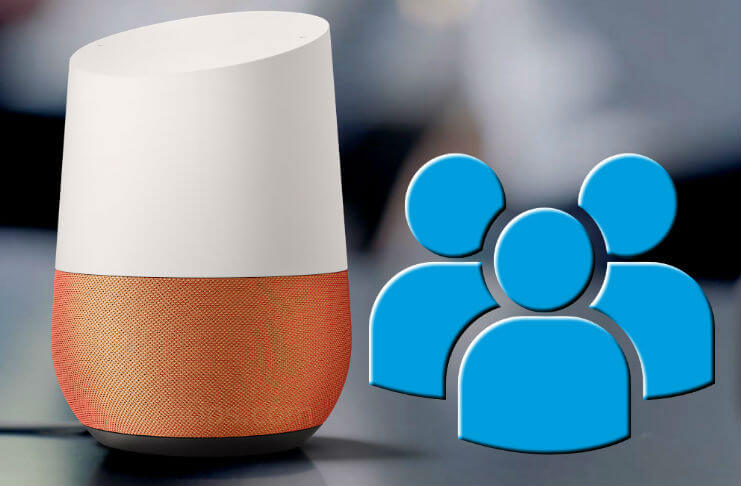
With the multi-user feature, Google Home can recognize and respond to multiple voices so that everyone in your household can have their own customized experience. This means that each user can access their own preferences, routines, and information specific to their needs.
How to Set Up Multiple Users on Google Home
To set up multiple users on Google Home, follow these simple steps:
- Open the Google Home app: Open the Google Home app on your Android or iOS device that you used to set up the Google Home device before.
- Tap the hamburger menu: Tap the hamburger menu in the top left corner to reveal the left menu.
- Tap "Add": Tap "Add" to invite household members to join your Google Home account.
- Assign roles: Assign roles like Admin or Member to control devices such as speakers or thermostats.
- Invite household members: Invite household members to join your Google Home account via email.
- Accept invitations: Accept the invitations sent by the household members to join their accounts.
Once the household members accept the invitations, they will receive a notification to complete the setup process.
Benefits of Multi-User Support on Google Home
The benefits of multi-user support on Google Home are numerous. With this feature, each user can enjoy a personalized experience, including:
- Tailored news updates: Each user can receive news updates tailored to their interests.
- Individual calendars: Each user can access their own calendar and receive reminders specific to their schedule.
- Personalized music: Each user can access their own music collection and enjoy personalized music recommendations.
- Customized settings: Each user can customize their own settings, including temperature, lighting, and security preferences.
Managing Multiple User Accounts on Google Home
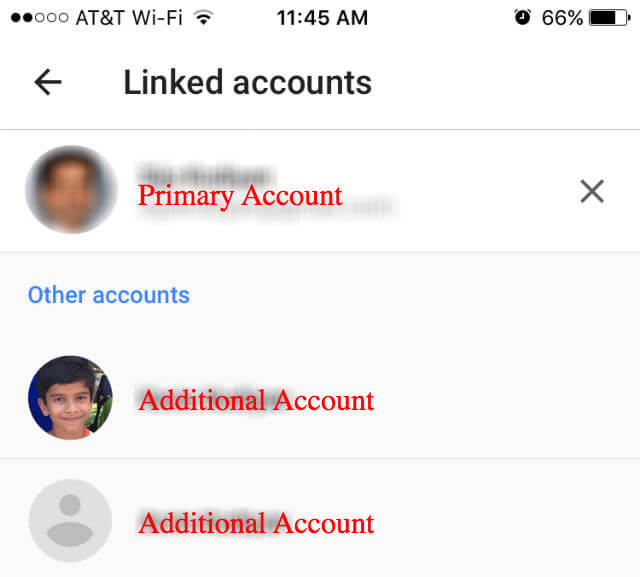
Managing multiple user accounts on Google Home is relatively easy. To manage multiple user accounts, follow these steps:
- Open the Google Home app: Open the Google Home app on your Android or iOS device.
- Tap the hamburger menu: Tap the hamburger menu in the top left corner to reveal the left menu.
- Tap "Manage accounts": Tap "Manage accounts" to view and manage all user accounts.
- Assign roles: Assign roles like Admin or Member to control devices and manage accounts.
- View device controls: View device controls and settings for each user account.
Troubleshooting Multi-User Support on Google Home
If you are experiencing issues with multi-user support on Google Home, follow these troubleshooting tips:
- Restart your device: Restart your Google Home device to refresh the connection and resolve any issues.
- Check your Wi-Fi connection: Ensure that your Wi-Fi connection is stable and strong.
- Update your Google Home app: Update your Google Home app to the latest version.
- Reset your device: Reset your Google Home device to its original settings.
Conclusion
Configuring Google Home for multiple users is a straightforward process that does not require extensive technical expertise. With the multi-user feature, each family member can enjoy a personalized smart home experience, tailored to their needs and preferences. By following the steps outlined in this guide, you can set up multiple user accounts on Google Home and enjoy the benefits of a seamless and efficient smart home experience.



/cdn.vox-cdn.com/uploads/chorus_asset/file/13651117/Google_speaker_ss_600.jpg "Maximize Your Google Home Experience: Set Up Multiple Users for a ...")