Creating a Windows 11 Installation Drive: A Comprehensive Guide
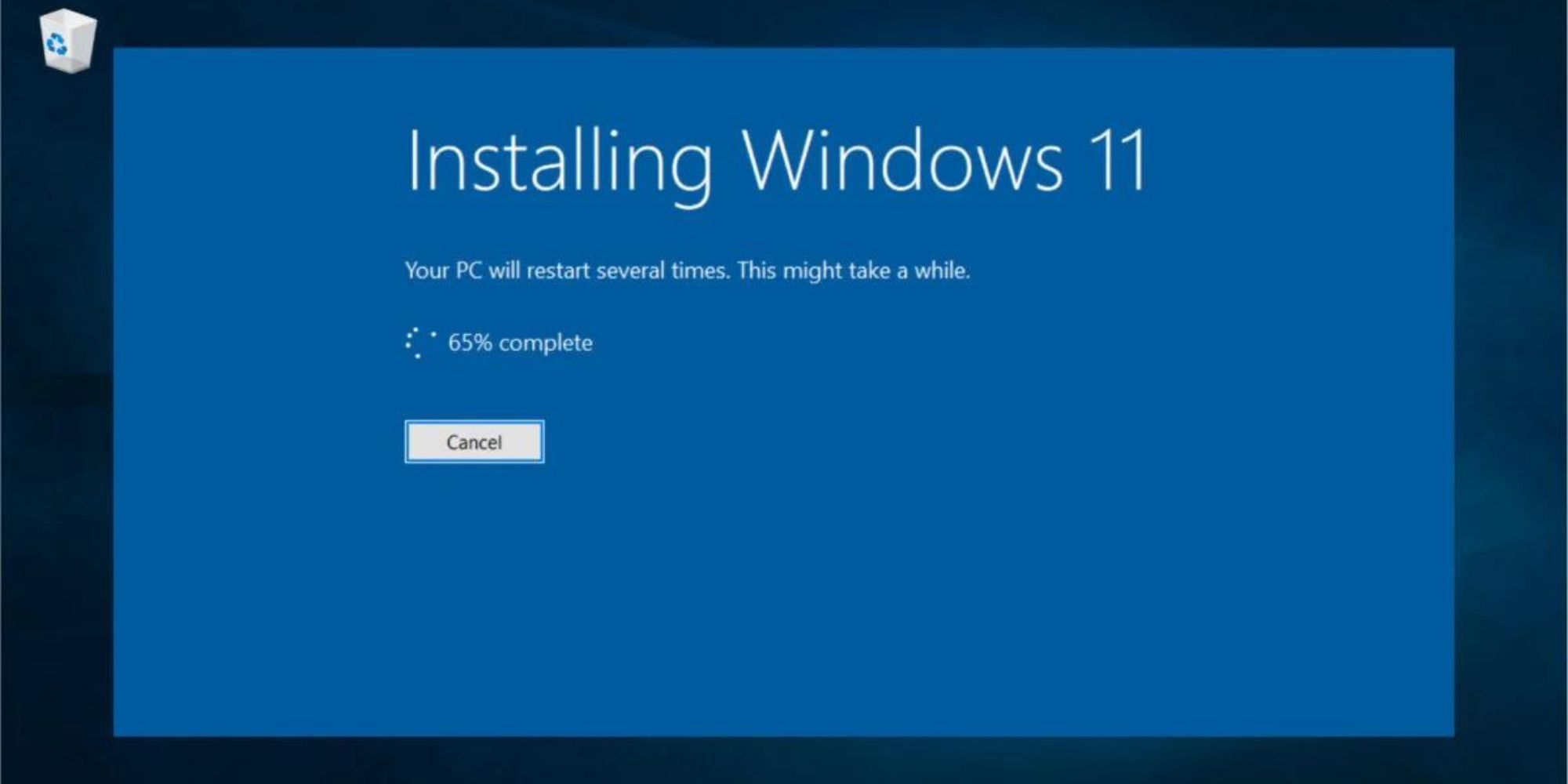
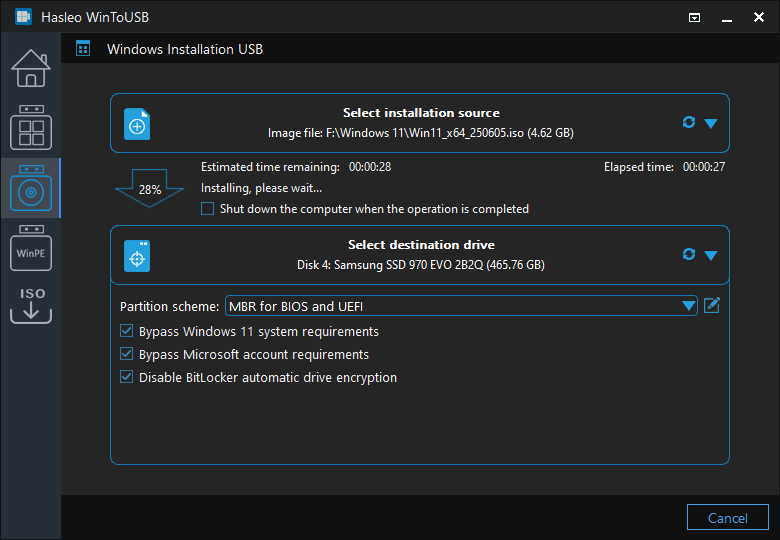
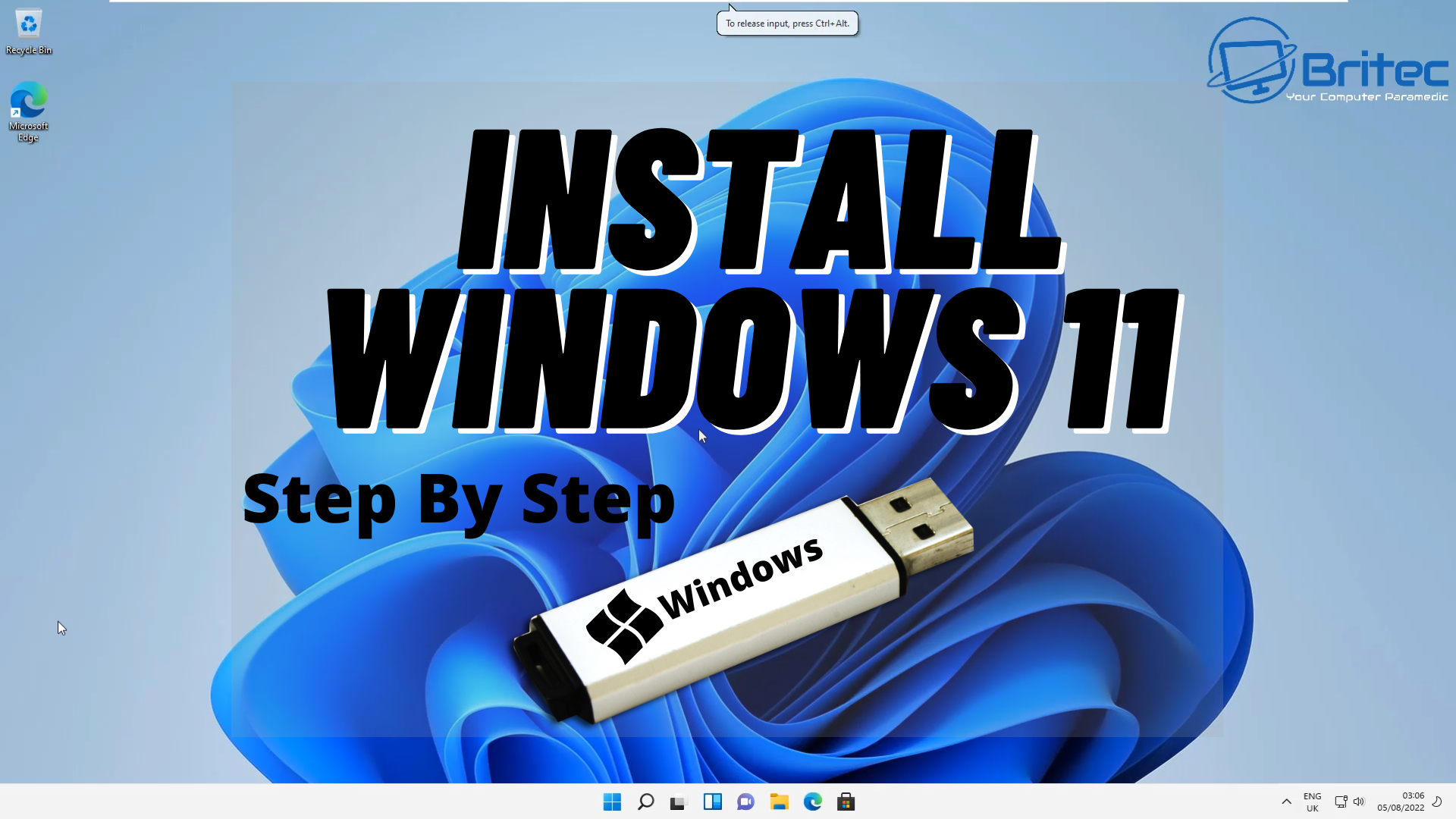
Are you looking to perform a reinstall or clean install of Windows 11 on a new or used PC? Creating a Windows 11 installation drive is a crucial step in the process. In this article, we will walk you through the simple and easy-to-understand steps to create a bootable USB or DVD using the official Microsoft Media Creation Tool.
Method 1: Using Microsoft Media Creation Tool
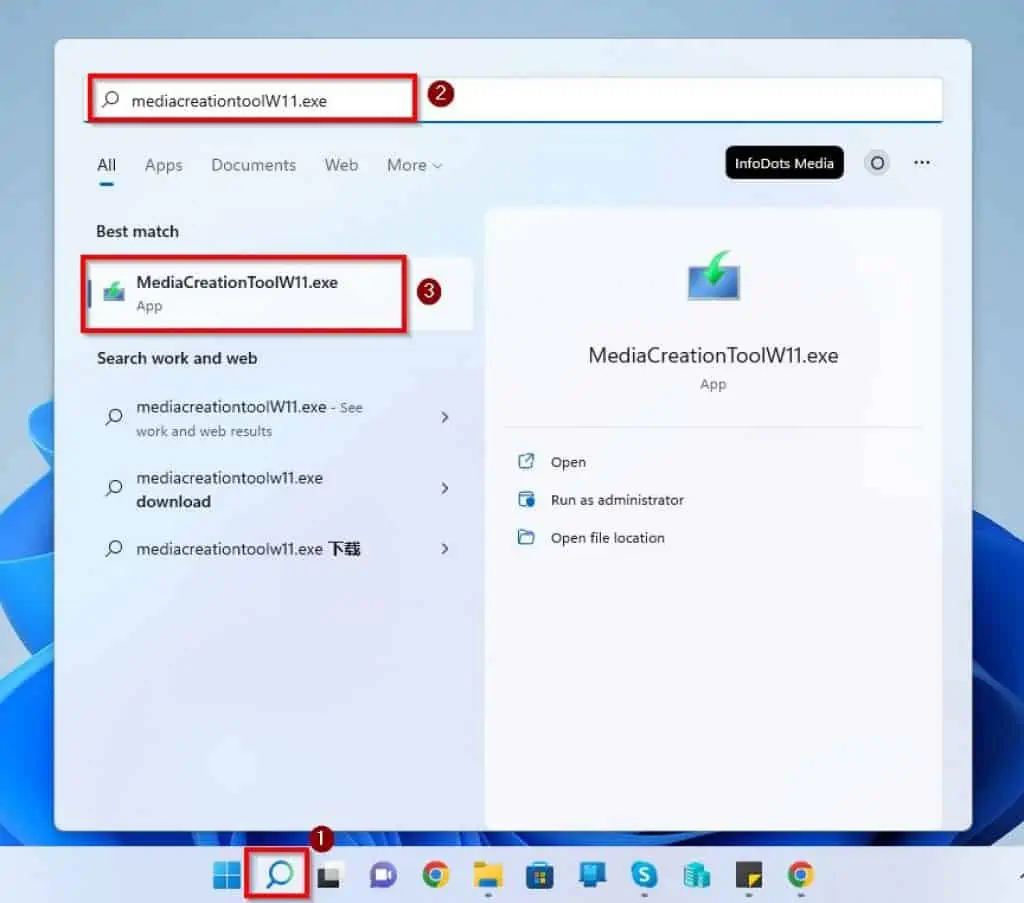
The official Microsoft Media Creation Tool is a free utility that allows you to download and install Windows 11 on a new device. Here are the steps to create a Windows 11 installation drive using this tool:
- Download the Media Creation Tool from the Microsoft Software Download Windows 10 page.
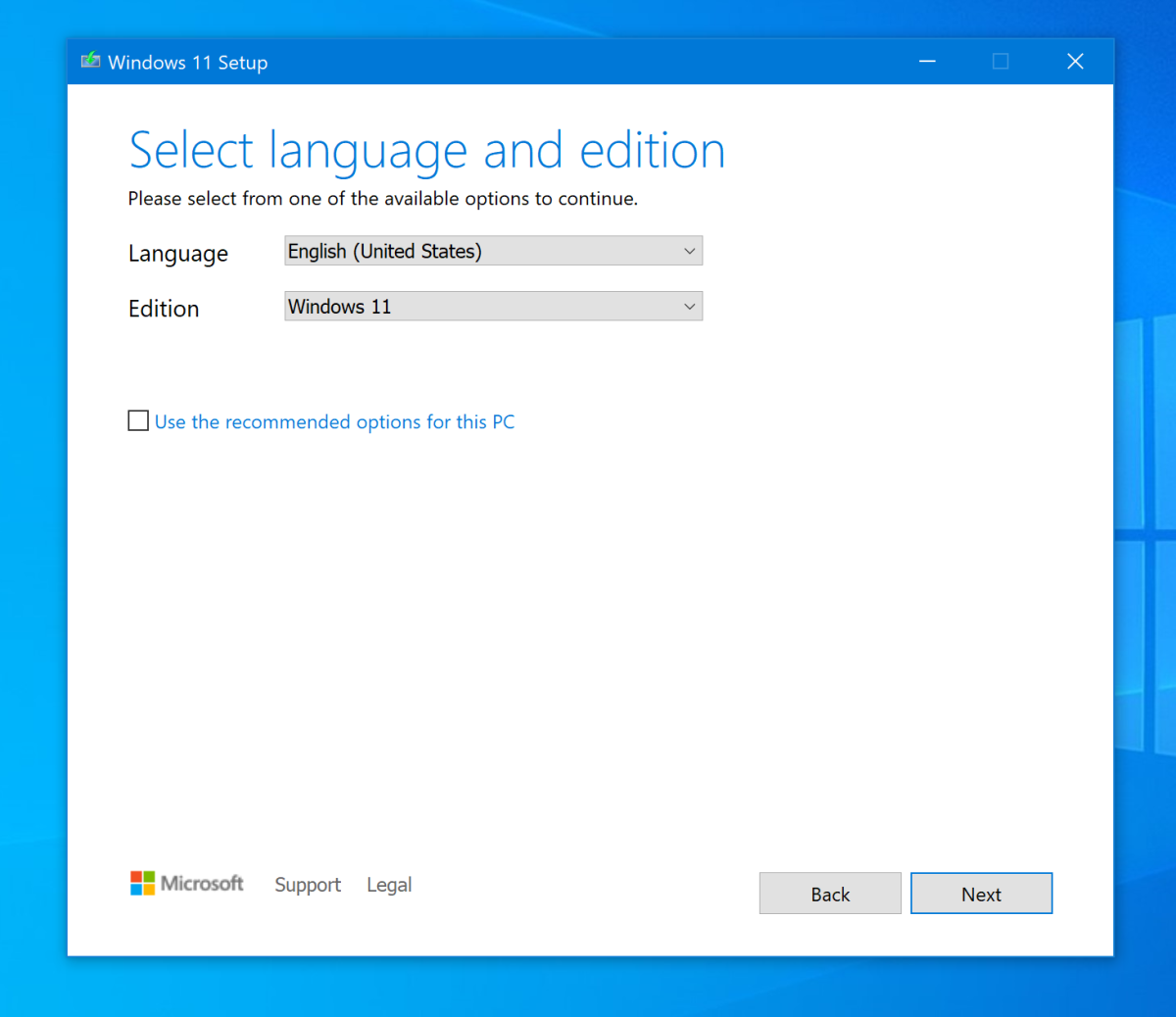
- Run the tool and select the language, edition, and architecture of Windows 11 you want to install.
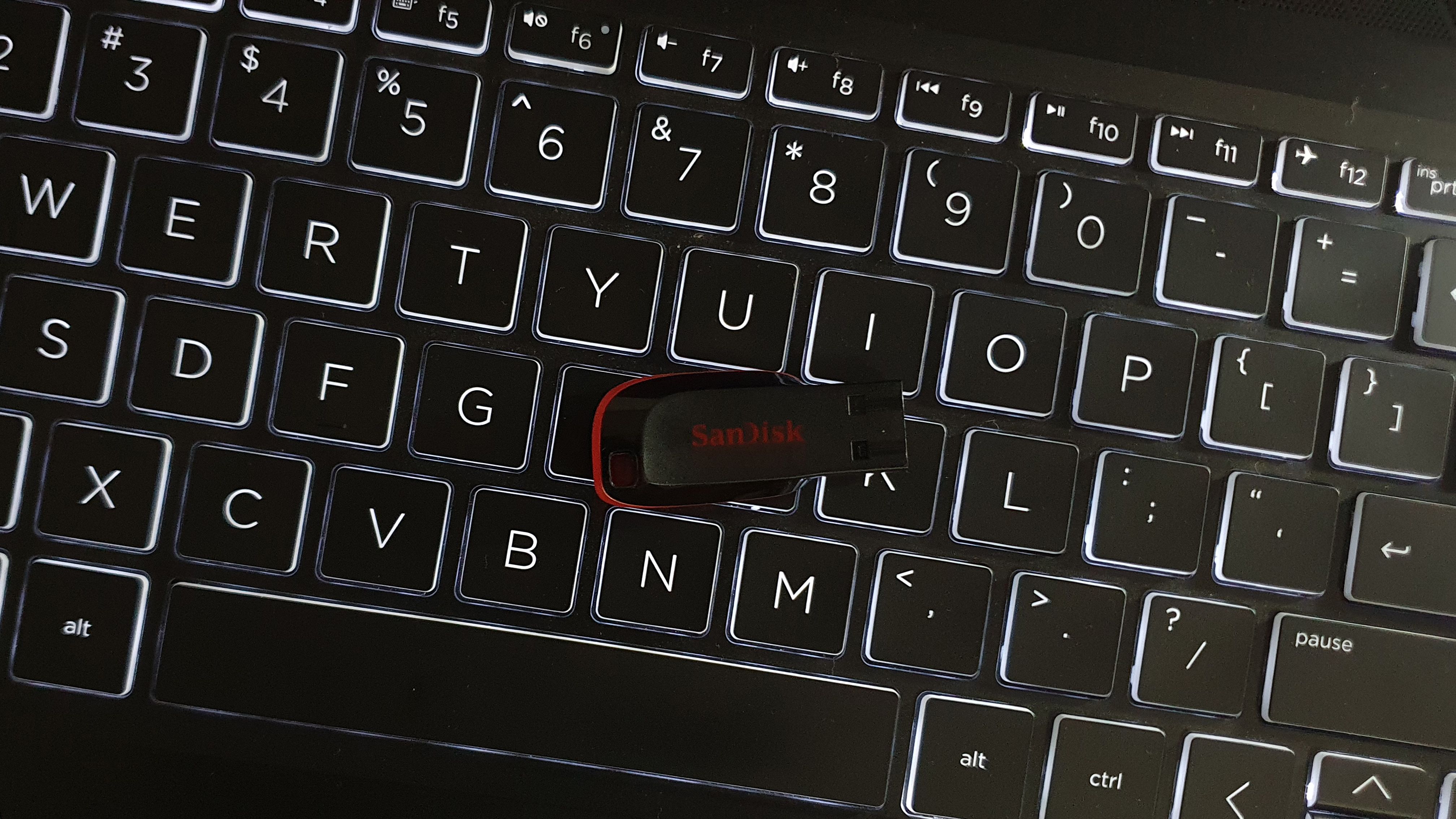
- Choose to create a bootable USB drive or DVD, and select the USB drive or DVD drive you want to use.
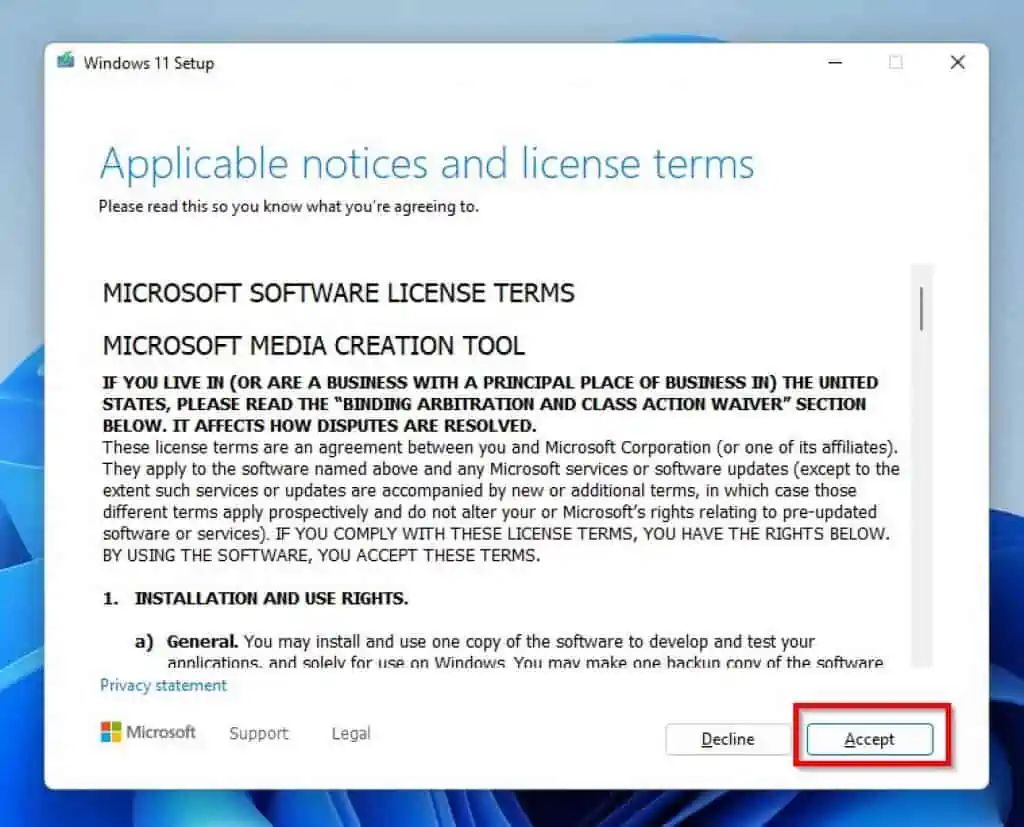
- Follow the on-screen instructions to complete the installation process.
Method 2: Using Rufus
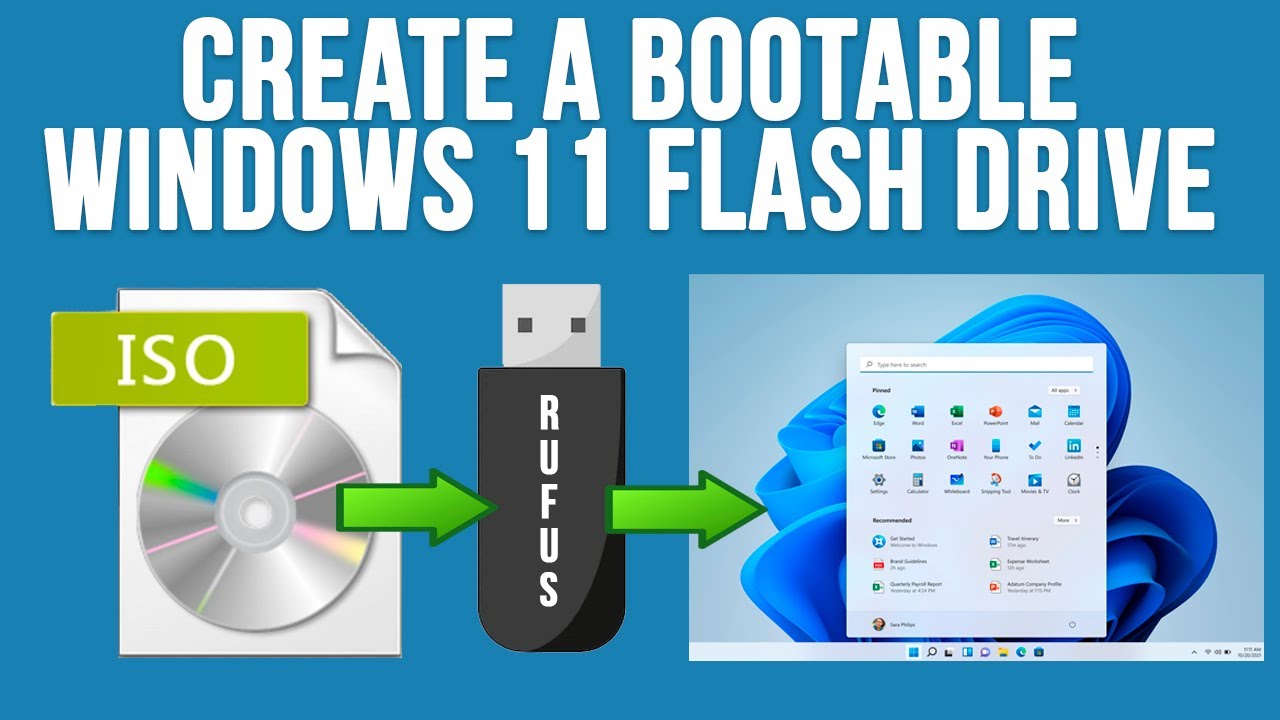
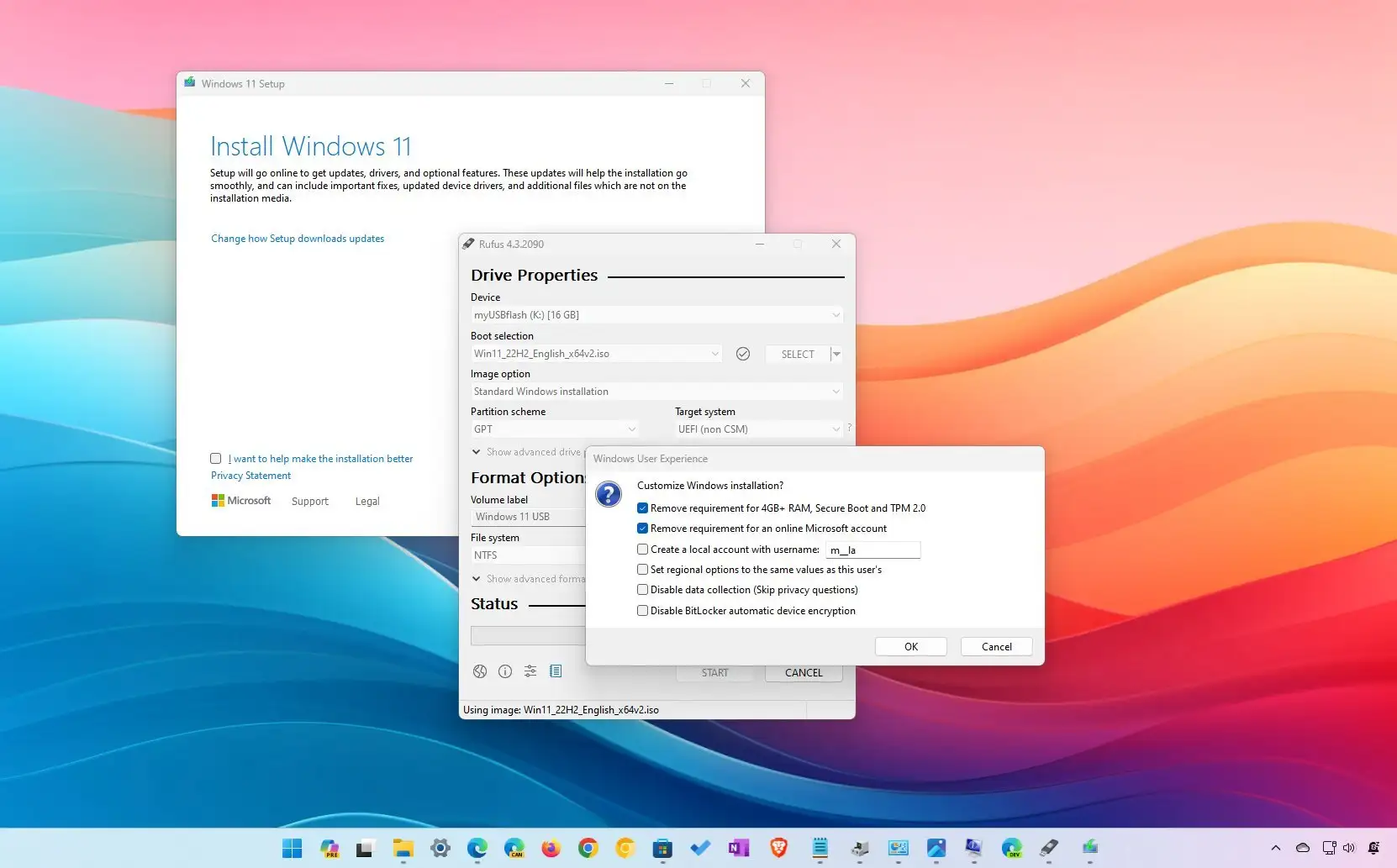
Rufus is a free and powerful utility that allows you to create a bootable USB drive for Windows 11. Here are the steps to create a Windows 11 installation drive using Rufus:
- Download and install the latest version of Rufus.
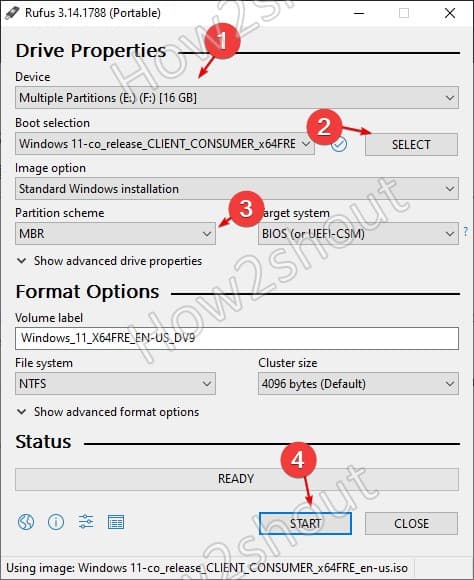
- Launch Rufus and select the USB drive you want to use.
- Choose the ISO file you downloaded from the Microsoft website and select the BIOS or UEFI option.
- Click "Start" to begin the creation process.
What to Consider When Creating a Windows 11 Installation Drive
When creating a Windows 11 installation drive, there are several things to consider:
- Ensure that your USB drive or DVD is at least 8GB in size to accommodate the Windows 11 installation files.
- Make sure that your device is compatible with Windows 11, as listed on the Microsoft System Requirements page.
- Be aware that creating a bootable USB drive may erase any data on the drive. Back up any important files before proceeding.
Conclusion
Creating a Windows 11 installation drive is an essential step in the process of reinstalling or cleaning installing Windows 11 on a new or used PC. Using the official Microsoft Media Creation Tool or Rufus, you can create a bootable USB or DVD in just a few simple steps. Remember to consider the system requirements, disk space, and data backup before proceeding.
Additional Resources
For more information on creating a Windows 11 installation drive, you can visit the Microsoft Support page or the Rufus website. Additionally, you can check out the following tutorials and guides:
- Create a Bootable Windows 11 USB Drive using Microsoft or Rufus.
- Learn how to create a Windows 11 bootable USB drive using WoeUSB or Ventoy.
- Discover how to reset your Microsoft Surface using a USB recovery drive or Surface recovery image.
FAQs
Q: What is the minimum size of the USB drive required to create a Windows 11 installation drive?
A: The minimum size of the USB drive required is 8GB.
Q: Can I use a DVD instead of a USB drive to create a Windows 11 installation drive?
A: Yes, you can use a DVD to create a Windows 11 installation drive using the Microsoft Media Creation Tool.
Q: Will creating a Windows 11 installation drive erase any data on the USB drive or DVD?
A: Yes, creating a Windows 11 installation drive will erase any data on the USB drive or DVD. Back up any important files before proceeding.


![[Windows 11/10] How to Create and Use a USB Flash Drive Installation ...](https://i.ytimg.com/vi/QidsU7LPAn0/maxresdefault.jpg "[Windows 11/10] How to Create and Use a USB Flash Drive Installation ...")