Setting Up the Perfect Discord Server Permissions
What are Discord Server Permissions?
Discord server permissions are a crucial aspect of maintaining a secure and organized community. With the ability to assign and manage roles, categories, and channels, you can control who has access to sensitive information and ensure a smooth communication flow. In this article, we will delve into the world of Discord server permissions setup, providing you with a comprehensive guide on how to establish a well-structured and secure server.The Importance of Discord Server Permissions Setup
When creating your own Discord server, you have probably had to create your own roles and assign permissions. However, understanding the intricacies of Discord server permissions can be overwhelming. With various settings, categories, channels, and roles to manage, it's easy to become tangled in the complexities of permissions management. By setting up your Discord server permissions correctly, you can:- Control access to sensitive information
- Ensure a smooth communication flow
- Reduce server spam and potential security threats
- Manage roles and permissions efficiently
Understanding Discord Server Permissions
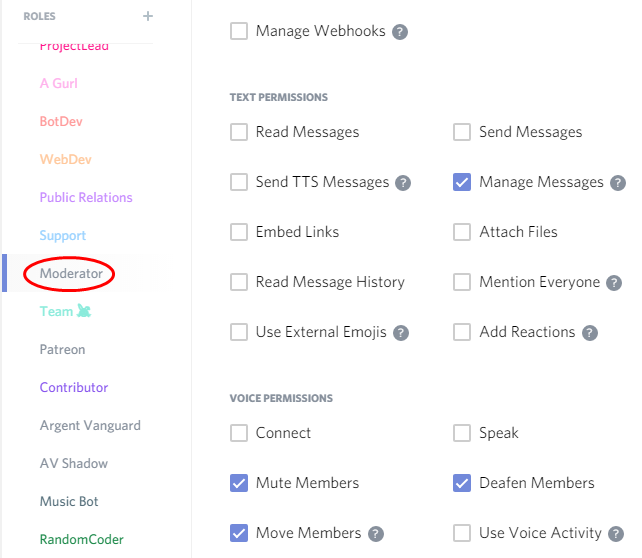
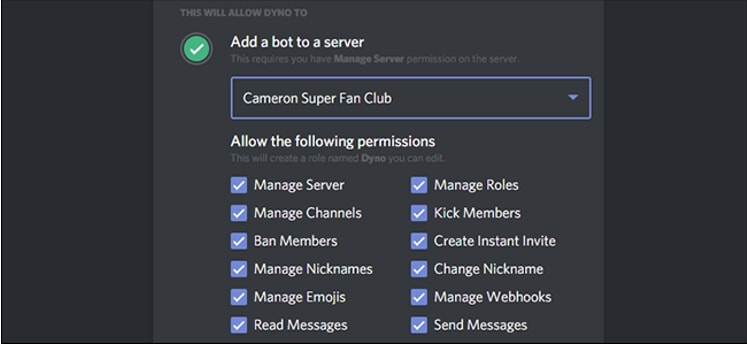
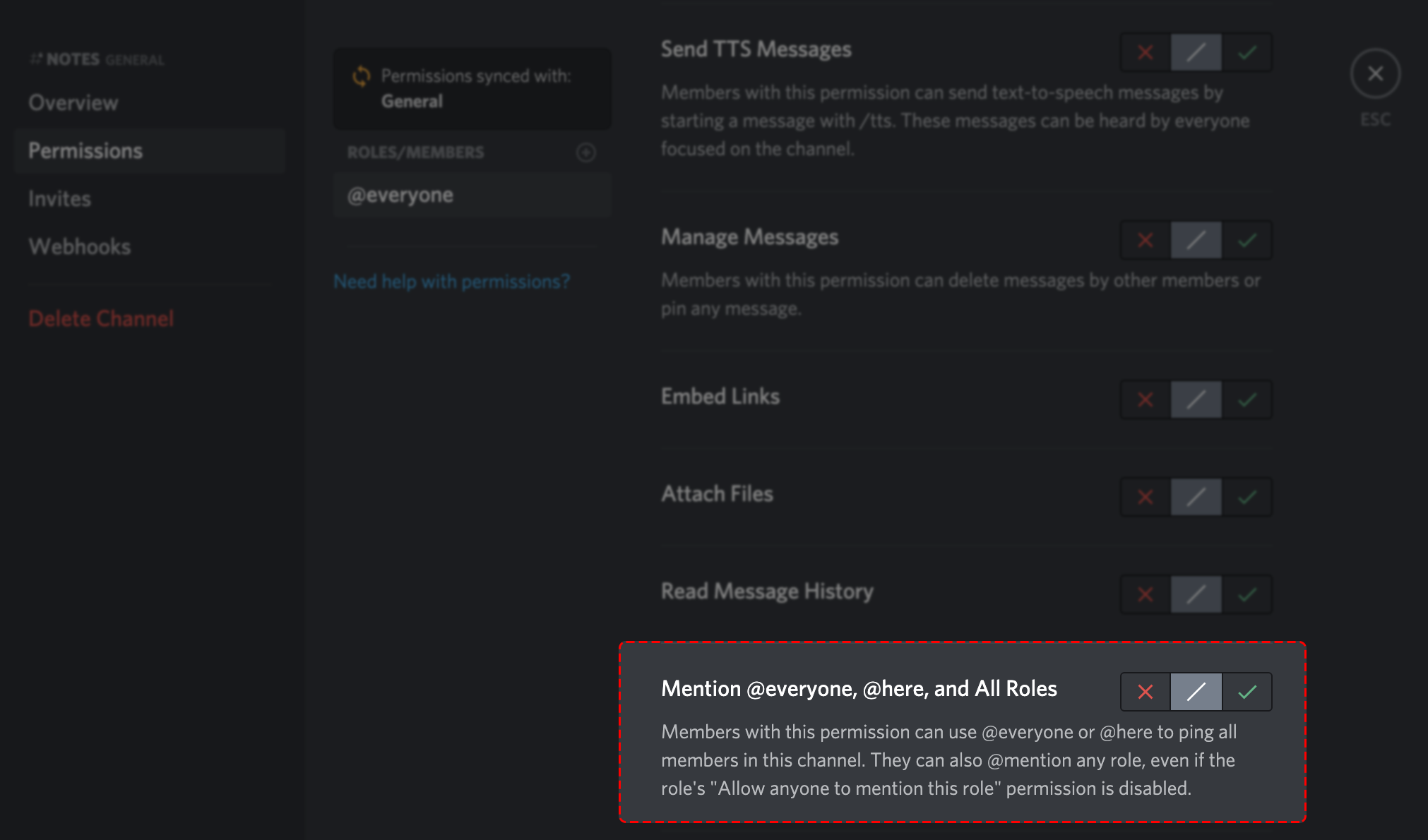
Discord server permissions are an essential component of any server setup. These permissions can be managed on an individual, role, channel, or category level. With various permission settings available, you can tailor your permissions to suit the needs of your server. Here are some key permissions settings you should be aware of:- Send Messages: Allows members to publish their own messages in channels
- Manage Messages: Permits members to publish any message in the channel
- Manage Channels: Offers channel creation, deletion, and edit permissions to members li>Manage Roles: Provides role creation, modification, and deletion permissions to members
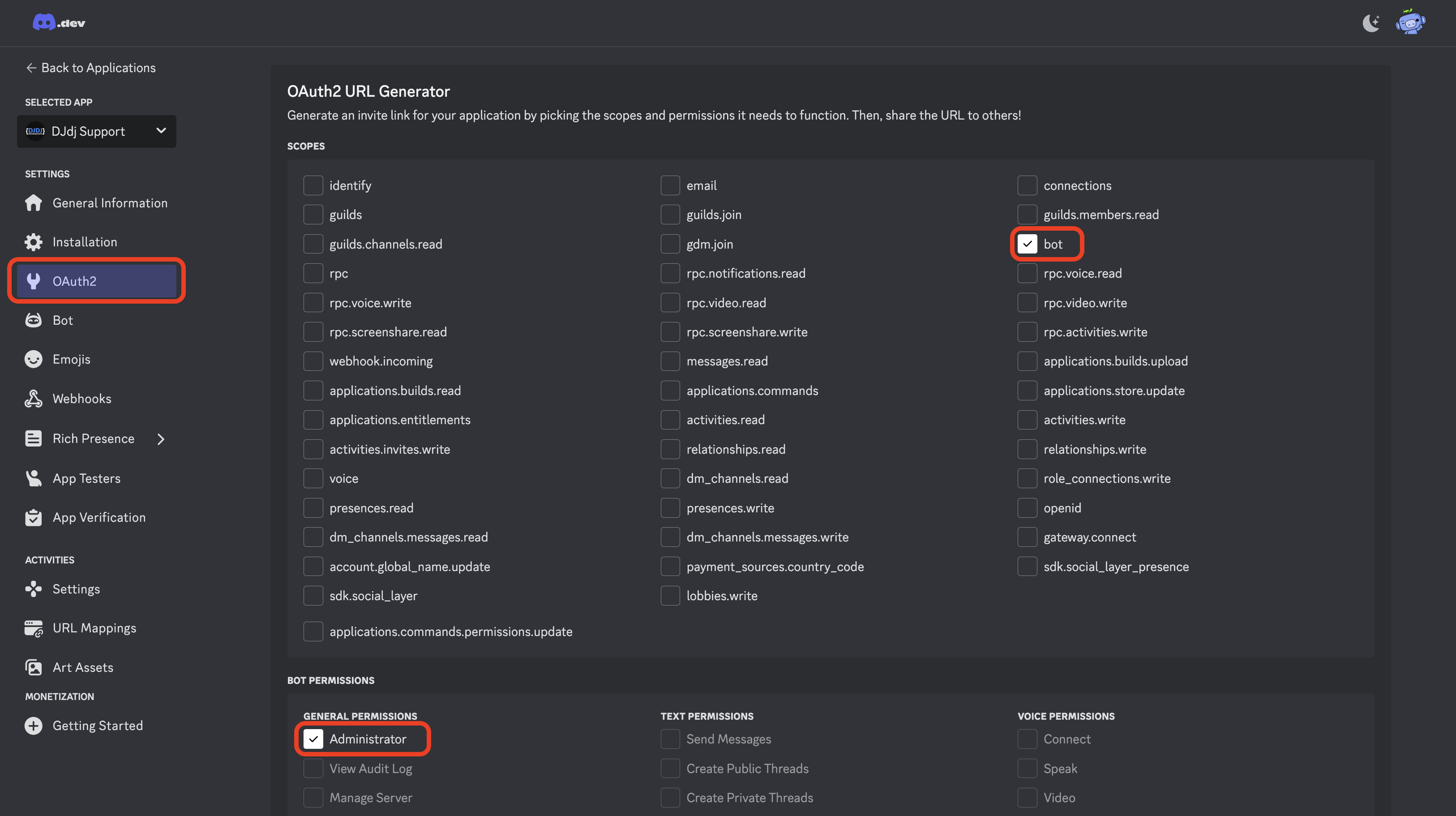
- Administrator: Grants the highest level of permission to the server, including server-wide moderation and control
Setting Up Discord Server Permissions

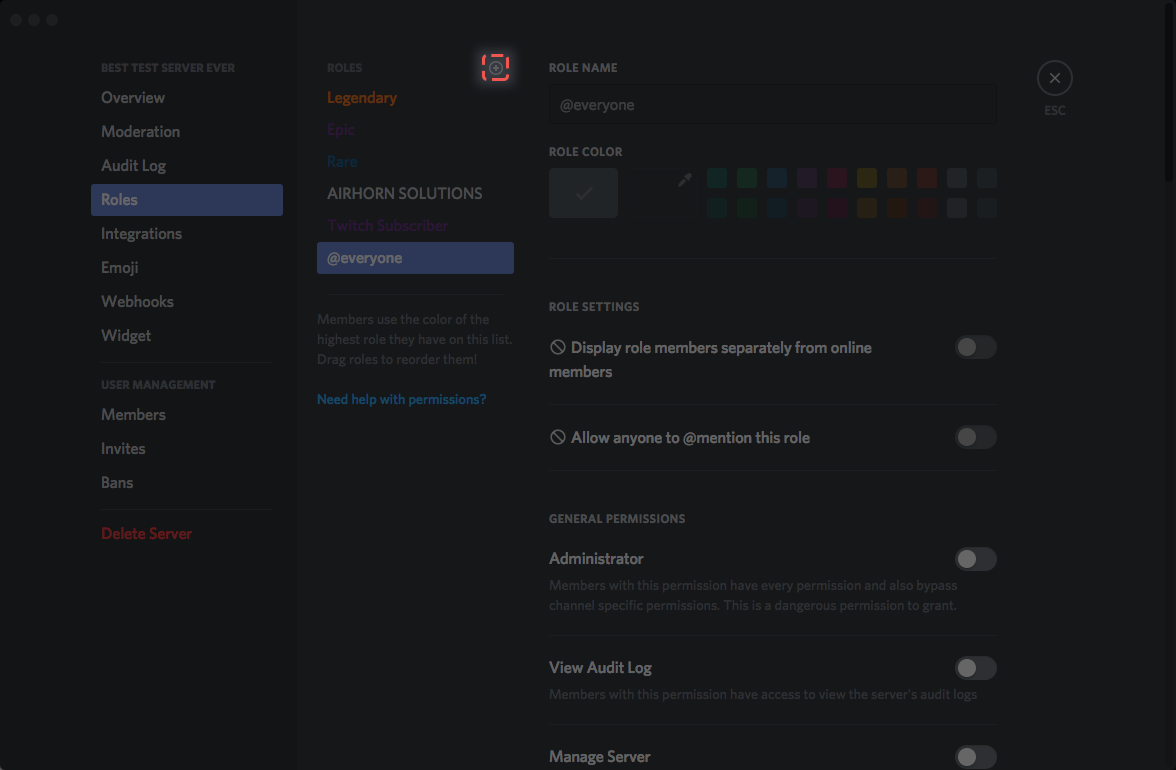
Step 1: Create Roles and Categories
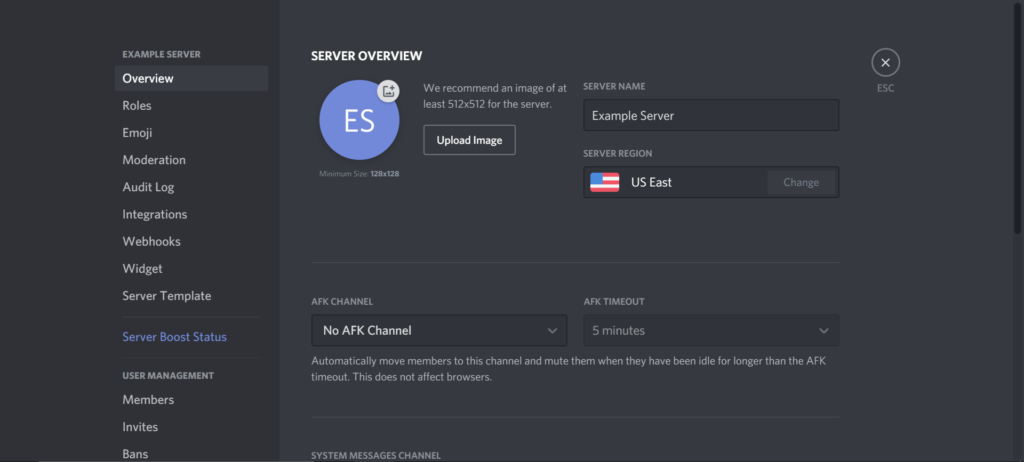
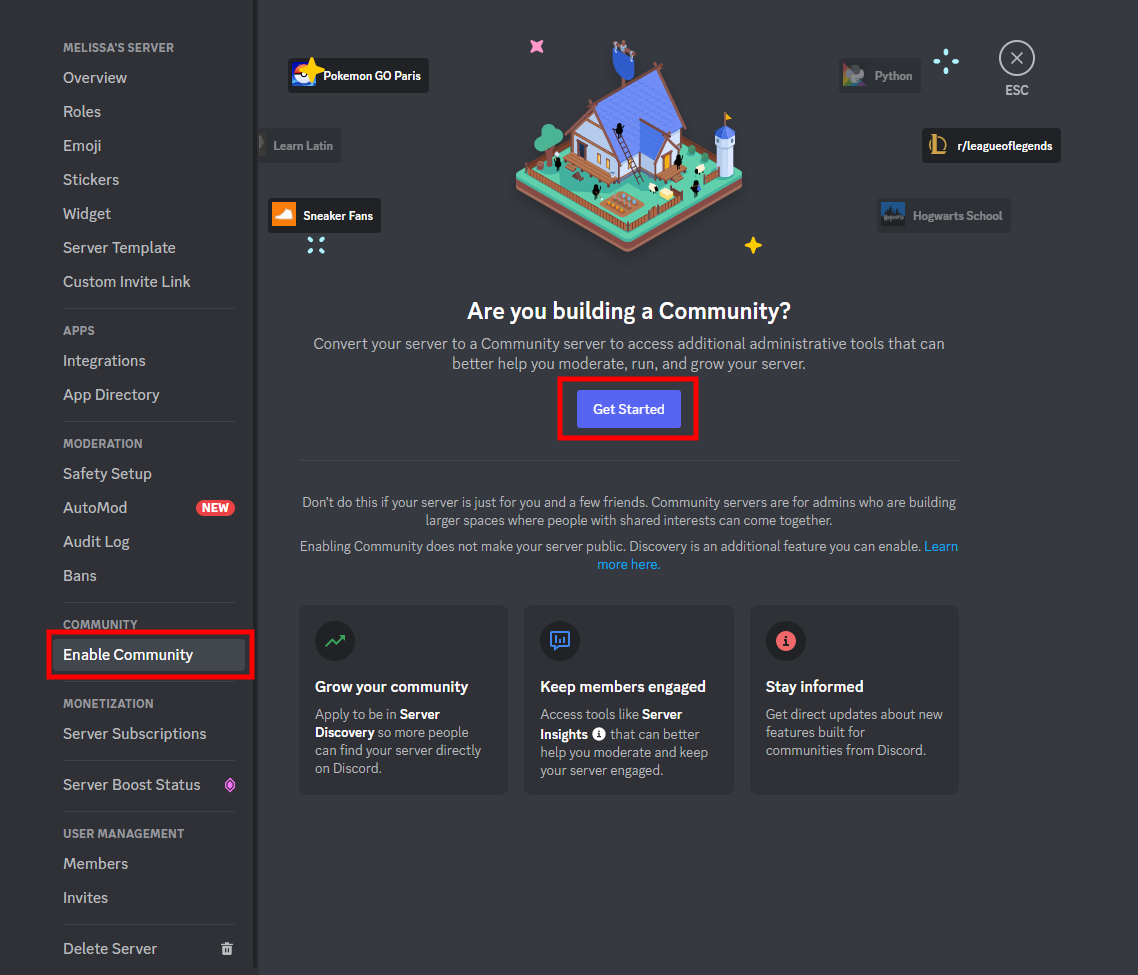
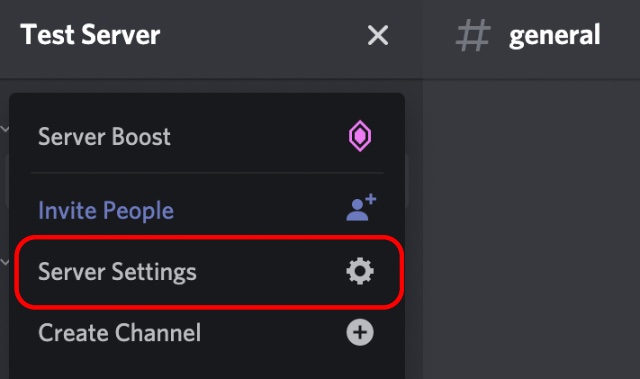
1. From your server settings, navigate to the "Roles" section. 2. Create new roles with specific permissions, such as moderators or administrators. 3. Set up channels and categories, assigning permissions accordingly.Step 2: Assign Permissions to Roles
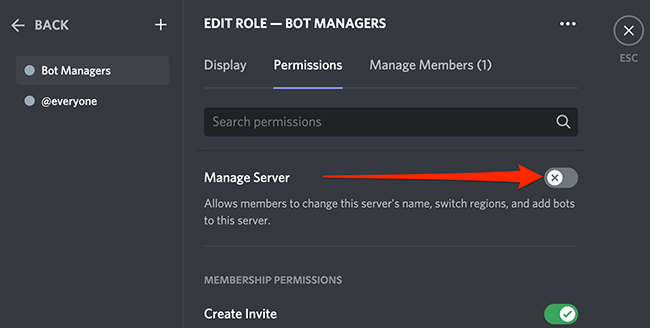
1. From the "Roles" section, select a role and click on the "Permissions" tab. 2. Assign permissions to the role, ensuring that members with the role have the necessary access. 3. Repeat the process for each role.Step 3: Manage Channel and Category Permissions
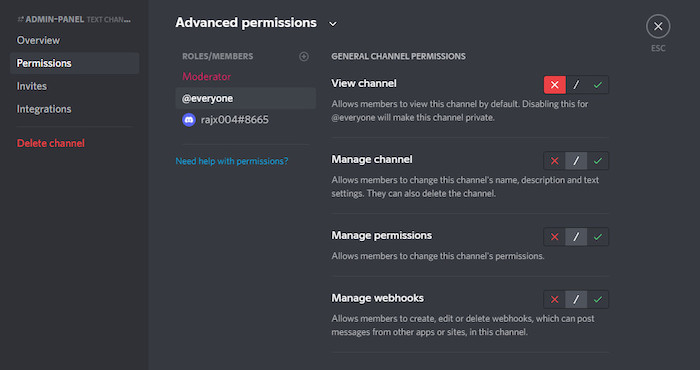
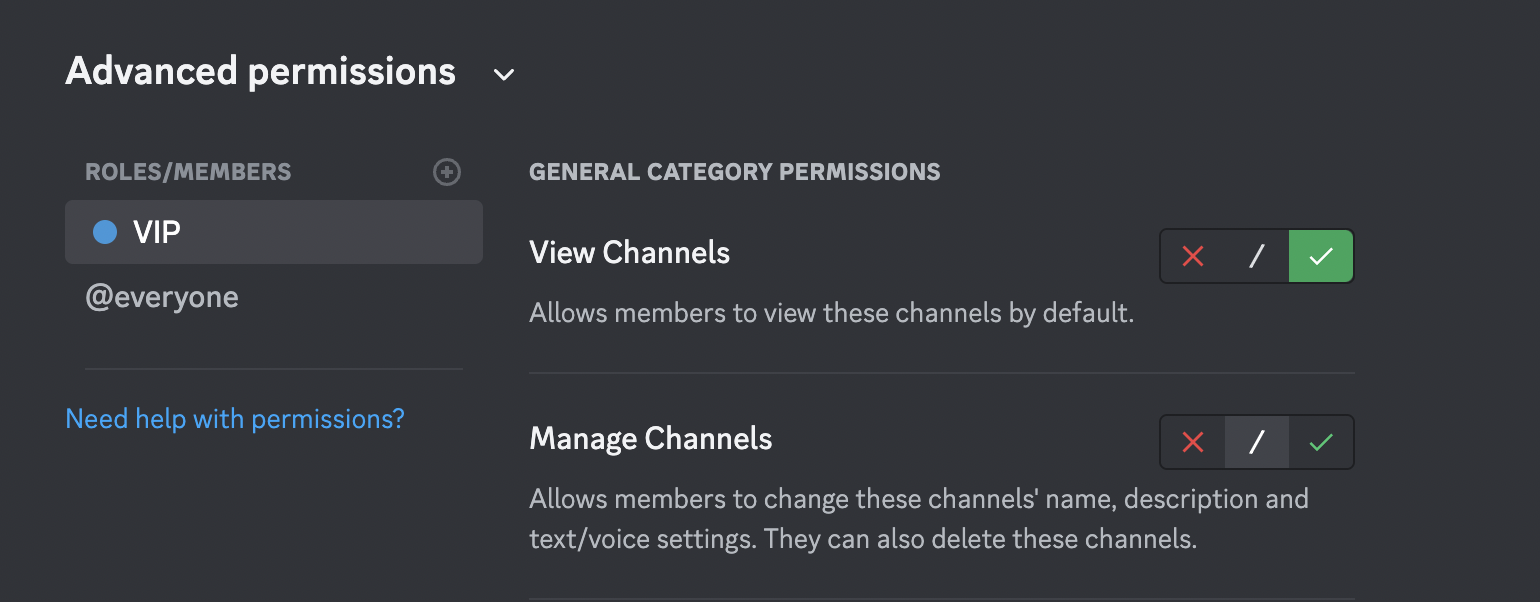
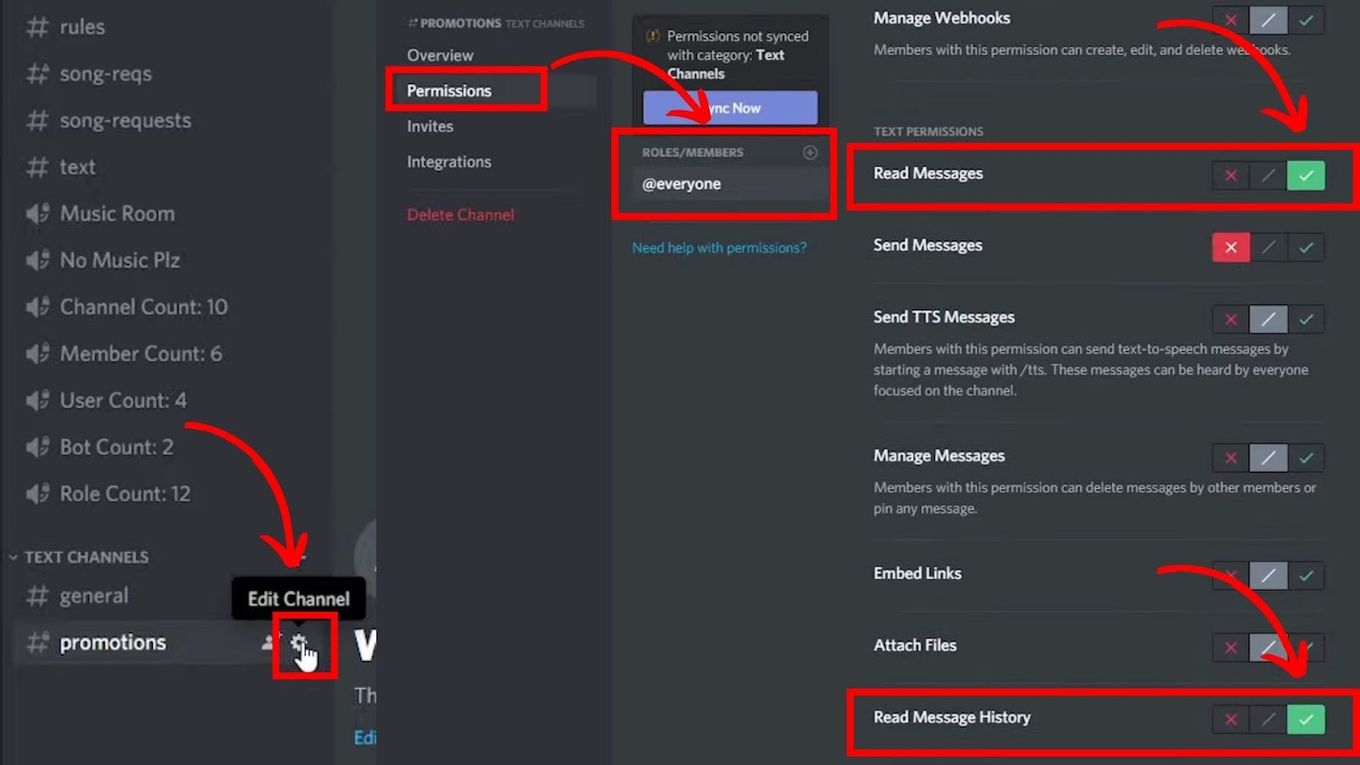
1. From the "Channels" section, select a channel or category and click on the "Permissions" tab. 2. Assign permissions to the channel or category, ensuring that members have the necessary access. 3. Repeat the process for each channel and category.Common Discord Server Permissions Issues
While setting up Discord server permissions, you may encounter some common issues. Here are some of the most frequent problems and solutions:- Too Many Permissions: Be cautious when assigning permissions, as this can lead to security breaches. Assign only necessary permissions to roles and members.
- Overlapping Permissions: Ensure that permissions do not overlap between roles and categories to avoid confusion and security issues.
- Missing Permissions: Regularly review your permissions and roles to ensure that they are up-to-date and accurate.