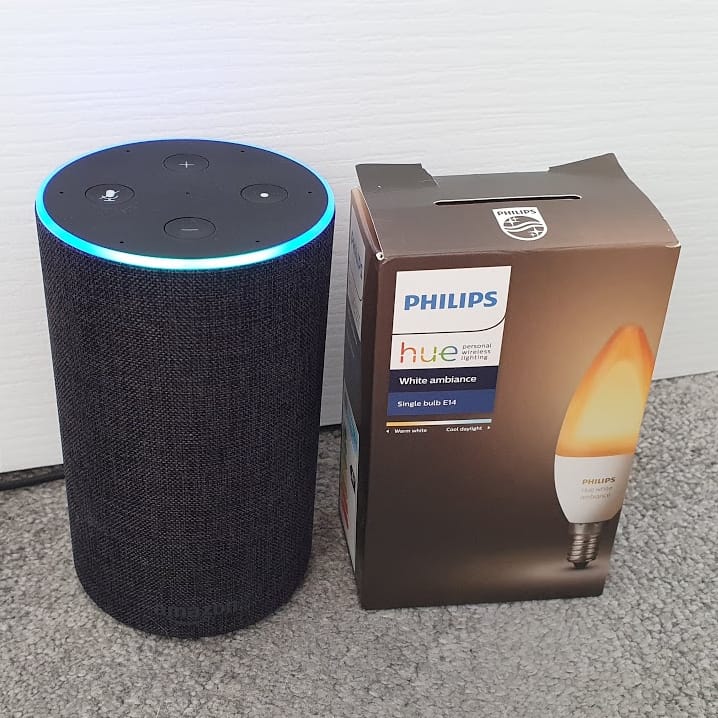
Setting up Alexa with Philips Hue: A Step-by-Step Guide
Are you ready to take your smart home to the next level? If you have a Philips Hue system and an Alexa-enabled device, you're in luck! Connecting your Philips Hue lights to Alexa allows you to use voice commands to control your lights, create custom scenes, and even automate your lighting experience. In this comprehensive guide, we'll walk you through the process of setting up Alexa with Philips Hue in just a few easy steps.Prerequisites
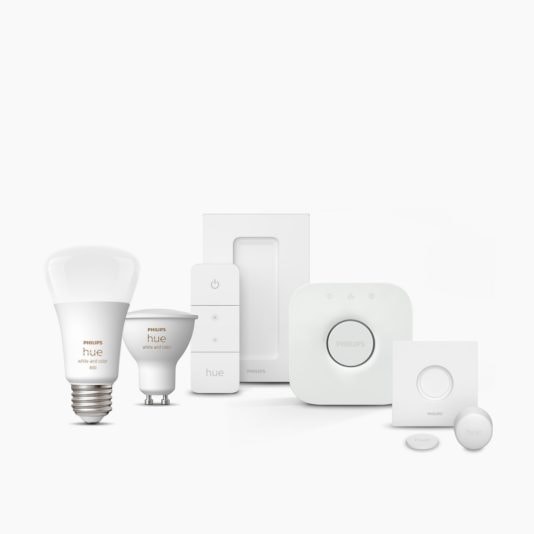
Before you begin, make sure you have the following: * A Philips Hue system, including bulbs, a bridge, and a hub (optional) * An Alexa-enabled device, such as an Echo, Echo Dot, or Show * A stable internet connectionStep 1: Connect Your Philips Hue System to Your Wi-Fi Network
First, ensure your Philips Hue system is connected to your Wi-Fi network. To do this: 1. Open the Philips Hue app on your smartphone or tablet. 2. Tap on the "Setup" button and follow the on-screen instructions to connect your Hue system to your Wi-Fi network.Step 2: Connect Your Philips Hue System to Alexa
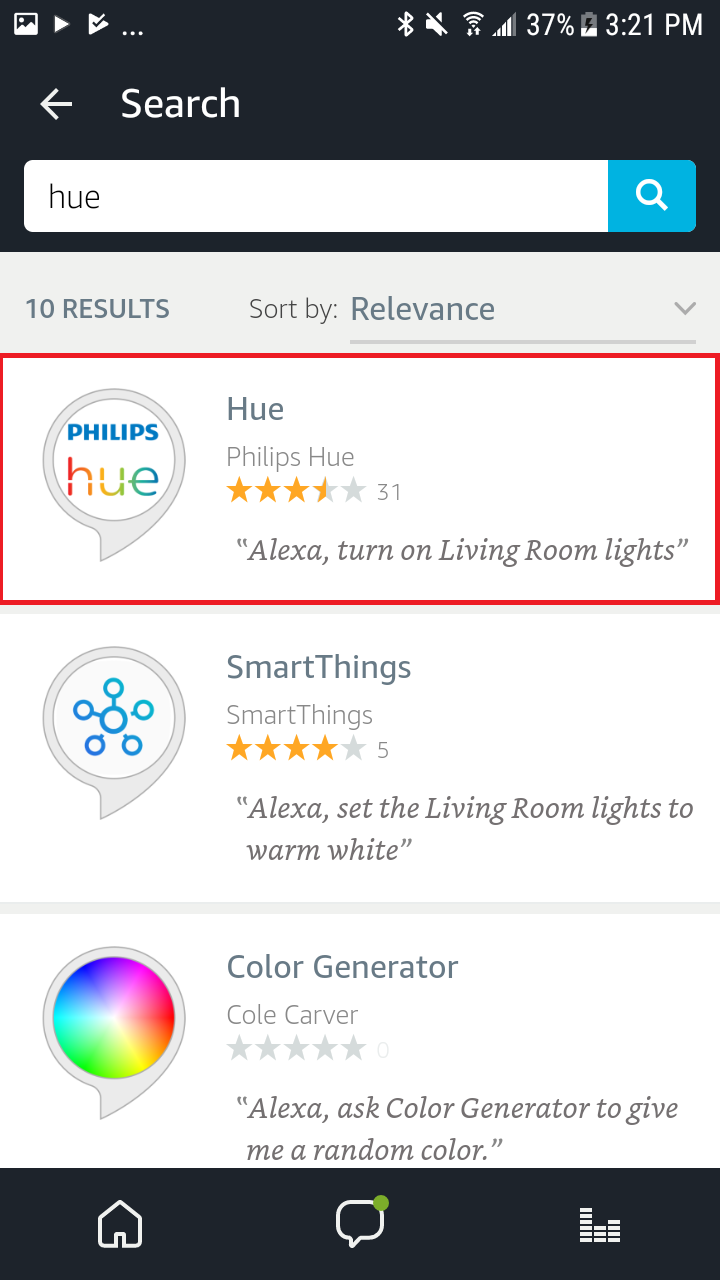
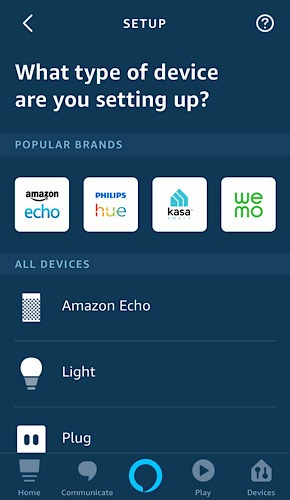
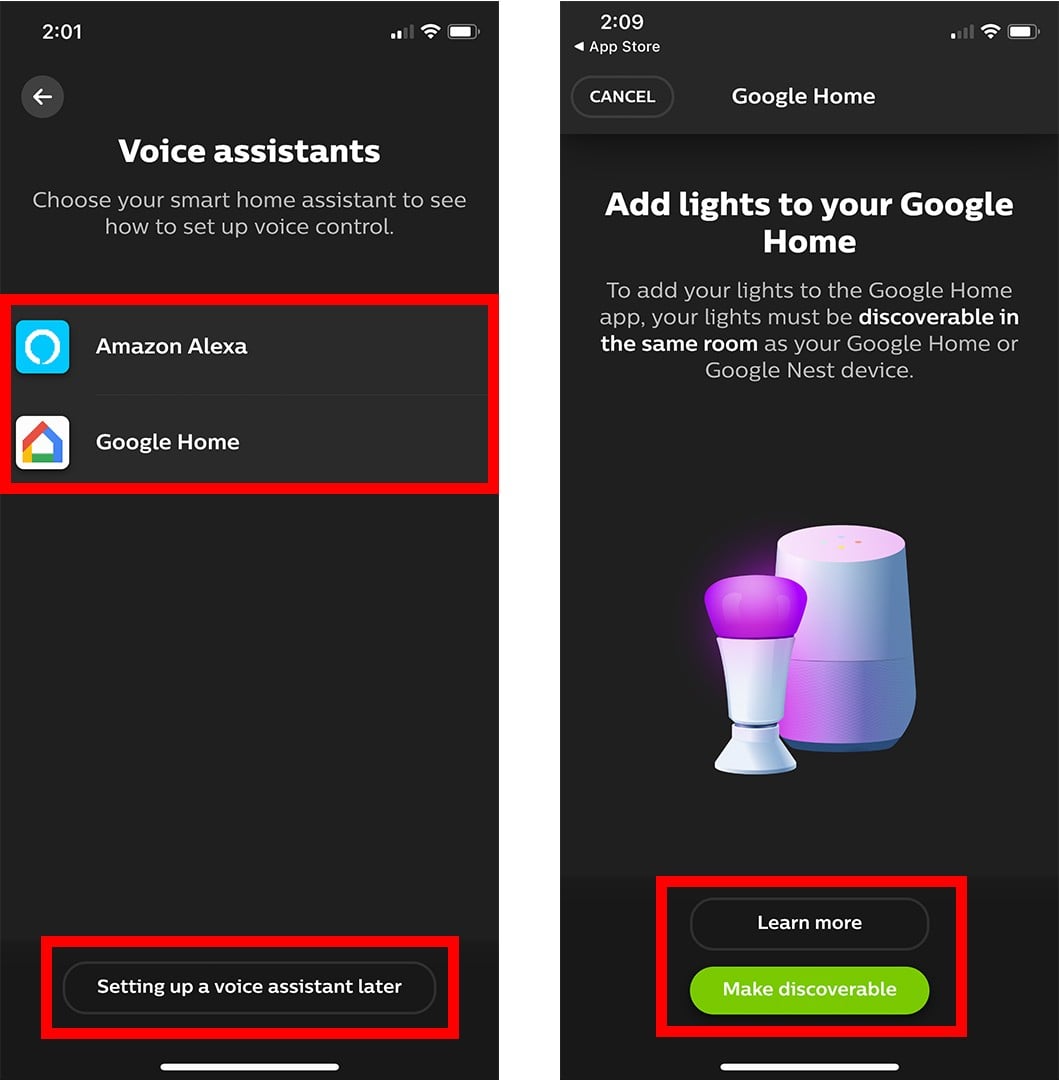
Next, connect your Philips Hue system to Alexa: 1. Open the Alexa app on your smartphone or tablet. 2. Tap on the "More" menu and select "Skills & Games." 3. Search for "Philips Hue" in the search bar and select the skill. 4. Tap "Enable" to link your Philips Hue system to Alexa.Step 3: Configure Your Philips Hue Lights in the Alexa App