Setting Up Firestick with Hulu: A Step-by-Step Guide
Are you tired of missing your favorite TV shows and movies? Do you want to stream your favorite content on your TV with ease? Look no further! In this article, we will guide you through the process of setting up Firestick with Hulu, so you can enjoy your favorite shows and movies on the big screen.
Getting Started with Firestick and Hulu
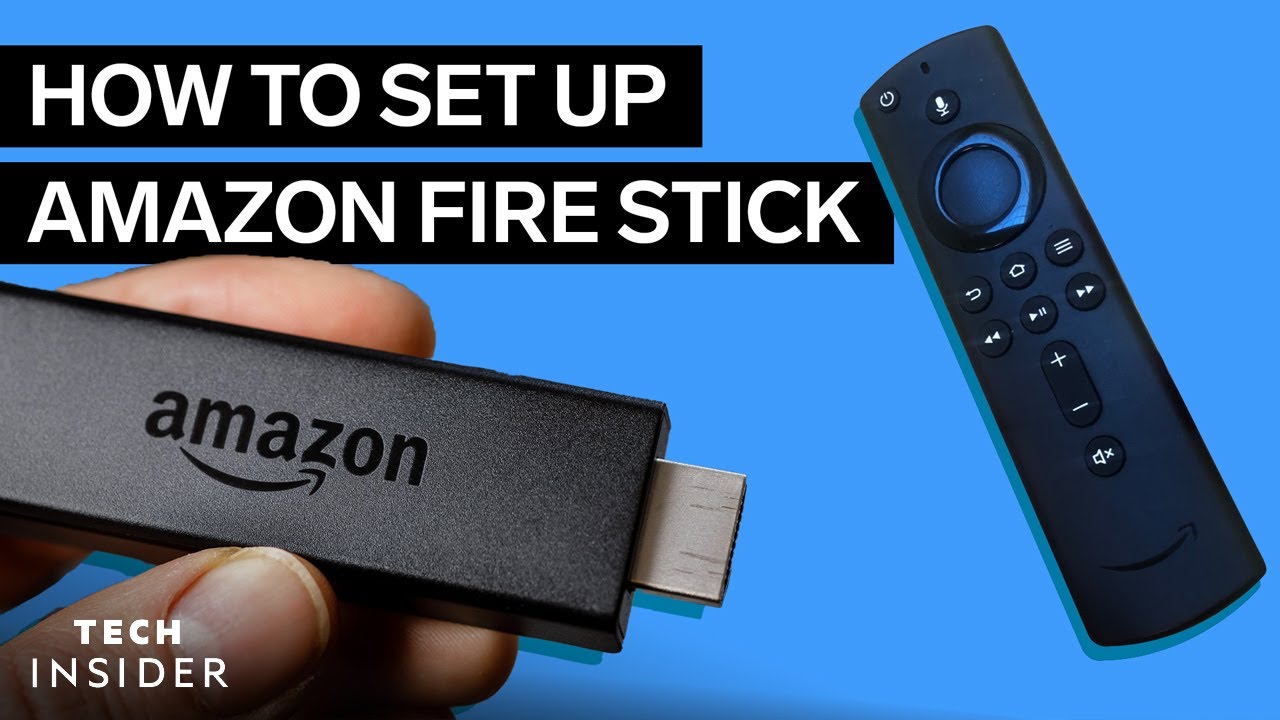
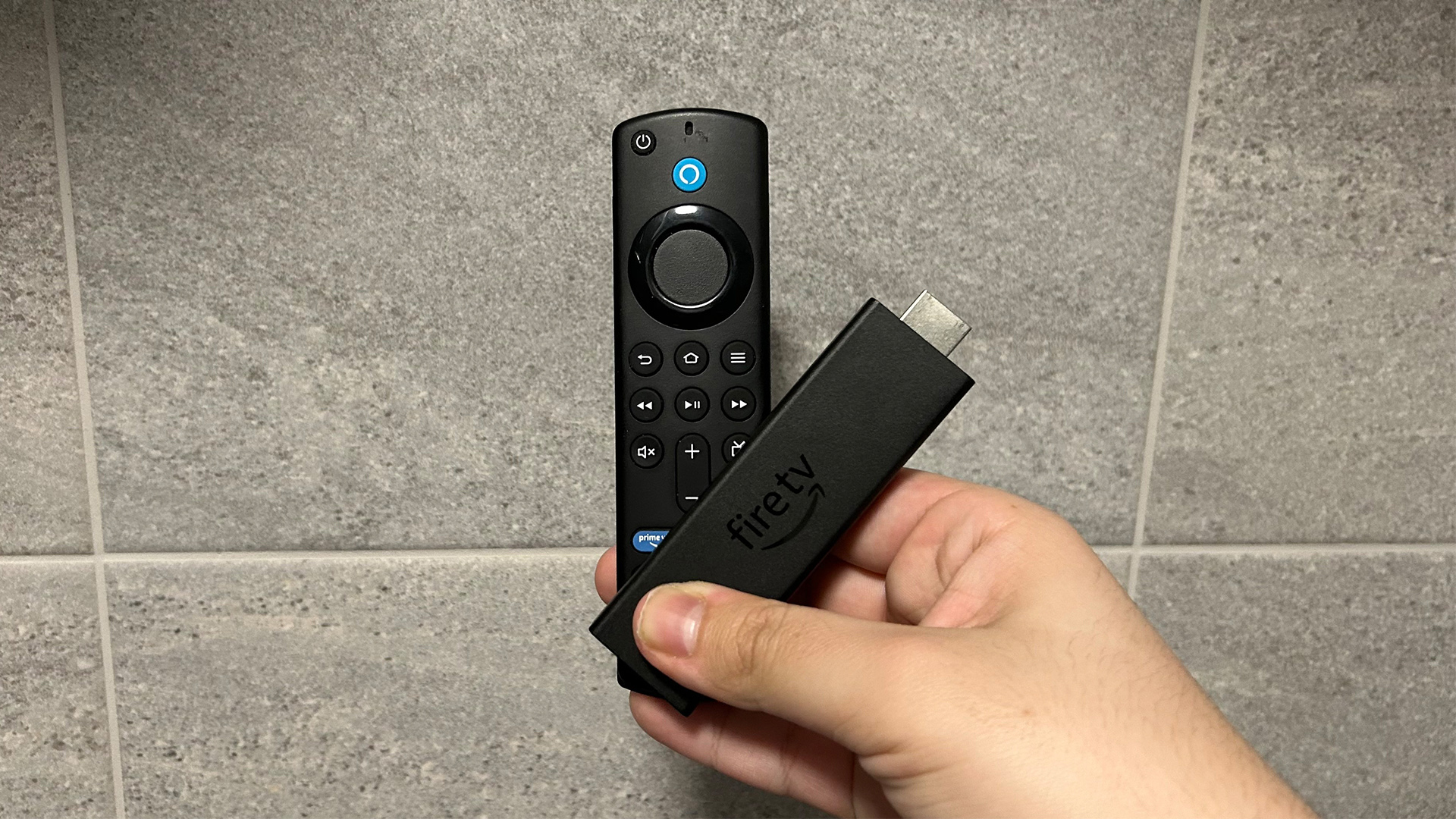
The Fire TV Stick is a popular streaming device that allows you to access a wide range of content on your TV, including Hulu. With the Fire TV Stick, you can stream your favorite TV shows, movies, and music, as well as access various apps and games.
To set up your Firestick with Hulu, you will need to follow these steps:
- Connect your Fire TV Stick to your TV using an HDMI cable.
- Plug in your Fire TV Stick to a power source.
- Turn on your TV and select the HDMI input corresponding to your Fire TV Stick.
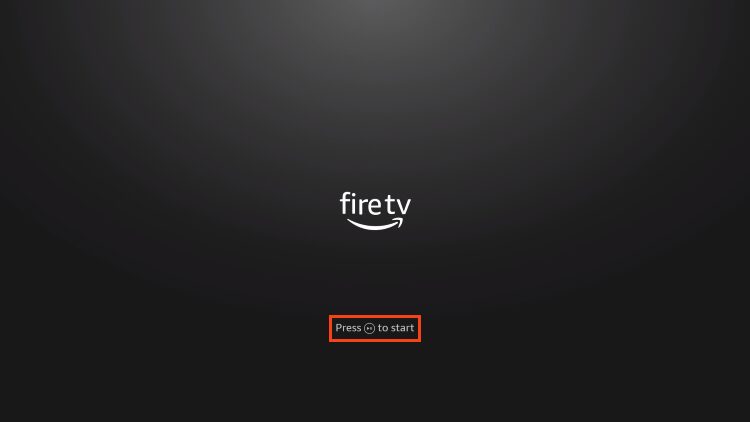
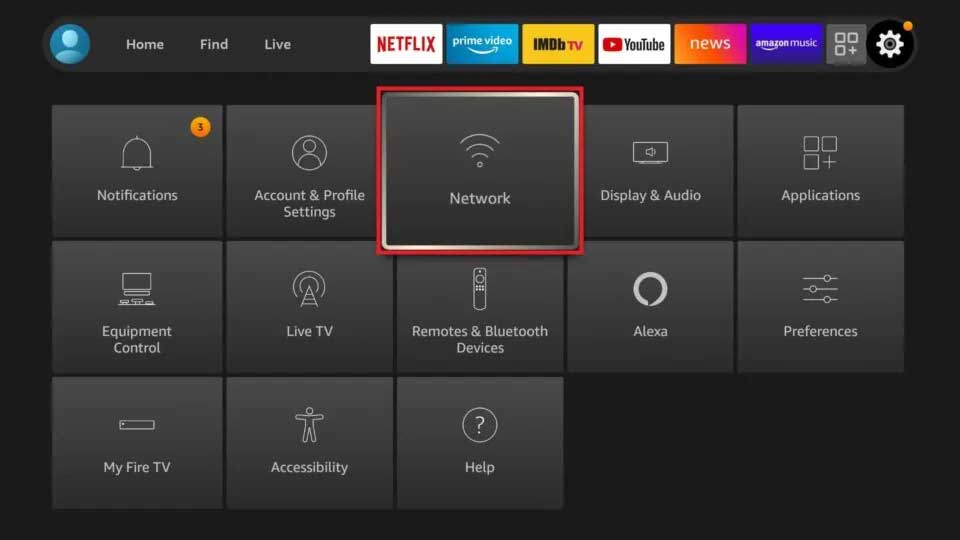
- Follow the on-screen instructions to set up your Fire TV Stick.
Installing Hulu on Your Fire TV Stick
Once you have set up your Fire TV Stick, you can install Hulu using the following steps:
- Go to the Home screen on your Fire TV Stick.
- Search for Hulu in the search bar.
- Select the Hulu app from the search results.
- Click on the "Get" or "Download" button to install the Hulu app.
Setting Up Your Hulu Account
After installing the Hulu app, you will need to set up your Hulu account. To do this, follow these steps:
- Launch the Hulu app on your Fire TV Stick.
- Click on the "Sign In" button.
- Enter your Hulu account credentials or sign up for a new account.
- Follow the on-screen instructions to complete the setup process.
Troubleshooting Common Issues
While setting up Firestick with Hulu, you may encounter some common issues. Here are some troubleshooting tips to help you resolve these issues:

- Make sure your Fire TV Stick is connected to a stable internet connection.
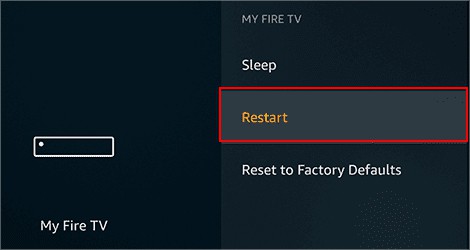
- Restart your Fire TV Stick and Hulu app to resolve any temporary issues.
- Check your Hulu account credentials and ensure they are correct.
- Try uninstalling and reinstalling the Hulu app to resolve any issues with the app.
Conclusion
Setting up Firestick with Hulu is a straightforward process that can be completed in a few minutes. By following the steps outlined in this article, you can enjoy your favorite TV shows and movies on the big screen. Remember to troubleshoot any common issues that may arise during the setup process. Happy streaming!
Additional Resources
For more information on setting up Firestick with Hulu, you can visit the official Hulu website or the Amazon Fire TV Stick support page. Additionally, you can contact Hulu customer support for any questions or concerns you may have.
FAQs
Q: What is the minimum system requirement for Firestick with Hulu?
A: The minimum system requirement for Firestick with Hulu is a Fire TV Stick or Fire TV device with a compatible operating system.
Q: Can I install Hulu on multiple devices?
A: Yes, you can install Hulu on multiple devices, including Fire TV Stick, Fire TV, Android devices, and iOS devices.
Q: What is the cost of Hulu?
A: The cost of Hulu varies depending on the subscription plan you choose. You can sign up for a free trial or subscribe to a monthly or annual plan.
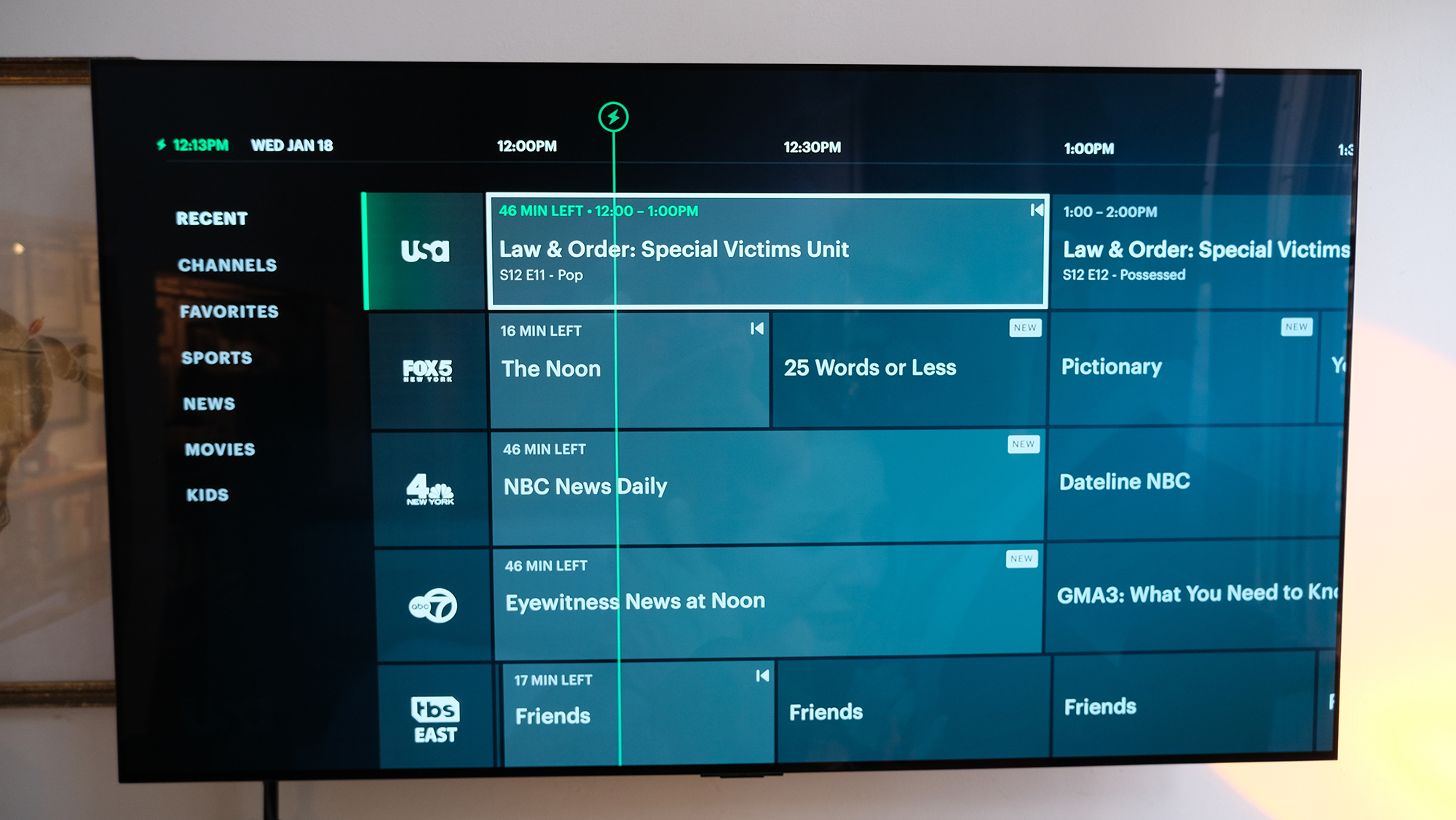
:max_bytes(150000):strip_icc()/B2-InstallandWatchHuluonFireTVStick-annotated-a7cbdecffb2c4959bf48a270e8a04264.jpg "How to Install and Watch Hulu on Fire TV Stick - Lifewire")