Setting up Google Home with Smart Thermostats: A Comprehensive Guide
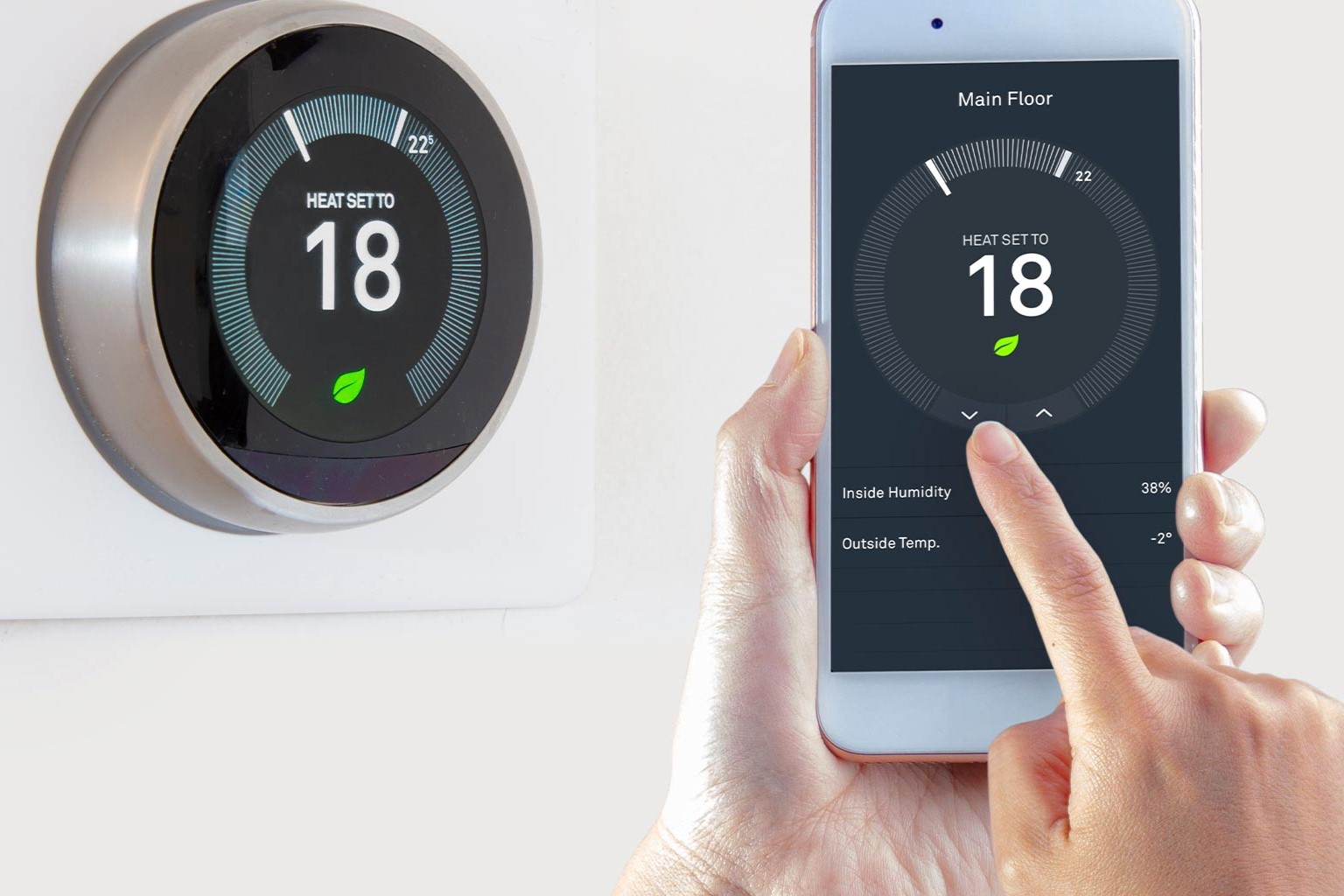
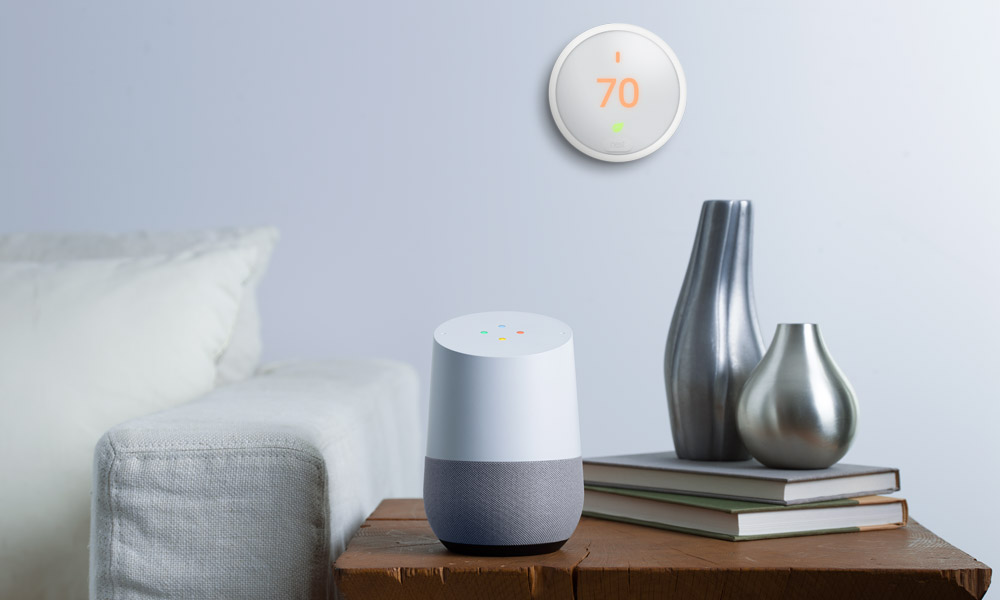
Smart thermostats have revolutionized the way we control and manage our home's climate. With the integration of Google Home, you can take your home automation to the next level. In this article, we will guide you through the process of setting up your smart thermostat with Google Home, including checking compatibility, linking devices, setting up voice commands, testing connections, exploring advanced features, and troubleshooting common setup issues.
Why Integrate Smart Thermostat with Google Home?
Integrating your smart thermostat with Google Home offers numerous benefits, including:
- Convenient voice control: Control your thermostat with simple voice commands using Google Assistant.
- Remote access: Monitor and adjust your thermostat from anywhere using the Google Home app.
- Energy savings: Take advantage of advanced energy-saving features, such as geofencing and learning algorithms.
- Seamless integration: Connect your thermostat with other smart devices in your home for a truly connected experience.
Step 1: Check Compatibility
Before setting up your smart thermostat with Google Home, ensure that it is compatible with your device. Check the manufacturer's website or documentation for a list of compatible thermostats. Some popular smart thermostats that work with Google Home include:
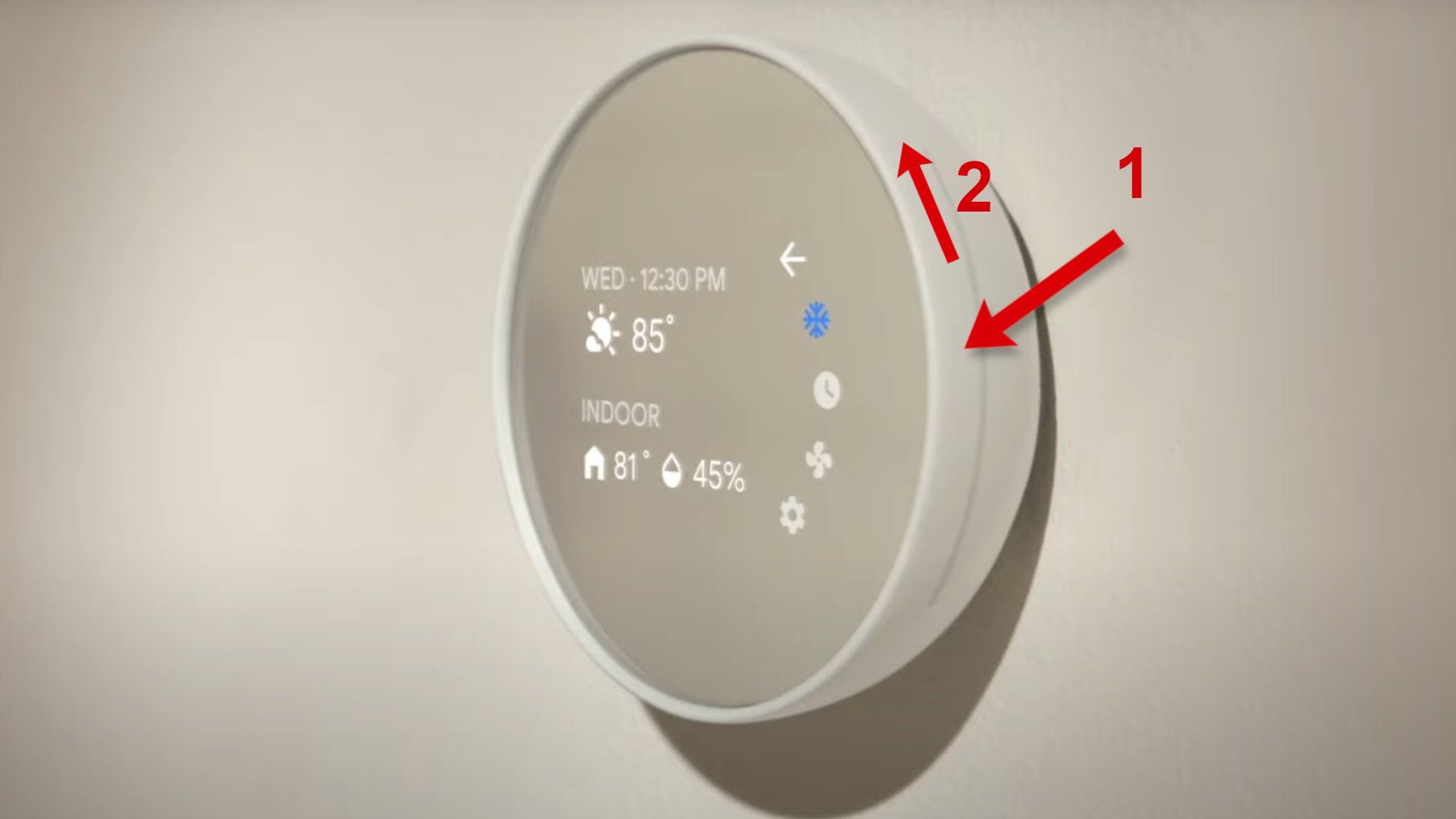
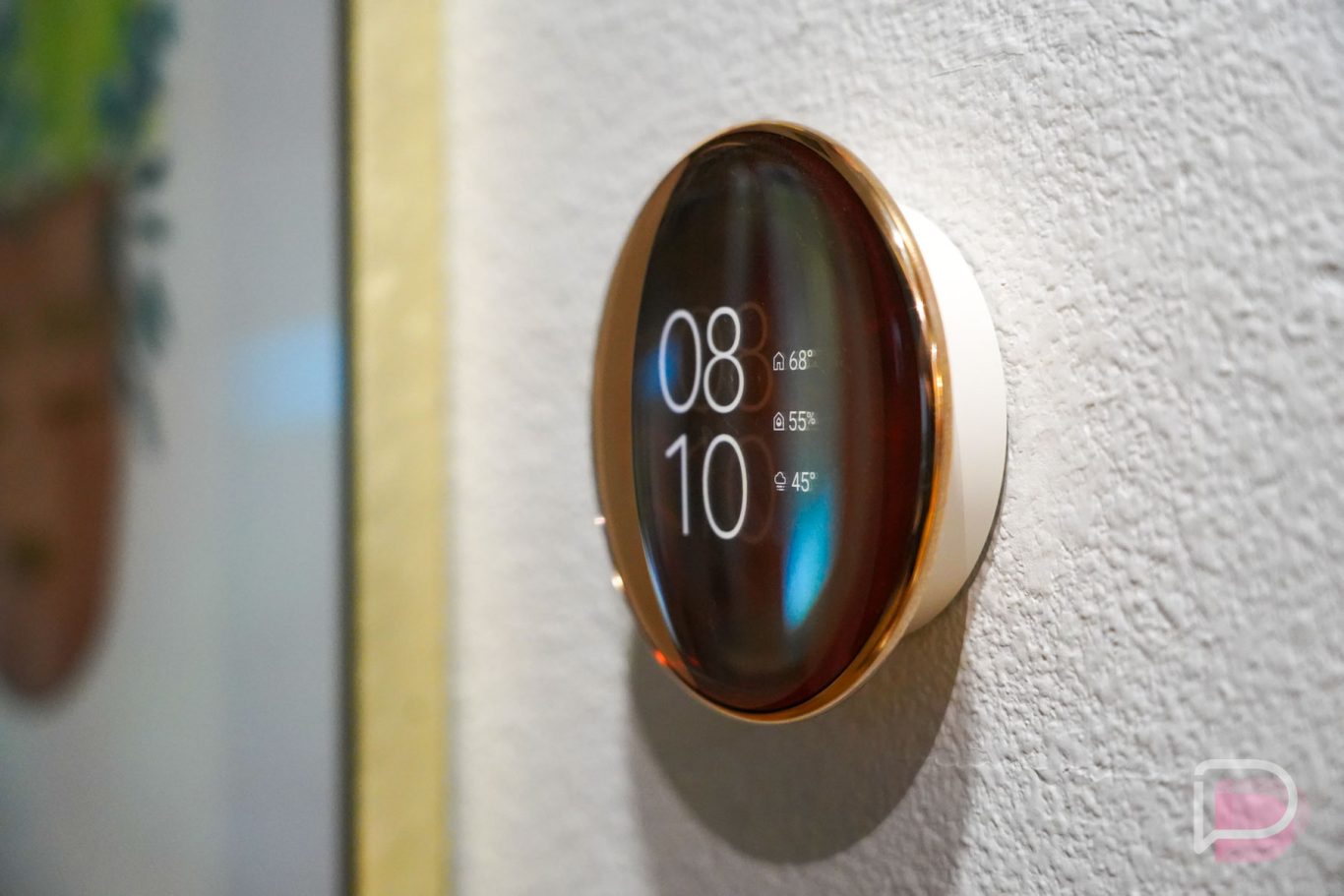
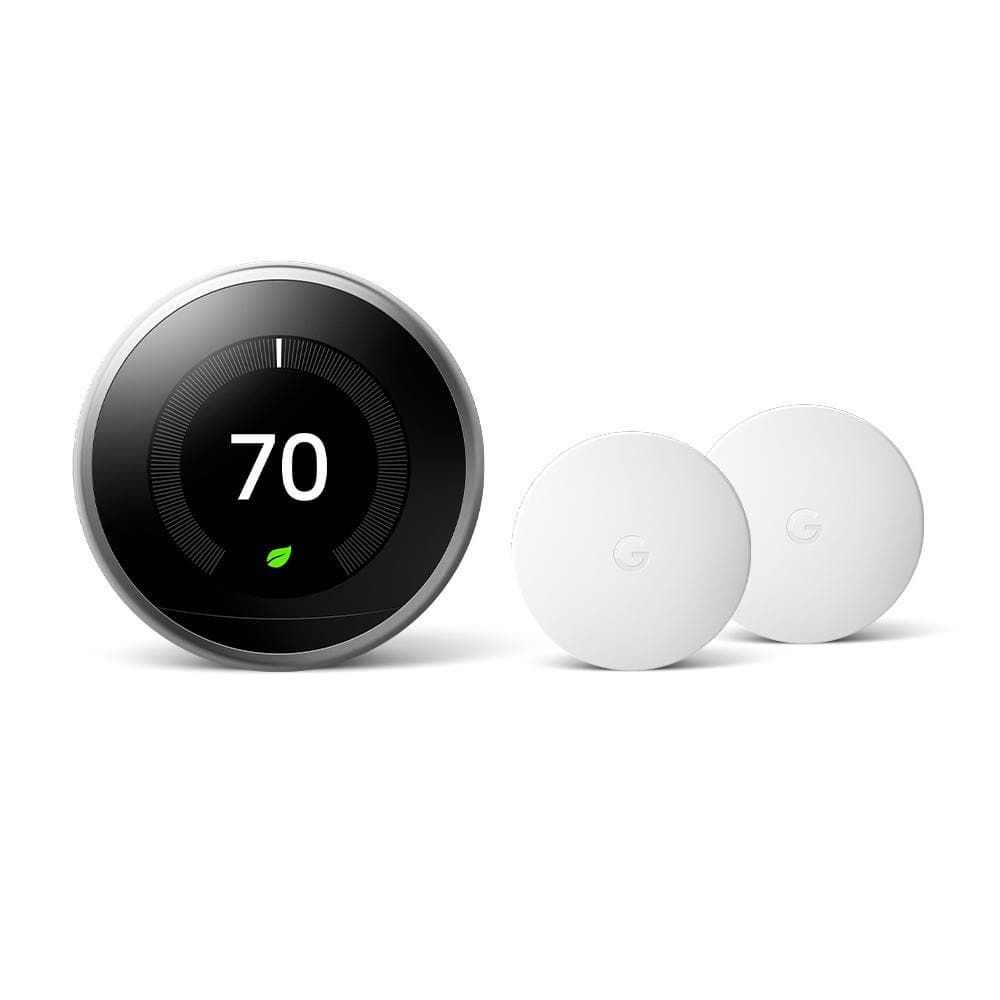
- Nest Thermostat
- Honeywell Home T9 Smart Thermostat
- Sensi Smart Thermostat
- Ecobee Smart Thermostat
Step 2: Link Devices
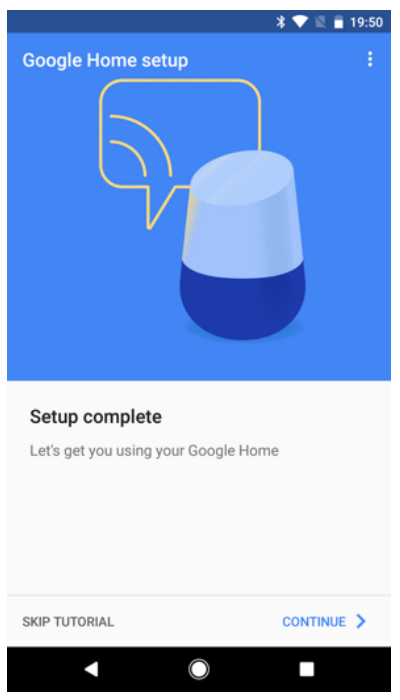
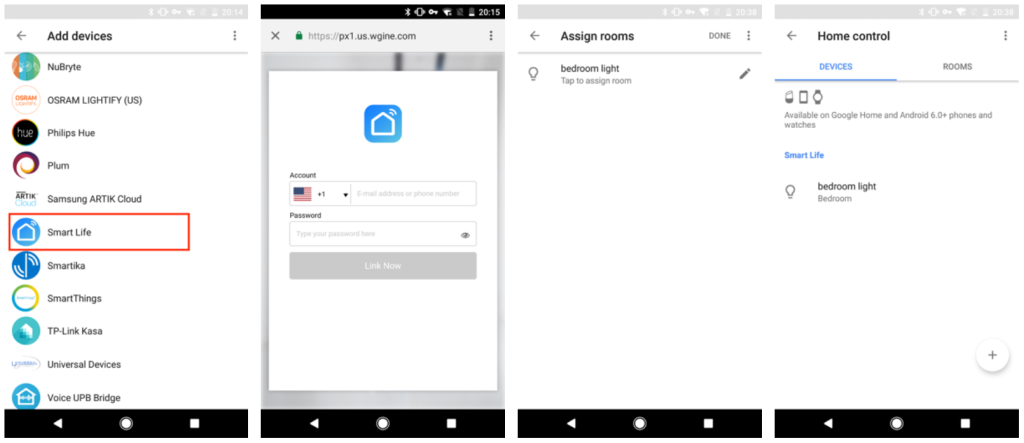
Once you have verified compatibility, link your smart thermostat to your Google Home account. Follow these steps:
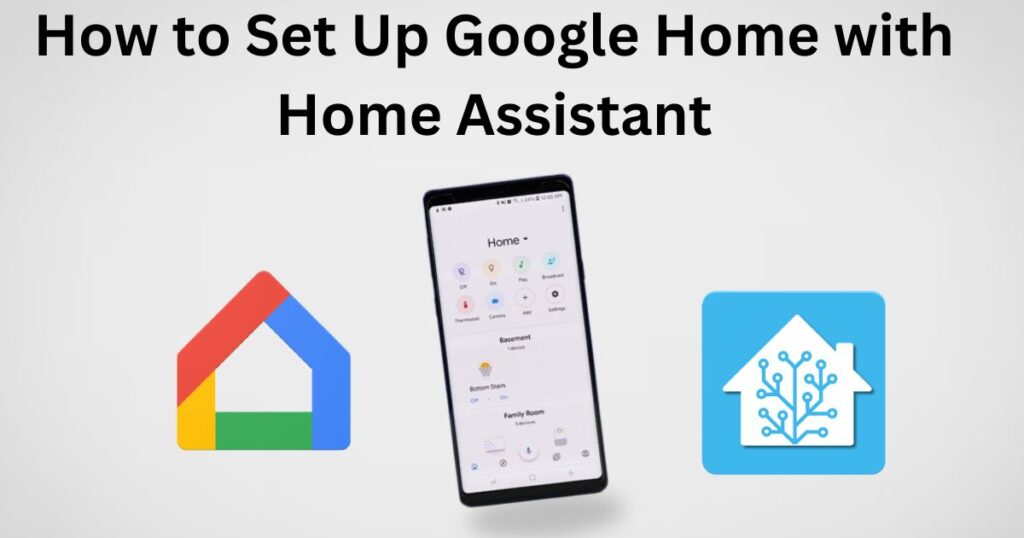
- Open the Google Home app and navigate to the "Assistant" tab.
- Tap "Add" and select "Thermostat" from the list of available devices.
- Choose your smart thermostat from the list of compatible devices and follow the in-app instructions to link it to your Google Home account.
Step 3: Set Up Voice Commands
With your smart thermostat linked to your Google Home account, you can now set up voice commands to control your thermostat. Follow these steps:
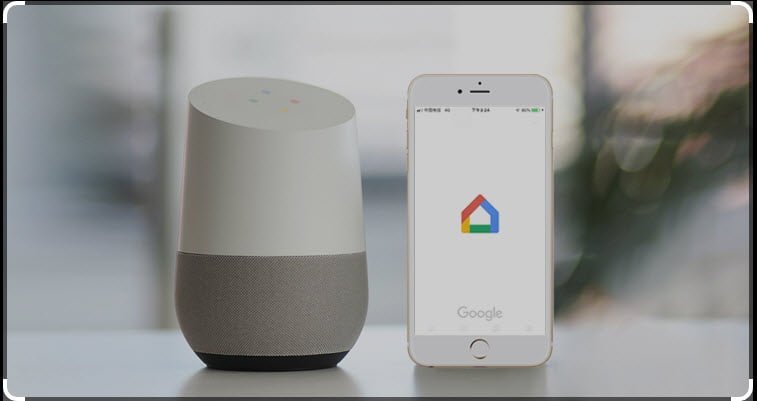
- Open the Google Home app and navigate to the "Routines" tab.
- Tap "Add" and select "Thermostat" from the list of available devices.
- Choose a voice command, such as "Hey Google, set the thermostat to 72 degrees," and assign it to a specific action, such as turning the thermostat up or down.
Step 4: Test Connections
After setting up voice commands, test your connections to ensure that your smart thermostat is working correctly with Google Home. Follow these steps:
- Speak the voice command you set up earlier, such as "Hey Google, set the thermostat to 72 degrees."
- Verify that your thermostat responds correctly to the command and adjusts the temperature accordingly.
Step 5: Explore Advanced Features
Once you have set up your smart thermostat with Google Home, explore the advanced features available to you. Some features include:
- Geofencing: Automatically adjust your thermostat when you leave or arrive home.
- Learning algorithms: Let your thermostat learn your schedule and preferences to optimize energy savings.
- Routine scheduling: Create custom routines to automate temperature adjustments based on your daily schedule.
Step 6: Troubleshooting Common Setup Issues
If you encounter any issues during the setup process, refer to the following troubleshooting tips:
- Check the power supply: Ensure that your smart thermostat is receiving power from the mains.
- Verify network connectivity: Check that your thermostat is connected to your home's Wi-Fi network.
- Reset the thermostat: If necessary, reset the thermostat to its factory settings and try the setup process again.
Conclusion
Integrating your smart thermostat with Google Home offers a seamless and convenient way to control your home's climate. By following the steps outlined in this article, you can enjoy the benefits of smart home automation and take your home comfort to the next level.