Setting Up Printer on Windows 11 Desktop: A Step-by-Step Guide
Are you having trouble setting up your printer on your Windows 11 desktop? Look no further! In this comprehensive guide, we will walk you through the process of setting up your printer on your Windows 11 device, ensuring seamless printing from your device.Method 1: Automatic Printer Installation
In most cases, local or wired printers will install automatically on Windows after they are plugged into the Windows device and the printer is turned on. If a printer doesn't install automatically:- Make sure the printer is plugged into the Windows device, for example via USB, and that the printer is turned on.
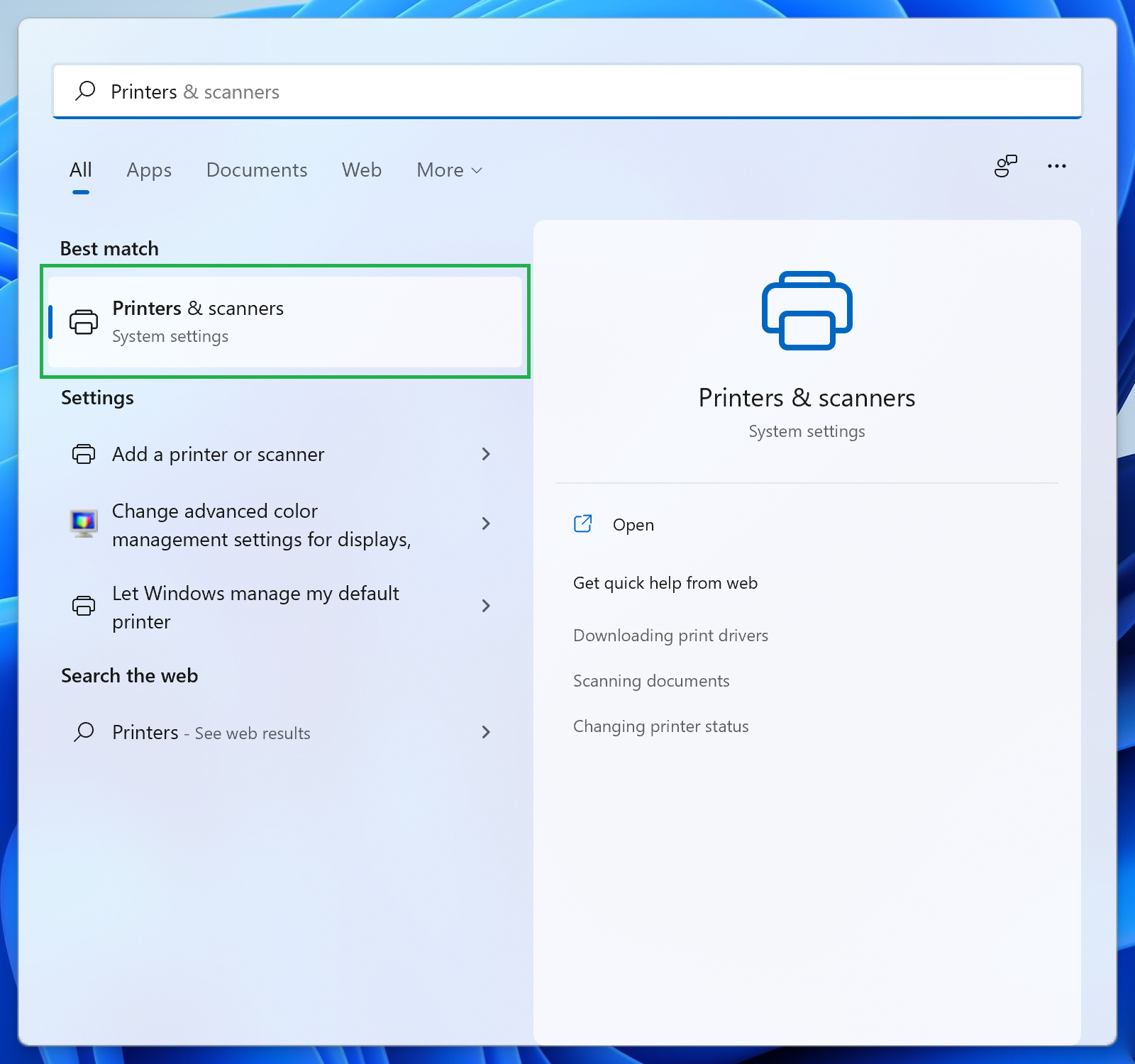
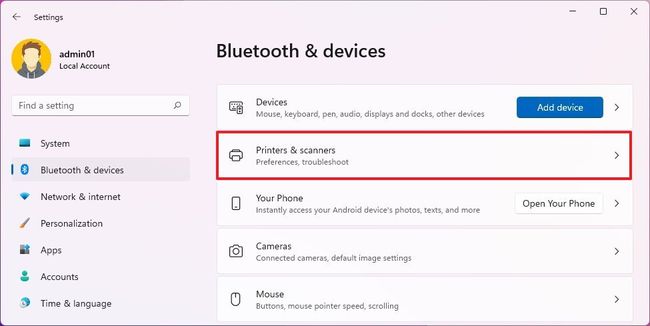
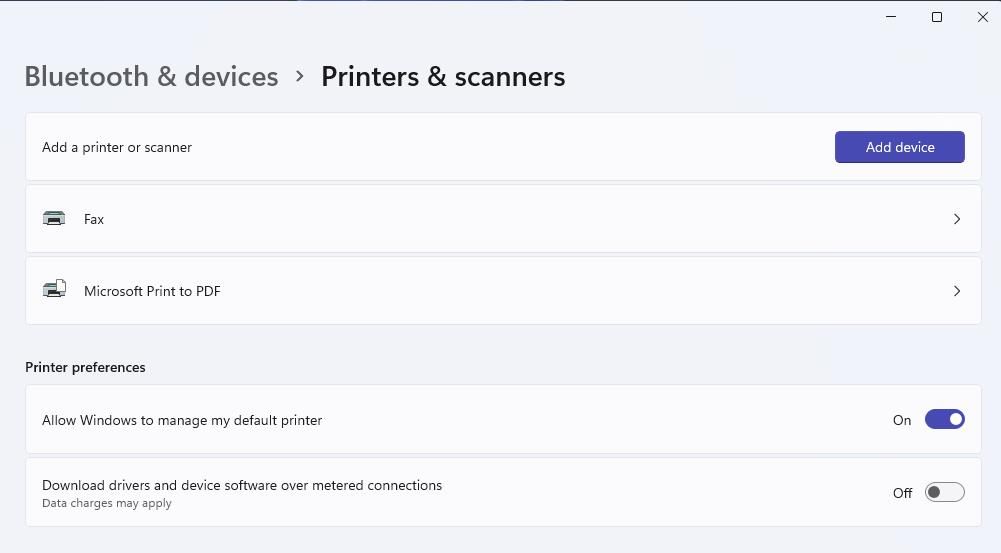
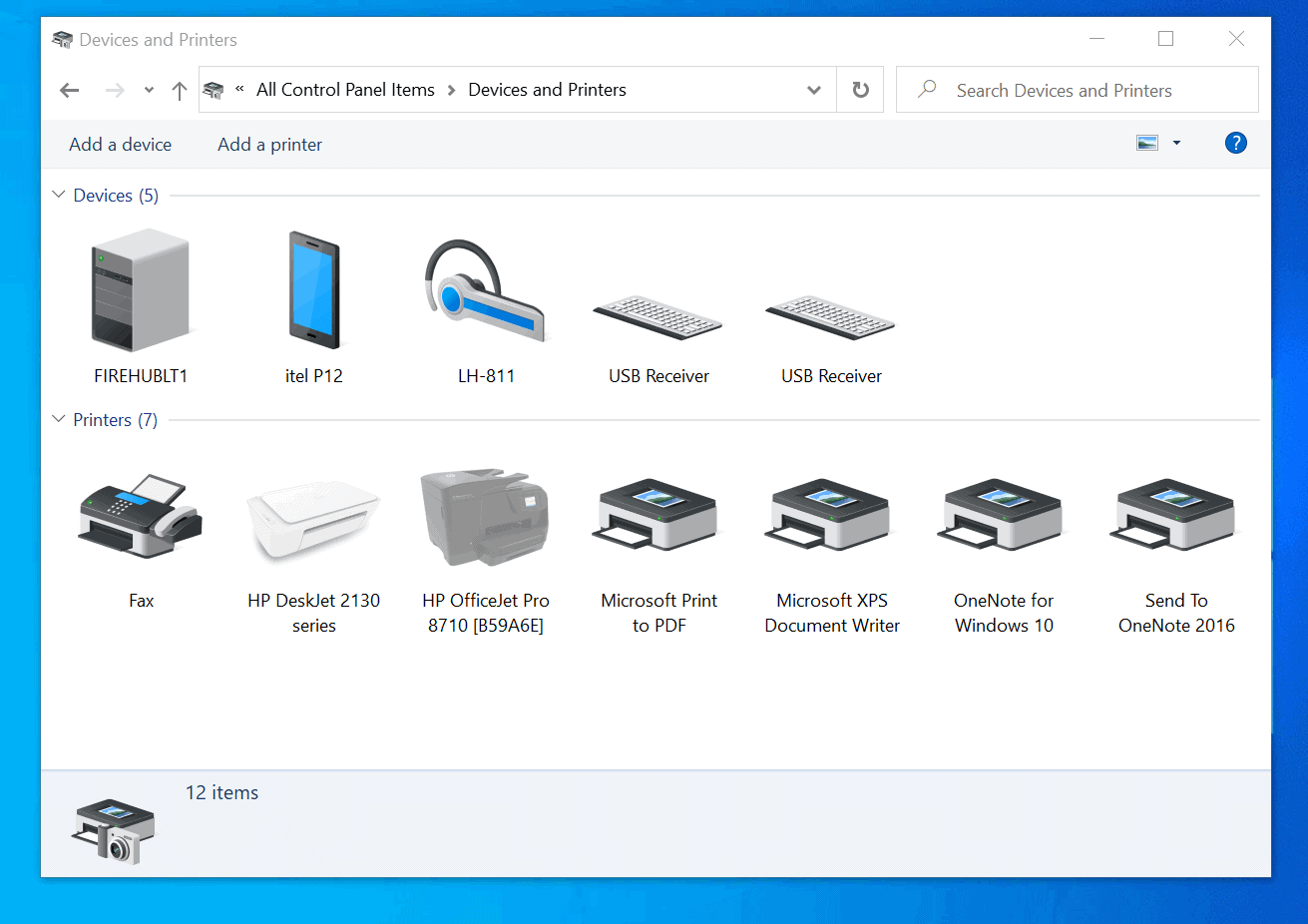
- Check if the printer is listed in the Bluetooth & devices > Printers & Scanners window.
Method 2: Manual Printer Installation
If your printer is not listed in the Bluetooth & devices > Printers & Scanners window, you can install it manually using the following steps:- Go to the Settings app by pressing Windows + I.
- From the left sidebar, select "Bluetooth & Devices."
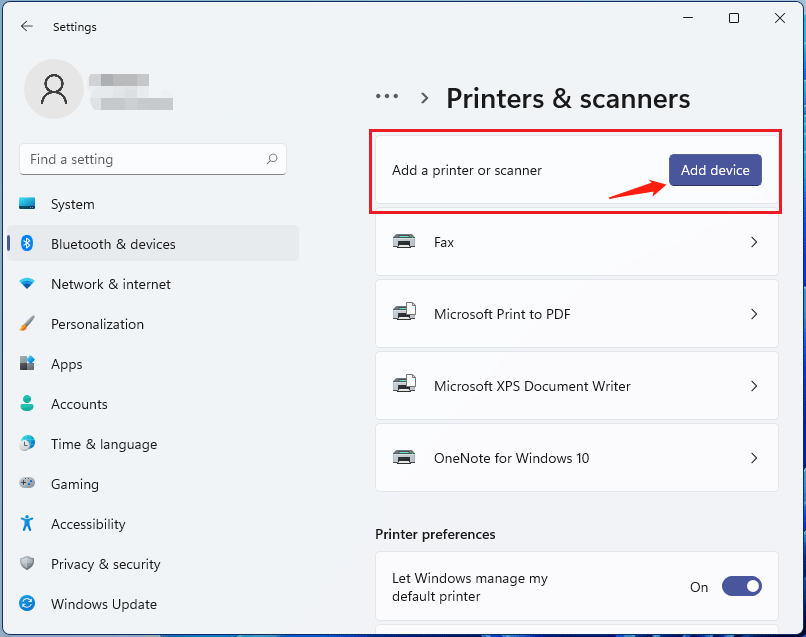
- Click on "Add a device" and select the printer from the list of available devices.
- Follow the on-screen instructions to complete the installation process.
Troubleshooting Common Issues
- Check the connection: Ensure that the printer is properly connected to the network.
- Update the drivers: Outdated drivers can cause printing issues. Check the manufacturer's website for the latest drivers.
- Restart the printer: Sometimes, restarting the printer can resolve the issue.
- Reset the printer: If none of the above steps work, try resetting the printer to its default settings.
Additional Tips and Tricks
- Make sure the printer is turned on and connected to the network before attempting to print.
- Use the correct type of cable: Ensure that the cable you are using is compatible with your printer.
- Check the network settings: Verify that the network settings on the printer match the network settings on your device.
- Restart the Print Spooler: If the Print Spooler service is not running or is experiencing issues, it can prevent printing from working.