Blocked Phishing Emails on Windows: How to Protect Your Account
Introduction
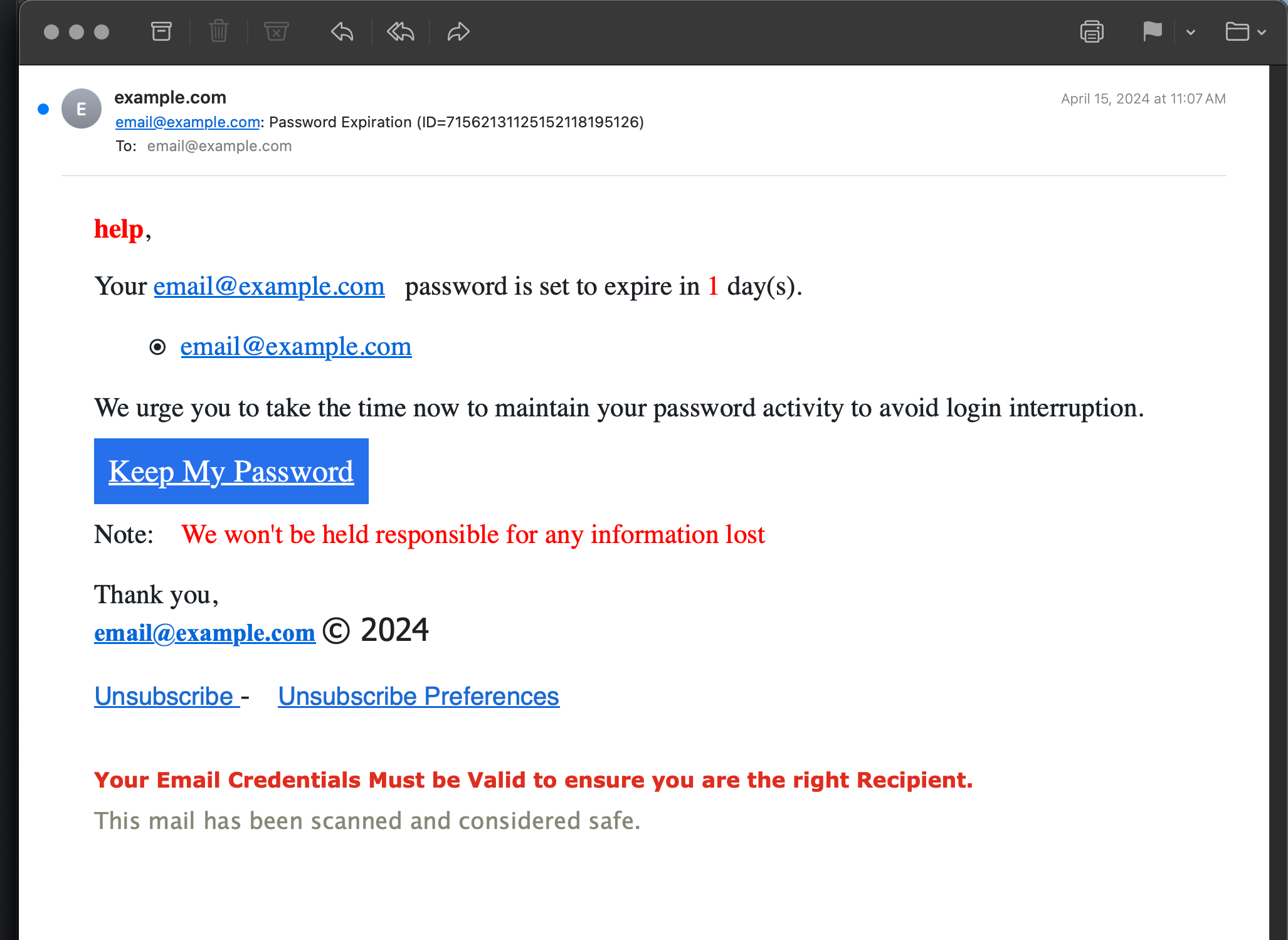
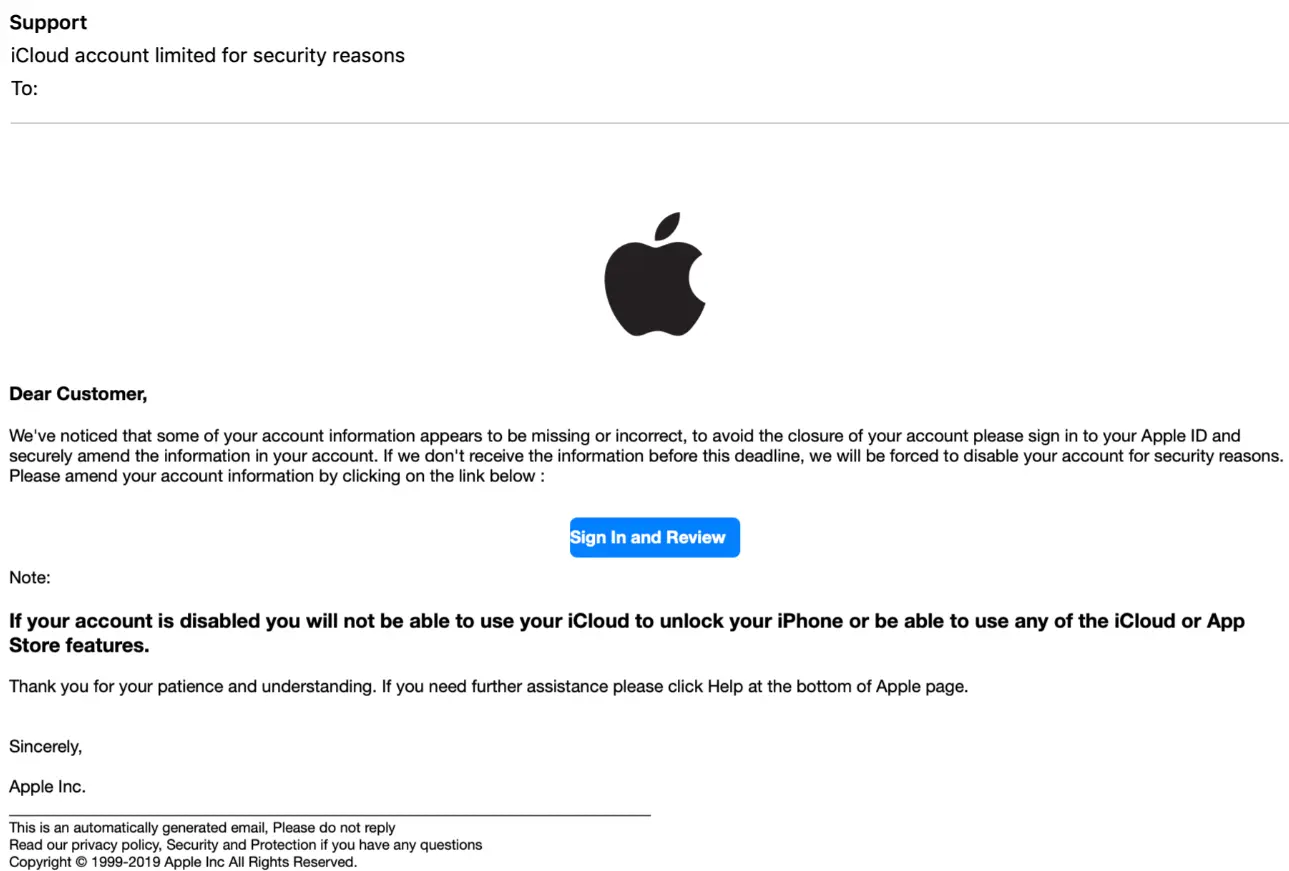
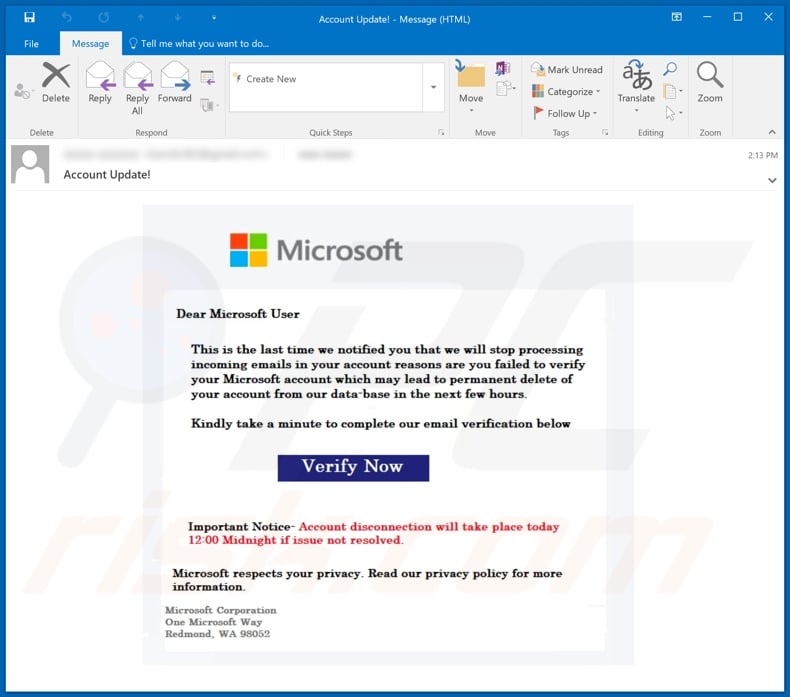
Phishing emails are a major threat to online security, and Windows users are no exception. Phishing emails can be designed to look like legitimate messages from trusted sources, but their ultimate goal is to steal sensitive information such as passwords, credit card numbers, or bank account details. In this article, we will explore how to block phishing emails on Windows and protect your account from these types of attacks.Why Block Spam and Phishing Emails?
Spam and phishing emails are a significant problem for Windows users. These types of emails can lead to identity theft, financial loss, and other serious consequences. By blocking spam and phishing emails, you can protect your account and maintain the security of your personal data.Block Senders from Sending You Email in New Outlook for Windows
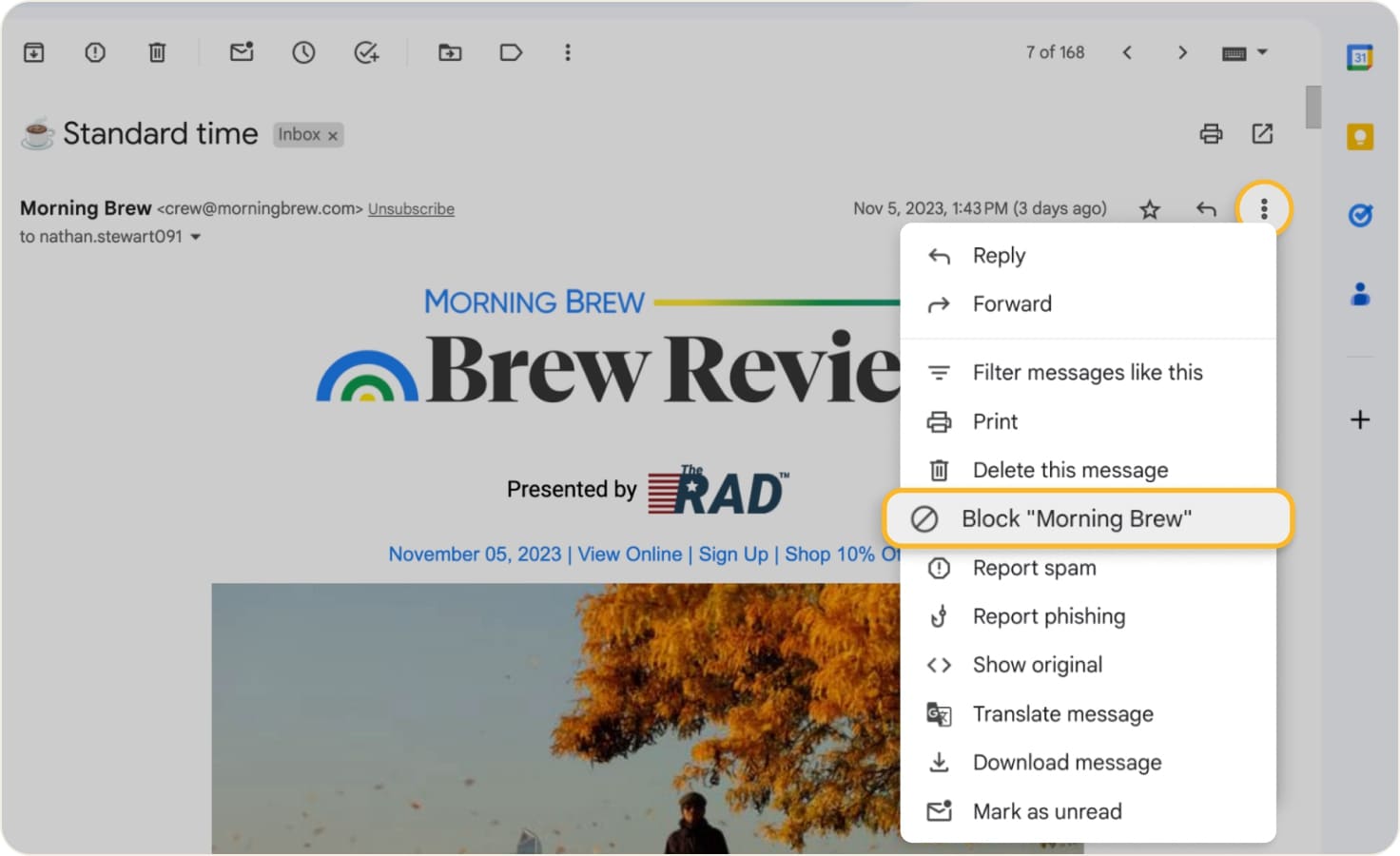
If you're receiving unwanted emails, you can block the email addresses and domains you don't want to receive messages from in new Outlook. Add any email address or domain to your blocked senders list to move these messages directly to your Junk Email folder.To block senders in new Outlook for Windows, follow these steps:
- Go to the "Home" tab in Outlook.
- Click on the "Junk" button.
- Choose "Block Sender" from the dropdown menu.
- Select the email address or domain you want to block.
- Click "Block" to confirm.
Enhanced Phishing Protection for Microsoft Defender SmartScreen
Microsoft Defender SmartScreen is a built-in feature in Windows that helps protect your account from phishing and unsafe websites. Enhanced Phishing Protection for Microsoft Defender SmartScreen helps protect your Microsoft school or work passwords against phishing and unsafe usage on sites and apps.To enable Enhanced Phishing Protection for Microsoft Defender SmartScreen, follow these steps:

- Go to the "Settings" app in Windows.
- Search for "Windows Security" and open it.
- Click on "Virus & threat protection" and then "Manage settings."
- Scroll down to the "Phishing protection" section and toggle the switch to enable Enhanced Phishing Protection.
How to Report Junk or Phishing Emails
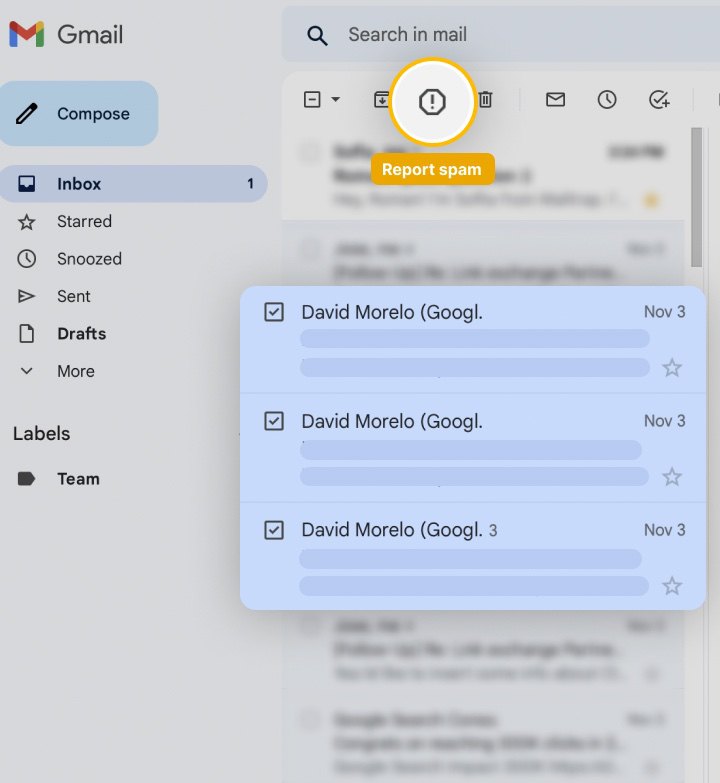
Outlook allows you to report junk or phishing emails directly to Microsoft, which helps improve their filtering algorithms. To report an email in Outlook Desktop, right-click the email in your inbox or junk folder and hover over Junk and select Report as Junk or Report as Phishing.How to Enable Built-in Phishing Protection Using Windows Defender
Windows Defender is a built-in security feature in Windows that helps protect your account from phishing and other types of malware. To enable built-in phishing protection using Windows Defender, follow these steps:To enable built-in phishing protection using Windows Defender, follow these steps:
- Go to the "Settings" app in Windows.
- Search for "Windows Security" and open it.
- Click on "Virus & threat protection" and then "Manage settings."
- Scroll down to the "Phishing protection" section and toggle the switch to enable built-in phishing protection.


/images/2024/08/08/microsoft-defender-phishing-test-failed.png "Use These 5 Rules to Block Phishing Emails From Your Inbox - MUO")