How to Connect Printer to Apple Laptop: A Step-by-Step Guide
Are you stuck trying to connect your printer to your Apple laptop? Don't worry, you've come to the right place! In this comprehensive guide, we'll walk you through the steps to connect a printer to a Mac laptop using various methods, including Wi-Fi, Bluetooth, USB, and IP address. We'll also provide some troubleshooting tips to help you overcome any issues you might encounter.
Method 1: Connecting Printer to Apple Laptop via Wi-Fi
If your printer supports wireless printing, you can easily connect it to your Apple laptop using Wi-Fi. Here's how:
- Make sure your printer and laptop are connected to the same Wi-Fi network.
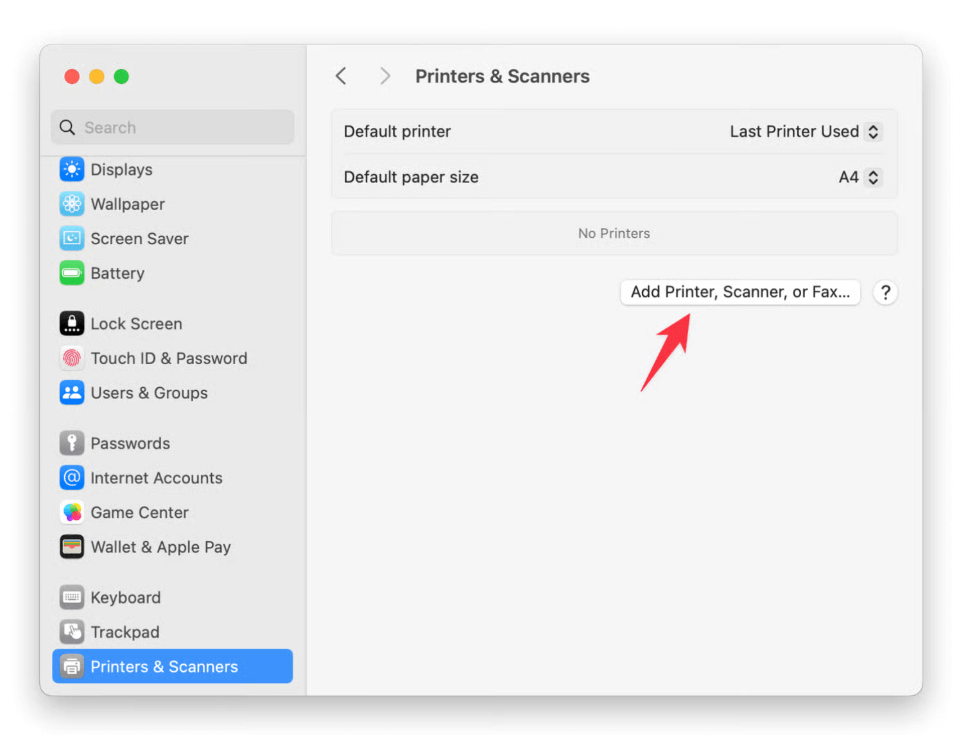
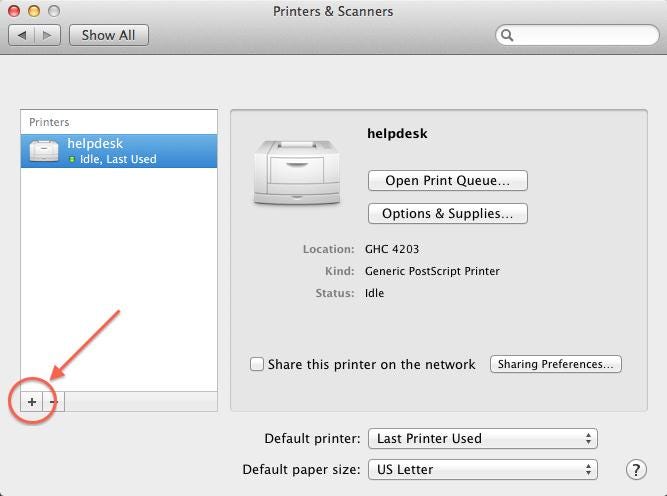
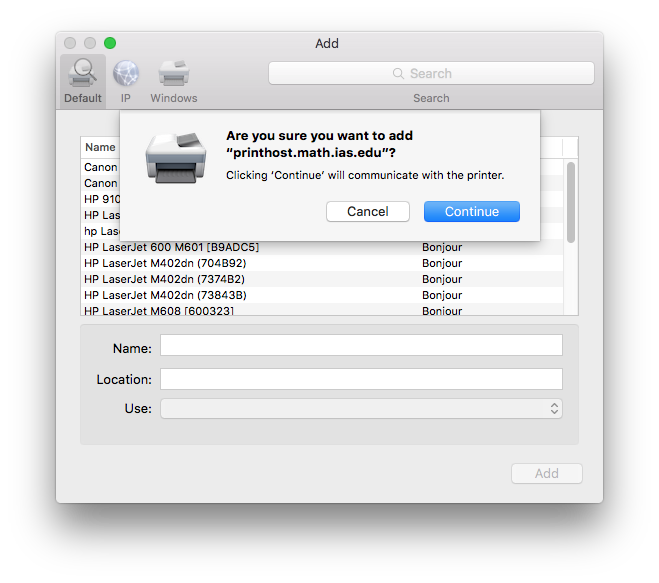
- Go to System Preferences on your Mac and click on "Printers and Scanners."
- Click on the "+" icon to add a new printer and select your printer from the list.
- If your printer is not listed, you can add it as an IP printer by selecting "IP" and entering the printer's IP address.
Method 2: Connecting Printer to Apple Laptop via Bluetooth
Another way to connect your printer to your Apple laptop is by using Bluetooth. Here's how:
- Make sure your printer is paired with your Mac.
- Go to System Preferences on your Mac and click on "Bluetooth."
- Click on "Printers and Scanners" and select your printer from the list.
- Click on the "+" icon to add your printer and follow the on-screen instructions to complete the setup.
Method 3: Connecting Printer to Apple Laptop via USB
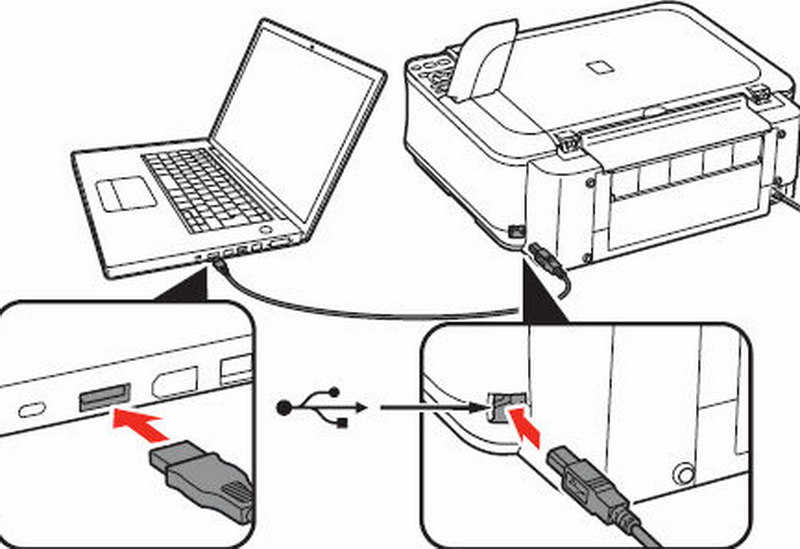
Connecting your printer to your Apple laptop via USB is another way to set up your printer. Here's how:
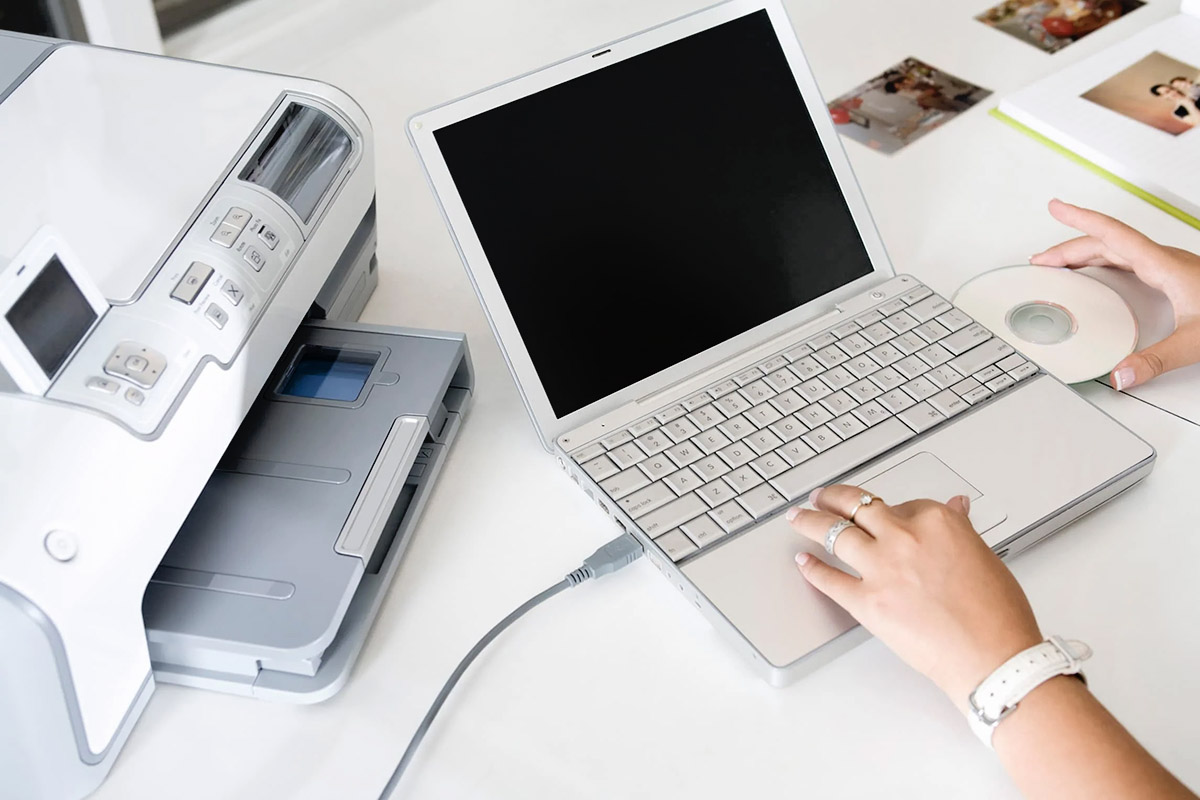
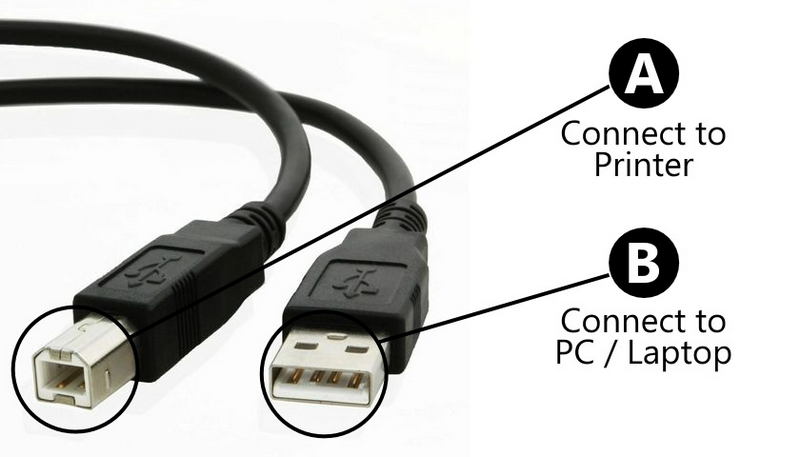
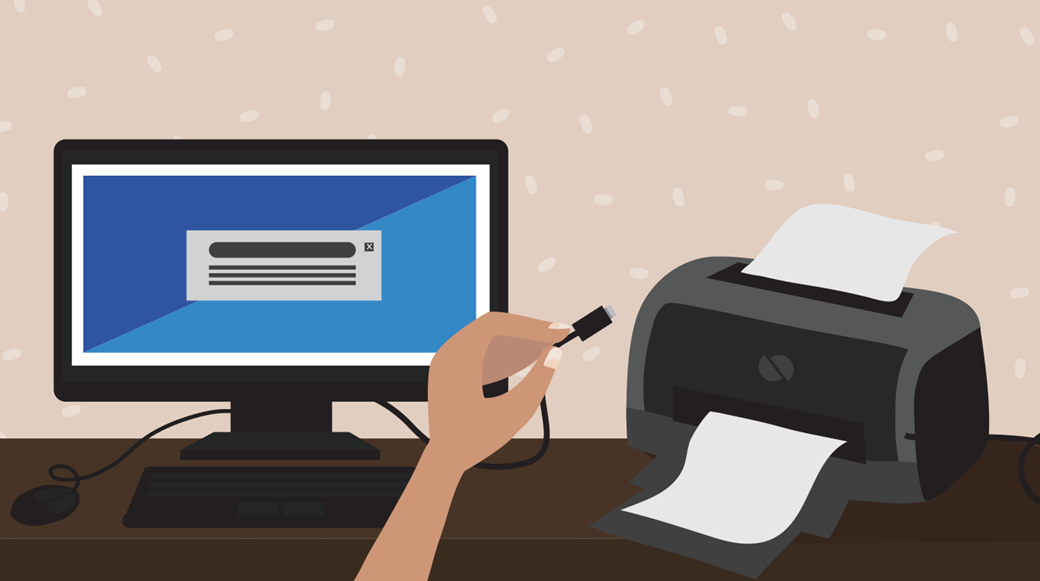
- Connect your printer to your laptop using a USB cable.
- Go to System Preferences on your Mac and click on "Printers and Scanners."
- Click on the "+" icon to add a new printer and select your printer from the list.
- Follow the on-screen instructions to complete the setup.

How to Fix Common Issues
If you're experiencing issues connecting your printer to your Apple laptop, here are some common fixes:
- Make sure your printer is turned on and connected to the same Wi-Fi network as your laptop.
- Check that the printer cable is securely plugged into both the printer and laptop.
- Try restarting both the printer and laptop to refresh the network connection.
- Check that the printer is properly configured on your laptop's System Preferences page.
Conclusion
Connecting a printer to an Apple laptop can be a straightforward process if you follow the right steps. Whether you prefer to connect via Wi-Fi, Bluetooth, USB, or IP address, we've covered the methods and common fixes to help you get started. If you're still having trouble, feel free to leave a comment below and we'll do our best to help.
Additional Resources
If you need more information or help with connecting your printer to your Apple laptop, here are some additional resources:
- Apple Support: Connecting a Printer to Your Mac
- HP Support: HP Software and Driver Downloads
- Brother Support: Brother Drivers and Software
With these resources and the steps outlined in this guide, you should be able to connect your printer to your Apple laptop in no time!