How to Set Up WiFi on Gaming Console: A Step-by-Step Guide
Connecting your gaming console to WiFi is a crucial step to access a world of online gaming and digital content. Before diving into the setup, it's essential to ensure that your console is compatible with WiFi connections. Let's break down this step-by-step process to set up your gaming console for seamless WiFi connectivity.
Step 1: Check Console Compatibility
Ensure that your gaming console is compatible with WiFi connections. Consult your console's documentation or online resources to verify compatibility. Most gaming consoles, such as the Xbox Series X, PlayStation 4, and Nintendo Switch, support WiFi connectivity.
Step 2: Access Network Settings
Access your console's network settings by going to the main menu and selecting the "Networking" or "Settings" option. This will take you to the network settings menu, where you can configure your WiFi connection.
Step 3: Select WiFi Network
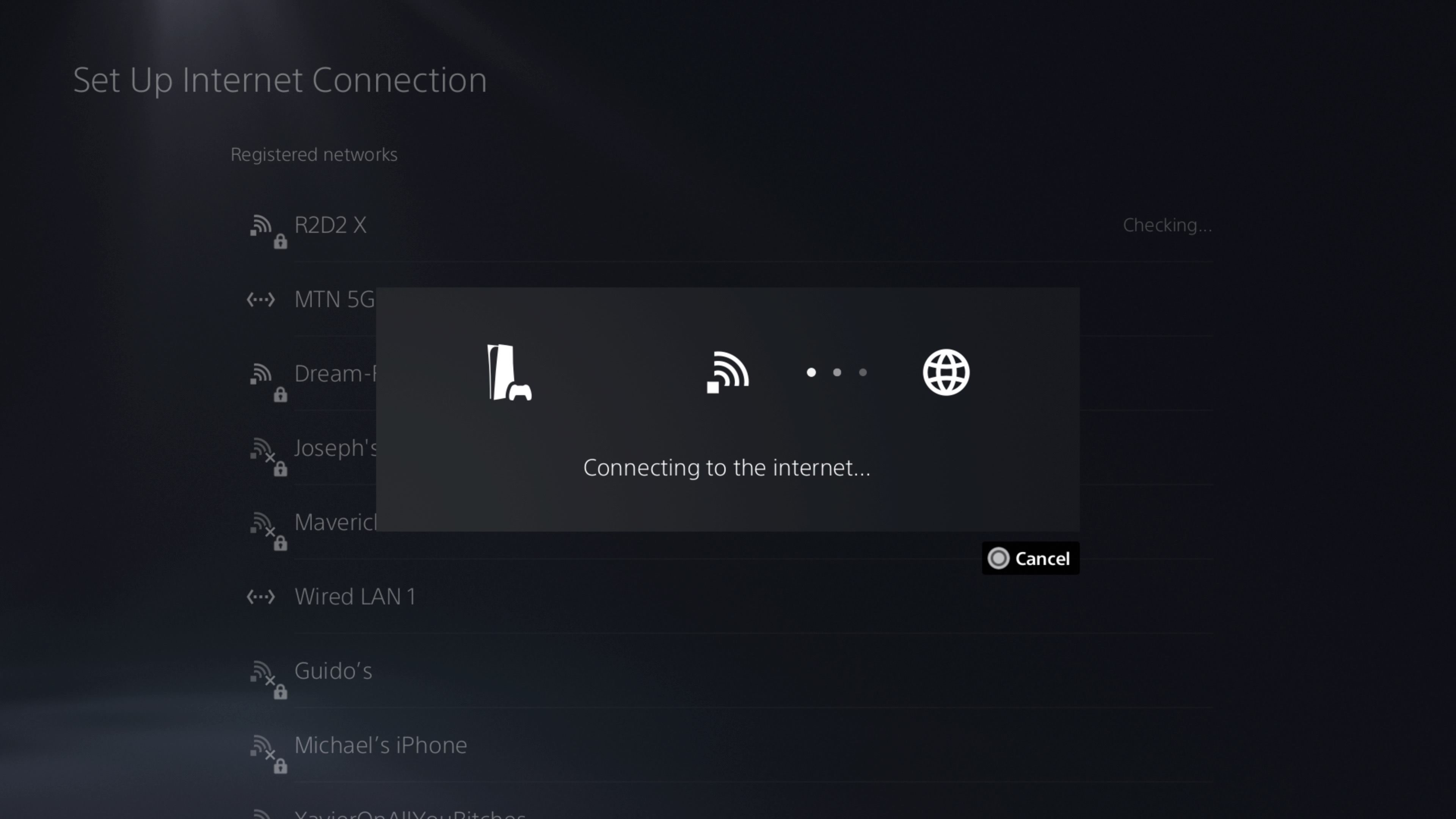
Choose your home WiFi network from the list of available networks. Make sure to select the correct network name and password. If your network is not listed, ensure that your router is turned on and broadcasting its SSID.
Step 4: Enter Network Password
Enter your WiFi network password to ensure a secure connection. Be sure to use the correct password, as incorrect passwords can prevent your console from connecting to the network.
Step 5: Test Network Connection
Test your WiFi connection to ensure that it's stable and working correctly. This can be done by checking your console's online status or by testing a few online games.
Console-Specific Setup

Each gaming console has its unique setup process for WiFi connectivity. Here are some console-specific setup instructions:
Xbox Series X Setup
- Press the Xbox button on the controller and select your profile.
- Go to "Settings" and select "Network Settings."
- Choose "Set up wireless network" and select your WiFi network from the list.
- Enter your network password to secure the connection.
PlayStation 4 Setup
- Go to the "Settings" menu and select "Network."
- Choose "Set up Internet Connection" and select "Use WiFi."
- On the next screen, select "Easy" and follow the on-screen instructions.
Additional Tips and Tricks
- Ensure that your router is positioned close to your console for optimal WiFi signal strength.
- Use a WiFi analyzer app to check for any interference from other devices.
- Configure your router to prioritize devices and reduce congestion.
Conclusion
Setting up WiFi on your gaming console is a straightforward process that requires ensuring compatibility, accessing network settings, selecting your WiFi network, entering your network password, and testing the connection. By following these steps and console-specific setup instructions, you'll be able to enjoy seamless WiFi connectivity and online gaming experiences.
Recommended Reading
For more information on setting up WiFi on your gaming console, check out the following resources: