How to Set Up Printer on Mac: A Step-by-Step Guide
Setting up a printer on your Mac can seem like a daunting task, but it's actually a straightforward process. With the right guidance, you can have your printer up and running in no time. In this article, we'll walk you through the step-by-step process of setting up a printer on your Mac, whether you're using a wireless, wired, or USB connection.
Before You Begin
Before you start setting up your printer, make sure you have the following:
- Your printer turned on and ready to use.
- Your Mac connected to the same Wi-Fi network as your printer.
- The printer's power cord and any other necessary cables.
Connecting Your Printer to Your Mac
There are several ways to connect your printer to your Mac, including Wi-Fi, Ethernet, and USB. Here are the steps for each method:
Connecting via Wi-Fi
If your printer supports wireless printing, setting it up on your Mac is relatively easy. Here's how:
- Make sure your printer and Mac are connected to the same Wi-Fi network.
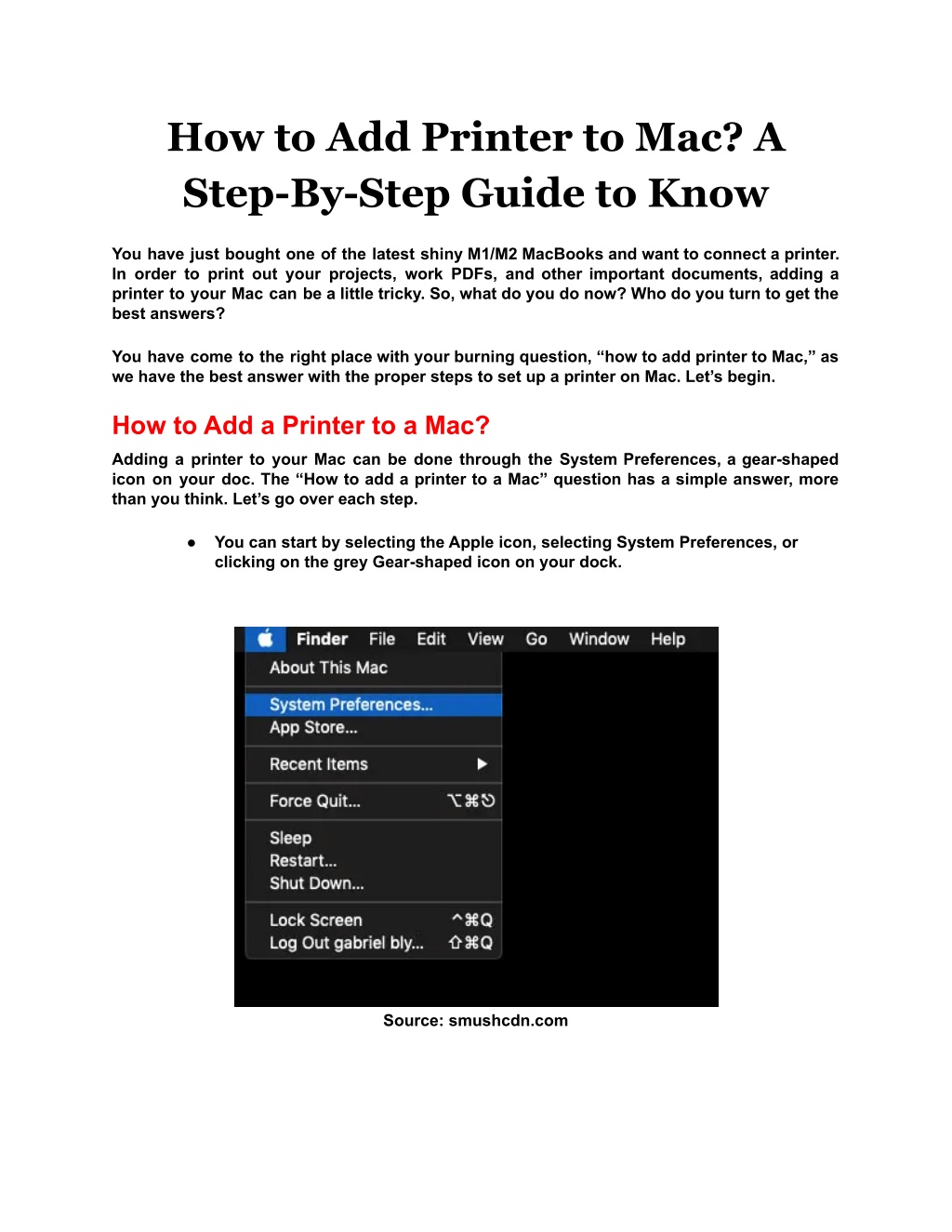
- Open the System Preferences on your Mac by clicking the Apple logo in the top left corner and selecting System Preferences.
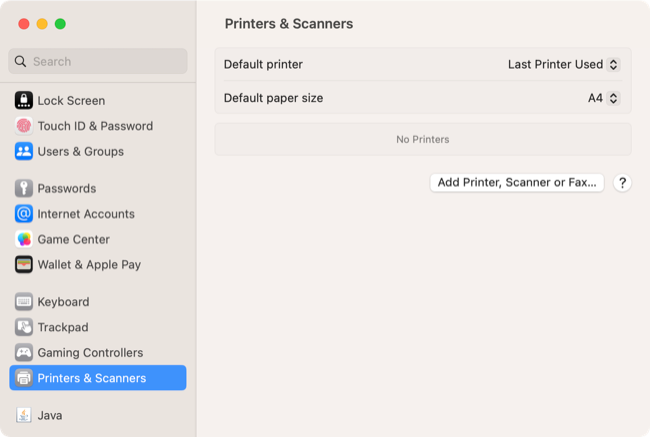
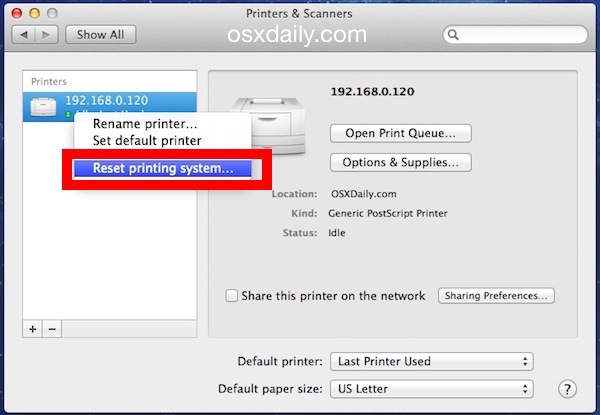
- Click on Printers & Scanners and then click the + button in the bottom left corner.
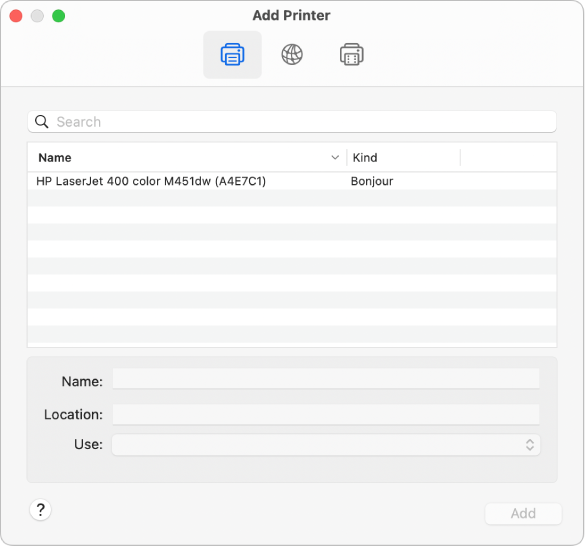
- Choose the printer from the list of available printers and click Add.
Connecting via Ethernet
If your printer has an Ethernet port, you can connect it to your Mac using an Ethernet cable. Here's how:
- Connect the printer to your Mac using an Ethernet cable.
- Open the System Preferences on your Mac by clicking the Apple logo in the top left corner and selecting System Preferences.
- Click on Printers & Scanners and then click the + button in the bottom left corner.
- Choose the printer from the list of available printers and click Add.
Connecting via USB

If your printer has a USB port, you can connect it to your Mac using a USB cable. Here's how:
- Connect the printer to your Mac using a USB cable.
- Open the System Preferences on your Mac by clicking the Apple logo in the top left corner and selecting System Preferences.
- Click on Printers & Scanners and then click the + button in the bottom left corner.
- Choose the printer from the list of available printers and click Add.
Adding Your Printer to Your Mac
Once you've connected your printer to your Mac, you'll need to add it to your Mac's list of available printers. Here's how:
- Open the System Preferences on your Mac by clicking the Apple logo in the top left corner and selecting System Preferences.
- Click on Printers & Scanners and then click the + button in the bottom left corner.
- Choose the printer from the list of available printers and click Add.
Troubleshooting Common Issues
If you're having trouble setting up your printer, here are some common issues and solutions:
- My printer isn't showing up in the list of available printers:
- Make sure your printer is turned on and connected to the same Wi-Fi network as your Mac.
- Try restarting your Mac and printer.
- My printer is printing, but the quality is poor:
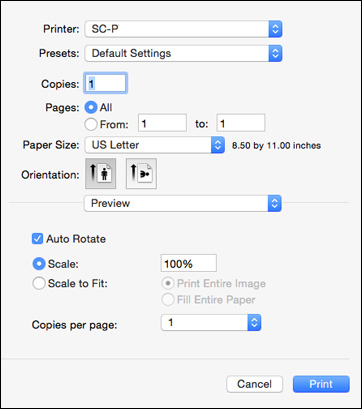
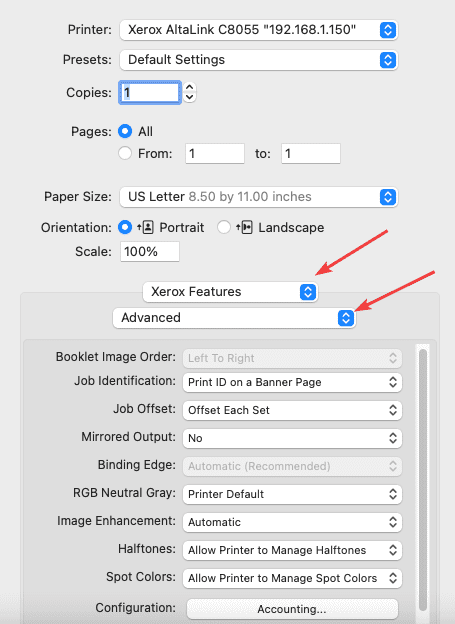
- Make sure the print settings are set to the correct paper size and quality.
- Try adjusting the print settings to improve the quality.
Conclusion
Setting up a printer on your Mac is a straightforward process that can be completed in just a few steps. By following the steps outlined in this article, you should be able to connect your printer to your Mac and start printing wirelessly. If you're having trouble, don't hesitate to reach out to the manufacturer's support team or Apple support for assistance.
Additional Resources
If you're looking for more information on setting up your printer or troubleshooting common issues, here are some additional resources: