How to Set Up Wi-Fi on Your Laptop: A Comprehensive Guide
Are you struggling to connect your laptop to the internet via Wi-Fi? Do you want to set up a wireless network in your home or office? Look no further! In this article, we will guide you through the step-by-step process of setting up Wi-Fi on your laptop. Whether you're a beginner or an expert, this comprehensive guide will help you establish a stable and secure connection.
Learn How to Connect Your PC or Laptop to the Internet via Wi-Fi
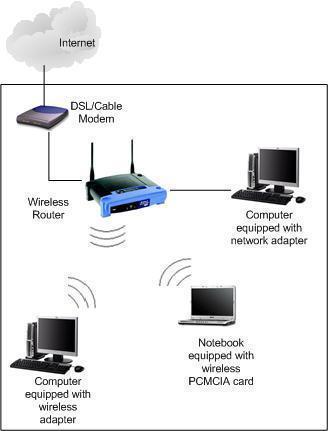
Fortunately, connecting your PC or laptop to the internet through Wi-Fi is a straightforward process. You'll need a wireless router provided by your Internet Service Provider (ISP) and an operating system that supports wireless networking. If you're using a Windows laptop, you can follow these steps to set up a new connection or network:
- Go to your laptop's Wi-Fi settings by clicking on the Wi-Fi icon in the taskbar and selecting the network you want to connect to.
- Enter the network name (SSID) and password provided by your ISP or router manufacturer.
- Click Connect to establish the connection.
- Wait for the connection to be established, which may take a few seconds.
How to Set Up Wi-Fi on Windows 10 and 11
Mastering Wi-Fi connectivity on Windows 10 and 11 is a breeze. Here are some additional tips for setting up and troubleshooting Wi-Fi on these operating systems:
- On Windows 10, go to Settings > Network & Internet > Wi-Fi to manage your connections.
- On Windows 11, go to Settings > Wi-Fi & network to manage your connections.
- Use the Wi-Fi Connection Assistant to connect your printer to your wireless network.
- For advanced options, go to Settings > Network & Internet > Status to view your network status and troubleshoot any issues.
How to Set Up Wi-Fi on a Mac Computer
Setting up Wi-Fi on a Mac computer is just as straightforward. Here are some tips for connecting and troubleshooting Wi-Fi on your Mac:
- Click on the Wi-Fi icon in the top right corner of the screen and select the network you want to connect to.
- Enter the network name (SSID) and password provided by your ISP or router manufacturer.
- Click Join to establish the connection.
- Wait for the connection to be established, which may take a few seconds.

Common Wi-Fi Setup Issues and Troubleshooting Tips
Don't worry if you experience any issues during the setup process. Here are some common Wi-Fi setup issues and troubleshooting tips:
- Check your router's power cord and ensure it's properly plugged in.
- Restart your router and laptop to refresh the connection.
- Check for firmware updates on your router and install the latest version.
- Reset your router to its factory settings and reconfigure it.
- Use the Wi-Fi Connection Assistant to troubleshoot and resolve common issues.
Conclusion
Setting up Wi-Fi on your laptop is a simple process that requires minimal effort and knowledge. By following this comprehensive guide, you'll be able to establish a stable and secure connection to the internet. Remember to troubleshoot any issues that may arise, and don't hesitate to seek help if you need it. Stay connected and stay productive with a reliable Wi-Fi connection!
Additional Resources
- Troubleshoot Wi-Fi connectivity issues on Windows 10 and 11.
- Set up Wi-Fi on your Mac computer.
- Netgear Support Center for troubleshooting and setup guides.
References:
- "How to connect your printer to Wi-Fi". Printer Support Website.
- "How to set up a home Wi-Fi network". CNET.
- "Wi-Fi setup for beginners". Lifehacker.
Tags: how to set up Wi-Fi on laptop, Wi-Fi setup, wireless network, Wi-Fi setup on Windows 10 and 11, Wi-Fi setup on Mac, common Wi-Fi setup issues, troubleshooting tips.
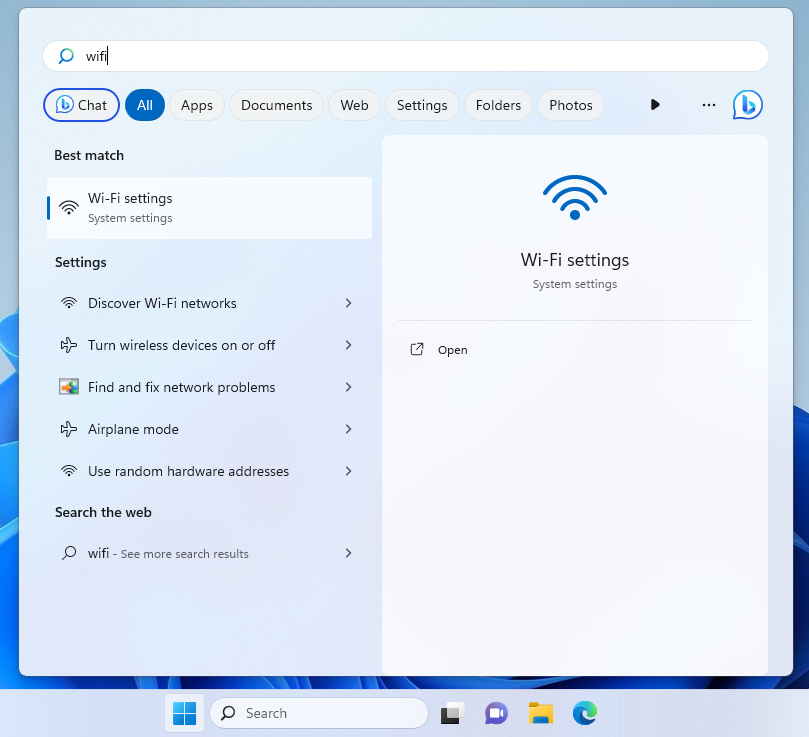

-Connection-Step-1-Version-5.jpg/aid1756116-v4-728px-Set-up-a-Wireless-Network-(WiFi)-Connection-Step-1-Version-5.jpg "How to Set up a Wireless Network (WiFi) Connection - wikiHow")