iPhone Setup Process After Purchasing: A Step-by-Step Guide
Congratulations on your new iPhone purchase! Setting up your device can be a daunting task, but with this comprehensive guide, you'll be up and running in no time. In this article, we'll walk you through the iPhone setup process after purchasing, covering the essential steps to get your device activated, transferred, and configured for optimal performance.
Step 1: Unboxing and Power-On
Once you've unboxed your new iPhone, it's time to turn it on. Press and hold the power button until the Apple logo appears on the screen. This is the first step in the iPhone setup process after purchasing.
Step 2: Language and Country Selection
After the Apple logo disappears, you'll be presented with the language and country selection screen. Choose your preferred language and country or region to continue the setup process.
Step 3: Wi-Fi and Network Selection
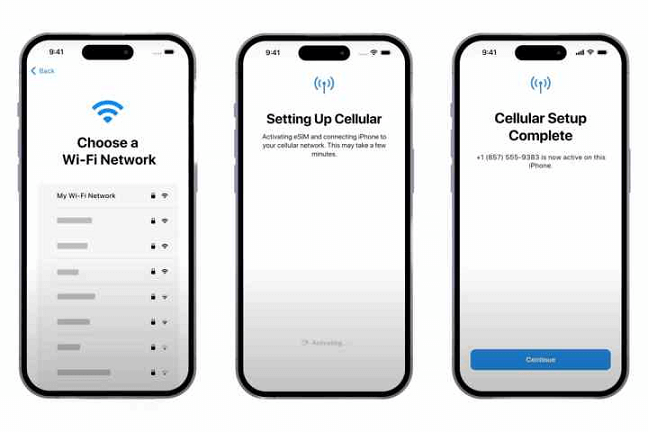
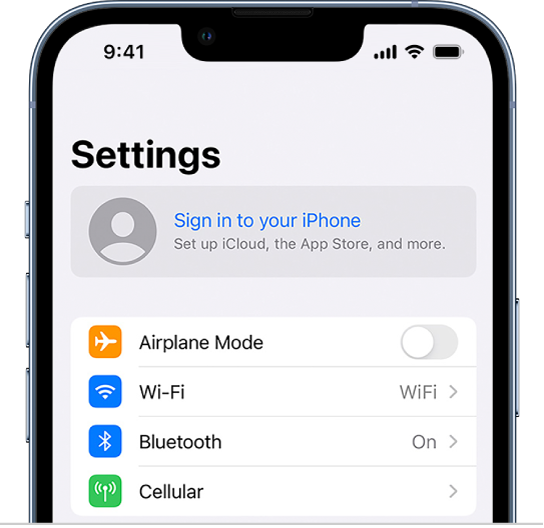
Next, you'll be asked to connect to a Wi-Fi network. Choose your network from the list of available options or select "Other" to manually enter your Wi-Fi network's name and password. If you have another iPhone, iPad, or Android device, you can transfer your data to your new iPhone using Wi-Fi.
Step 4: Quick Start or Manual Setup
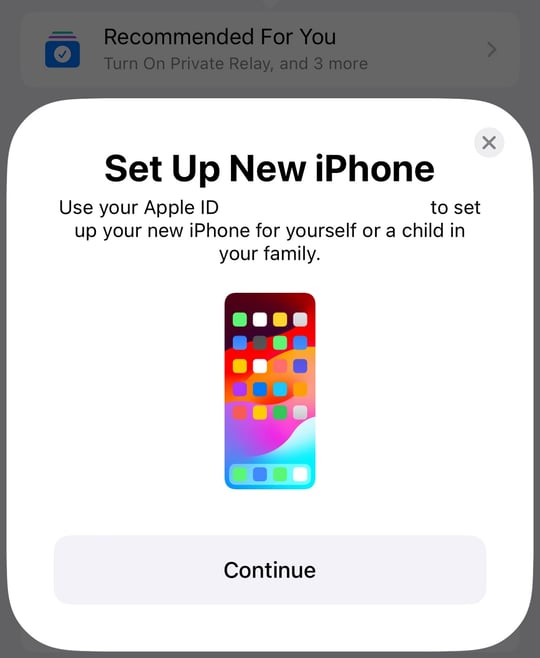
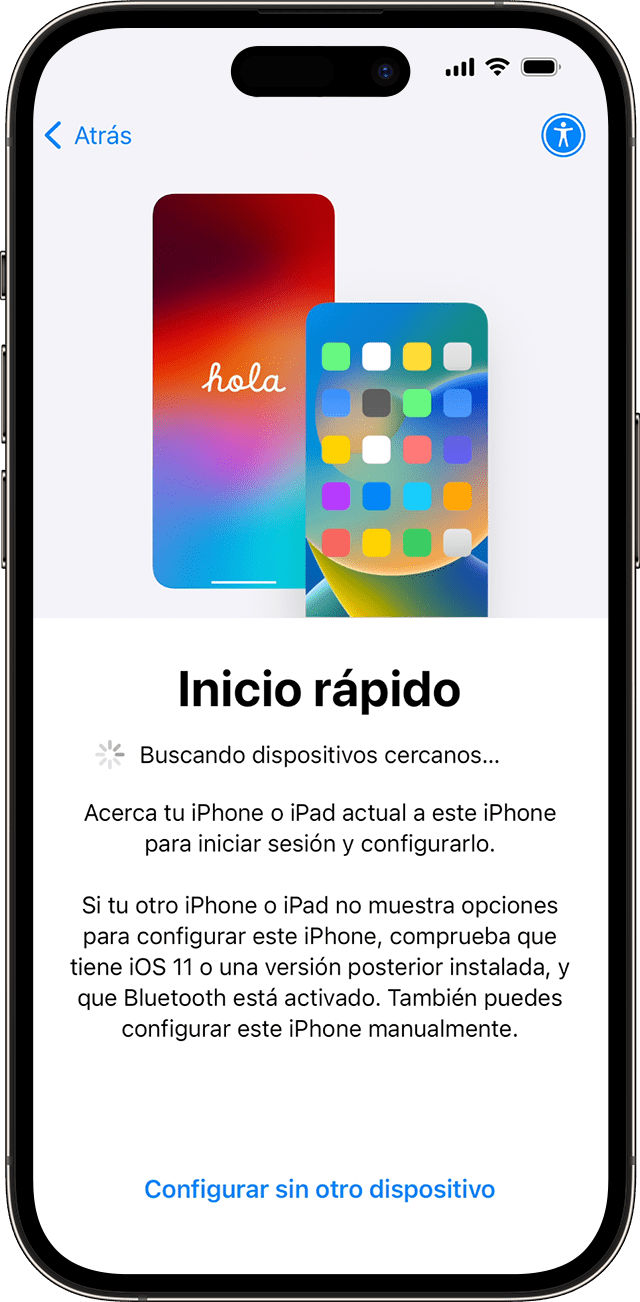
Depending on your situation, you may be prompted to use Quick Start or manual setup. Quick Start is a feature that allows you to automatically transfer data from your old iPhone to your new one using Wi-Fi or Bluetooth. If you're not using Quick Start, you can manually set up your iPhone by selecting your language and country, and then proceeding with the setup process.
Step 5: Apple ID and Password
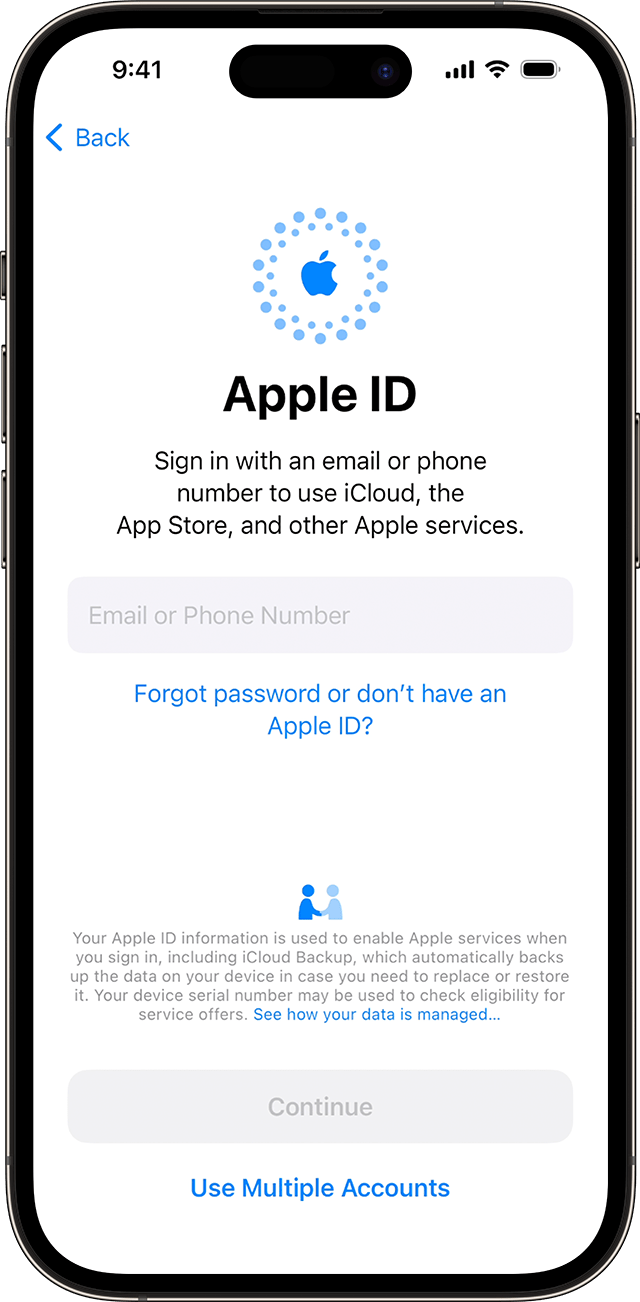
Enter your Apple ID and password to continue the setup process. If you don't have an Apple ID, you can create one now or use the iPhone setup process to create a new account.

Step 6: Transfer Data from Old iPhone (if applicable)
If you're using an old iPhone to transfer data to your new one, you can use the Quick Start feature or manually transfer your data using iCloud or a computer backup.
Step 7: Face ID or Touch ID Setup
Set up Face ID or Touch ID to secure your iPhone and use it to unlock your device, make purchases, and access sensitive information.
Step 8: Final Setup and Configuration
Finally, you'll be prompted to review and agree to Apple's terms and conditions. You'll also have the opportunity to set up additional features such as Siri, Location Services, and more.
Additional Tips and Tricks
- Transfer Data from Android Device: If you're switching from an Android device, you can use the Move to iOS app to transfer your data to your new iPhone.
- iCloud Backup: Make sure to back up your old iPhone to iCloud before transferring your data to your new device.
- Family Sharing: Set up Family Sharing to share photos, calendars, and other content with family members.
- Parental Controls: Use parental controls to restrict access to certain features and apps on your child's iPhone.
Conclusion
The iPhone setup process after purchasing is a straightforward process that can be completed in a few minutes. By following these steps, you'll be able to activate your device, transfer your data, and configure your iPhone for optimal performance. Remember to take advantage of additional features and services offered by Apple to enhance your iPhone experience.
:max_bytes(150000):strip_icc()/iphonesetup2-f1c9476a8ba8489b9e4bd4d41db10748.jpg "How to Set Up a New iPhone Step by Step (iOS 26)")