Configuring Router Address LAN: A Comprehensive Guide
The art of configuring router address LAN can be a daunting task for many. With the rapid evolution of technology, networking has become a crucial aspect of our daily lives, and being able to manage and secure our home or office network is essential. In this article, we will delve into the world of LAN configuration, understanding its importance, and provide a step-by-step guide on how to configure a router address LAN with ease.
Understanding the Basics
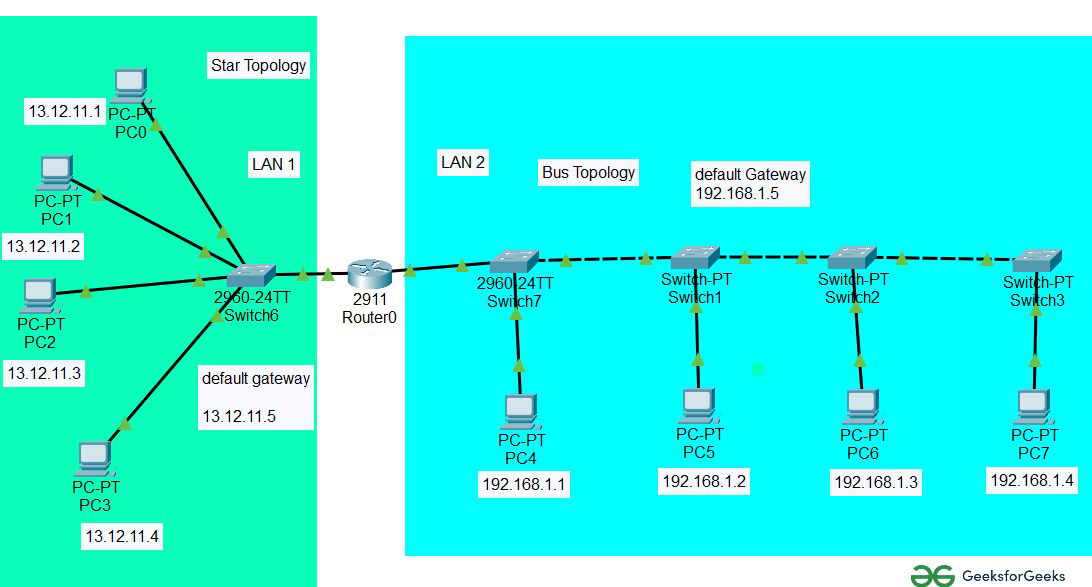
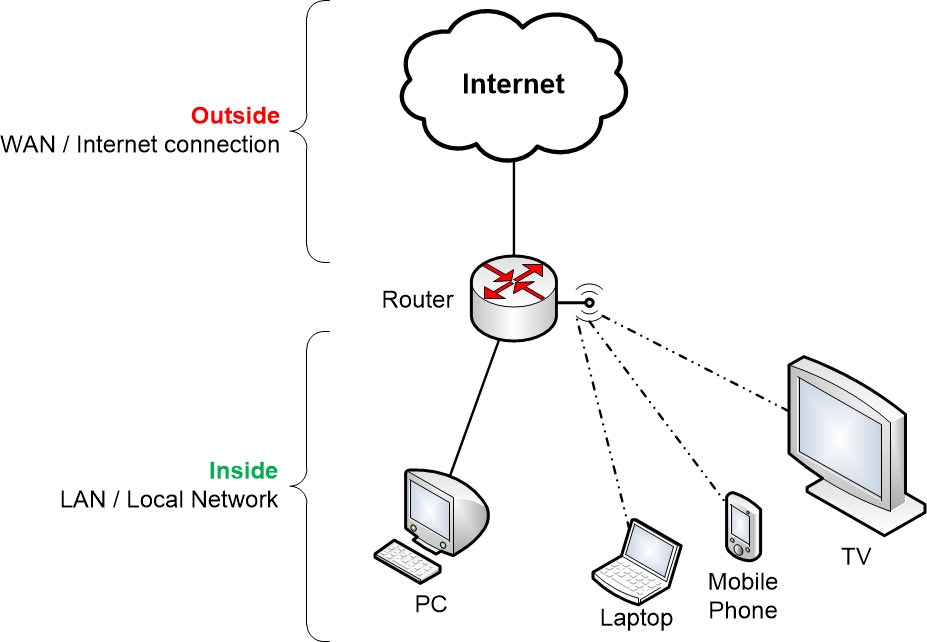
Before we dive into the configuration process, let's first understand the basics of a LAN. Local Area Network (LAN) refers to a computer network that spans a small geographical area, such as a home, office building, or campus. A LAN connects devices such as computers, printers, and other electronic devices to share resources and exchange data. In this context, the router plays a vital role in securing, managing, and facilitating communication between devices.
Importance of LAN Configuration
Configuring your router's LAN settings is crucial for ensuring the security and performance of your network. Here are a few reasons why LAN configuration is important:
- It helps to secure your network from unauthorized access by setting up a strong password and configuring firewall settings.
- It allows you to assign static IP addresses to devices that require it, ensuring reliable access to resources.
- It enables you to set up and manage guest networks, separating them from your primary network for added security.
- It helps to optimize your network performance by setting up Quality of Service (QoS) settings.
Step-by-Step Guide to Configuring Router Address LAN
Configuring router address LAN involves several steps, which we will outline below:
1. Access Your Router's Admin Interface
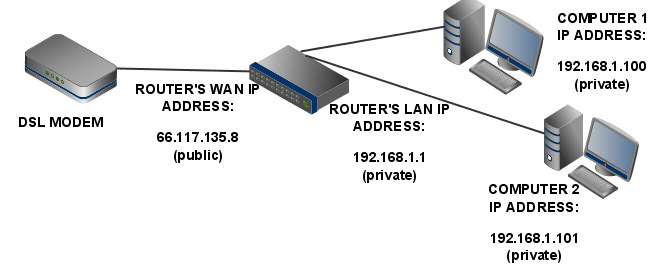
To access your router's admin interface, you need to open a web browser and type the default IP address of your router. The most common default IP address for most routers is 192.168.0.1 or 192.168.1.1. You can check your router's manual to find the default address. Once you access the admin interface, log in using your admin username and password.
2. Set Up Your Network Name and Password
Once you access the admin interface, you can change your network name (SSID) and password. Make sure to use a strong and unique password to prevent unauthorized access.
3. Configure Firewall Settings
The firewall is a crucial aspect of your router's security. Configure your firewall settings to allow or block incoming and outgoing traffic to specific devices or services.
4. Set Up IP Addresses
To assign IP addresses to devices, you can use DHCP (Dynamic Host Configuration Protocol). DHCP assigns an IP address to a device upon connection. You can also assign static IP addresses to devices that require it.
5. Configure Quality of Service (QoS)
Quality of Service (QoS) settings help optimize network performance by prioritizing traffic. You can set up QoS to ensure critical applications receive priority over less important ones.
6. Set Up Guest Network
Guest networks allow visitors to connect to your network without giving them access to your primary network. You can set up a separate network for guests.
7. Configure DNS Settings
Domain Name System (DNS) settings help resolve domain names to IP addresses. You can configure DNS settings to use a specific DNS server or DHCP to automatically assign DNS settings.
Conclusion
Configuring router address LAN is a crucial aspect of network management and security. By following the steps outlined above, you can ensure your network is secure, optimized, and running smoothly. Remember to update your router's firmware regularly and configure your router's settings to suit your needs. With a well-configured LAN, you can enjoy a secure and high-performing network experience.




![[Wireless Router] How do I enter my ASUS router's setting page using ...](https://s3.studylib.net/store/data/008723213_1-e23d6d7b8b84d2ce9592b909085c121a.png "[Wireless Router] How do I enter my ASUS router's setting page using ...")