Configuring Dual Band Router: A Comprehensive Guide
Dual band routers offer both 2.4 GHz and 5 GHz Wi-Fi signals, providing more options for speed and coverage. Proper configuration ensures your internet is fast and reliable across your devices.
Understanding Dual Band Routers
Dual band routers broadcast on two different frequencies: 2.4 GHz and 5 GHz. The 2.4 GHz band offers a wider range but is more prone to interference, while the 5 GHz band provides faster speeds but has a shorter range. By configuring your dual band router correctly, you can make the most of both bands and achieve optimal performance.
Setting Up Your Dual Band Router
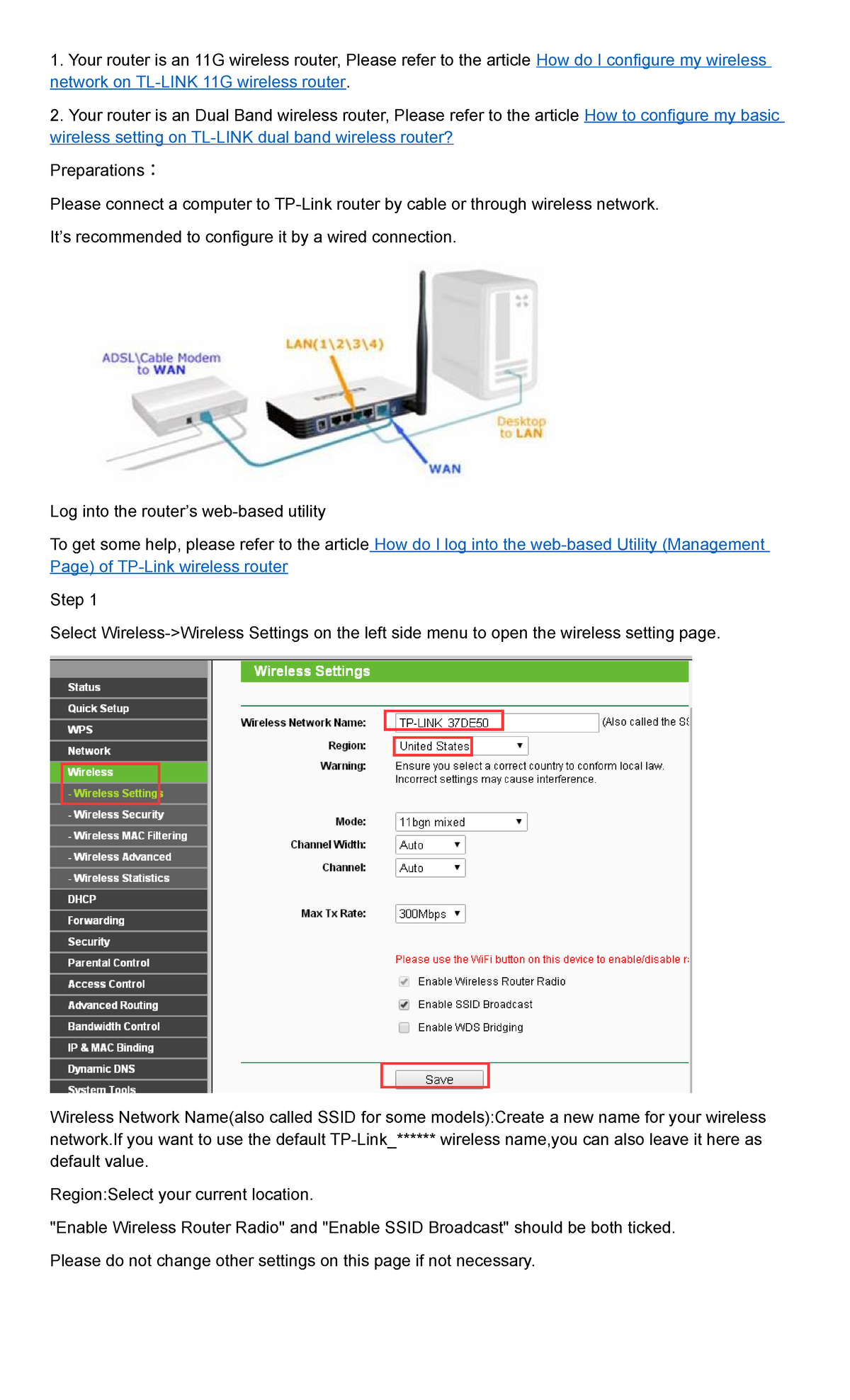
To set up your dual band router, you'll need to access its administration panel through a web browser. From here, you can set your Wi-Fi network name and password, choose the band you want to use, and configure other options such as parental controls and network security.
- Connect to your router's network using your devices.
- Open a web browser and type the router's IP address (usually 192.168.0.1 or 192.168.1.1)
- Enter the router's admin username and password (usually printed on the underside of the router)
- Set your Wi-Fi network name (SSID) and password.
- Choose the band you want to use (2.4 GHz or 5 GHz)
- Configure other options such as parental controls, network security, and quality of service.
Configuring Dual Band Settings
Configuring your dual band settings ensures your router operates smoothly on both bands, providing better connectivity throughout your space. To configure your dual band settings, follow these steps:
- Log in to your router's admin panel.
- Go to the wireless settings section.
- Enable dual band wireless.
- Set the channel width to either 20 MHz or 40 MHz.
- Configure the band steering settings to automatically switch devices to the best band.
- Save your changes and restart your router.
Matching Your Devices to the Right Band
Not all devices support both 2.4 GHz and 5 GHz bands. To ensure optimal performance, match your devices to the right band:
- Older devices (such as older laptops and smartphones) may only support the 2.4 GHz band.
- Newer devices (such as newer laptops and smartphones) may support both 2.4 GHz and 5 GHz bands.
Best Practices for Configuring Dual Band Routers
Follow these best practices to ensure optimal performance from your dual band router:
- Change your router's default admin password.
- Enable WPA2 (or WPA3) encryption for network security.
- Set up a guest network for visitors.
- Use Quality of Service (QoS) settings to prioritize critical applications.
- Regularly update your router's firmware to ensure optimal performance.
Conclusion
Configuring your dual band router requires some knowledge of the settings and options available. By following this guide, you'll be able to optimize your router's performance and enjoy fast and reliable internet across your devices. Remember to match your devices to the right band and follow best practices for configuration to get the most out of your dual band router.
Recommended Dual Band Routers
Here are some recommended dual band routers:
- Linksys Wireless AC Router
- TP-Link Archer BE900
- Netgear Nighthawk AX3000
- TP-Link AX2400
- eero 7 Dual-Band Mesh Wi-Fi 7 Router
These routers offer a wide range of features and performance options, making them suitable for different needs and budgets.