How to Block Malware from Accessing System Files
Malware is one of the biggest threats to the security of your computer, tablet, phone, and other devices. It can steal information, encrypt or delete files, spy on activities, or hijack system functions. To protect yourself and your devices from malware, it's essential to take proactive steps to block malware from accessing system files.
Why Block Malware from Accessing System Files?
Malware can use known software vulnerabilities to infect your PC. A vulnerability is like a hole in your software that can give malware access to your PC. When you go to a website, it can try to use vulnerabilities in your web browser to infect your PC with malware. If malware gains access to your system files, it can perform a range of malicious activities, including:
- Deleting or encrypting files
- Stealing sensitive user data
- Slowing down system performance
- Hijacking system functions
How to Block Malware from Accessing System Files
To block malware from accessing system files, you can follow these steps:
1. Keep Software Up-to-Date
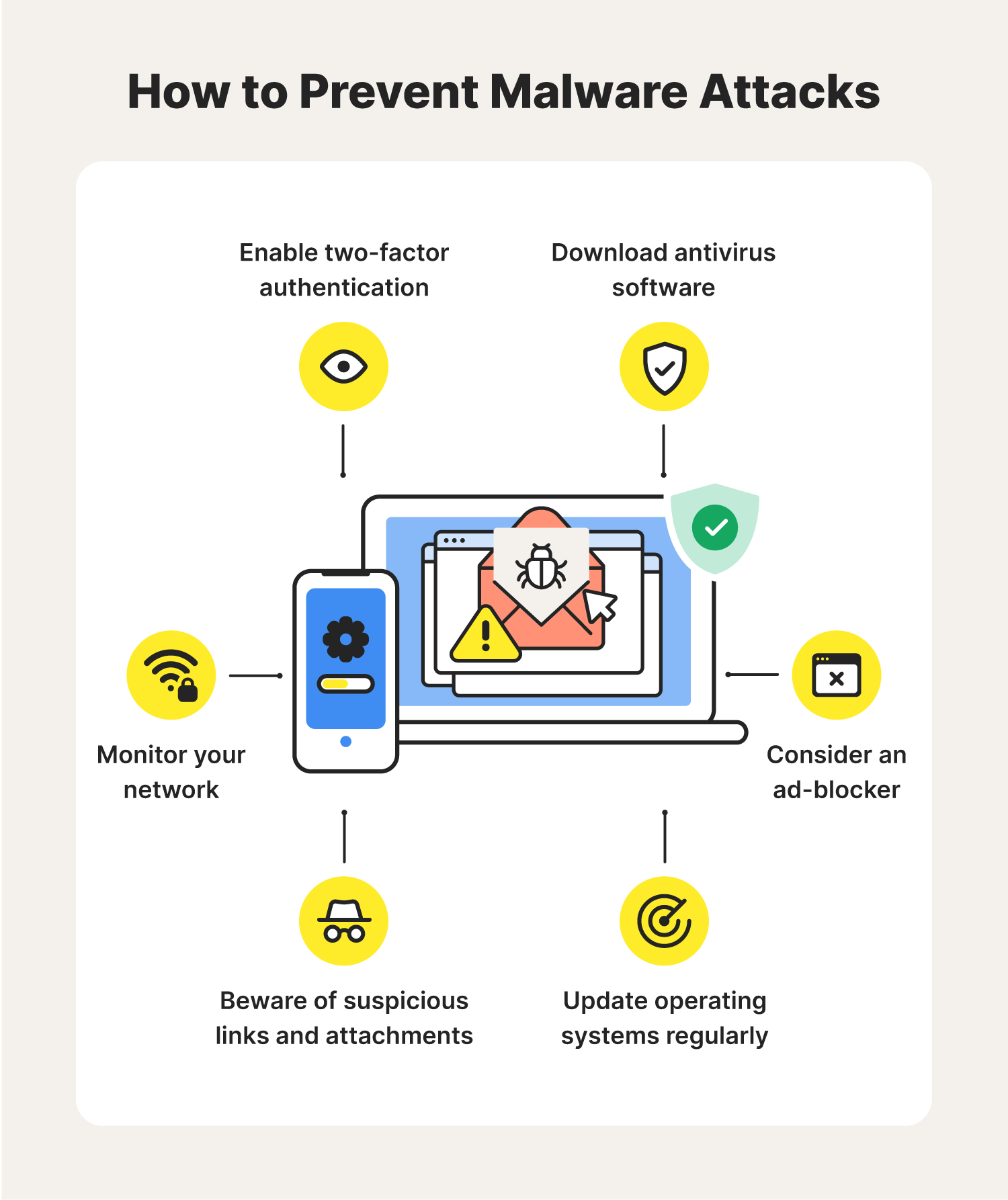
Ensure that all your software, including your operating system and browser, is up-to-date. Regular software updates often include security patches that fix vulnerabilities that malware can exploit.
2. Use Antivirus Software
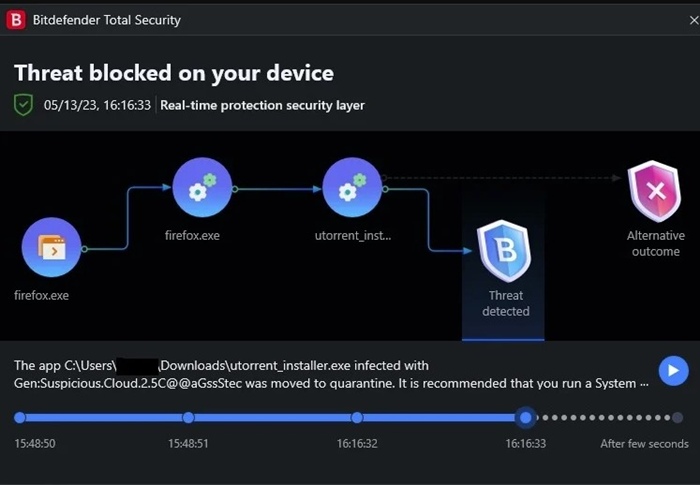
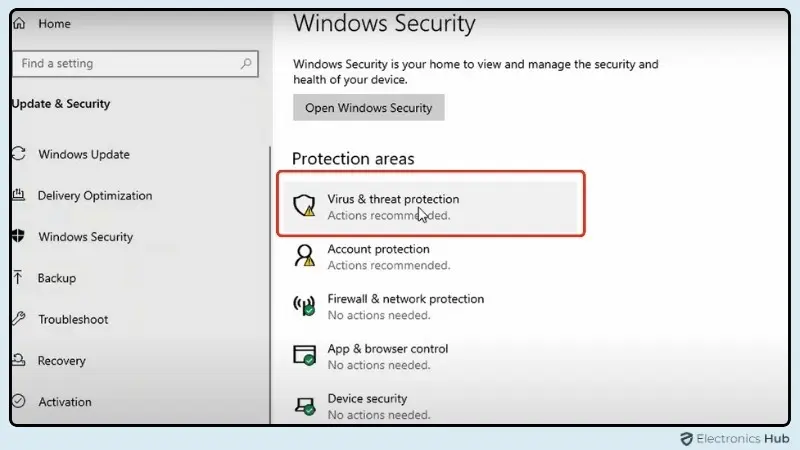
Install and regularly update antivirus software on your device. Antivirus software can detect and block malware, including viruses, spyware, and ransomware.
3. Use a Firewall
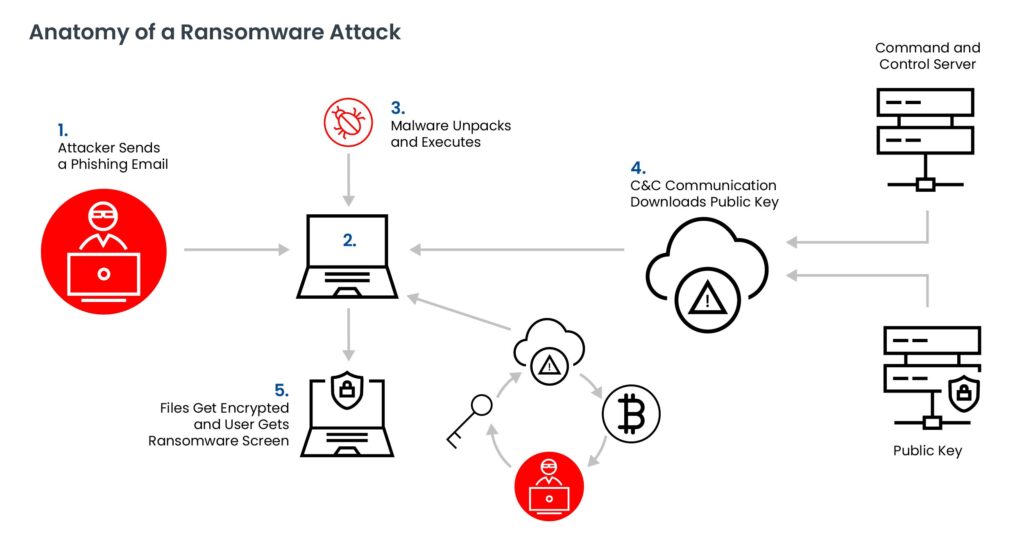
Enable the firewall on your device to prevent unauthorized access to your system files. A firewall can block malicious traffic and prevent malware from communicating with its command and control servers.
4. Be Cautious with Email Attachments and Downloads
Be cautious when opening email attachments or downloading files from unknown sources, as they may contain malware. Even if the attachment or download appears legitimate, it may still be malicious.
5. Use Strong Passwords and Secure Protocols
Use strong passwords and secure protocols when accessing sensitive information or transmitting data online. This can help prevent malware from intercepting your data or using it to gain unauthorized access to your system files.
6. Regularly Back Up Your Data
Regularly back up your important files to an external drive or cloud storage services. This can help you recover your files in case malware deletes or encrypts them.
7. Use a Secure Browser and Extensions
Use a secure browser and extensions that can help block malware and phishing attempts. Some popular secure browsers include Google Chrome, Mozilla Firefox, and Microsoft Edge.
8. Monitor System Files and Processes
Regularly monitor your system files and processes to detect any suspicious activity. You can use tools like Windows Task Manager or process explorer to monitor system files and processes.
Best Practices for Blocking Malware
Here are some best practices to help you block malware from accessing system files:
- Keep your software up-to-date
- Use antivirus software and a firewall
- Be cautious with email attachments and downloads
- Use strong passwords and secure protocols
- Regularly back up your data
- Use a secure browser and extensions
- Monitor system files and processes
Conclusion
Malware can cause significant harm to your devices and data. By following the steps outlined in this article, you can block malware from accessing system files and protect yourself from malicious attacks. Remember to always stay vigilant and take proactive steps to protect your devices and data from malware threats.
Additional Resources
For more information on blocking malware and protecting your devices, you can visit the following resources:
- Microsoft Security Resources
- Anti-Virus Software Providers (e.g. Norton, McAfee, Kaspersky)
- Firewall Configurations
- Secure Browsing Practices
Remember to always stay informed and take proactive steps to protect yourself and your devices from malware threats.

![Top Ways To Protect Windows From Malware [2026]](https://howtoremove.guide/wp-content/uploads/2023/07/BBWC-Malware-1.webp "Top Ways To Protect Windows From Malware [2026]")
![How to Remove Adware, Trojans, Virus & Malware from Windows [Guide]](https://i.pinimg.com/736x/ac/65/ea/ac65eaf0425d3330b93f5ee1382d69d3.jpg "How to Remove Adware, Trojans, Virus & Malware from Windows [Guide]")