How to Connect Monitors to Computer: A Comprehensive Guide
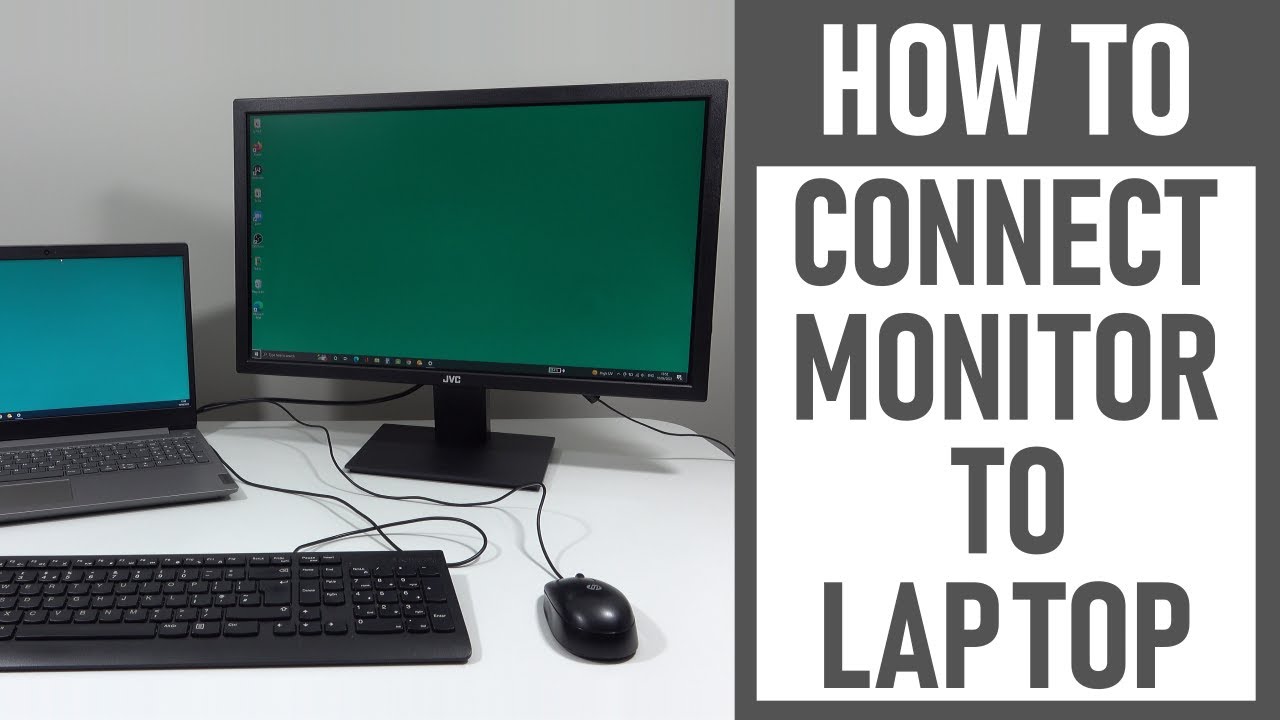
Connecting a monitor to your computer can significantly enhance your productivity, whether you're working from home, gaming, or simply enjoying your favorite movie. This guide provides detailed steps to connect a monitor to your Windows computer.
Understanding the Basics
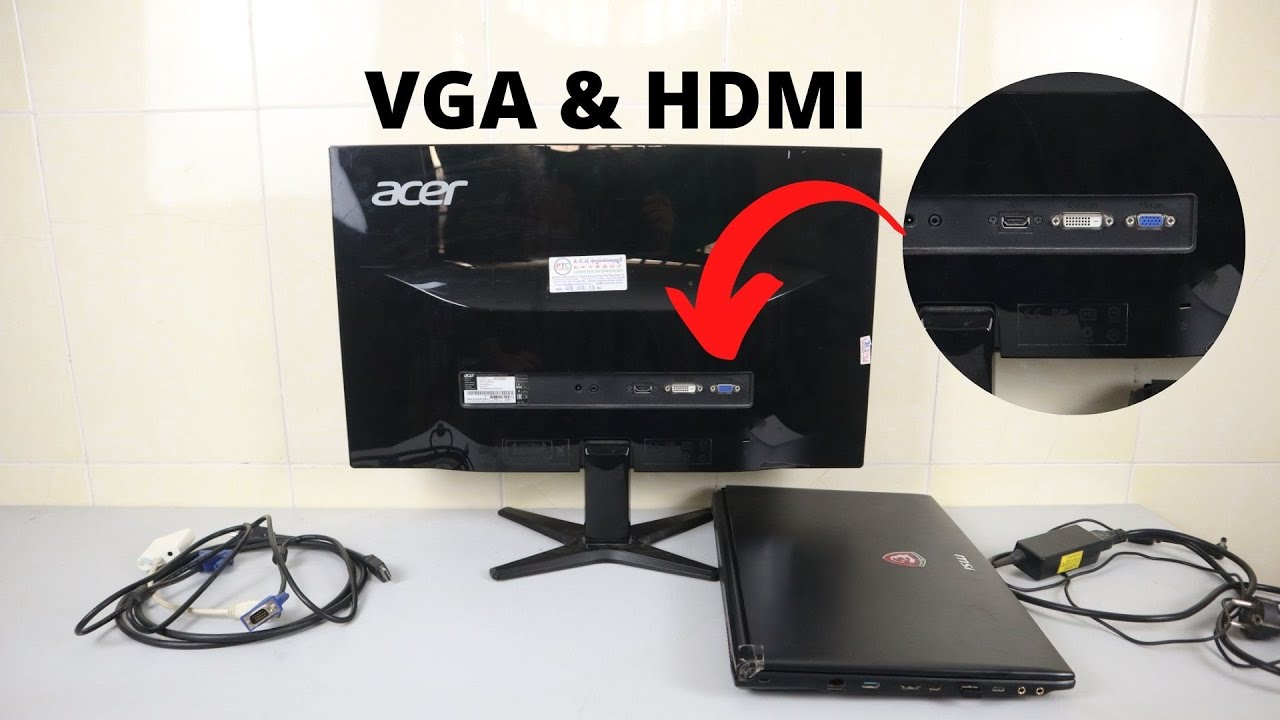
Before we dive into the steps, it's essential to understand the basics of connecting a monitor to your computer. You'll need to identify the video connectors on your computer and display device, as well as a compatible video cable and an optional adapter. Make sure you have the necessary cables and adapters before proceeding.
Connecting a Monitor to Your Computer
Here are the steps to connect a monitor to your computer:
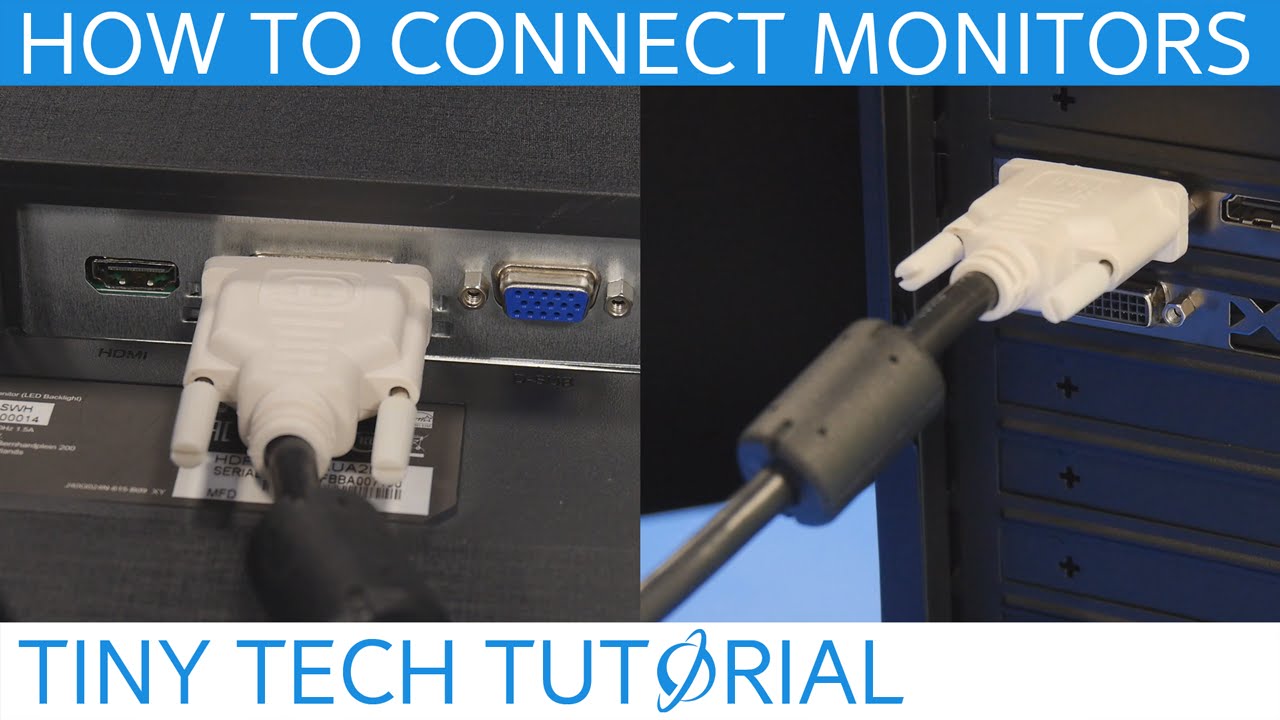
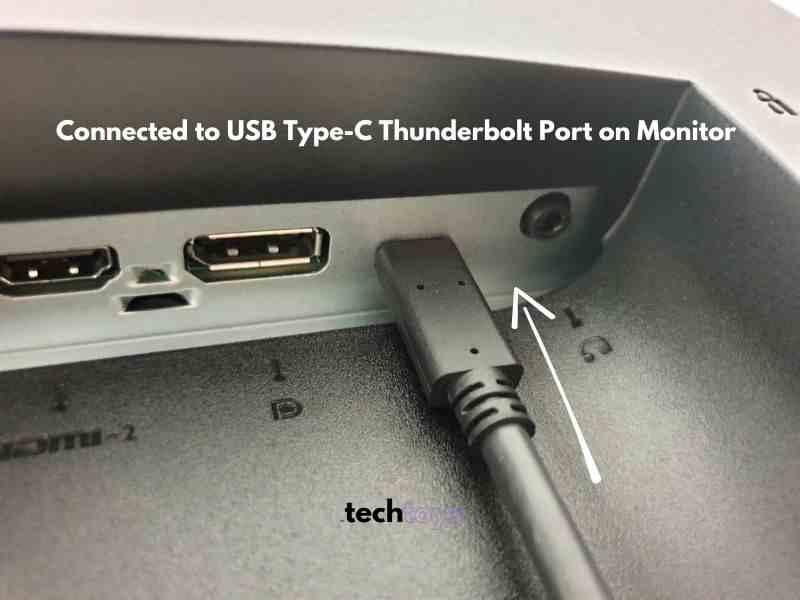
- Step 1: Identify the Video Connectors - Locate the video connectors on your computer and display device. Common connectors include HDMI, DisplayPort, DVI, and VGA.
- Step 2: Choose a Compatible Cable - Select a video cable that matches the connectors on your computer and display device. For example, if your computer has an HDMI port, you'll need an HDMI cable.
- Step 3: Connect the Cables - Connect the video cable to the computer and display device. Make sure the connectors are securely attached.
- Step 4: Configure the Display Settings - Open the display settings on your computer and select the correct input source. You may need to switch to the correct input on your display device as well.
Connecting Multiple Monitors
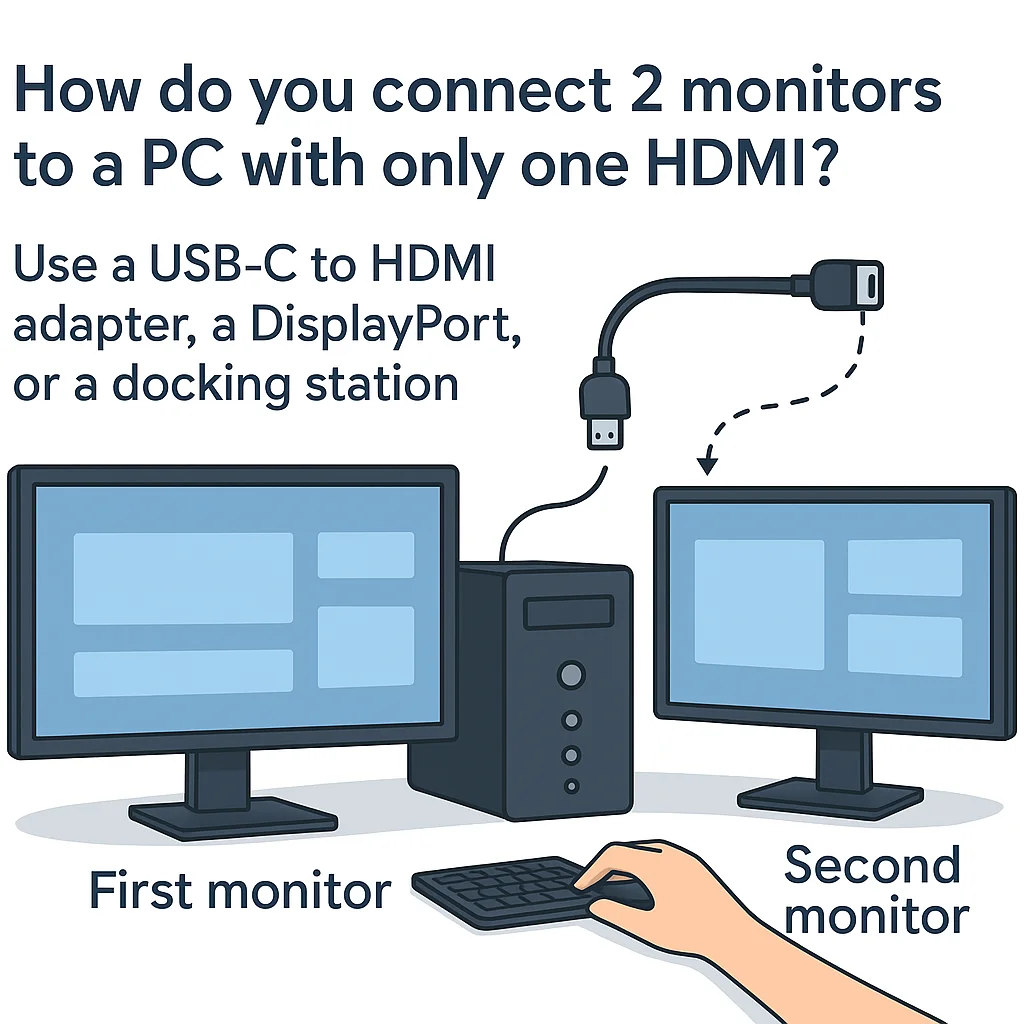
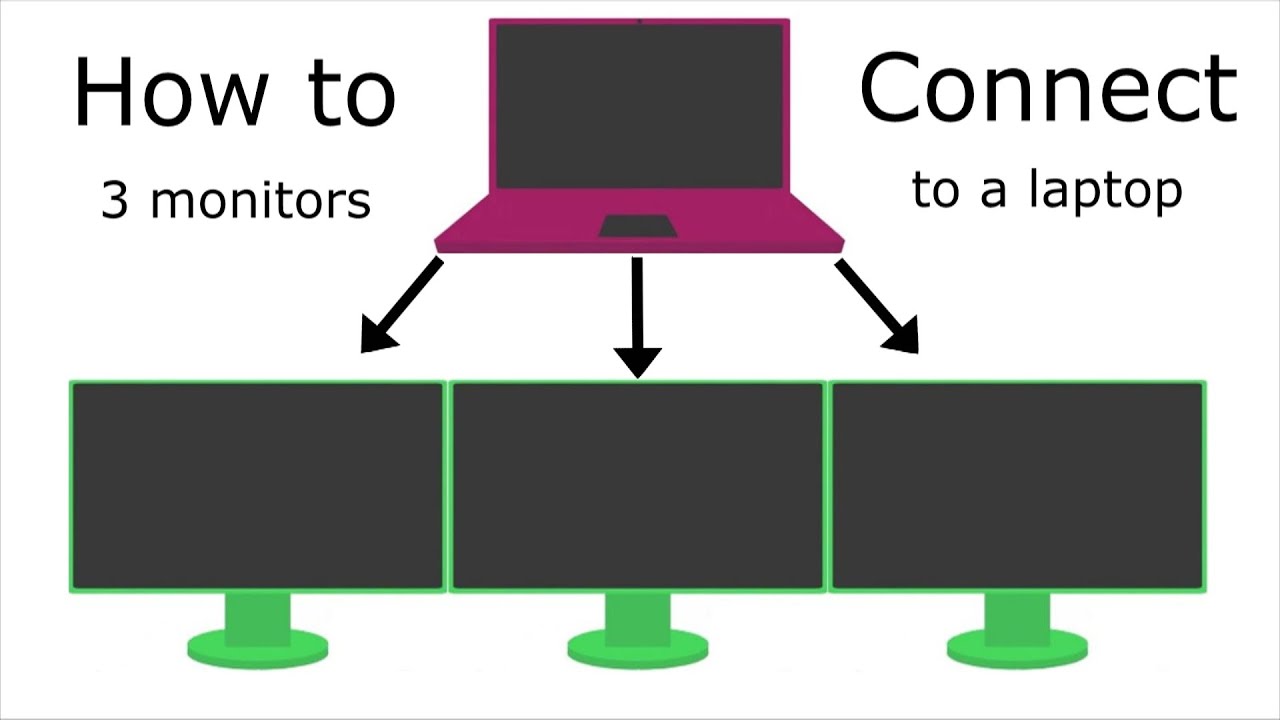
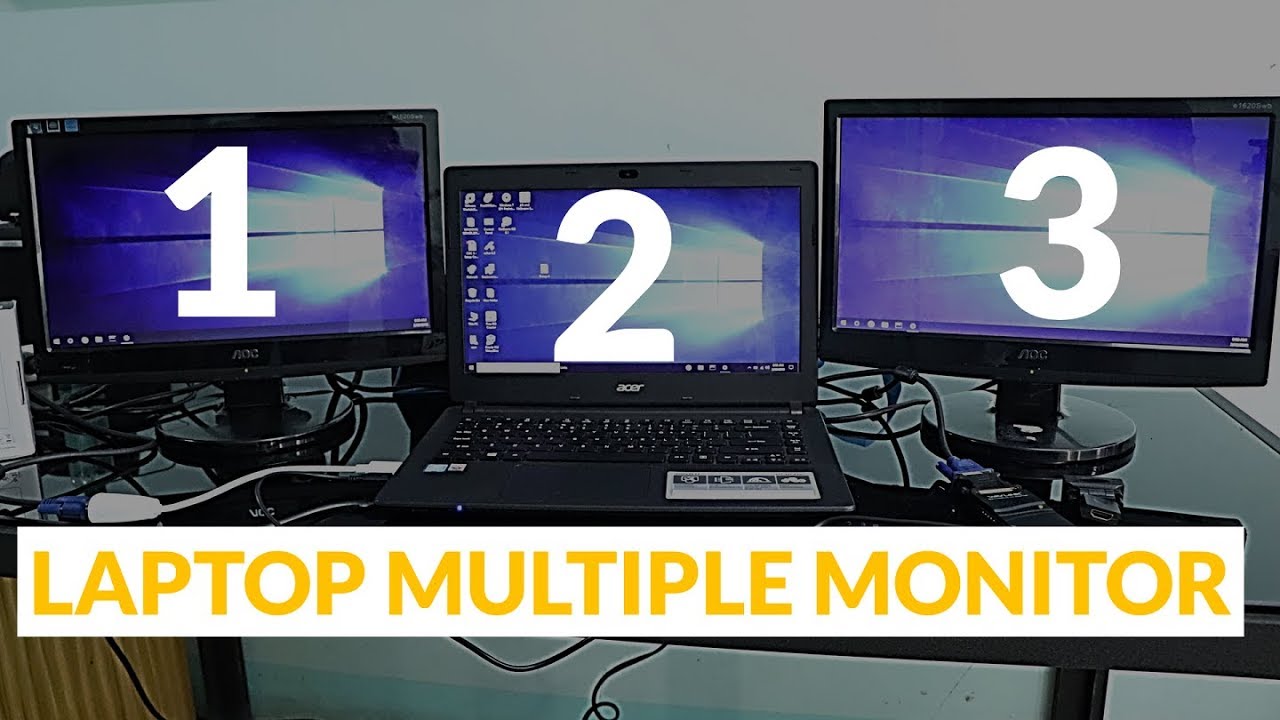
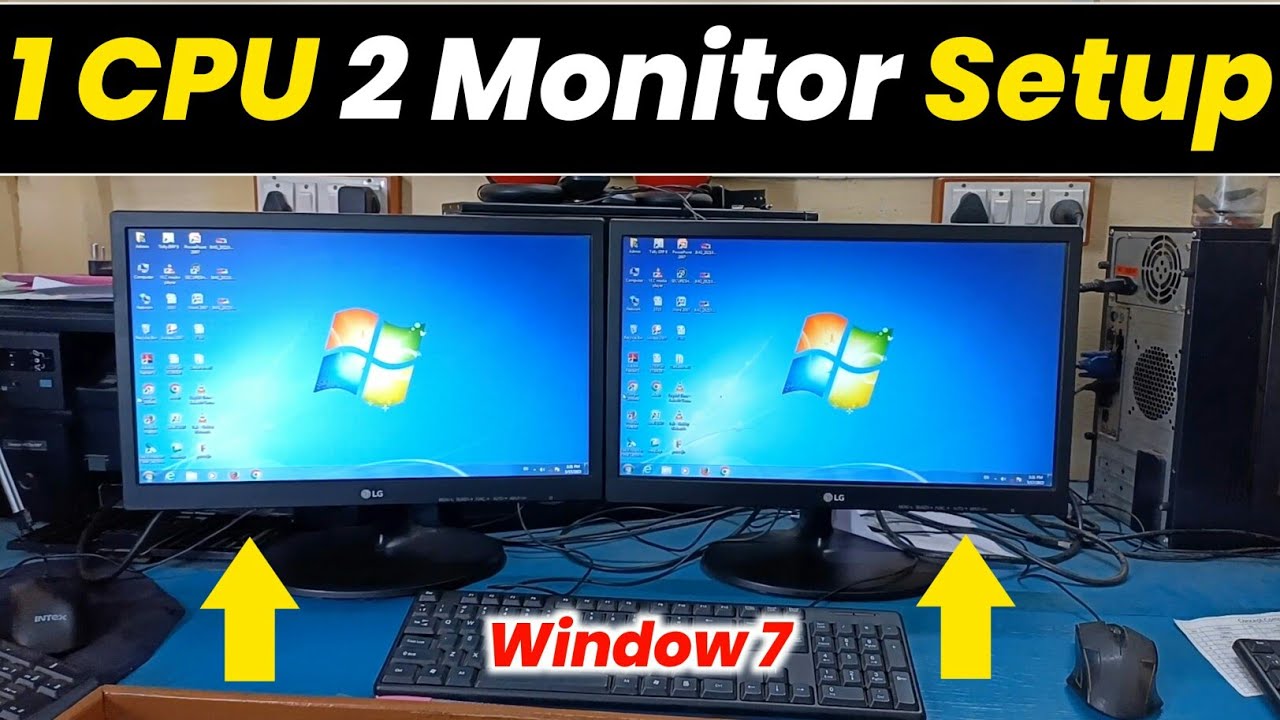
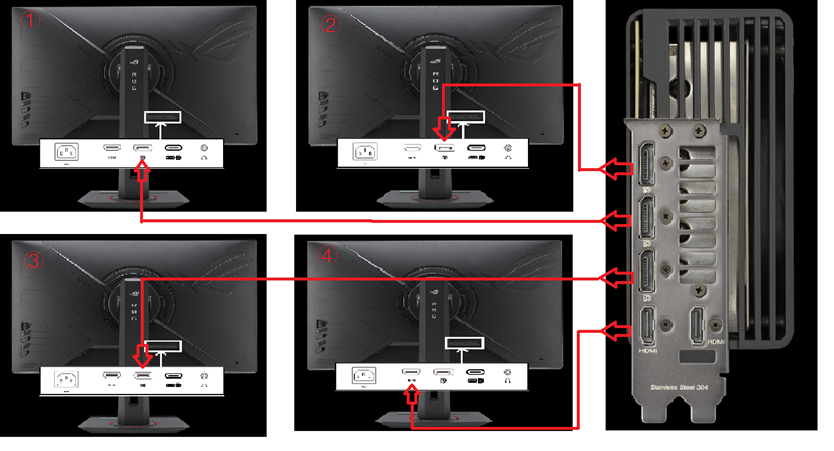
Connecting multiple monitors to your computer can enhance productivity and provide more screen real estate for multitasking, gaming, or creative work. Here are the steps to connect multiple monitors:
- Step 1: Identify the Video Connectors - Locate the video connectors on your computer and display devices.
- Step 2: Choose Compatible Cables - Select video cables that match the connectors on your computer and display devices.
- Step 3: Connect the Cables - Connect the video cables to the computer and display devices. Make sure the connectors are securely attached.
- Step 4: Configure the Display Settings - Open the display settings on your computer and select the correct input source for each monitor.

Common Issues and Solutions
When connecting multiple monitors, you may encounter common display issues such as:
- Display Not Detected - Check the video cables and connectors to ensure they are securely attached.
- Display Not Showing Correctly - Check the display settings on your computer and adjust the input source as needed.
- Display Not Extended - Check the display settings on your computer and select the correct option to extend the display.
Conclusion
Connecting a monitor to your computer can significantly enhance your productivity and provide a more immersive gaming experience. By following the steps outlined in this guide, you can easily connect a monitor to your Windows computer and troubleshoot common issues that may arise. Whether you're working from home, gaming, or simply enjoying your favorite movie, a connected monitor can make all the difference.
Additional Resources
For more information on connecting monitors to your computer, check out the following resources: