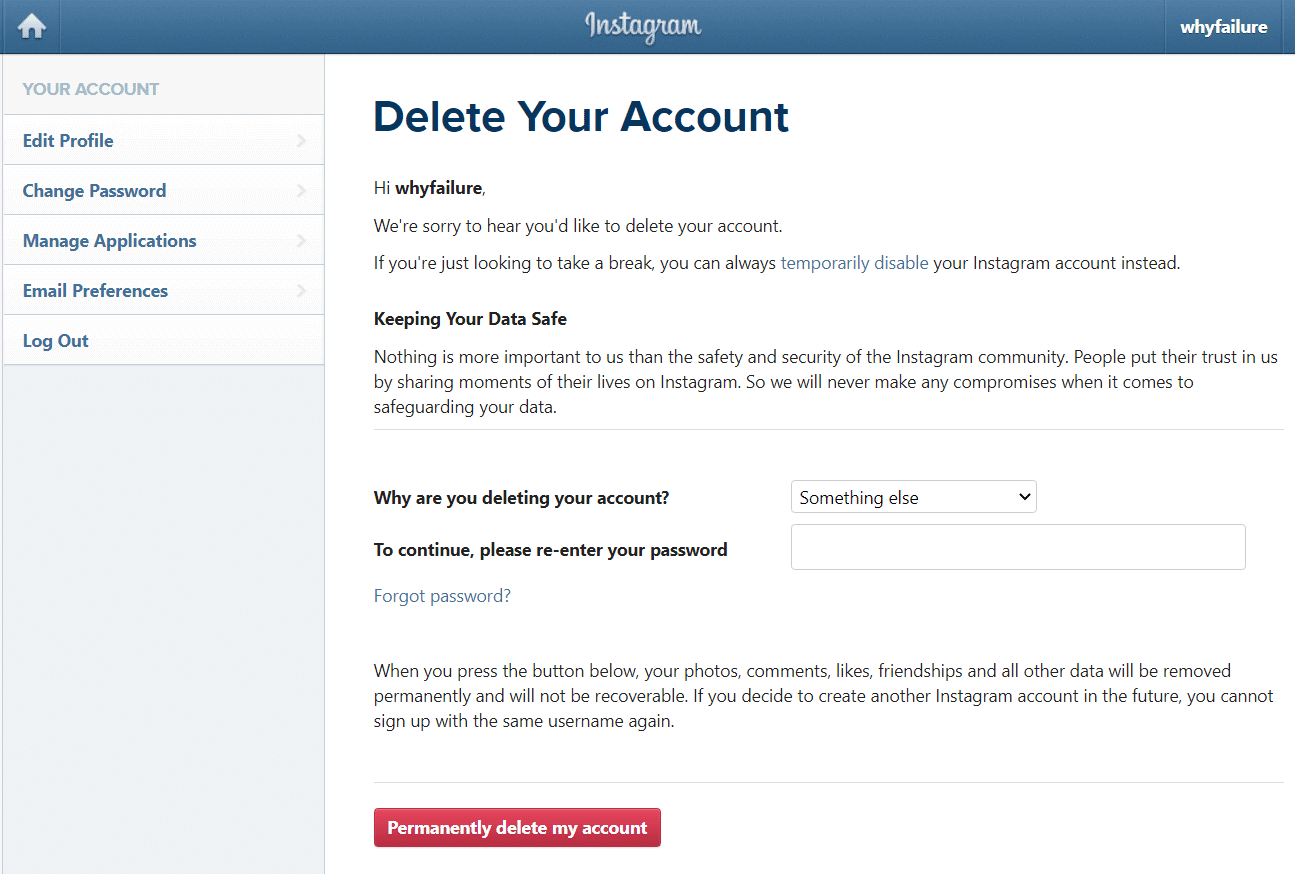
How to Delete Instagram Account Permanently: A Step-by-Step Guide
If you're tired of using Instagram or want to take a break from the platform, you might be wondering how to delete your Instagram account permanently. Before we dive into the steps, it's essential to understand what happens when you delete your account. When you delete your Instagram account, all your profile, photos, videos, comments, likes, and followers will be permanently removed. So, it's crucial to back up your data before proceeding.
Why Delete Your Instagram Account?
There are several reasons why you might want to delete your Instagram account. Perhaps you've become overwhelmed with the pressure to present a perfect online persona, or you're concerned about the impact of social media on your mental health. Maybe you've simply lost interest in the platform or want to take a break from the constant stream of updates.
Step-by-Step Guide to Deleting Your Instagram Account
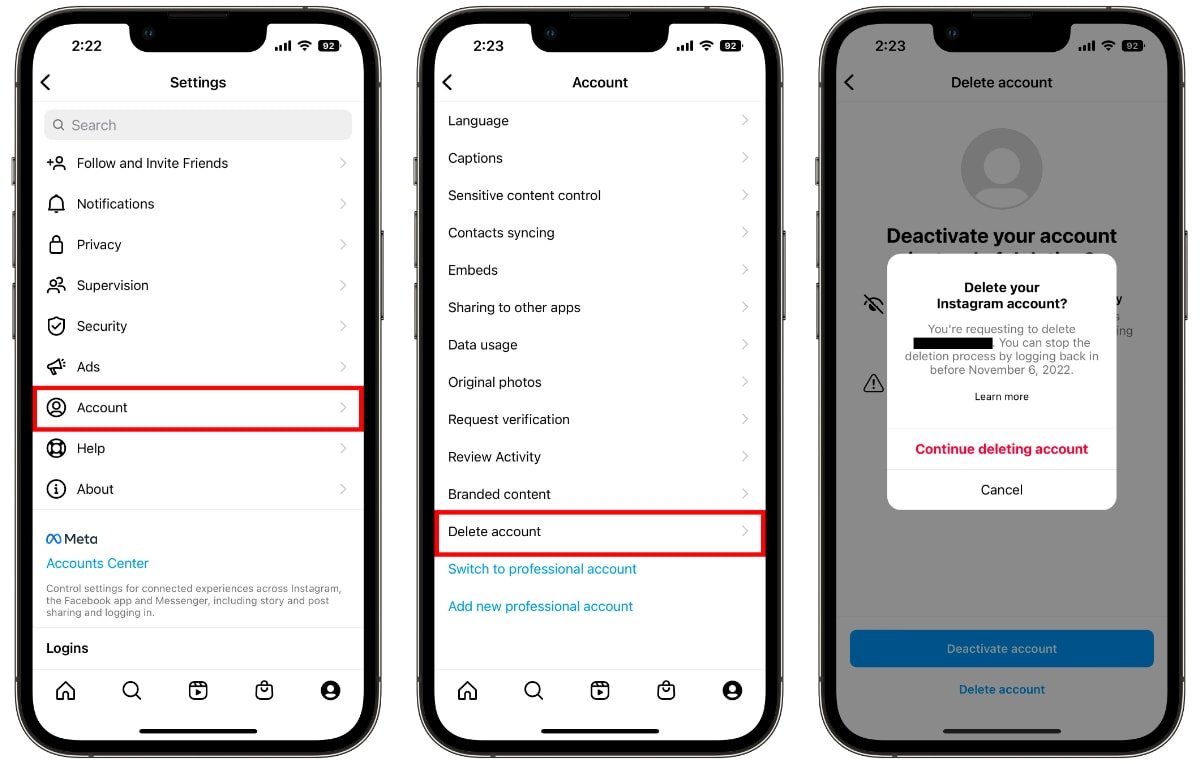
Deleting your Instagram account is a straightforward process, but it's essential to follow the steps carefully to avoid any issues. Here's a step-by-step guide to help you delete your Instagram account permanently:
Step 1: Back Up Your Data
Before deleting your account, make sure to back up your Instagram data, including your photos, videos, and messages. You can download your data by following these steps:
- Go to your Instagram profile and tap the three horizontal lines (⋮) on the top right corner.
- Tap "Settings" and then "Account" and then "Download Data."
- Choose the data you want to download, including photos, videos, and messages.
- Tap "Next" and then "Done" to download your data.
Step 2: Log in to Your Instagram Account
Open the Instagram app and log in to your account using your username and password.
Step 3: Go to the Accounts Center
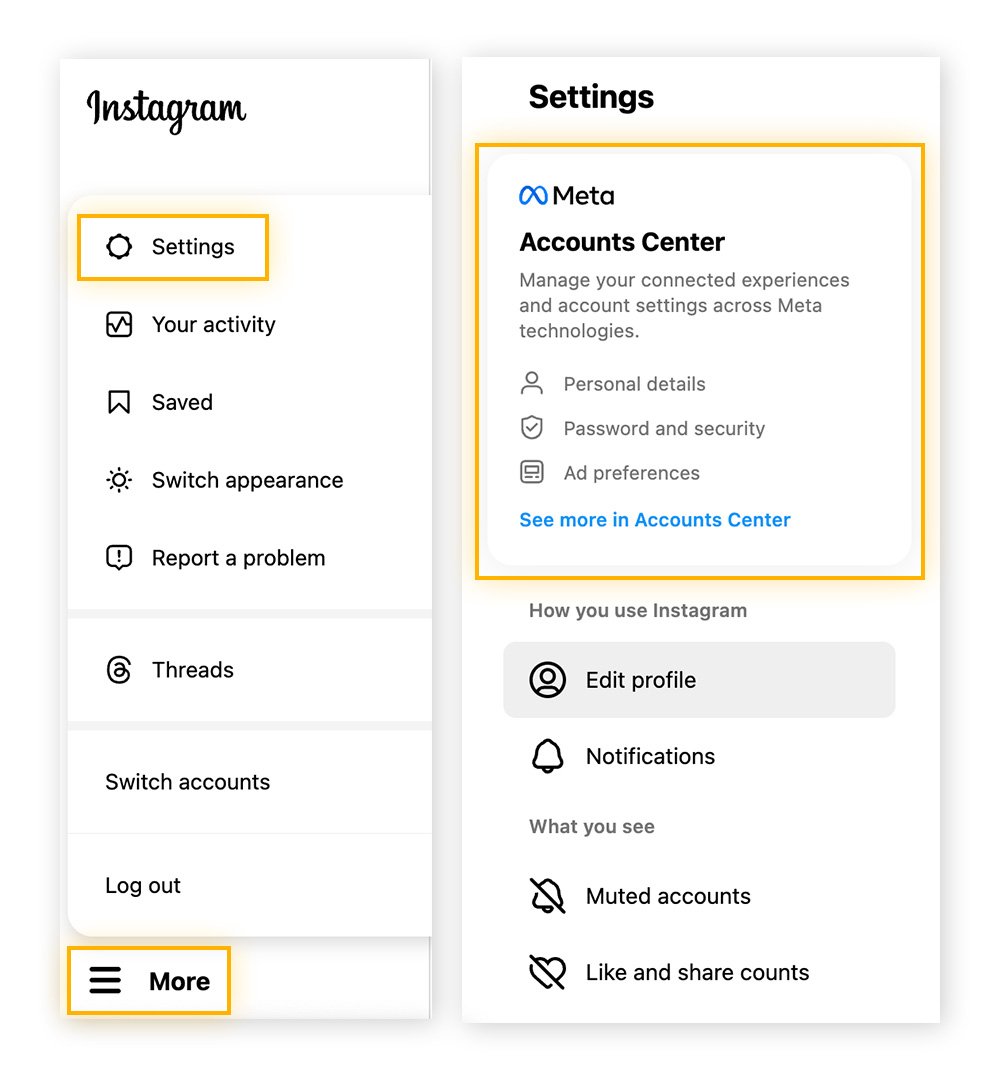
Tap the three horizontal lines (⋮) on the top right corner of your Instagram profile and tap "Settings." Then, tap "See more in Accounts Center" and then "Personal details."
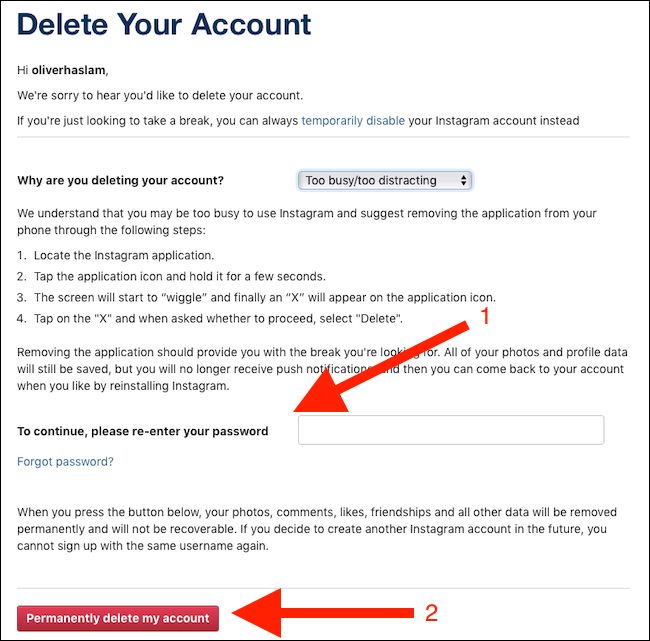
Step 4: Deactivate or Delete Your Account
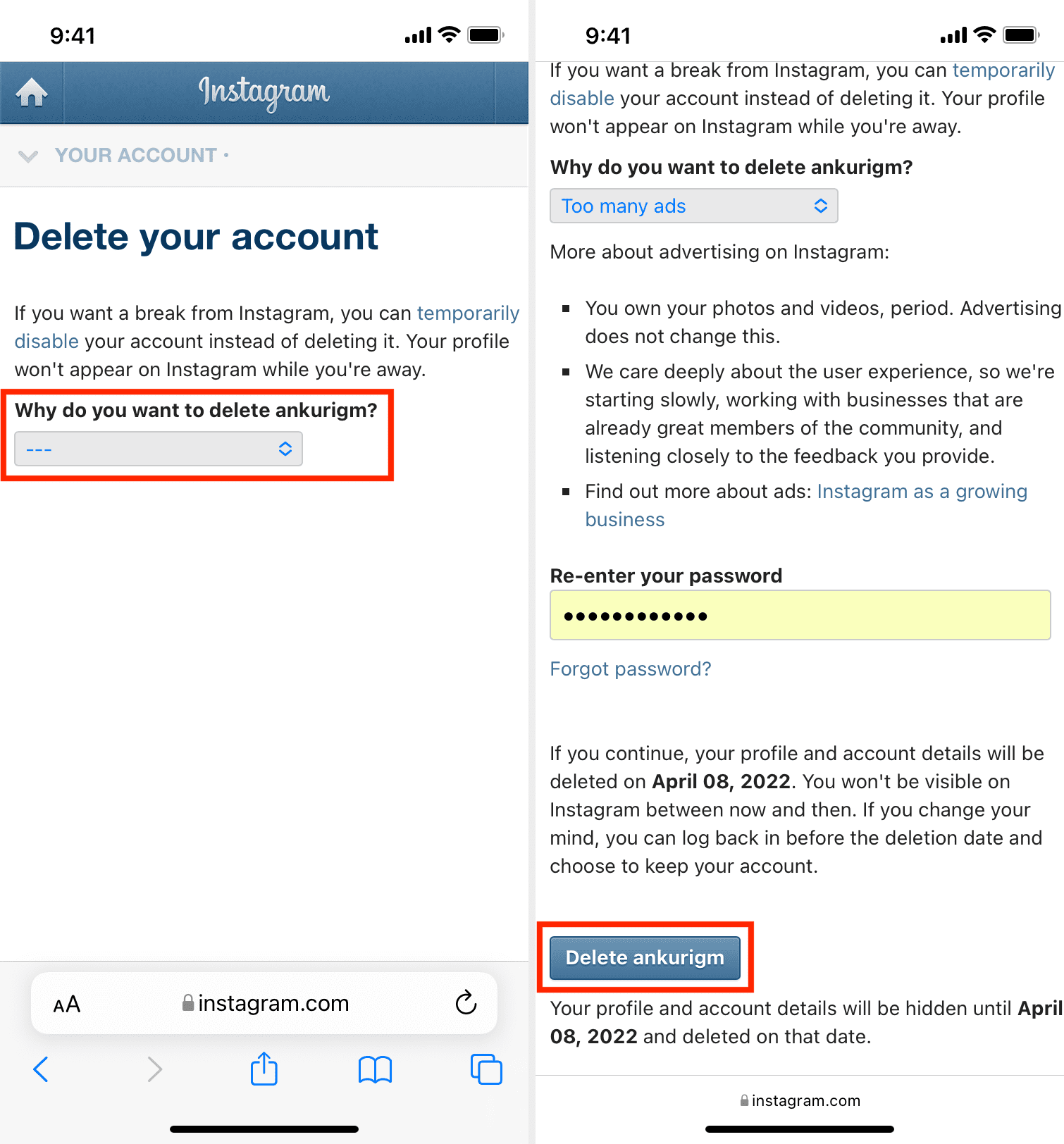
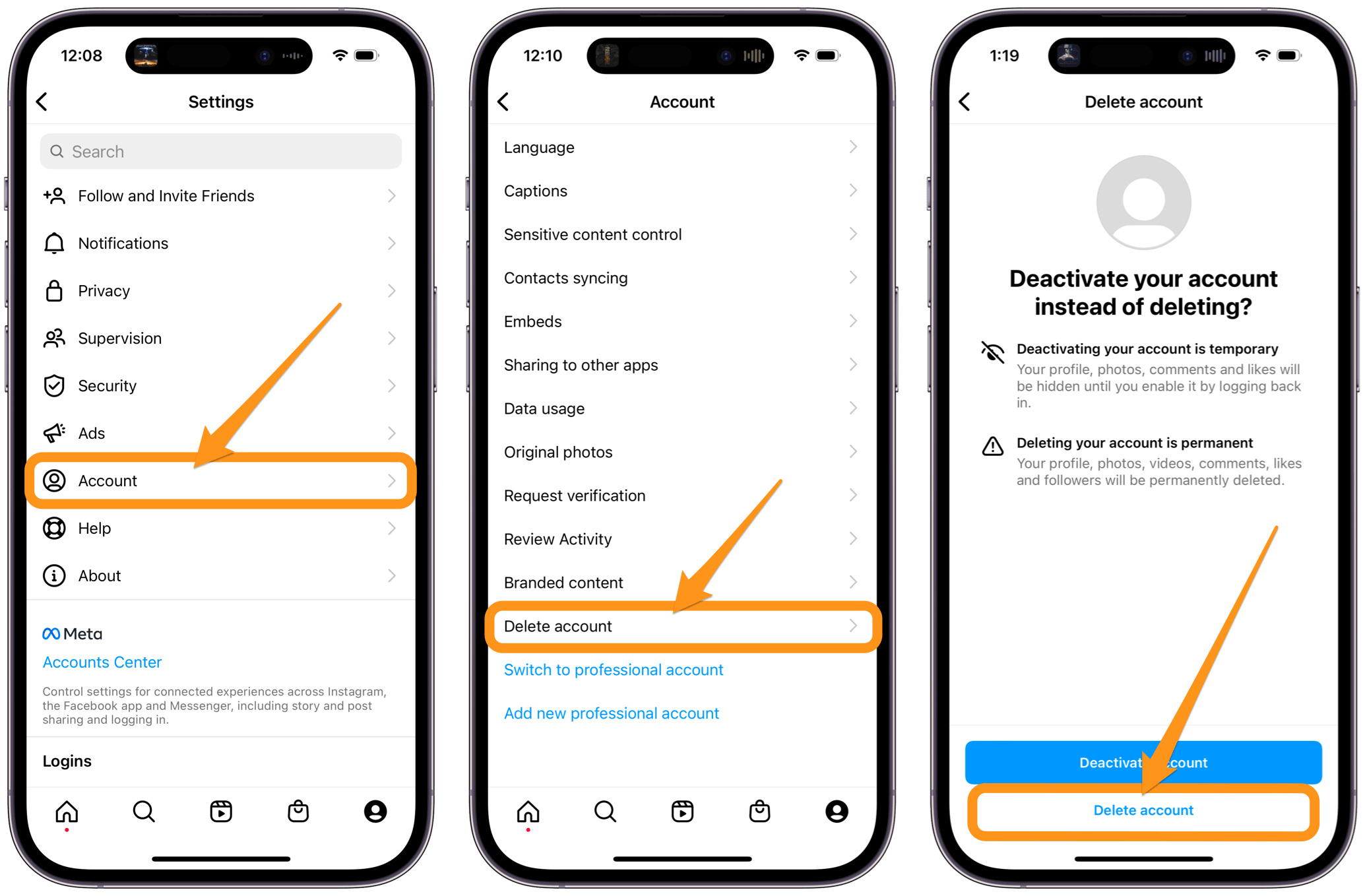
Tap "Account ownership and control" and then tap "Deactivation or deletion." From here, you can either deactivate or delete your account. If you choose to delete your account, tap "Delete account" and then "Continue."
Step 5: Confirm Your Deletion
You'll be asked to confirm that you want to delete your account. Tap "Delete account" again to confirm.
What Happens When You Delete Your Instagram Account?
When you delete your Instagram account, all your profile, photos, videos, comments, likes, and followers will be permanently removed. Your account will also be removed from the Instagram servers, and you won't be able to log in to your account again.
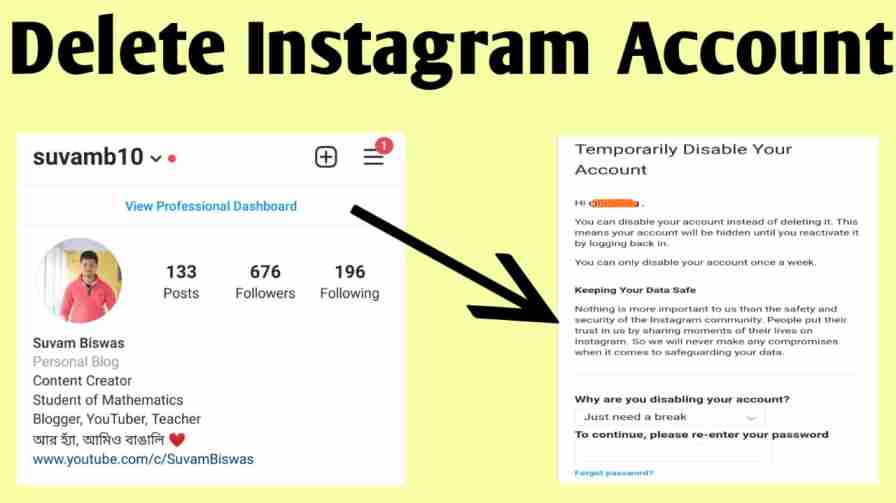
How to Temporarily Deactivate Your Instagram Account
If you're not ready to delete your Instagram account permanently, you can temporarily deactivate it instead. Deactivating your account will hide your profile, photos, and videos from public view, and you can reactivate your account at any time by logging in to your account and following the steps to reactivate.
Conclusion
Deleting your Instagram account permanently is a straightforward process, but it's essential to back up your data before proceeding. By following the steps outlined above, you can delete your Instagram account and take a break from the platform. Remember to be cautious when deleting your account, as you won't be able to recover your data once it's deleted.
Additional Tips
Before deleting your Instagram account, consider the following tips:
- Make sure to back up your data, including photos, videos, and messages.
- Consider deactivating your account instead of deleting it if you're not ready to give up on the platform.
- Be aware that deleting your Instagram account will also delete your Facebook account, as the two platforms are linked.
- Take a break from social media to reduce the pressure to present a perfect online persona.