How to Set Up Bluetooth Headphones: A Step-by-Step Guide
Are you new to the world of wireless audio or looking to upgrade your current setup? Setting up Bluetooth headphones is a straightforward process that can be completed in just a few simple steps. Whether you're using a smartphone, computer, or other device, this guide will walk you through the process of pairing your Bluetooth headphones with ease.
Before You Begin
Before you start the pairing process, make sure your Bluetooth headphones are fully charged and your device is turned on. It's also a good idea to review the user manual for your specific headphones to ensure you understand any unique pairing requirements.
Step 1: Enable Bluetooth on Your Device
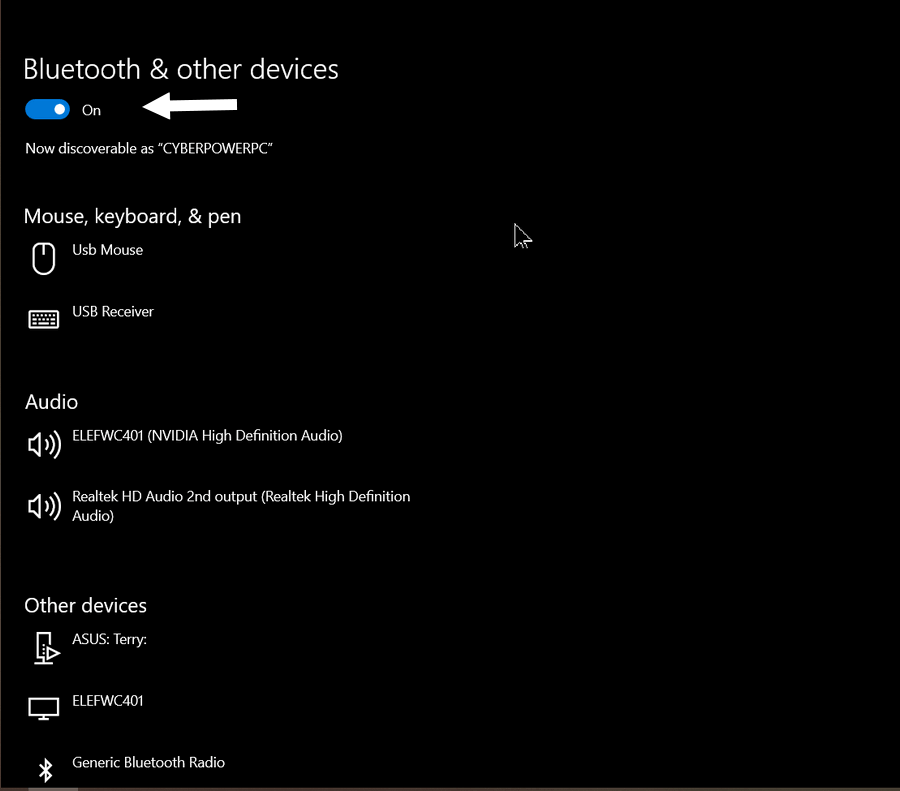
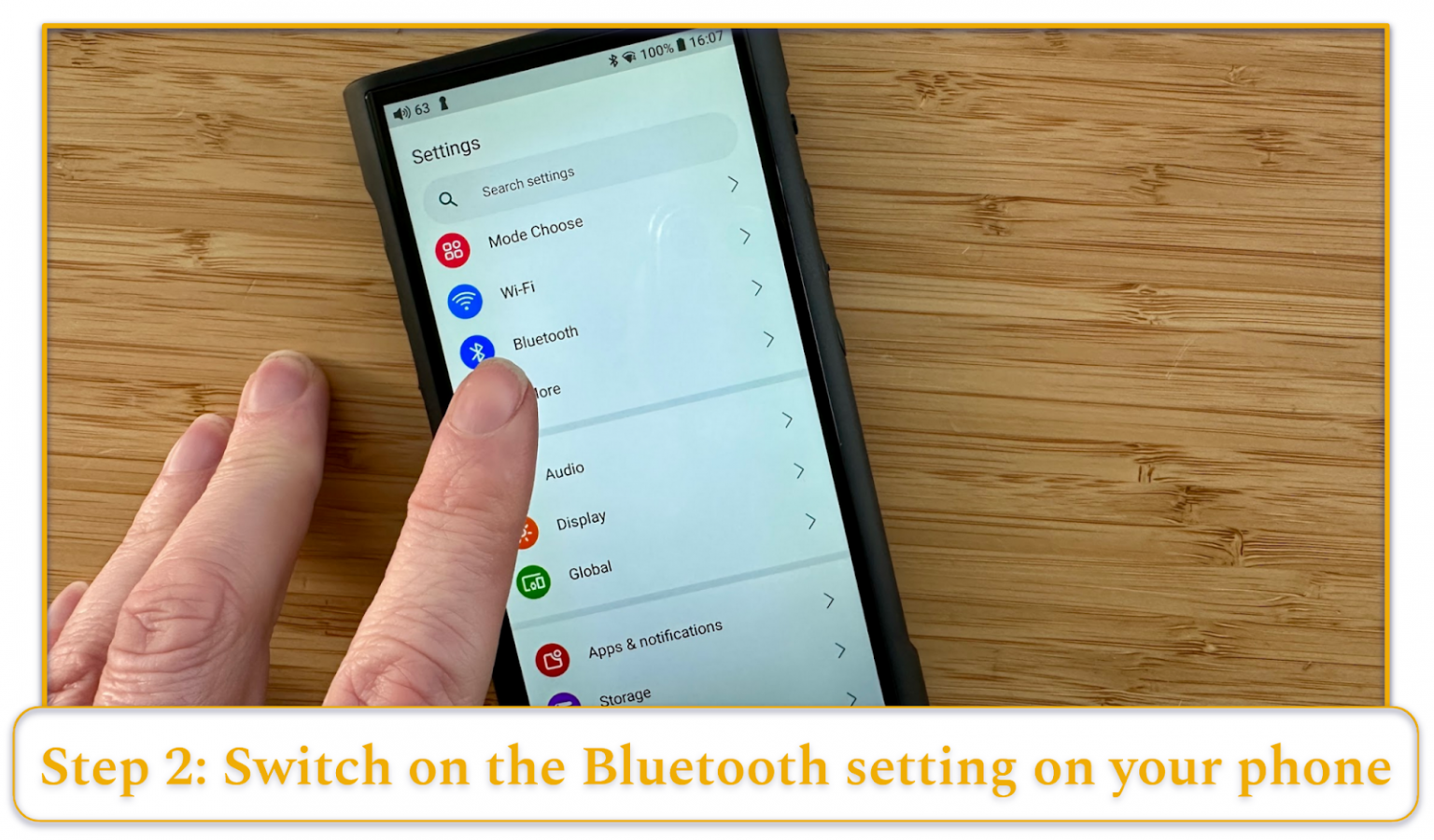
The first step in setting up your Bluetooth headphones is to enable Bluetooth on your device. This can usually be done by going to your device's settings menu and selecting the "Bluetooth" option. On most smartphones and tablets, you'll find this option in the device's main settings menu. On computers, you'll typically find it in the "Control Panel" or "System Preferences" section.
Step 2: Put Your Headphones in Pairing Mode
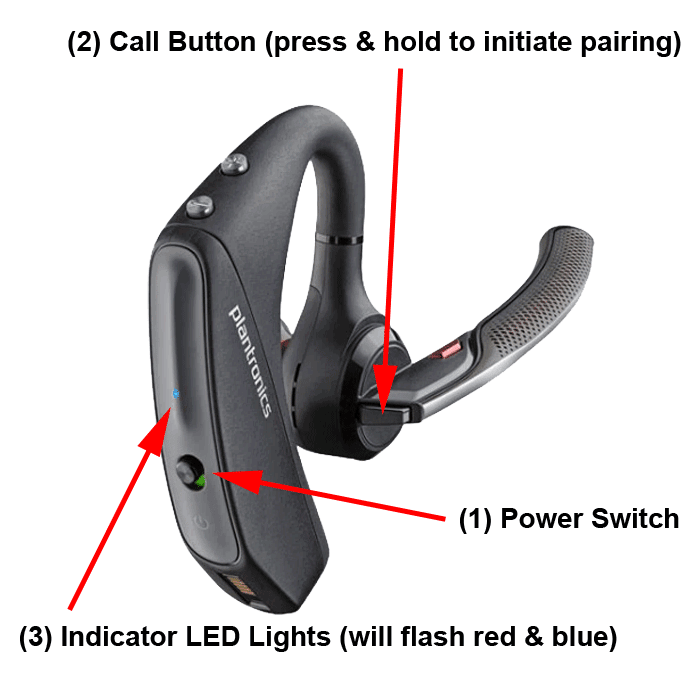
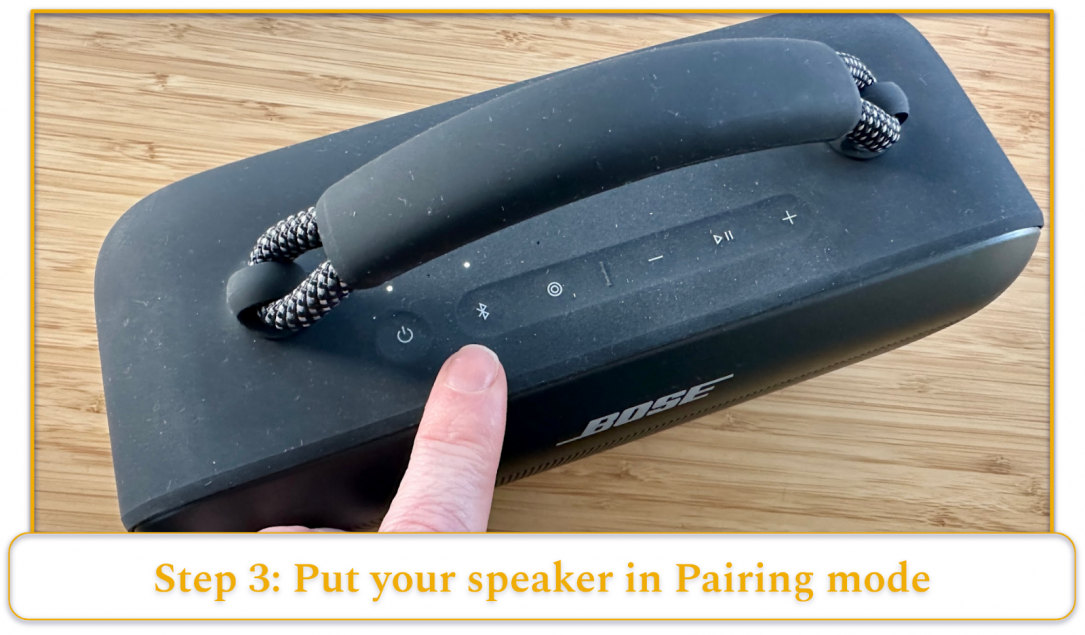
Next, put your Bluetooth headphones in pairing mode. This is usually done by pressing and holding the power button on your headphones until the LED light begins to flash. The exact steps will vary depending on your headphones model, so be sure to consult your user manual if you're unsure.
Step 3: Search for Available Devices
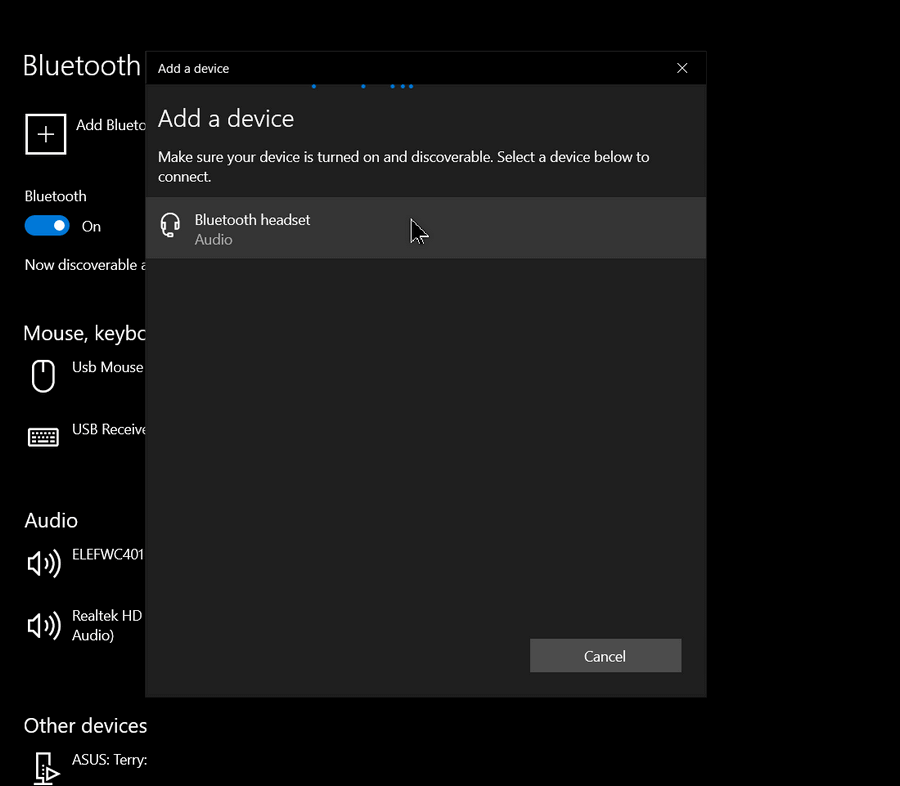
Once your headphones are in pairing mode, your device will search for available Bluetooth devices. You may see a list of devices available to pair with, including your headphones. Select your headphones from the list to begin the pairing process.
Step 4: Confirm the Connection
Once your device has detected your headphones, you'll be prompted to confirm the connection. This will usually involve accepting a prompt on your device to pair with the headphones. Once confirmed, your headphones will be connected to your device.
Step 5: Test Your Connection

Finally, test your connection by playing some music or a video on your device. If everything is working properly, you should hear the audio coming from your Bluetooth headphones.
Troubleshooting Tips
If you're experiencing issues with your Bluetooth headphones, try the following troubleshooting tips:
- Restart your device and headphones
- Make sure Bluetooth is enabled on both devices
- Check for software updates for your headphones and device
- Move away from sources of interference, such as other electronic devices or walls
Compatible Devices
Bluetooth headphones can be paired with a wide range of devices, including:
- Smartphones (iOS and Android)
- Computers (Windows and Mac)
- Tablets (iOS and Android)
- Smart speakers and soundbars
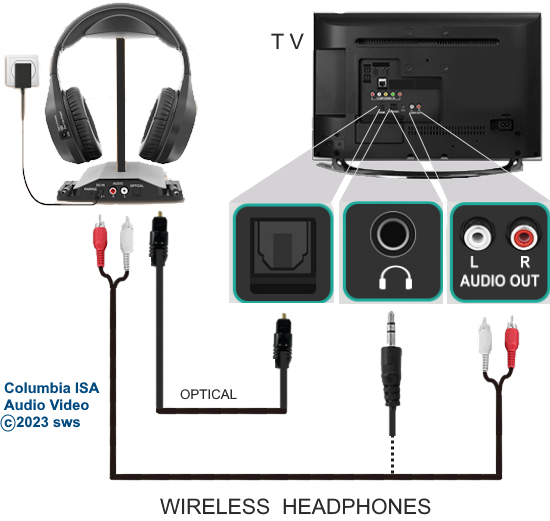
- TVs and gaming consoles
Conclusion
Setting up Bluetooth headphones is a simple process that can be completed in just a few steps. By following the steps outlined in this guide, you'll be able to pair your Bluetooth headphones with your device and enjoy wire-free audio. If you encounter any issues during the process, try the troubleshooting tips provided to resolve the problem.
Additional Tips
Here are some additional tips for using your Bluetooth headphones:
- Make sure to keep your headphones charged to avoid interruptions in audio playback
- Experiment with different EQ settings to find the best sound profile for your music
- Use a Bluetooth extender to improve range and reduce interference
- Consider investing in a Bluetooth headset with a microphone for hands-free calling

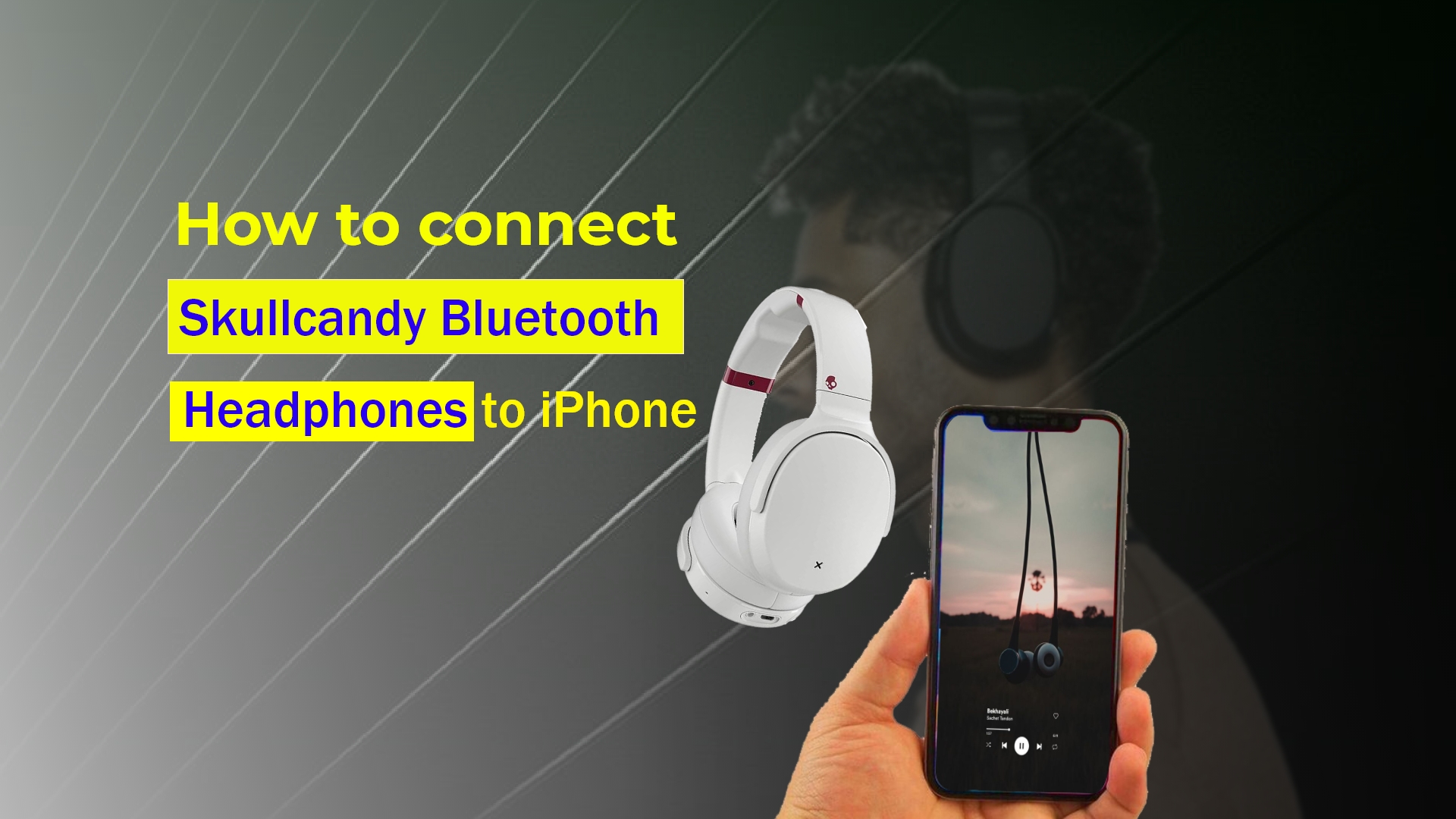
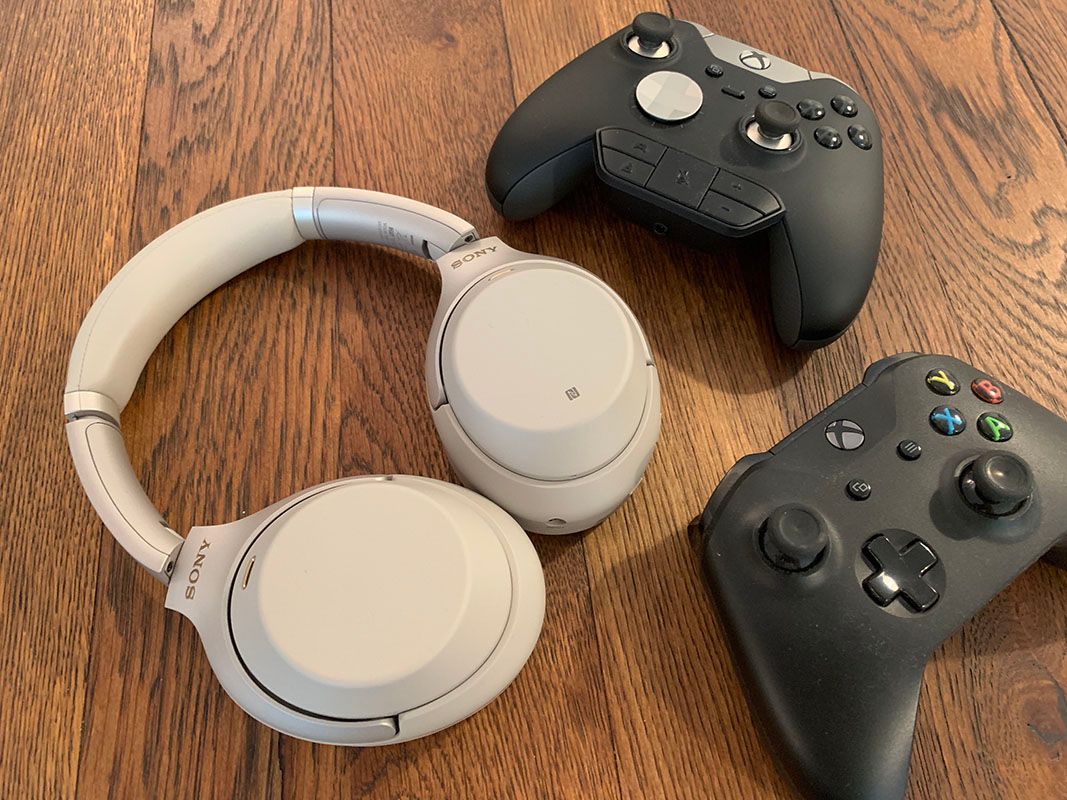
:max_bytes(150000):strip_icc()/001_how-to-connect-bluetooth-headphones-to-a-pc-4163548-f2b5b208869346e6a2f1a1f55b1ba9de.jpg "How to set up and use a Headphone on Windows 11 PC")

:max_bytes(150000):strip_icc()/003_how-to-connect-bluetooth-headphones-to-a-pc-4163548-7df6221318da4f48a38c93b56d5d86fa.jpg "Fix audio issues when no sound plays from speakers or headphones in ...")