How to Set Up Voicemail on Android
Before we dive into the steps, it's essential to understand the importance of setting up voicemail on your Android device. Voicemail allows you to receive voice messages when you're unavailable to answer calls, ensuring you never miss important messages. Whether you're driving, in a meeting, or simply need some quiet time, voicemail is a convenient feature to have on your Android device.
Why Set Up Voicemail on Android?
Setting up voicemail on Android helps you stay connected and reachable, even when you're unable to answer your phone. It serves as a personal answering machine, allowing callers to leave messages when you're unavailable. This feature is especially useful for business purposes, personal relationships, or for those who frequently receive important calls.
Step-by-Step Tutorial to Set Up Voicemail on Android
Step 1: Access Your Device's Settings
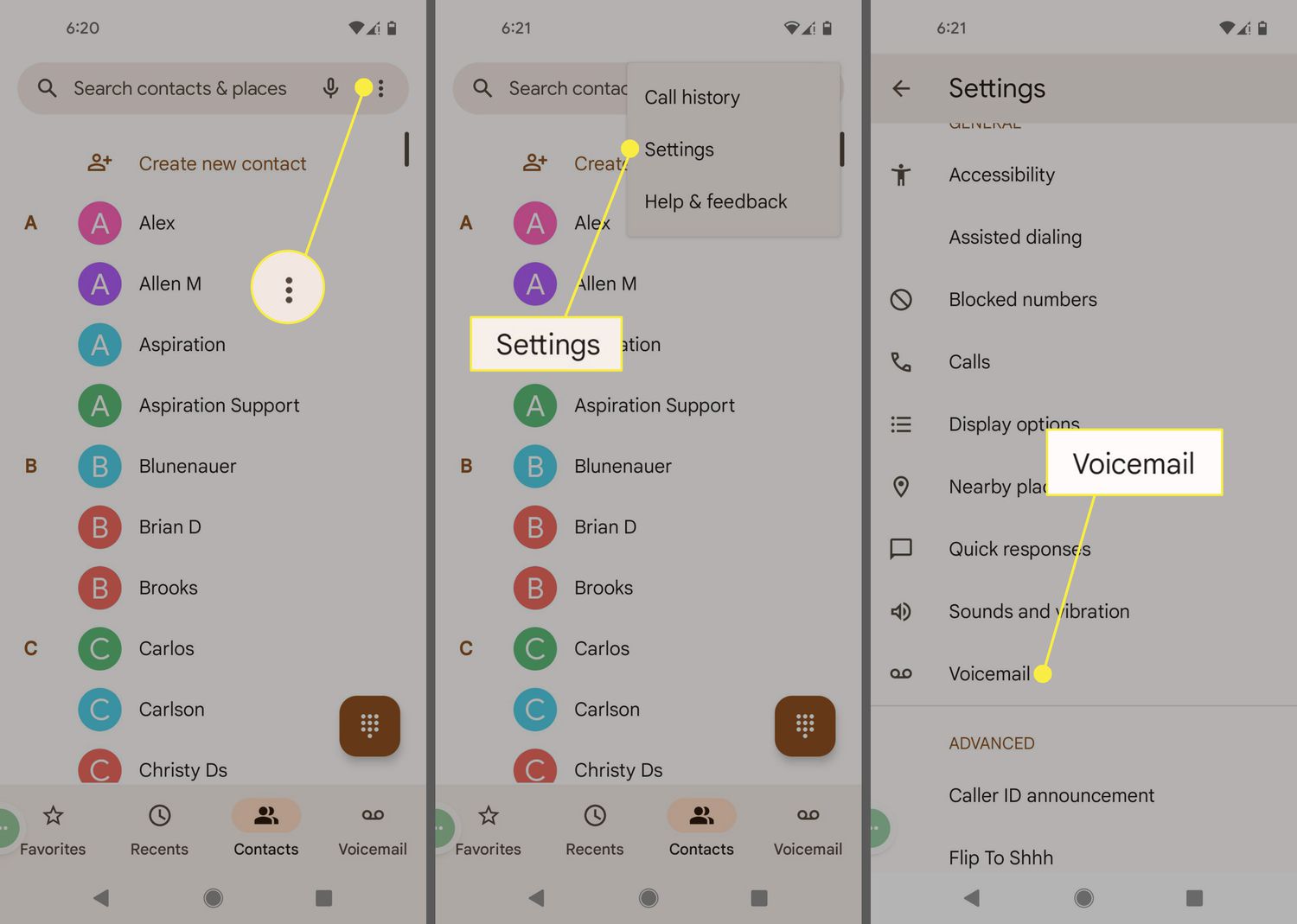
First, go to your Android device's settings. This can be done by tapping on the Settings icon, usually represented by a gear or cog, on your home screen or in the app drawer. Once in the Settings menu, scroll down and select the "Sounds and notifications" or "Call" section.
Step 2: Look for the Voicemail Option
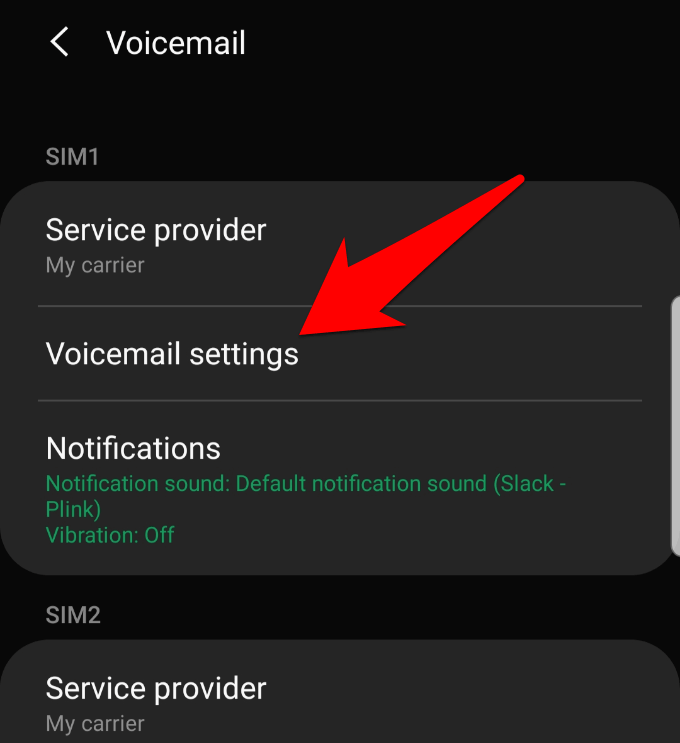
In the "Sounds and notifications" or "Call" section, look for the "Voicemail" option. Click on it to access the voicemail settings. You might need to navigate through a few sub-menus to find it.
Step 3: Activate Voicemail
Once you're in the voicemail settings, look for the option to activate voicemail. This may be called "Setup Voicemail," "Manage Voicemail," or something similar. Tap on it to start the setup process.
Step 4: Create a Voicemail PIN
Next, you'll be prompted to create a voicemail PIN. This is a security measure to protect your voicemail messages from unauthorized access. Choose a strong password that is easy for you to remember but difficult for others to guess.
Step 5: Record Your Voicemail Greeting
After setting up your PIN, it's time to record your voicemail greeting. This is the message that callers will hear when they leave you a voicemail. Record a clear and concise message that includes your name and contact information, if desired.

Step 6: Configure Voicemail Settings (Optional)
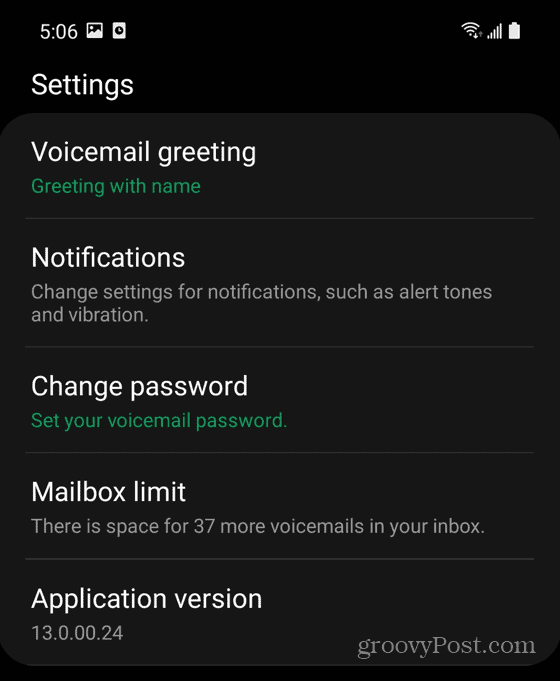
Depending on your Android device and carrier, you may have additional options to configure your voicemail settings. These may include setting up visual voicemail, changing the voicemail notification sound, or enabling voicemail forward.
Step 7: Test Your Voicemail
Final step: test your voicemail to ensure everything is set up correctly. Call yourself from another phone and leave a message to verify that your voicemail is working as expected.
Additional Tips and Tricks
Customizing Your Voicemail Greeting
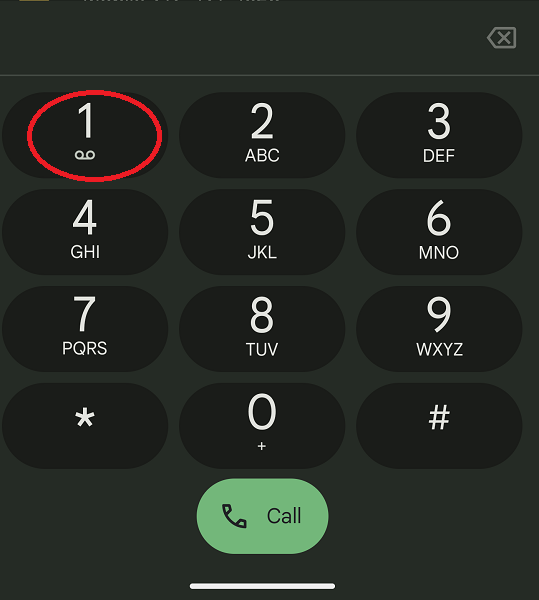
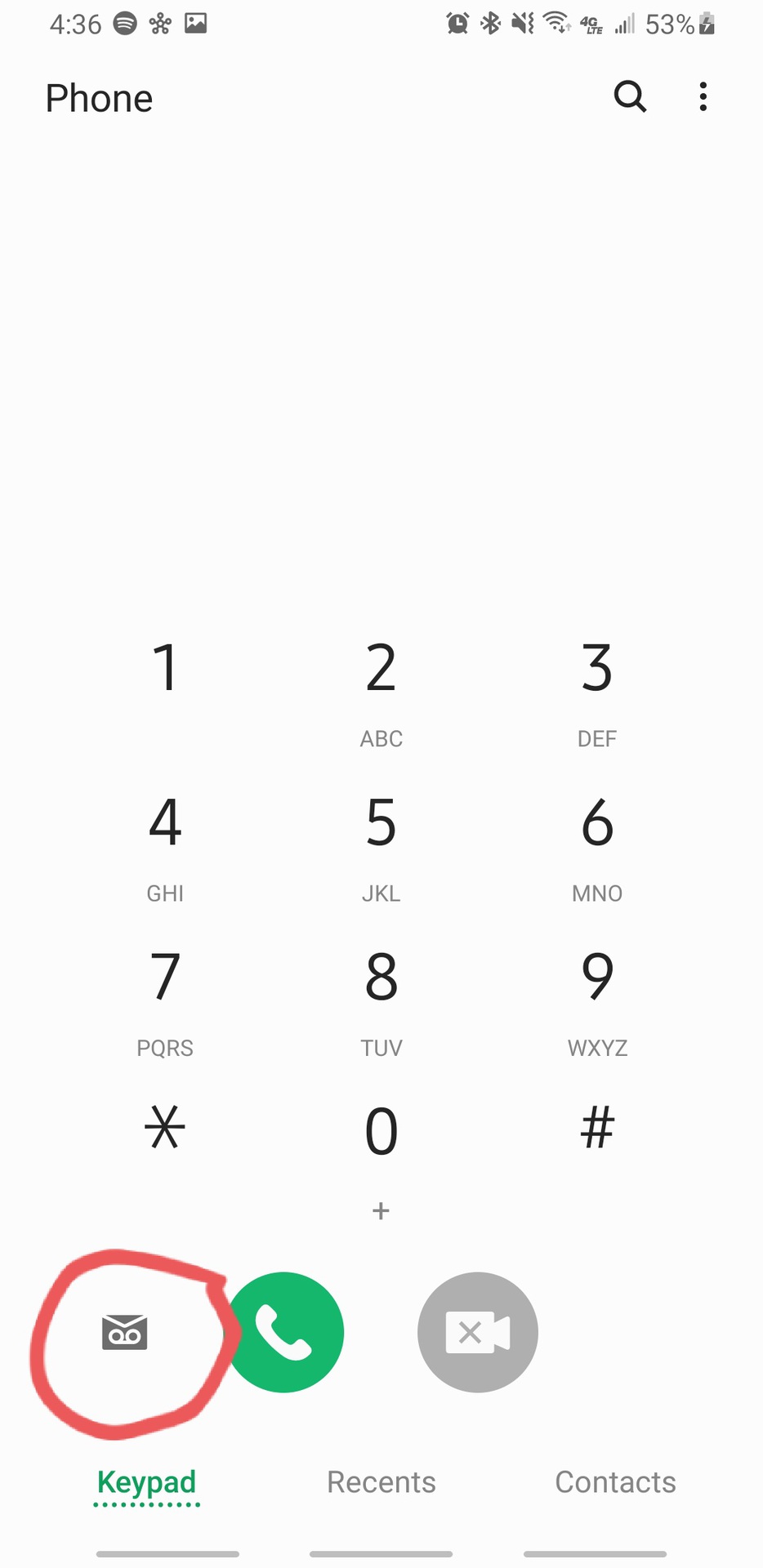
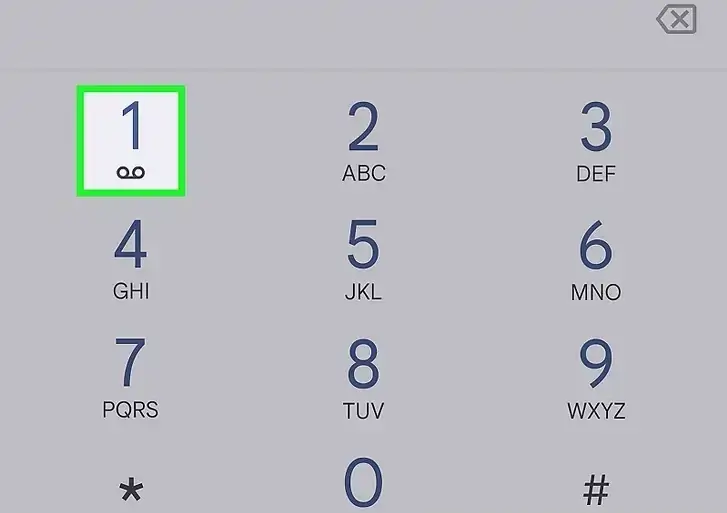
Need to change your voicemail greeting or want to add a custom message? Open the Phone app, select the keypad icon, and press and hold the number 1. Enter your PIN and follow the prompts to edit your greeting.
Visual Voicemail
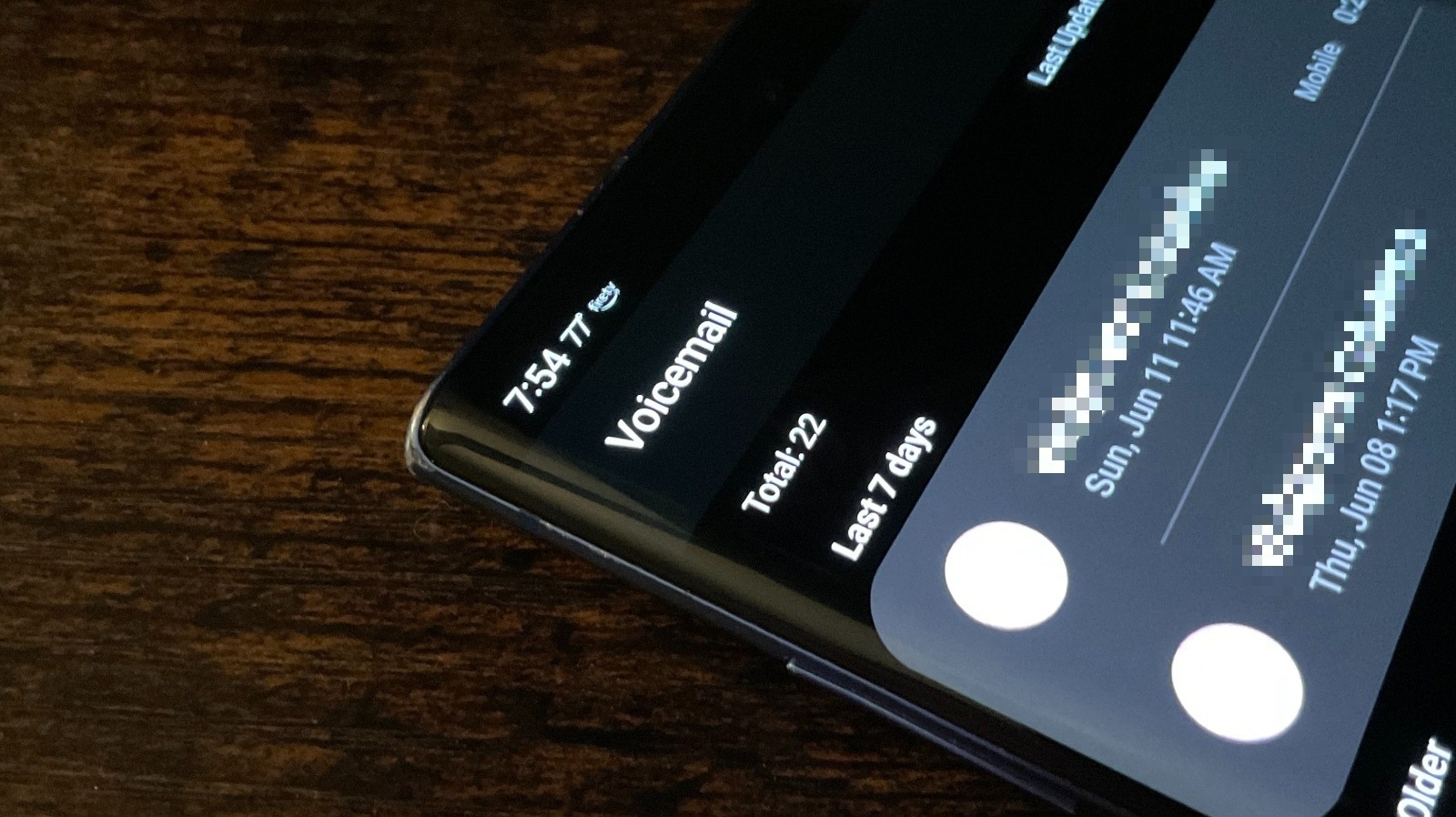
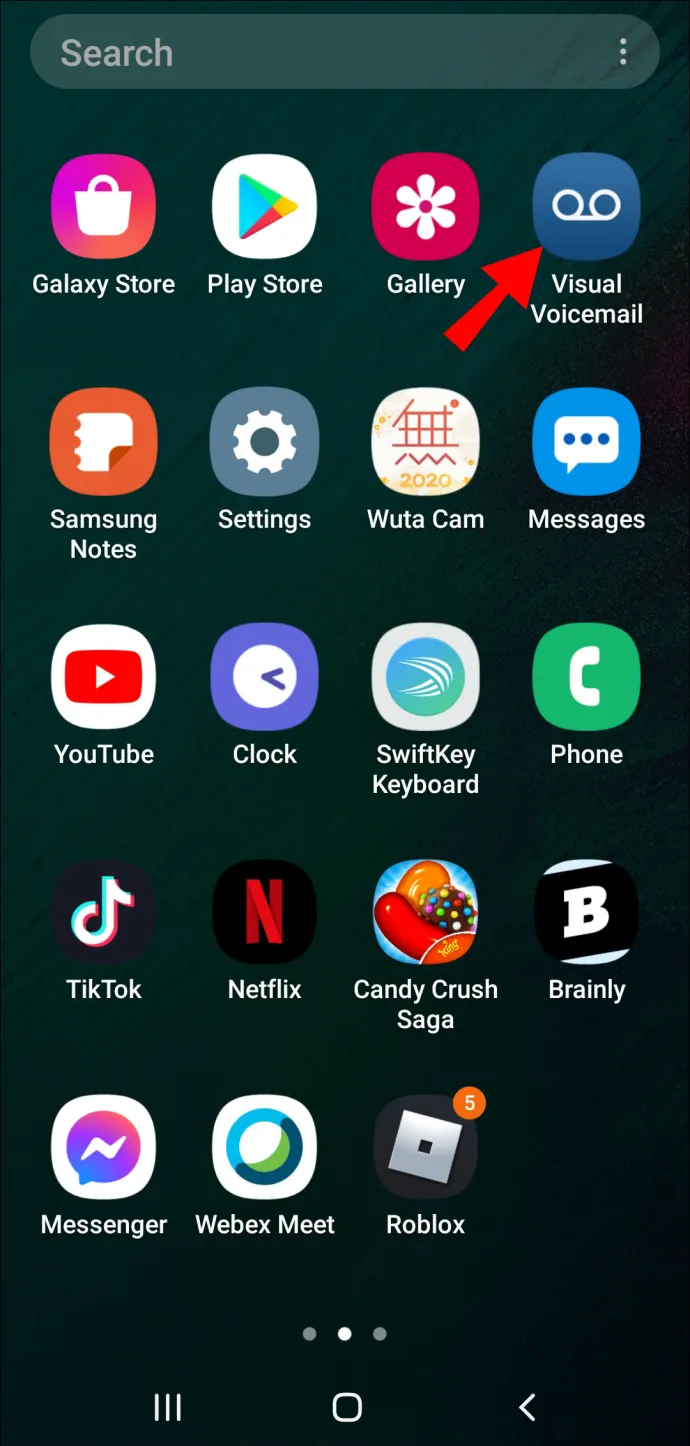
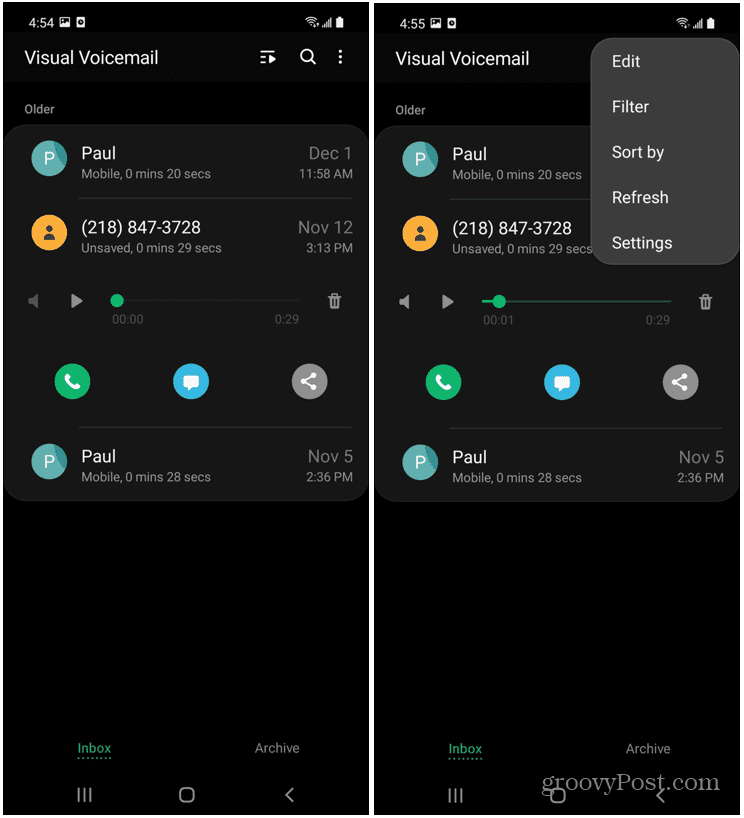
Visual voicemail allows you to view a list of voicemails as if they were text messages. This feature is available on some Android devices, especially those with newer operating systems. To enable visual voicemail, go to your device's settings and look for the "Visual voicemail" option.
Forwarding Calls to Voicemail
Wondering how to send calls directly to voicemail? Open the Phone app, select the keypad icon, and press and hold the number 1. Enter your PIN and follow the prompts to forward calls to voicemail.
Conclusion
Setting up voicemail on Android is a straightforward process that ensures you stay connected and reachable, even when you can't answer your phone. By following these steps, you can create a personalized voicemail greeting, configure additional settings, and ensure you never miss important messages. Happy setting up your Android voicemail!


:max_bytes(150000):strip_icc()/001_how-to-set-up-voicemail-on-android-5181455-3ba38a61dba545539060e0001b155cf7.jpg "How to Set Up Voicemail on Android: A Step-by-Step Guide")