Optimize OBS Settings for Optimal Performance
If you're an avid streamer or content creator, you know how crucial it is to have a reliable and high-quality recording or streaming setup. One of the most popular and versatile tools used in the industry is OBS Studio, a free and open-source software that offers a wide range of customization options to ensure optimal performance. In this article, we'll delve into the world of OBS settings and provide you with a comprehensive guide on how to optimize your setup for the best possible results.
Understanding OBS Settings
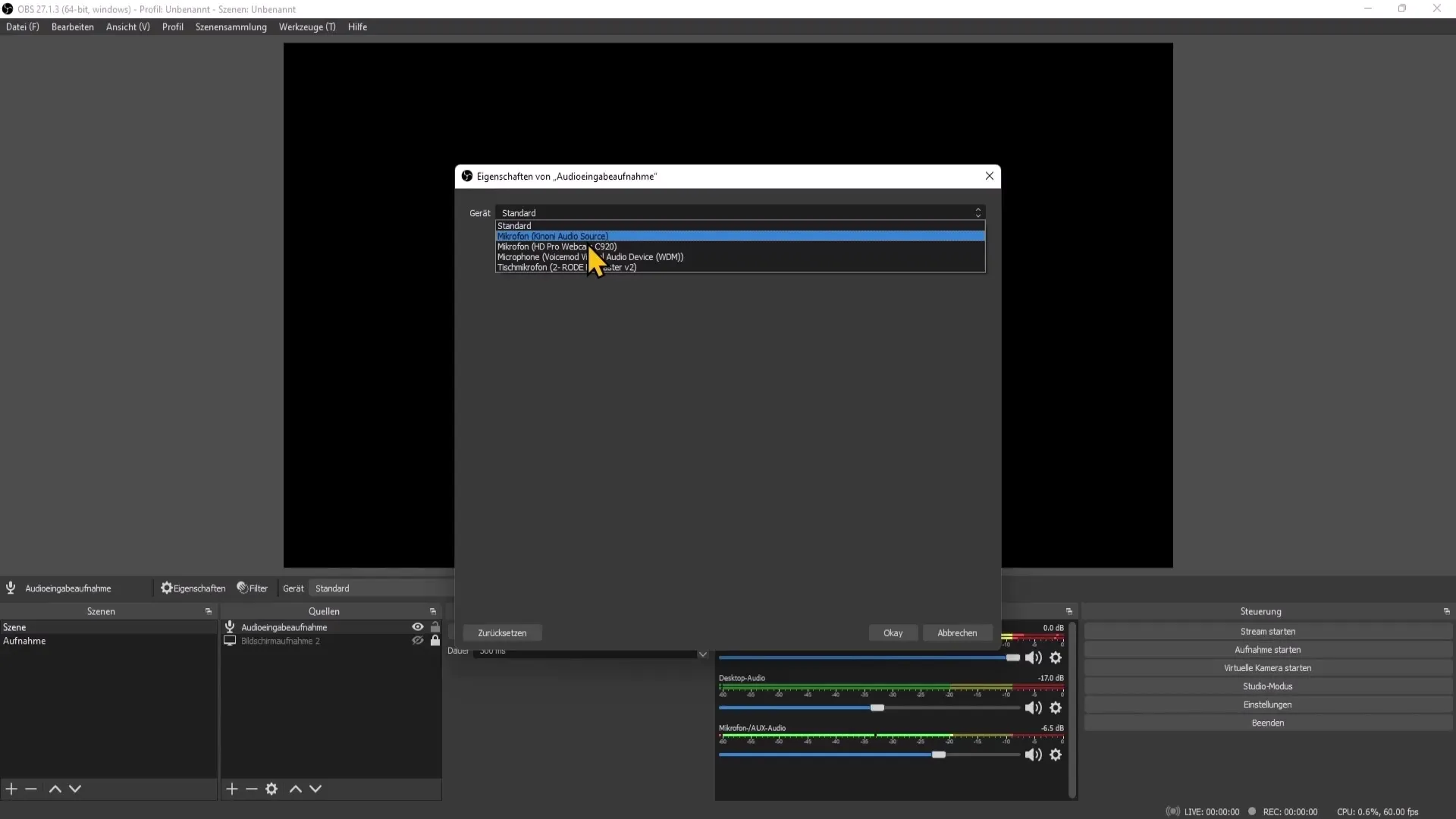
OBS Studio offers a vast array of settings to tweak and customize your streaming or recording experience. Understanding these settings and knowing how to adjust them can make a significant difference in the quality of your output. In this section, we'll cover the essential settings you should be aware of:
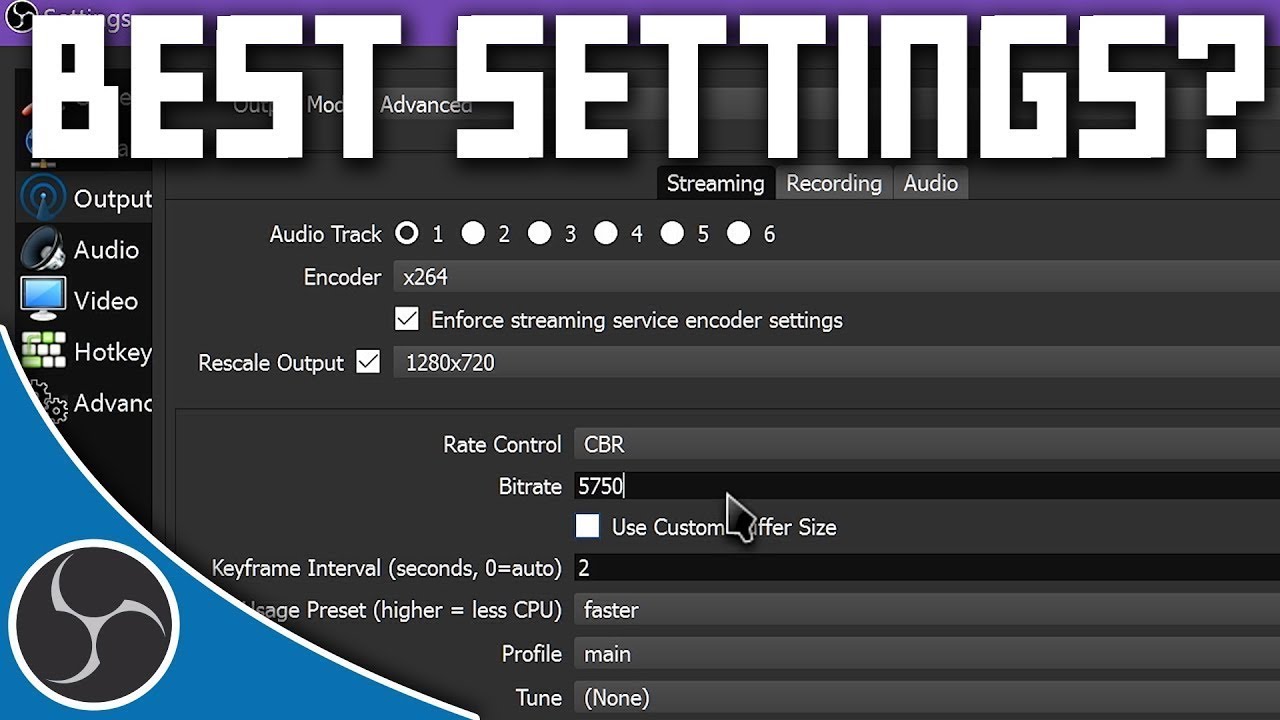
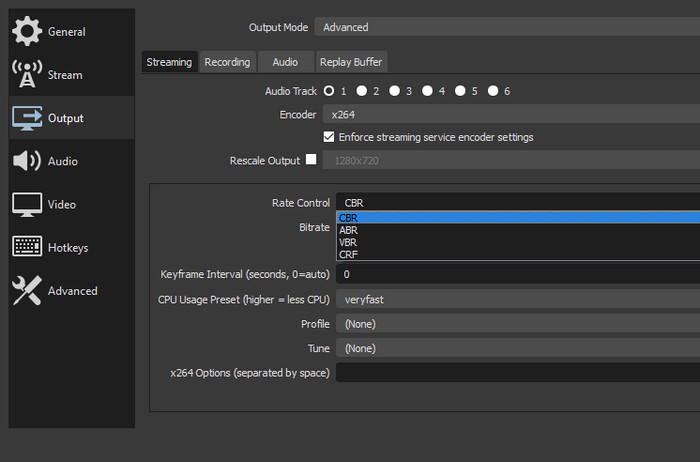
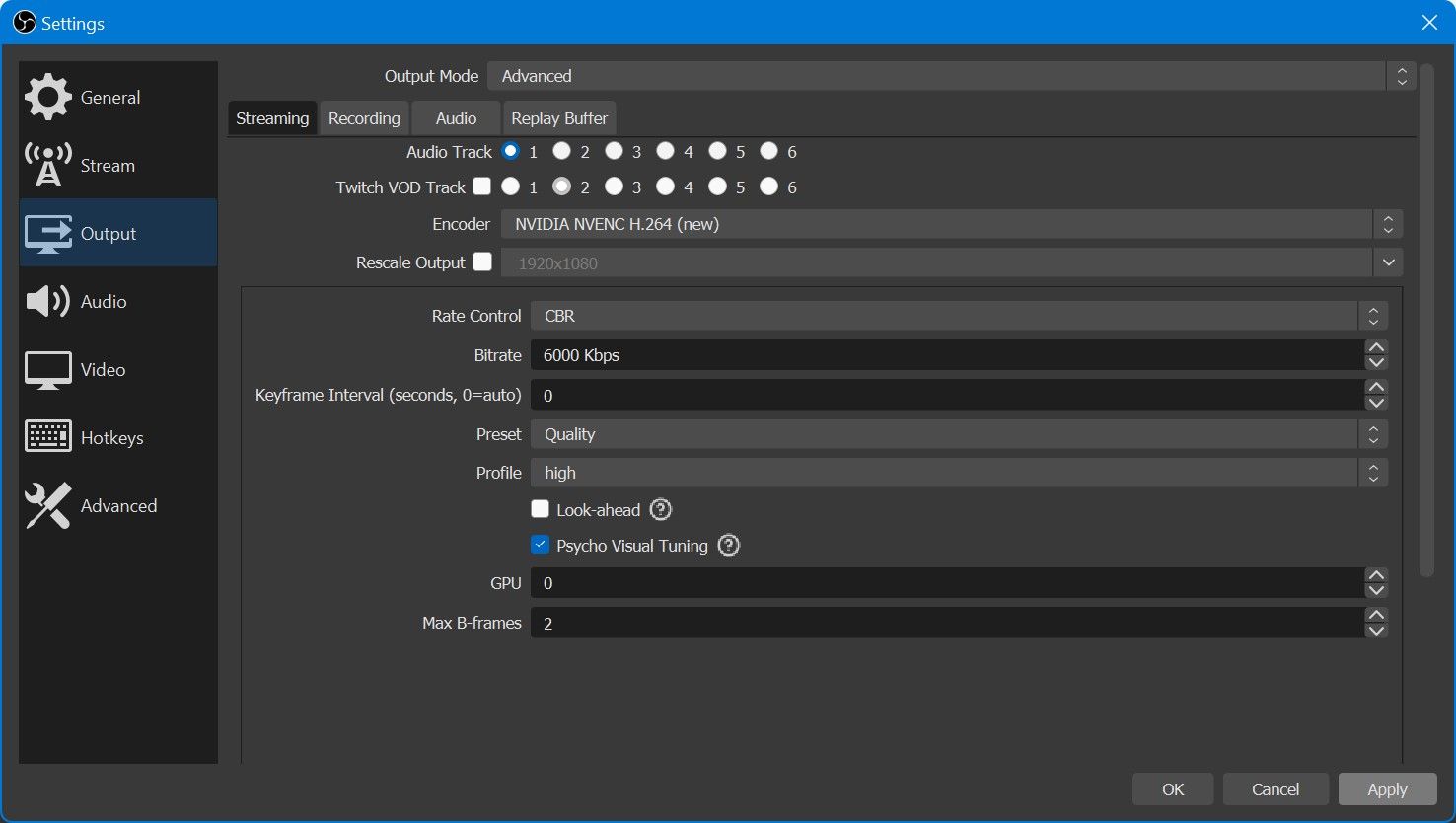
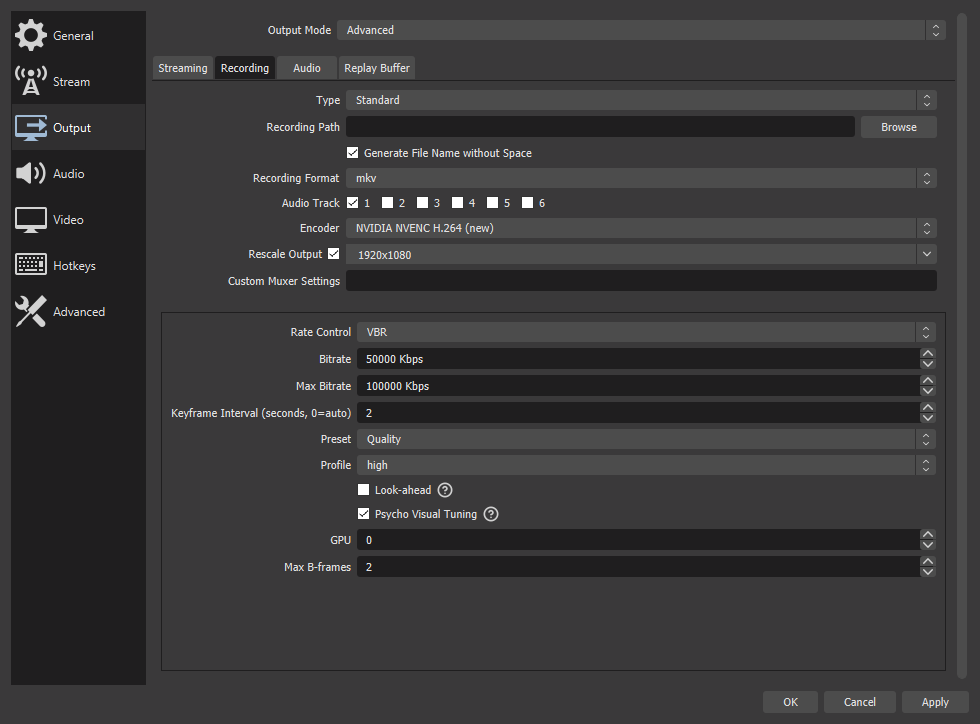
- Encoder:** The encoder is responsible for compressing and encoding your video data into a format that can be streamed or recorded. OBS offers various encoding options, including NVENC, x264, and more.
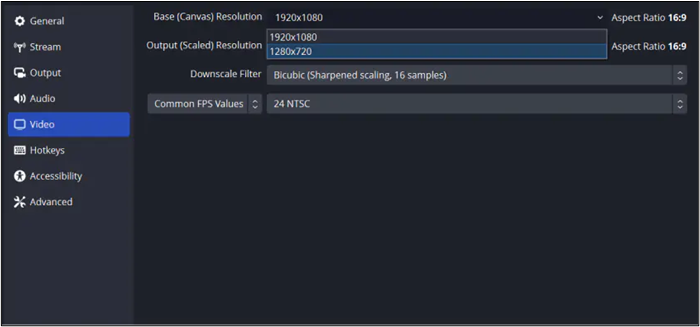
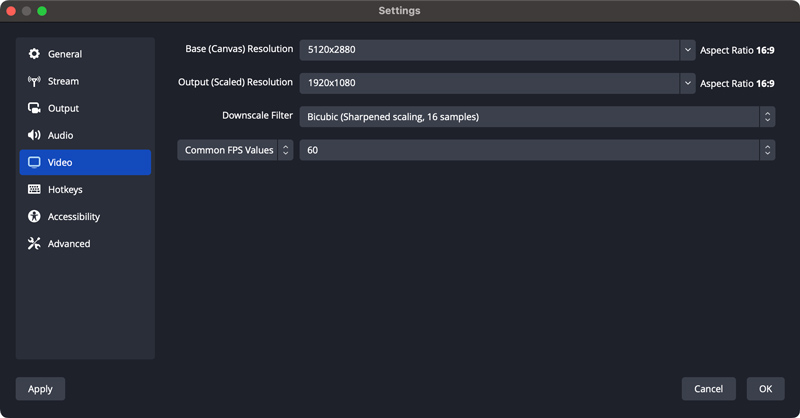
- Bitrate: This setting controls the amount of data used to encode video and audio. A higher bitrate generally results in a higher quality video but consumes more bandwidth. li>Resolution: The resolution of your video affects its quality, with 1080p being a popular choice for streaming.
- Frames Per Second (FPS): FPS affects the smoothness of your video, with 60 FPS being ideal for a clear and lag-free experience.
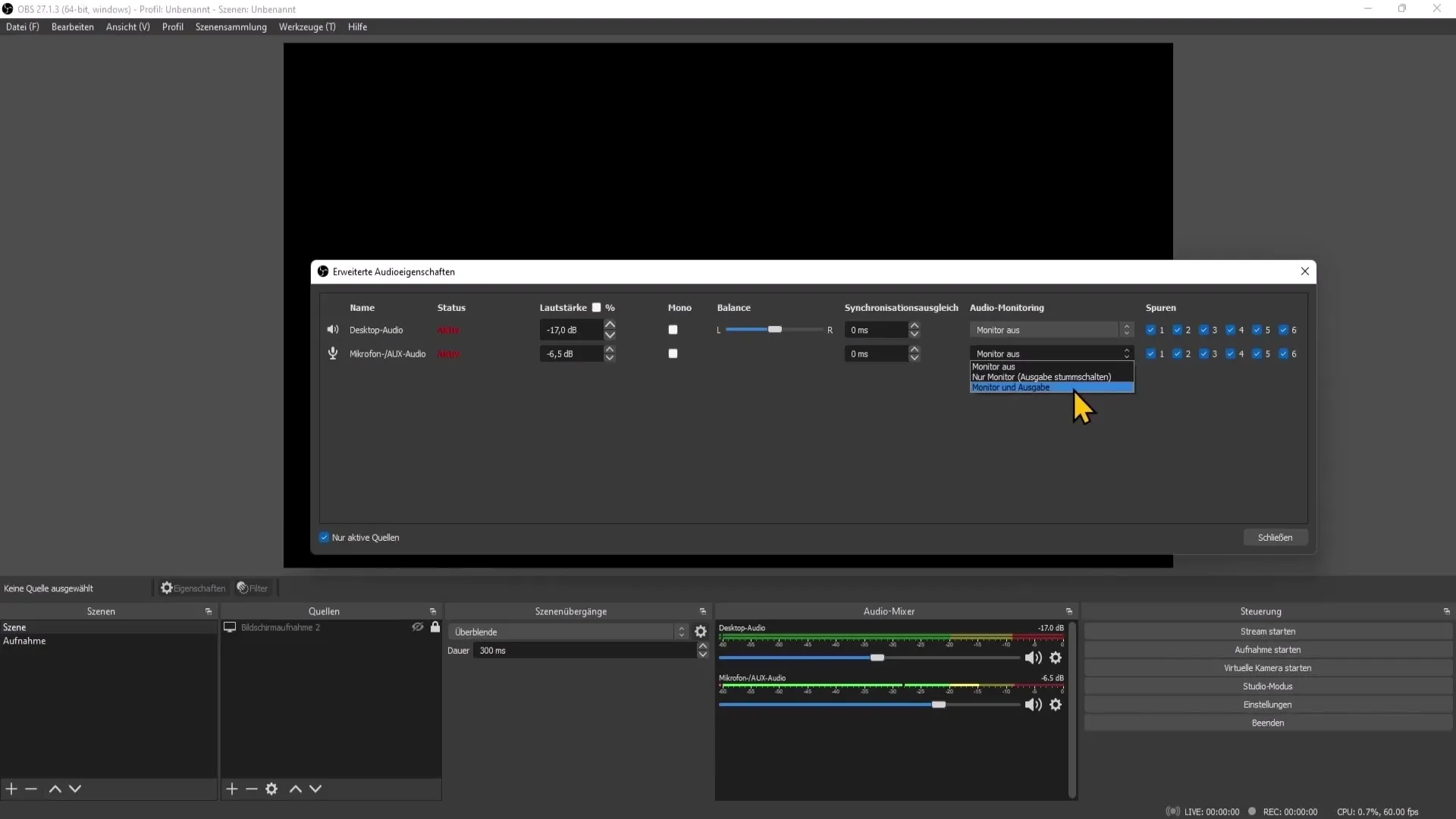
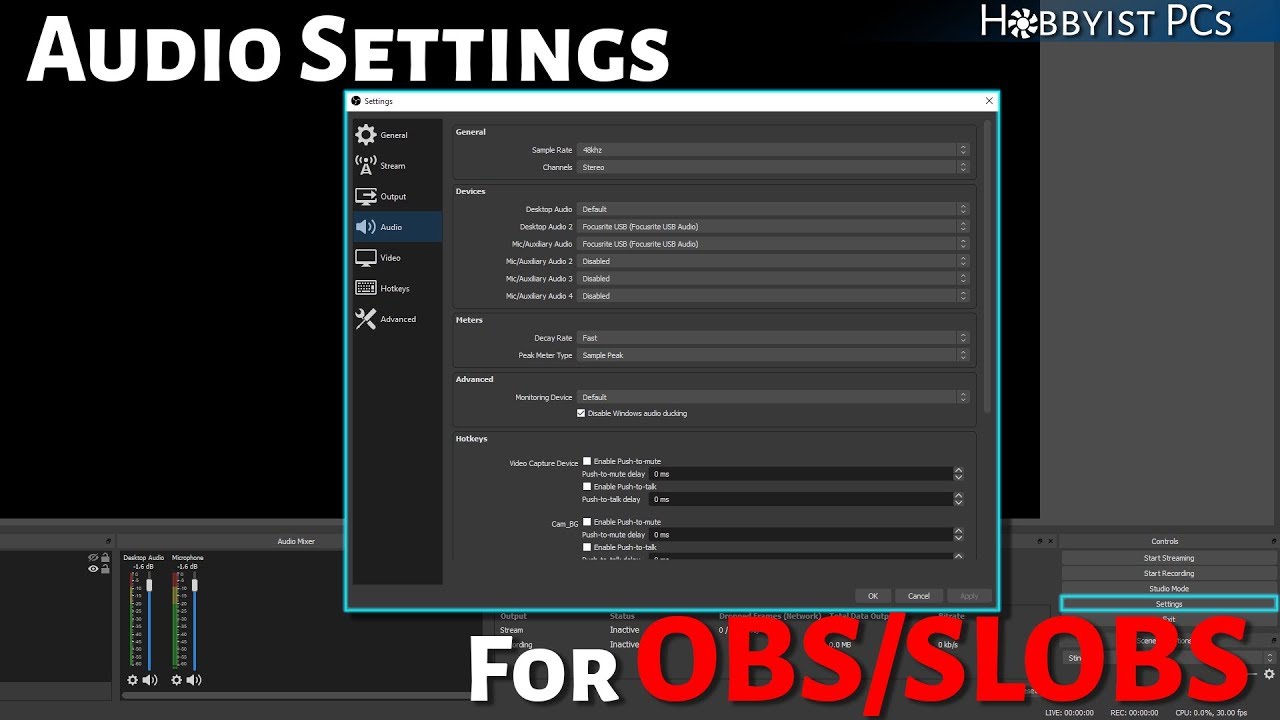
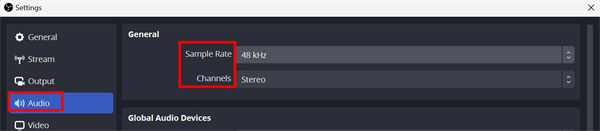
- Audio Configuration: Audio settings, such as bitrate, channels, and sample rate, play a crucial role in determining the quality of your audio.
Optimal OBS Settings for Streaming
Based on extensive research and testing, here are some recommended settings for optimal performance on various platforms:
Twitch Settings
- Encoder: NVENC
- Bitrate: 6000kbps
- Resolution: 1080p
- FPS: 60
- Audio Configuration: Select a bitrate of around 128-192 kbps for optimal audio quality.
YouTube Settings
- Encoder: x264
- Bitrate: 5000-6000kbps
- Resolution: 1080p
- FPS: 30
- Audio Configuration: Select a bitrate of around 128-192 kbps for optimal audio quality.
Facebook Settings
- Encoder: x264
- Bitrate: 3500-4500kbps
- Resolution: 1080p
- FPS: 30
- Audio Configuration: Select a bitrate of around 128-192 kbps for optimal audio quality.
Platform-Specific Setups
While the settings above provide a general guide, each platform may have specific requirements and recommendations. It's essential to familiarize yourself with the settings for the platform you're streaming on. For instance:
- Twitch: For 1080p60 streaming, use the NVENC encoder and a bitrate of 6000kbps.
- YouTube: For 1080p60 streaming, use the x264 encoder and a bitrate of 5000-6000kbps.
- Facebook: For 1080p60 streaming, use the x264 encoder and a bitrate of 3500-4500kbps.
Optimizing OBS for Smooth Performance
To maximize performance and ensure a smooth streaming experience, follow these additional tips:
- Update OBS Regularly: New updates often bring performance improvements, bug fixes, and support for new hardware encoders.
- Monitor Performance: Keep an eye on your CPU usage, GPU usage, and memory usage to identify potential bottlenecks.
- Adjust Encoder Settings: Experiment with different encoders and settings to find the optimal balance between quality and performance.
- Stream Quality: Prioritize quality over quantity; a lower bitrate may result in better performance, but at the cost of video quality.
Conclusion
Optimizing OBS settings is an ongoing process that requires experimentation and fine-tuning. By understanding the essentials of OBS settings and following the recommended settings for your platform, you'll be well on your way to achieving high-quality streaming and recording experiences. Remember to update your software regularly, monitor performance, and adjust encoder settings to find the perfect balance between quality and performance. Happy streaming!
![Best OBS Settings for Streaming on Twitch [2026 Updated]](https://cdn.shopify.com/s/files/1/0830/4384/4424/files/best_obs_setting_for_streaming_on_twitch.jpg?v=1743780503 "Best OBS Settings for Streaming on Twitch [2026 Updated]")
![How to Increase OBS Recording Quality [Best Settings & Guide 2026]](https://obsbot-static-resource.oss-accelerate.aliyuncs.com/product_system_back/product_img/best%20obs%20setting%20for%20recording%2004.jpg "How to Increase OBS Recording Quality [Best Settings & Guide 2026]")



![The Best OBS Settings for Streaming 2026 [with Pictures] - OBSBOT](https://i.ytimg.com/vi/_Q7rlv7XYX4/maxresdefault.jpg "The Best OBS Settings for Streaming 2026 [with Pictures] - OBSBOT")